Surveys: asking members a question
A survey collects answers from members. It rides on an announcement — you write the post, attach the questions, and members answer it from the same place they read the notice. Numbers for a fraternal weekend, preferences for a class night, a yes/no on a proposal.
Creating surveys is for coordinators and administrators. Every member can respond to one.
One thing to take in before you start: a confidential survey is not an anonymous one. Coordinators can always see who said what. Step 4 explains exactly what members are and are not promised. If you genuinely need a secret ballot — an arranging-brethren election, say — there is a separate Anonymous option; Step 5 covers it.
Reading time: about nine minutes.
Start from an announcement
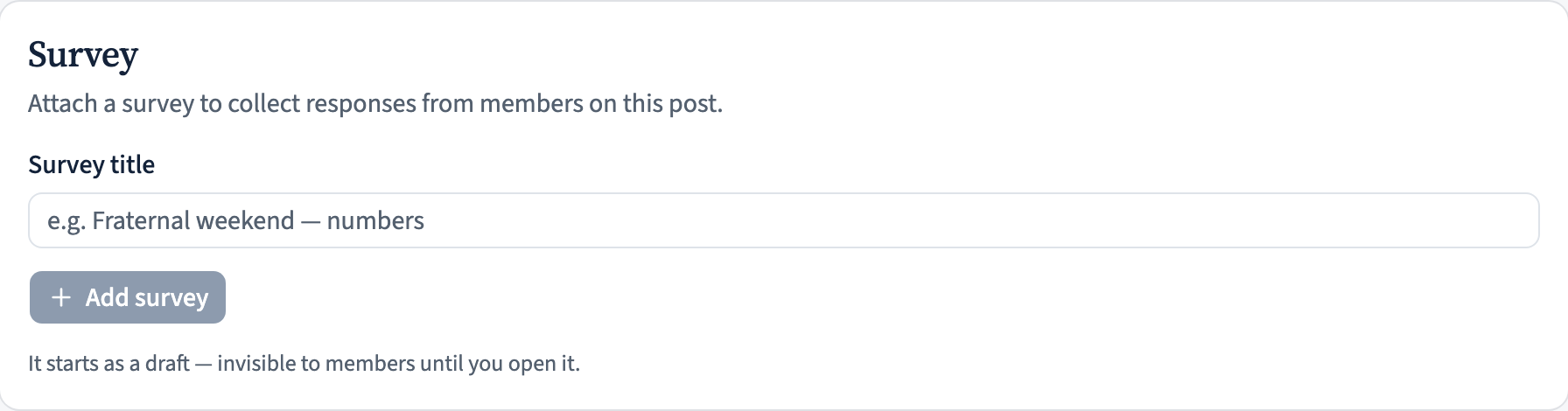
A survey attaches to a post, so write the announcement first. Save it as a draft if you are not ready to publish — the Survey panel appears once the post exists, because there has to be something to attach to.
Give the survey a title and click Add survey. It starts as a draft, which means members cannot see it yet even if the announcement itself is published. That is deliberate: you can take your time over the questions without anyone answering half-finished ones.
Write the questions
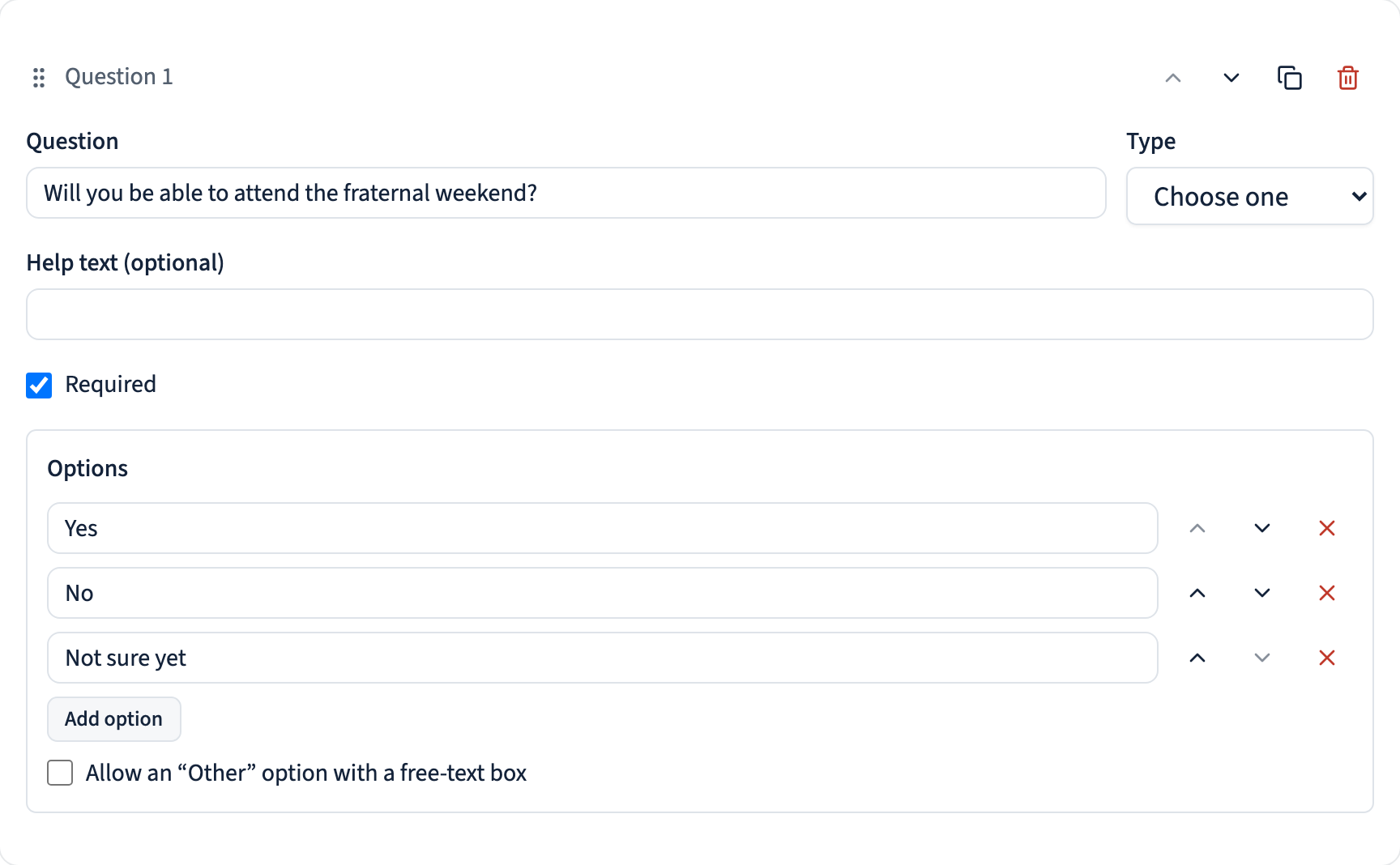
There are four question types:
- Choose one — radio buttons, exactly one answer.
- Choose several — checkboxes. You can set a minimum and maximum number of selections.
- Yes / no — the simplest question there is.
- Free text — they type an answer. You can cap the length.
Each question can carry help text and be marked required. On the choice types you can add an “Other” option, which reveals a free-text box when picked — useful when you suspect your list is not exhaustive.
Reorder with the up and down arrows on each card, and use Preview to see the survey exactly as a member will. Worth doing: surveys are effectively write-once, for the reason in the next step.
Questions freeze once someone answers
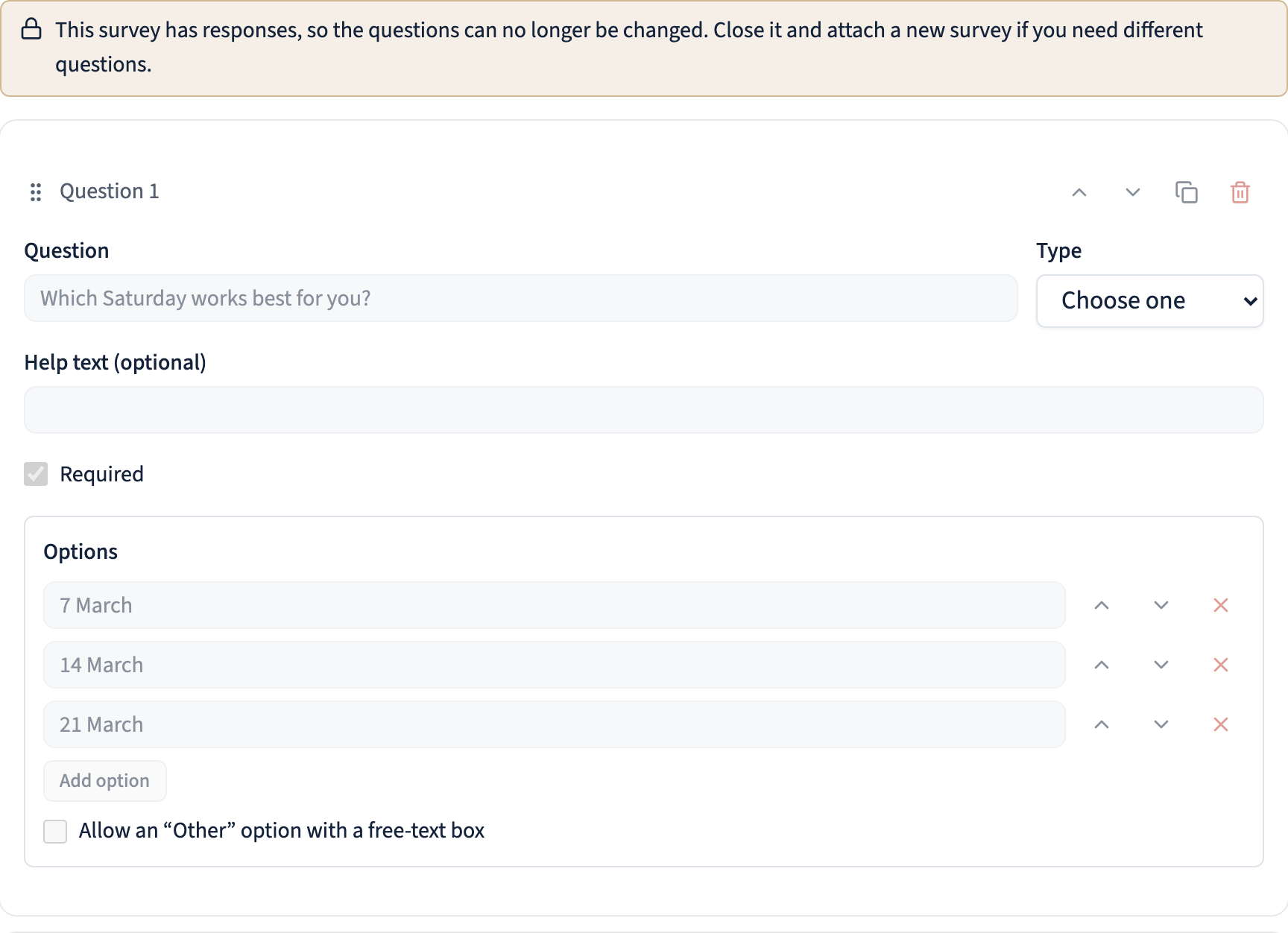
This is the rule to plan around. As soon as one person responds, the question set locks. The builder becomes read-only and explains why, so you will not discover it halfway through an edit.
It exists to protect your results. If a question could be reworded after ten people answered it, those ten answers would silently be answers to a different question — and nothing in the data would show it.
The settings stay editable throughout: title, description, closing date, who sees results. It is only the questions that freeze. If you need different questions, close this survey and attach a new one, so the original results stay tied to the questions people answered.
So: preview it, and if it matters, ask someone to read it before you open it.
Confidential is not anonymous
Ticking Confidential responses hides who said what from other members. It does not hide it from you. Identity, the time they submitted, and their network address are always recorded, and any coordinator can see them in the review screen and in the audit export.
So the accurate description — and the words the app uses to members — is “your name is hidden from other members; coordinators can still see who responded”. Please use that framing if you describe the survey in the announcement text too.
Do not tell your ecclesia a survey is anonymous. If a member answers a sensitive question believing nobody can trace it, and it later turns out a coordinator could, the damage is to trust rather than to data — and it will have been your wording that did it, not the software.
If a question needs genuinely untraceable answers — a formal ballot — Confidential is the wrong setting. Use the separate Anonymous option in the next step.
Confidentiality also locks once responses arrive, for the same reason the questions do — nobody should be able to change the promise after people have answered under it.

True anonymity — for a ballot
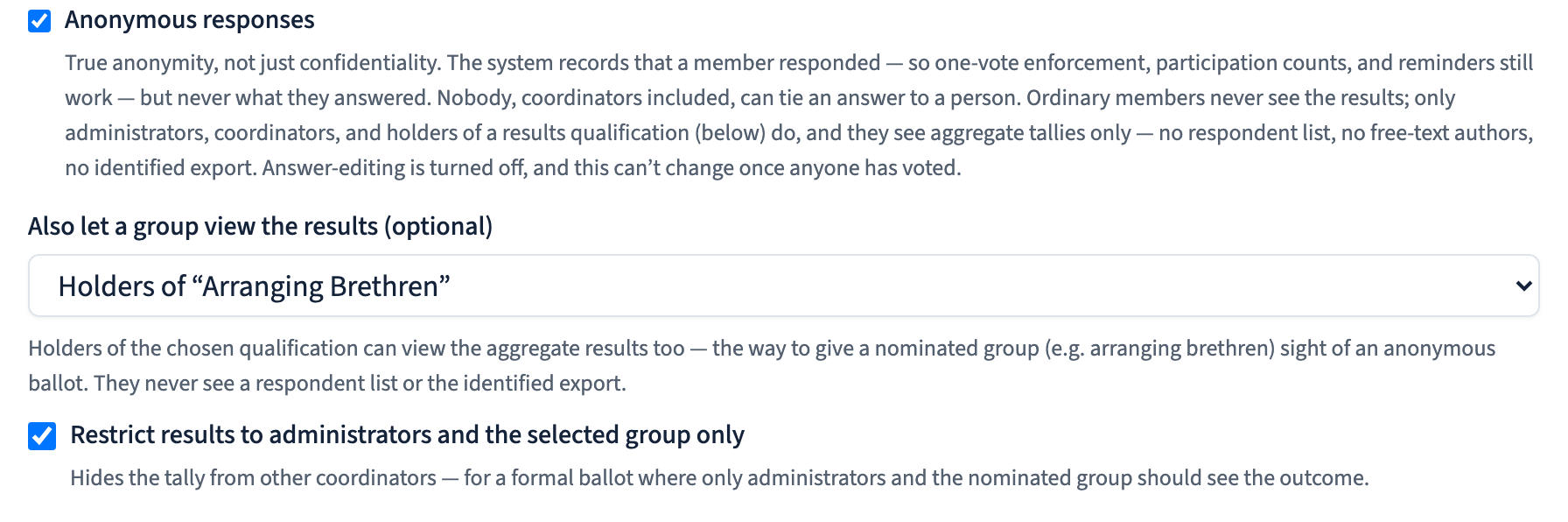
Anonymous responses is the real thing, and it is not the same as Confidential. Tick it and the system records that a member responded — so one-vote enforcement, participation counts, and reminders still work — but never what they answered. Nobody, coordinators included, can tie an answer to a person. It turns answer-editing off (an anonymous vote can’t be found to change) and can’t be switched once anyone has voted, so set it before you open.
On an anonymous survey, ordinary members never see the results. To let a nominated group see them — the arranging brethren reviewing an election, say — use “Also let a group view the results”. It lists your qualifications catalogue: create a qualification (e.g. “Arranging brethren”), assign it to those members, and pick it here. Its holders — plus administrators and coordinators — then see the aggregate tallies only: never a respondent list, never who wrote a free-text answer, and never the identified spreadsheet export.
So an arranging-brethren ballot is: write the questions, tick Anonymous responses, set Also let a group view the results to your arranging-brethren qualification, and — for a strictly-run election — tick Restrict results to administrators and the selected group only so no other coordinator sees the tally. Then open it. Everyone votes once; the brethren read the tallies; no one can see how any individual voted.
Two honest limits, worth knowing before you promise a secret ballot:
- By default the results are visible to administrators and coordinators too, not only the qualification holders. For a formal election, tick “Restrict results to administrators and the selected group only” (next to the group picker) — then other coordinators can’t see the tally, only administrators and the nominated group can.
- Anonymity holds all the way down. An anonymous ballot doesn’t even store a fine-grained submission time, so no one — not even someone with direct database access — can line up when a member voted against when an answer arrived to infer how they voted.
Decide who sees the results
Who sees the results has three settings: never shown to members, after a member responds (so seeing the running total cannot colour their own answer), or always visible.
Hide results until N responses guards small samples. With three replies in, a bar chart can identify individuals, which rather undoes the confidentiality you offered. Setting a threshold of five or ten is a sensible default for anything sensitive.
Let members change their answer is usually worth leaving on — people mis-tap, and plans change. Turn it off when a first answer needs to be final.
You can also set an opening and closing time. Before it opens members cannot see it; after it closes they can no longer answer.

Open it
When the questions are right, click Open survey. Members with access to the announcement now see it and can respond.
The natural order is: write the post, build the survey as a draft, publish the post, then open the survey. That way nobody meets a half-written question.
Close now stops further responses whenever you want, without waiting for the closing time. Results stay readable after closing.

Follow up on who has not answered
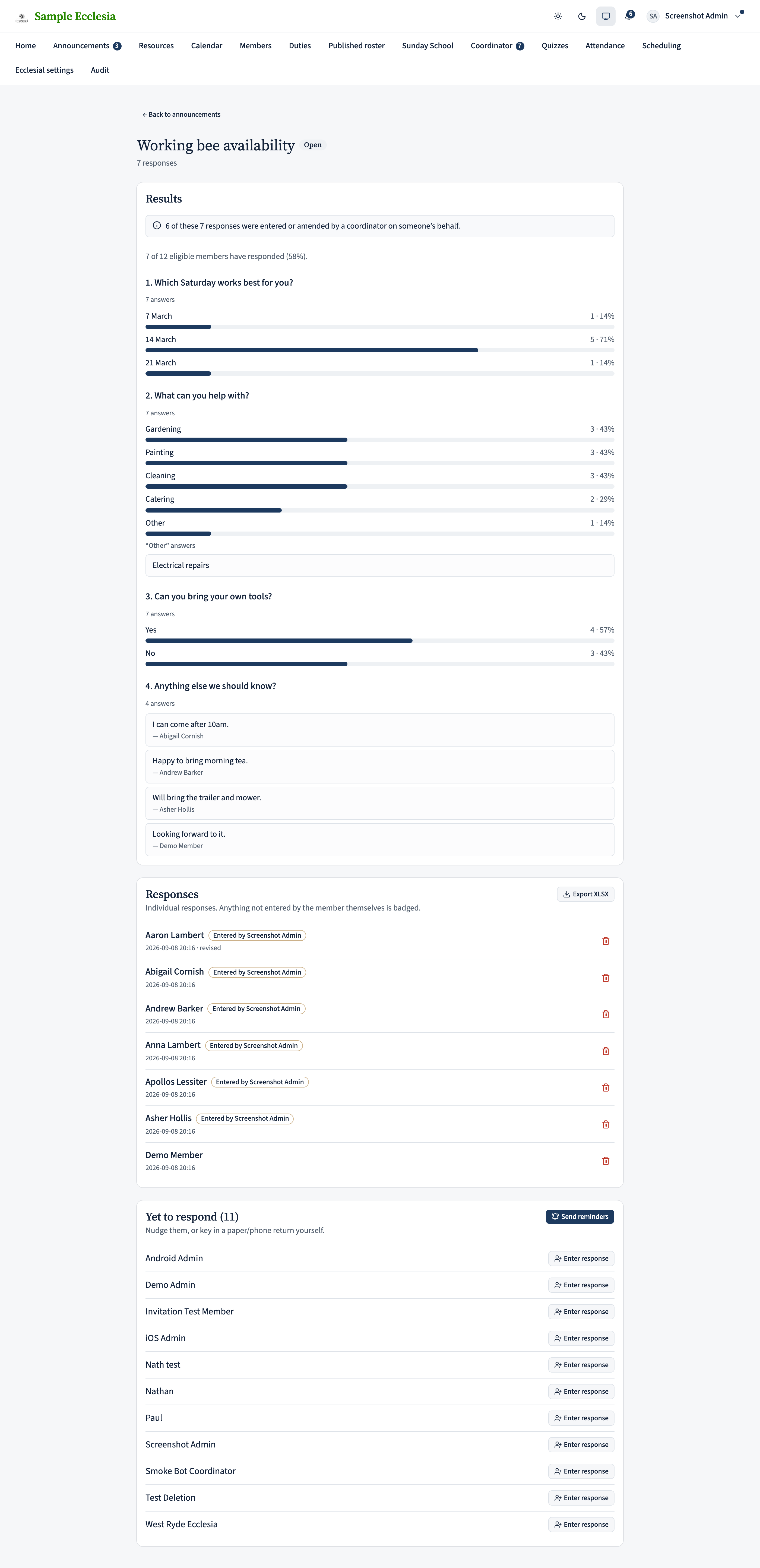
Review responses opens the coordinator view: the results, every individual response, and a yet to respond list.
Send reminders notifies only the people who have not answered, and only while the survey is open.
For someone who does not use the app, use Enter response to key in a paper or telephone reply on their behalf. Such a response is permanently badged as entered by staff, and shows who entered it — so it can never be mistaken for the member’s own submission. That badge is not removable, by design.
Read the results
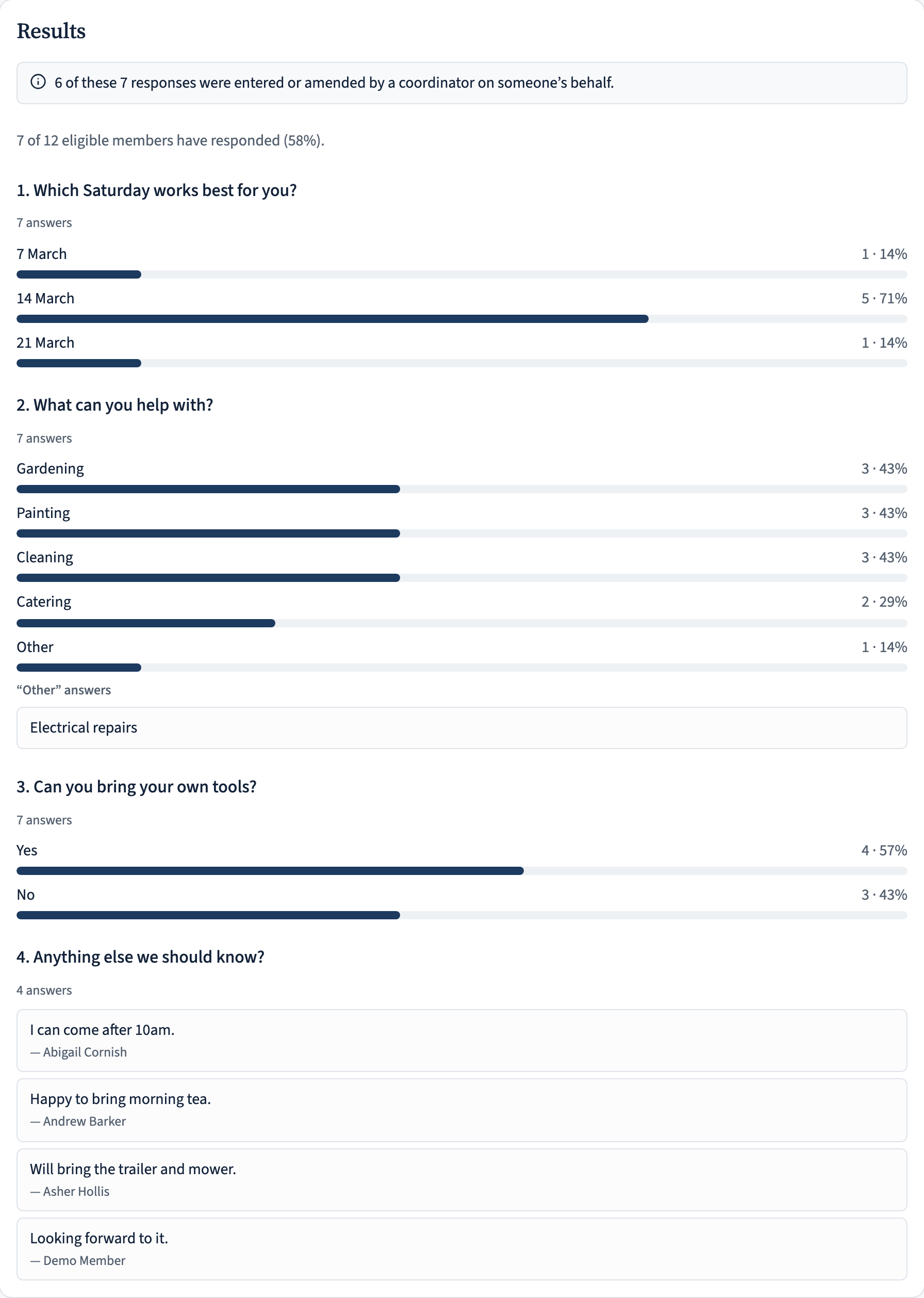
Each question shows a bar per option with the count and share, and a separate tally for Other answers.
Free-text answers are shown to you but withheld from members, even when results are set to always visible. People write identifying things in free text — naming a family, a health situation — without thinking about who will read it.
Download XLSX gives the full audit export: every respondent by name, timestamps, and the staff-entered badge. It names respondents even on a confidential survey, so treat that file the way you would any other pastoral record and think before forwarding it.
On the iPhone app
The app covers both sides of a survey — authoring one as a coordinator, and responding as a member.
Manage → Announcements lists posts; a survey badge marks the ones carrying a survey. Tap the compose (pencil) icon to start one.
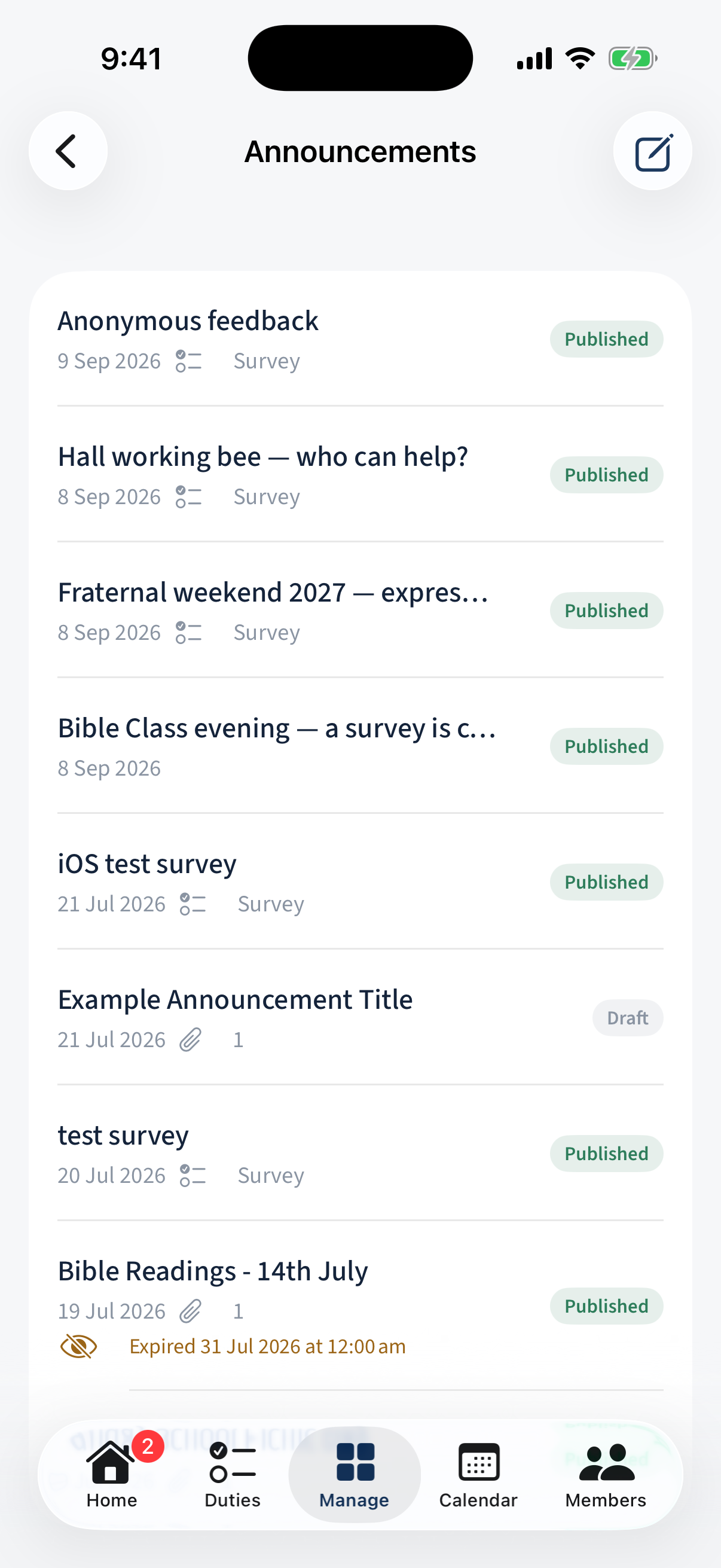
Manage → Announcements: posts with a survey badge marking those carrying a survey; a compose icon. In the composer, scroll to Survey → Add a survey.
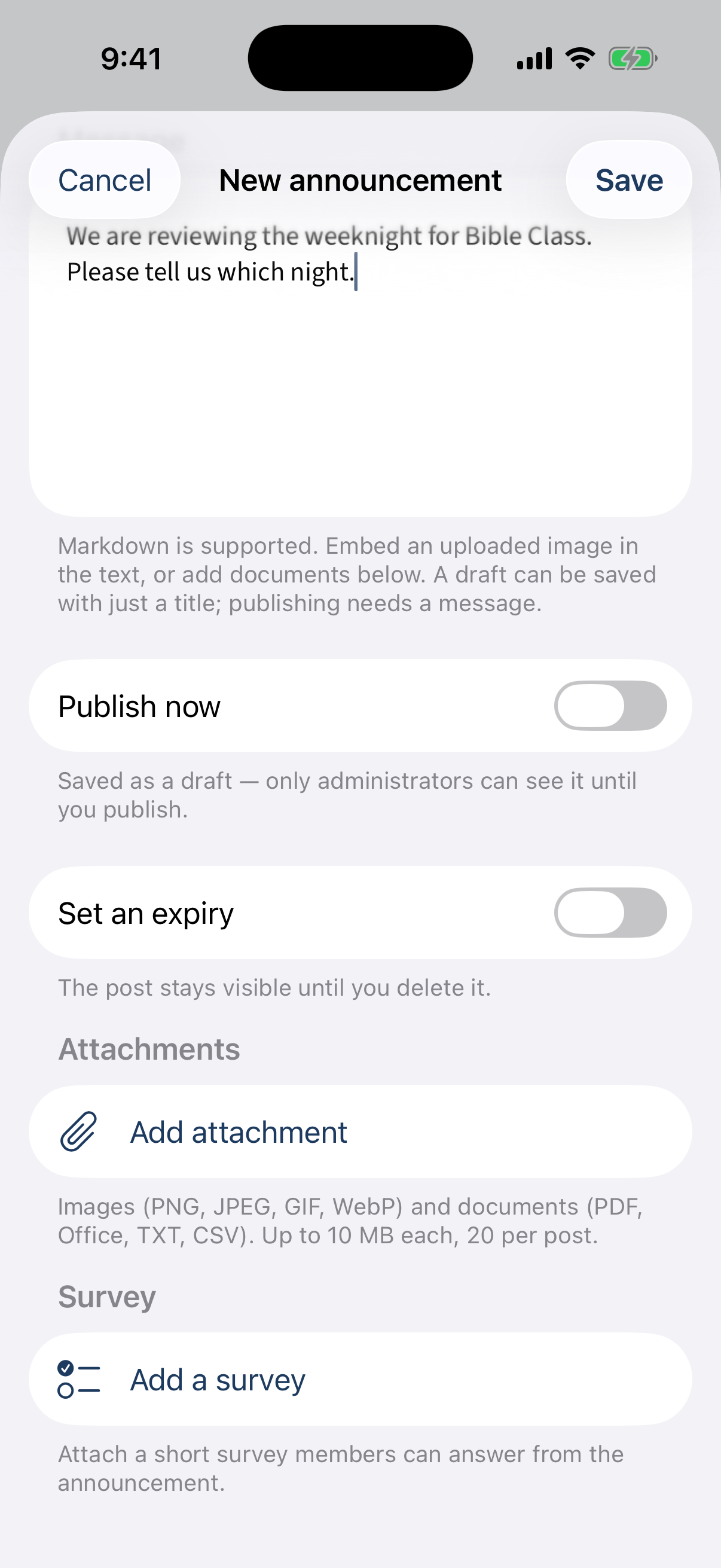
The announcement composer with Survey → Add a survey. In the survey editor, give it a title, add questions, and set Availability (status and optional open/close dates).
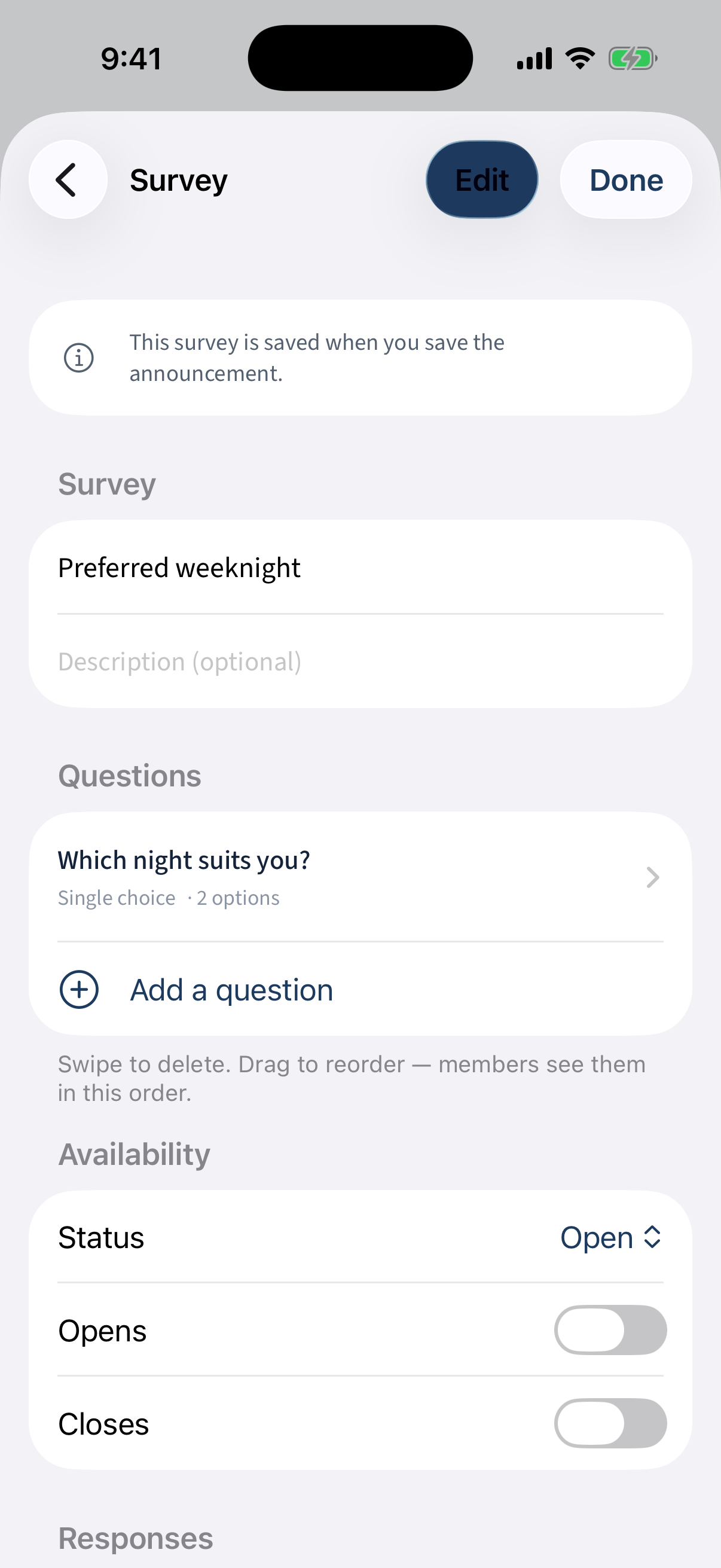
The survey editor: title, Questions, and Availability (Status, Opens/Closes). Each question has a Type, its text, optional help, a Required toggle, Options, and an optional “Other” choice.
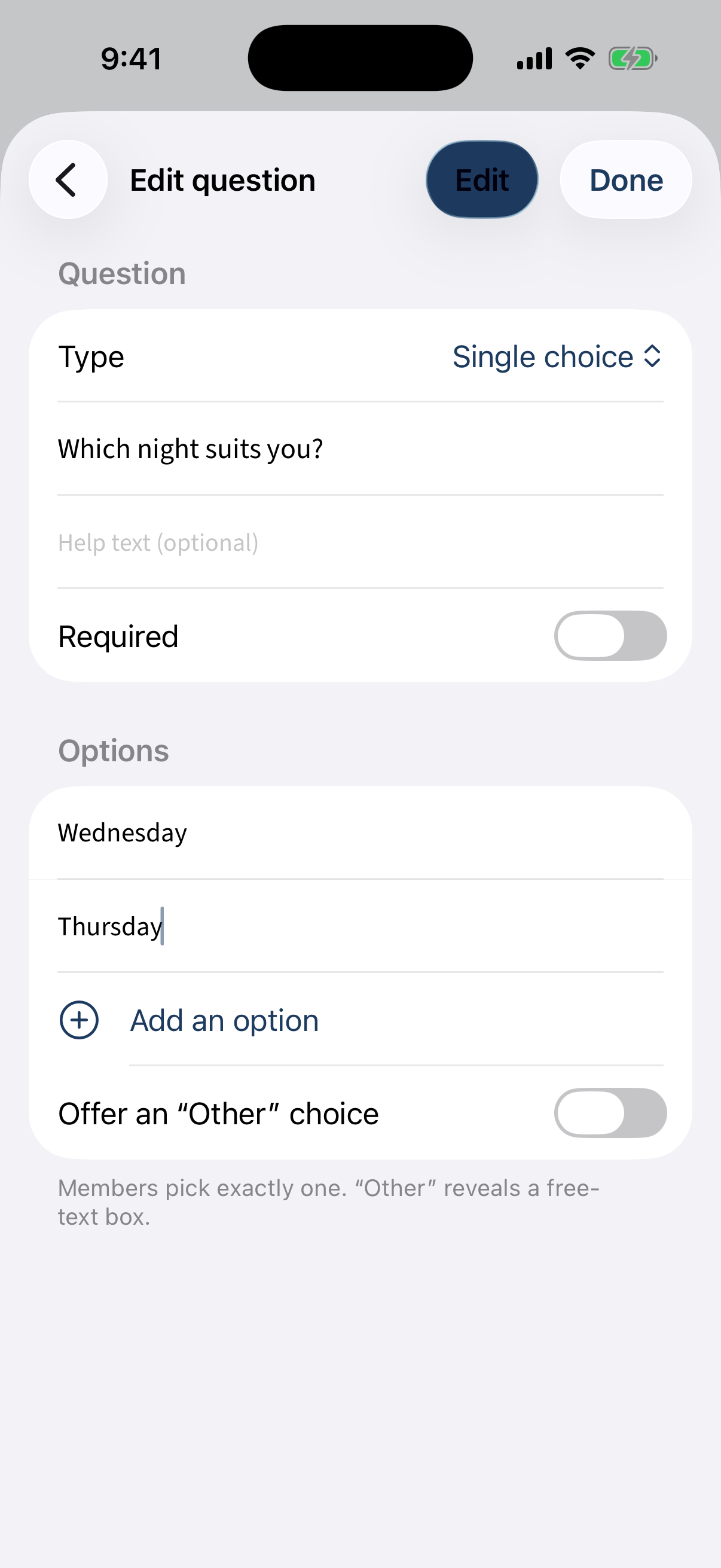
A question with Type, text, help, a Required toggle, Options, and an Other choice. Under Responses, the privacy picker offers Named, Confidential, and Anonymous (the secret-ballot mode), with “allow members to change their answer” and “show results to”. The survey saves when you save the announcement.
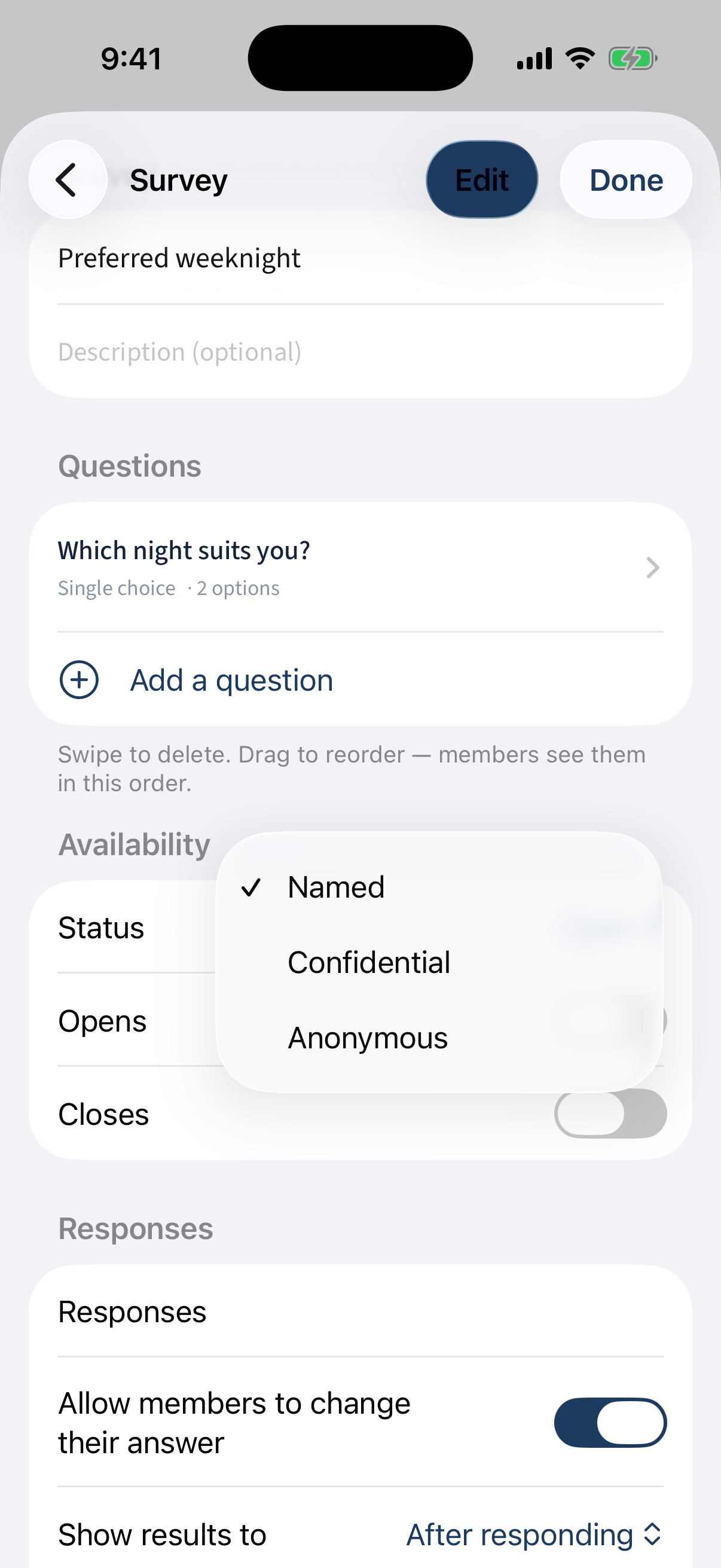
The privacy picker: Named, Confidential, Anonymous — plus allow-change and show-results-to. Members respond in the app too: a survey announcement shows the summary (“N questions · N responded”) and a Take the survey button.
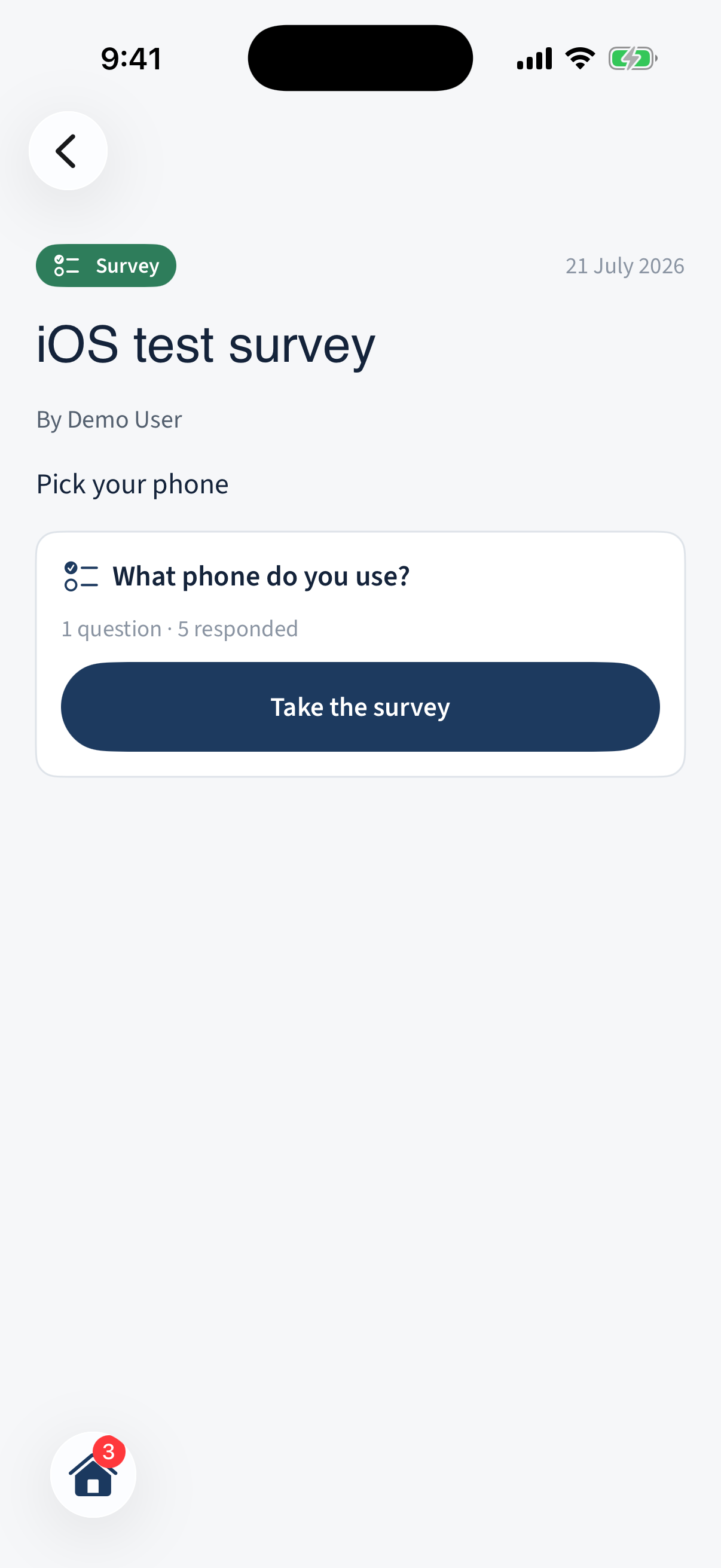
A survey announcement showing its summary and a Take the survey button. Take the survey opens the response sheet — one card per question, with Cancel / Submit in the nav bar.
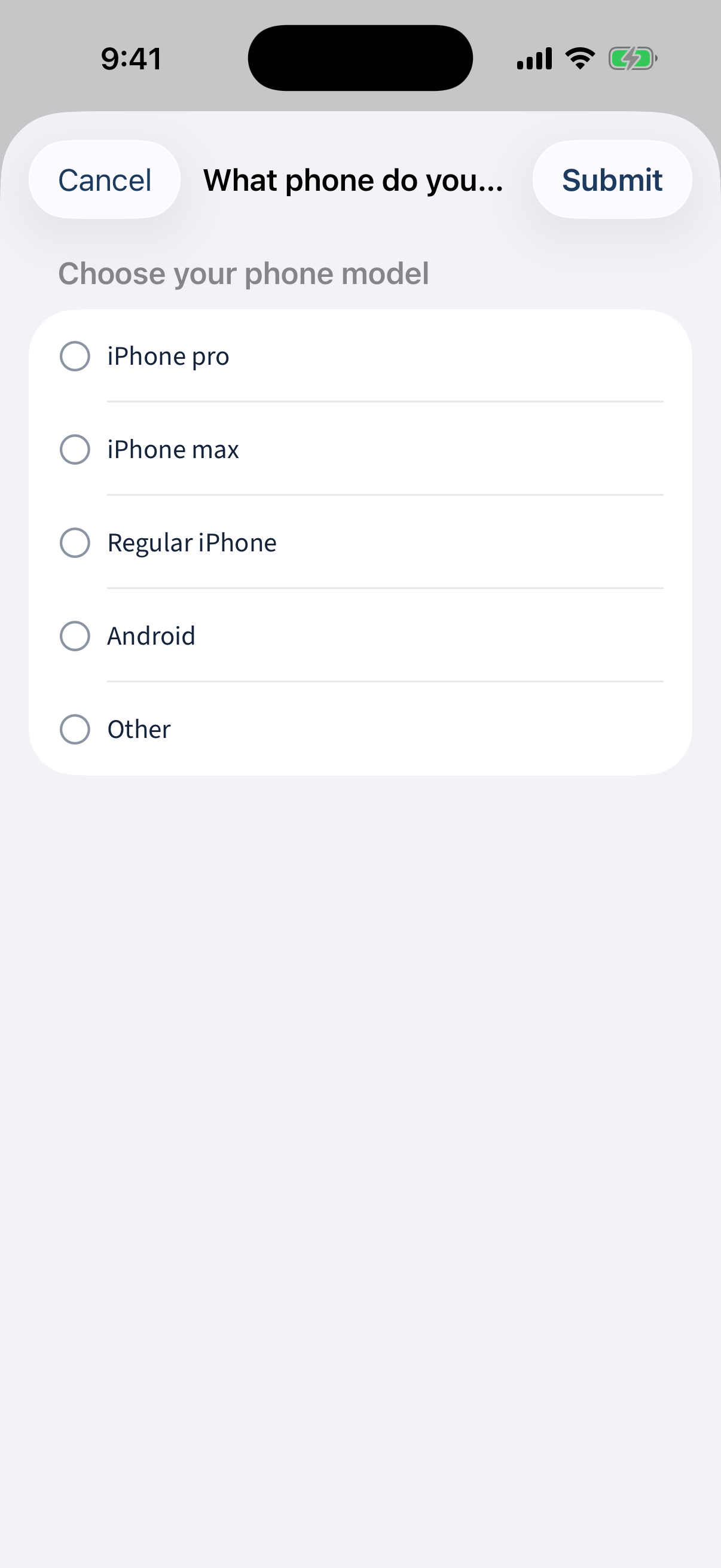
The response sheet: one card per question, with Cancel / Submit in the nav bar. An anonymous survey is marked on the announcement itself — an “Anonymous” badge beside the title and the assurance that answers are never linked to your identity, not even for coordinators — so a member can see a ballot is anonymous before opening it.
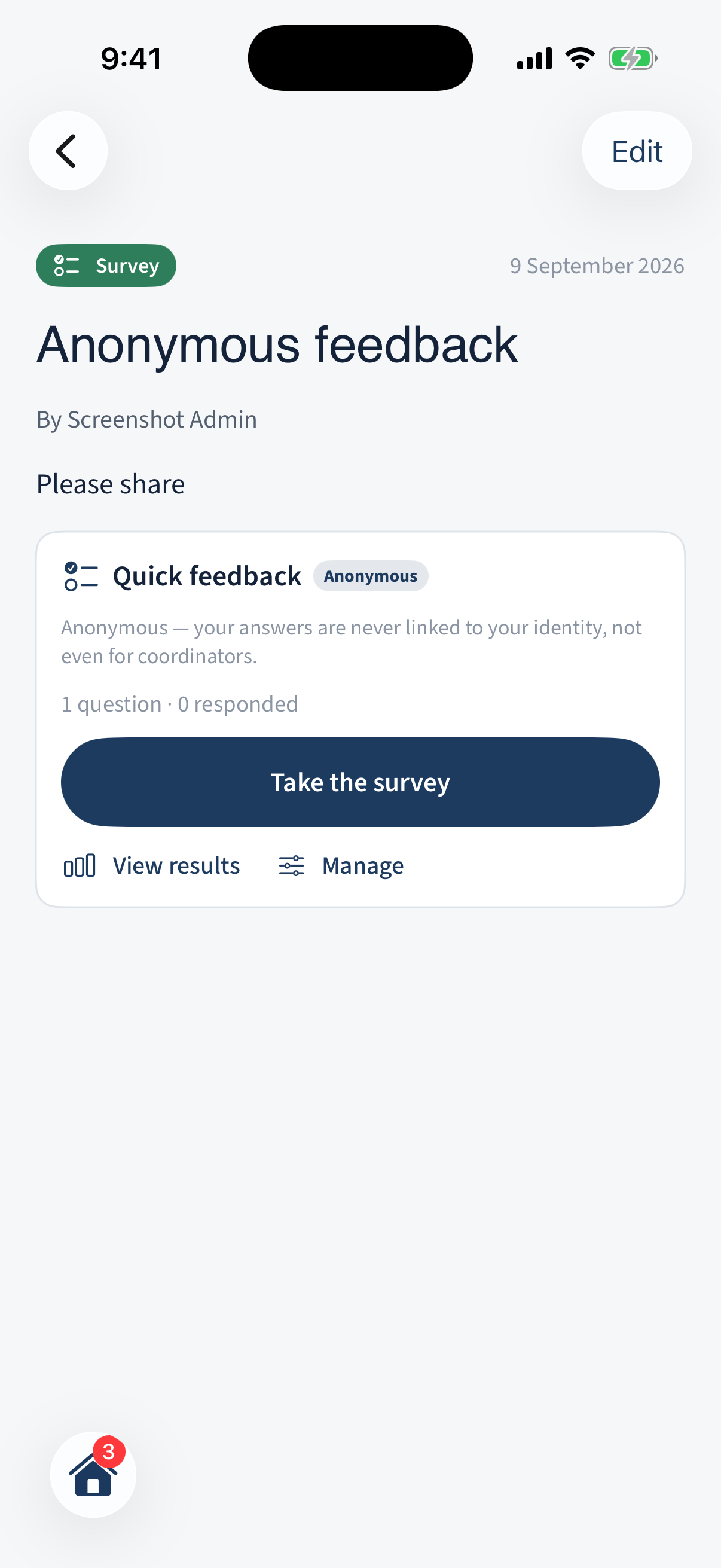
An anonymous survey announcement: an "Anonymous" badge beside the title and an explainer that answers are never linked to identity. The guarantee follows you into the response sheet: an eye-slash “Anonymous” banner sits above the questions while you answer, with the same assurance — the same note the web shows in its response dialog.
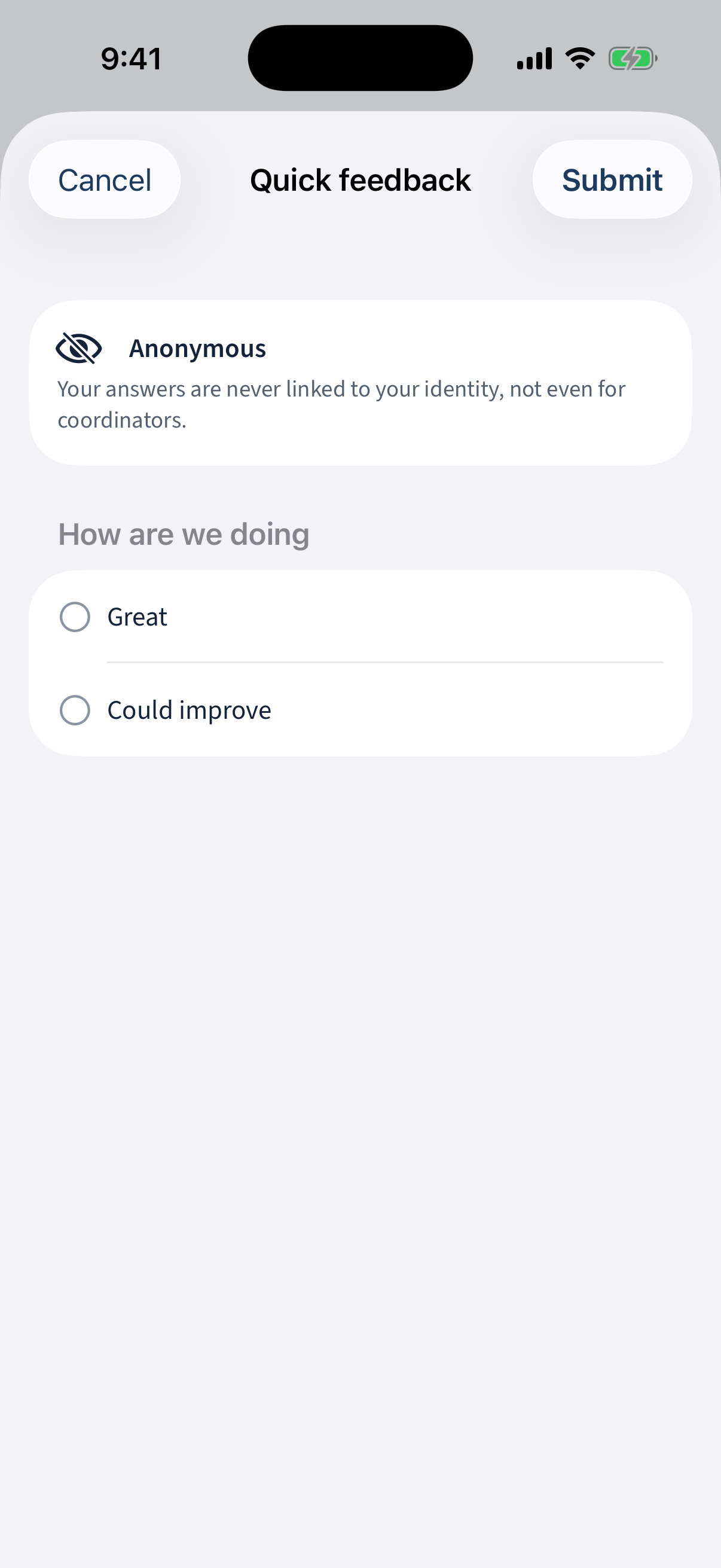
The anonymous response sheet: an eye-slash "Anonymous" banner above the questions repeating that answers are never linked to identity.
Different on the app: Nothing material — the privacy modes match the web, and the Anonymous assurance now shows both on the announcement card and inside the response sheet, just as on the web.
Before you open a sensitive survey
Worth a final check:
- If you promised members anonymity, did you tick Anonymous — not just Confidential? If you only meant “hidden from other members”, describe it as confidential, not anonymous.
- If results are visible to members, is there a minimum response threshold so a handful of answers cannot identify anyone?
- Have you previewed it? The questions freeze on the first response.
- Does it need to be a survey at all — or does the subject deserve a conversation instead?
A survey can be deleted only while it has no responses. Once people have answered, close it instead: their answers were given in good faith and the record stays.