Live quizzes: host a game night, play from any phone
Live quizzes turn a gathering into a game: a host puts questions on the big screen, everyone answers from their own phone or laptop, and the room watches the tallies and the leaderboard move in real time. Questions can be scored (one right answer, faster is worth more) or polls (no wrong answers, just the spread) — and one deck can mix both.
Who does what: any adult member can build decks and host sessions. Everyone — children included — can play. Visitors without a CDRoster account can play too, from a QR code, when the host allows it. The room only ever sees nicknames; the host’s console privately shows which member is behind each one.
Reading time: about six minutes.
Switch the feature on
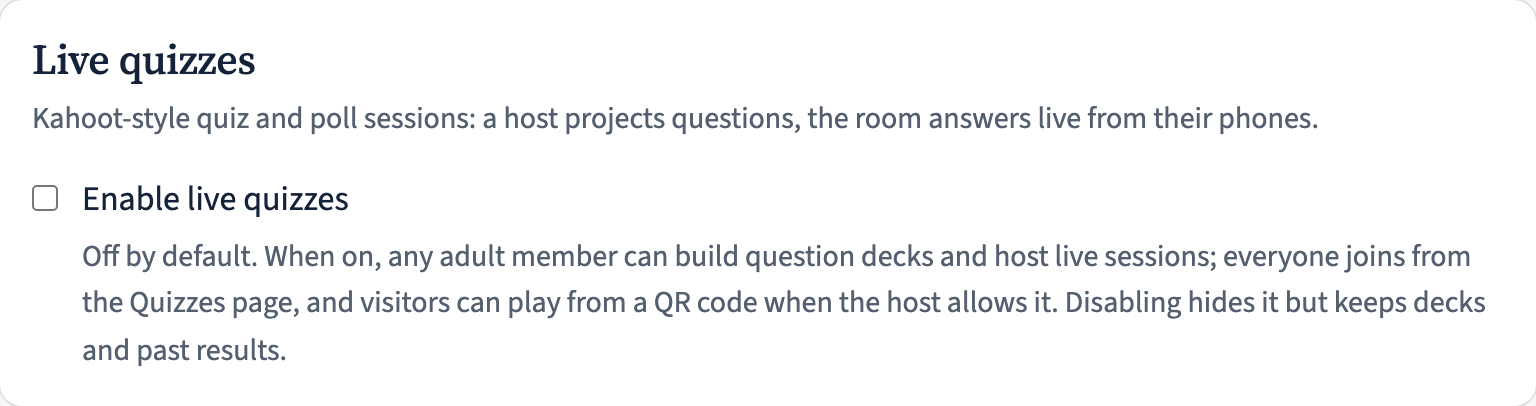
Live quizzes are off until an administrator enables them: Manage → Settings → Live quizzes. Once on, a Quizzes entry appears in the top navigation for every member. Switching it off later hides the feature but keeps decks and past results.
Build a deck of questions
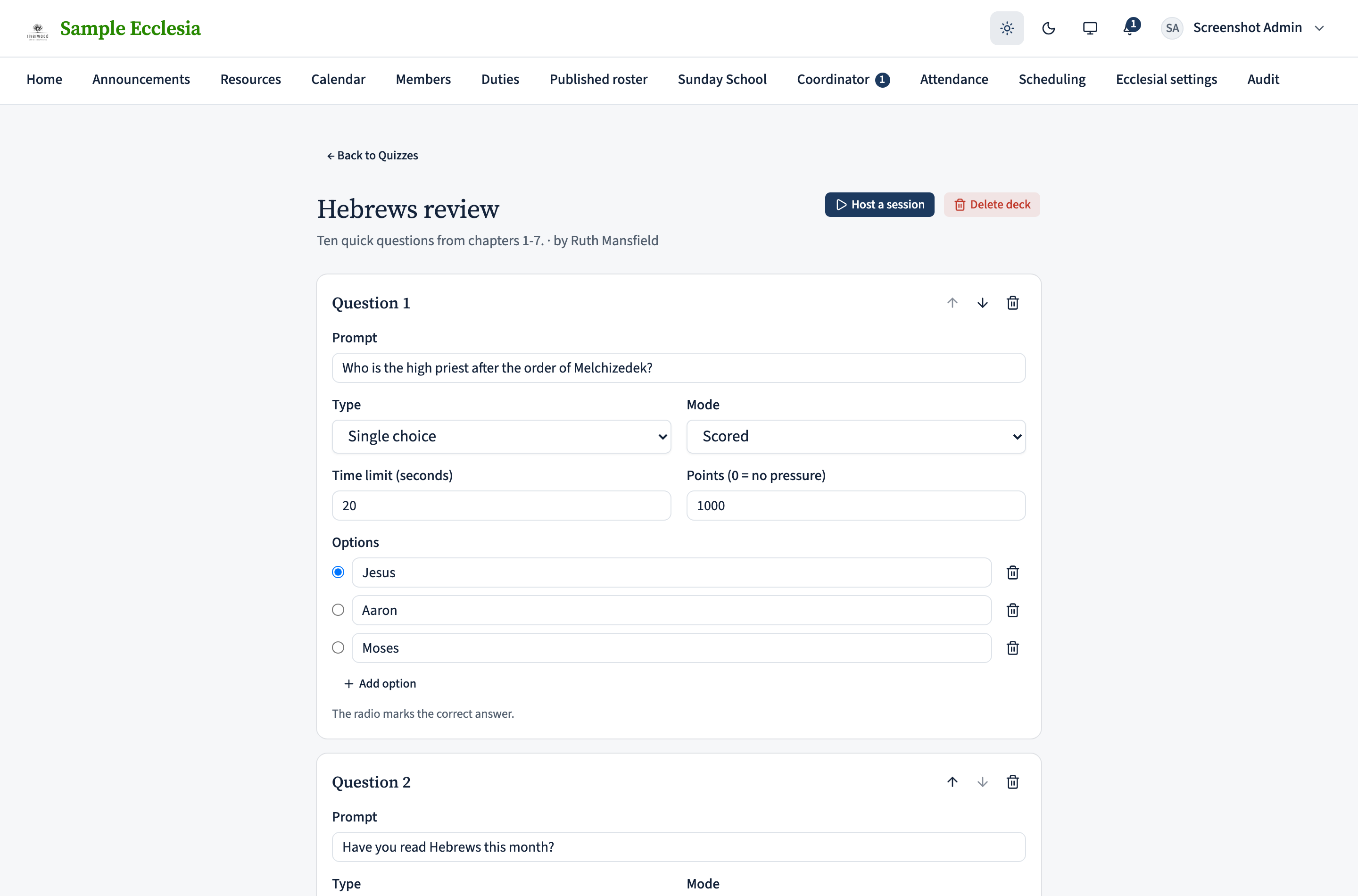
From Quizzes, click New deck, name it, and add questions. Each question is single choice (2-6 options), true / false, or multi choice (polls only), and is either scored — mark exactly one option correct, worth up to its points (default 1000, taper to half at the buzzer; 0 makes a no-pressure question) — or a poll. Every question has its own time limit (5-120 seconds).
Decks are a shared library: anyone adult can host a session from any deck, while editing stays with the deck’s creator (and coordinators). Sessions take a snapshot when they start, so you can freely edit a deck between runs without touching past results.
Done with a deck for now? Archive it (on the deck editor) to retire it from the library without losing its questions — it stops being hostable and drops out of the list, and you can Reactivate it any time from Show archived decks. That’s the reversible tidy-up; Delete deck is the permanent one. Neither touches a session that’s already running or finished.
Host a session — pick the look
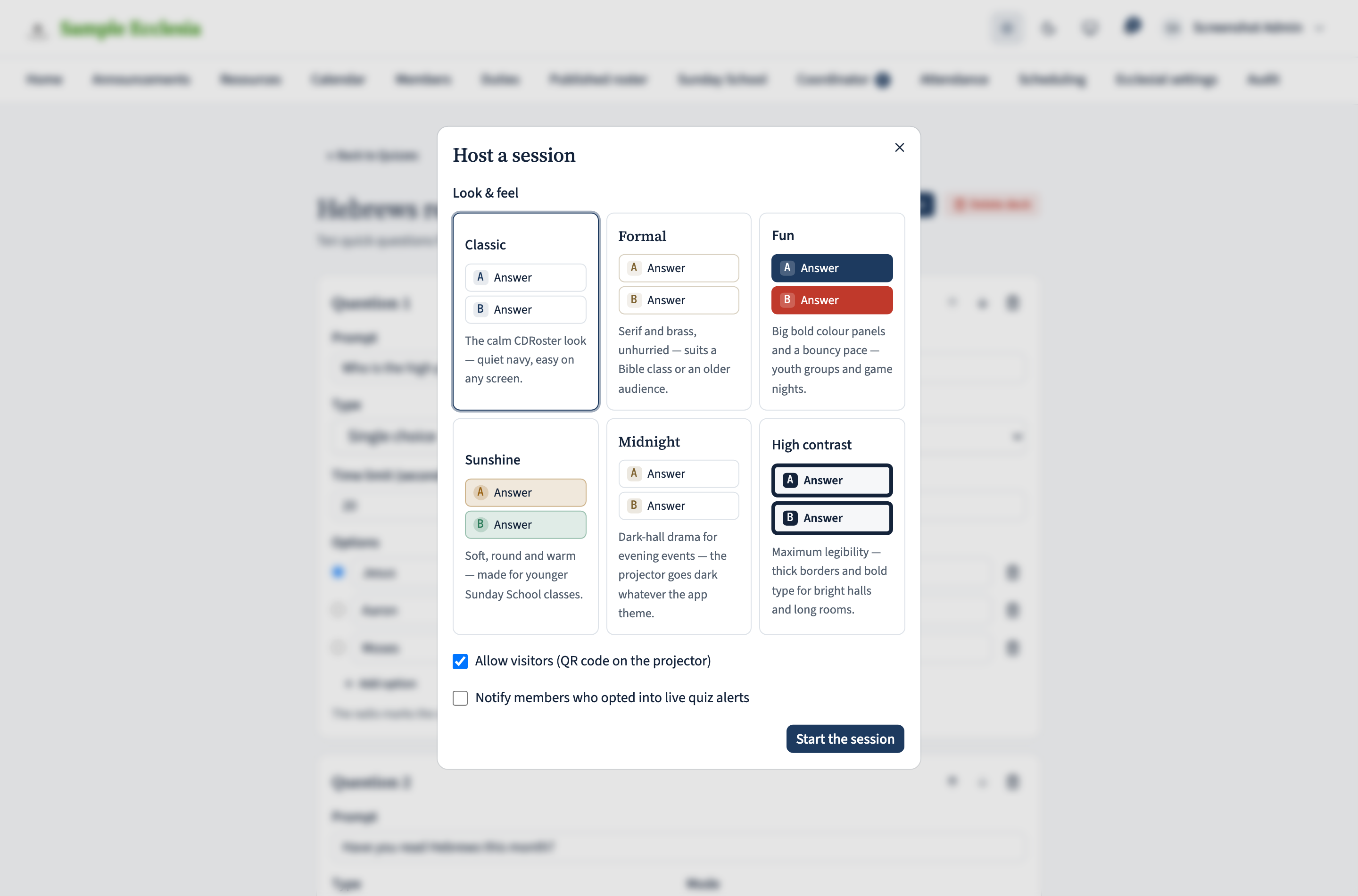
Open the deck and click Host a session. Pick a look & feel for the room — from Formal (serif and unhurried, options numbered I, II, III) through Fun (big colour panels, game-show pace) to High contrast for bright halls — and decide two things: whether visitors may join from the projector QR, and whether to notify members who opted into live quiz alerts (off by default; the in-app list is the usual way in).
Your console drives the whole session with one button: start the quiz, close a question early and reveal, next question, finish. Questions also close themselves when the timer runs out or everyone has answered. You can rename or remove any participant mid-game.
Put it on the big screen
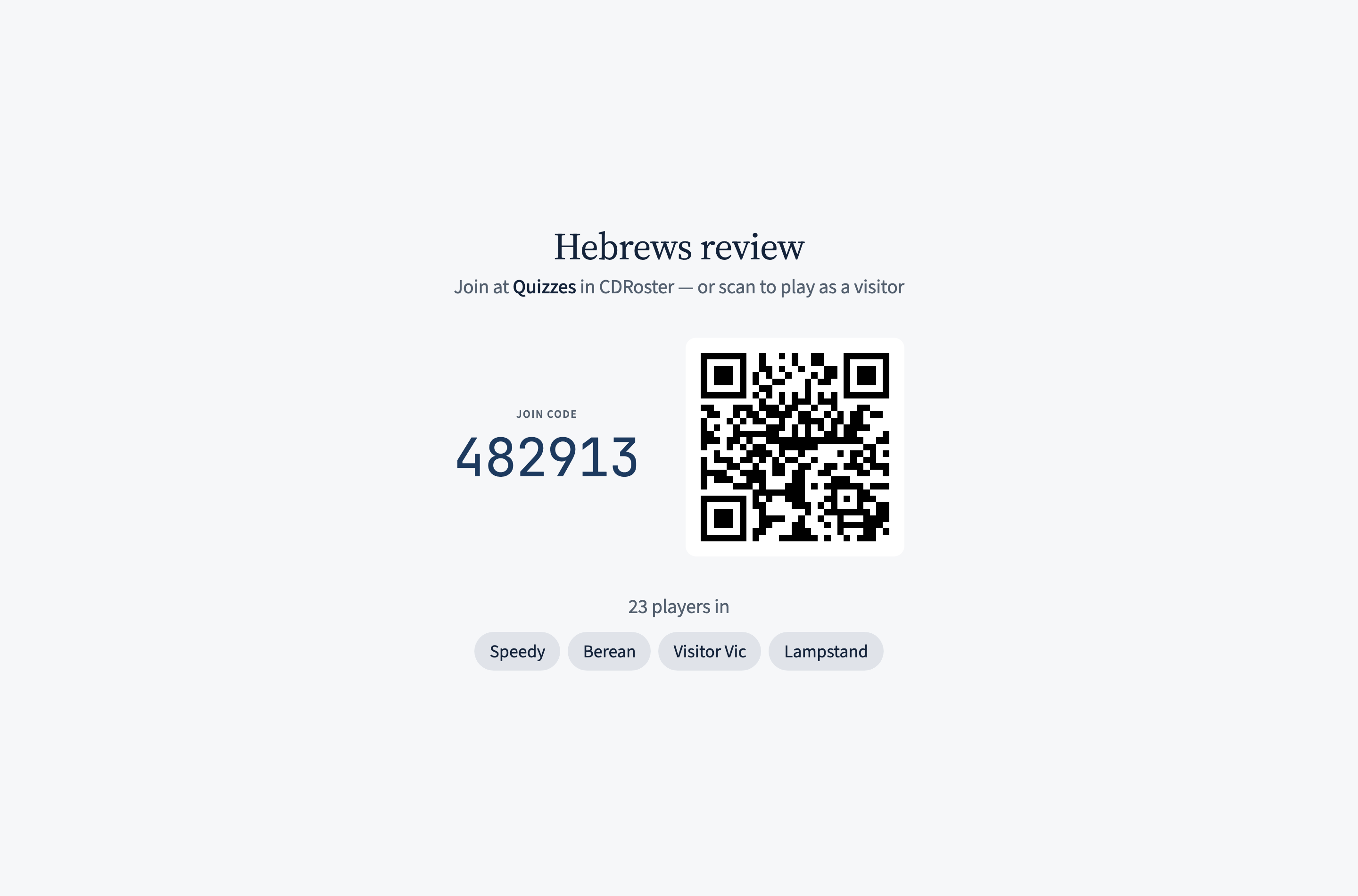
From the console, Open projector view launches a clean full-screen tab for the hall display: the join code big enough for the back row, a QR code for visitors (when allowed), then each question with its countdown, the answered ticker, the reveal, and the final podium. The projector shows nicknames only — never real names.
Join and play — members
On your phone or laptop, sign in to CDRoster in your browser and open Quizzes — a live session appears under Happening now. Join with a nickname (that’s all the room sees), and your device becomes the controller: tap an answer to lock it in, watch the screen for the reveal. If your CDRoster mobile app shows a Quizzes area, joining there works the same way; otherwise the phone’s browser is all you need.
If you opted into live quiz alerts (Notification preferences → Live quizzes), a session started with “notify members” pings your devices with a link straight into the game. Joining late mid-quiz is fine — you just missed the earlier questions.
Join as a visitor — no account needed
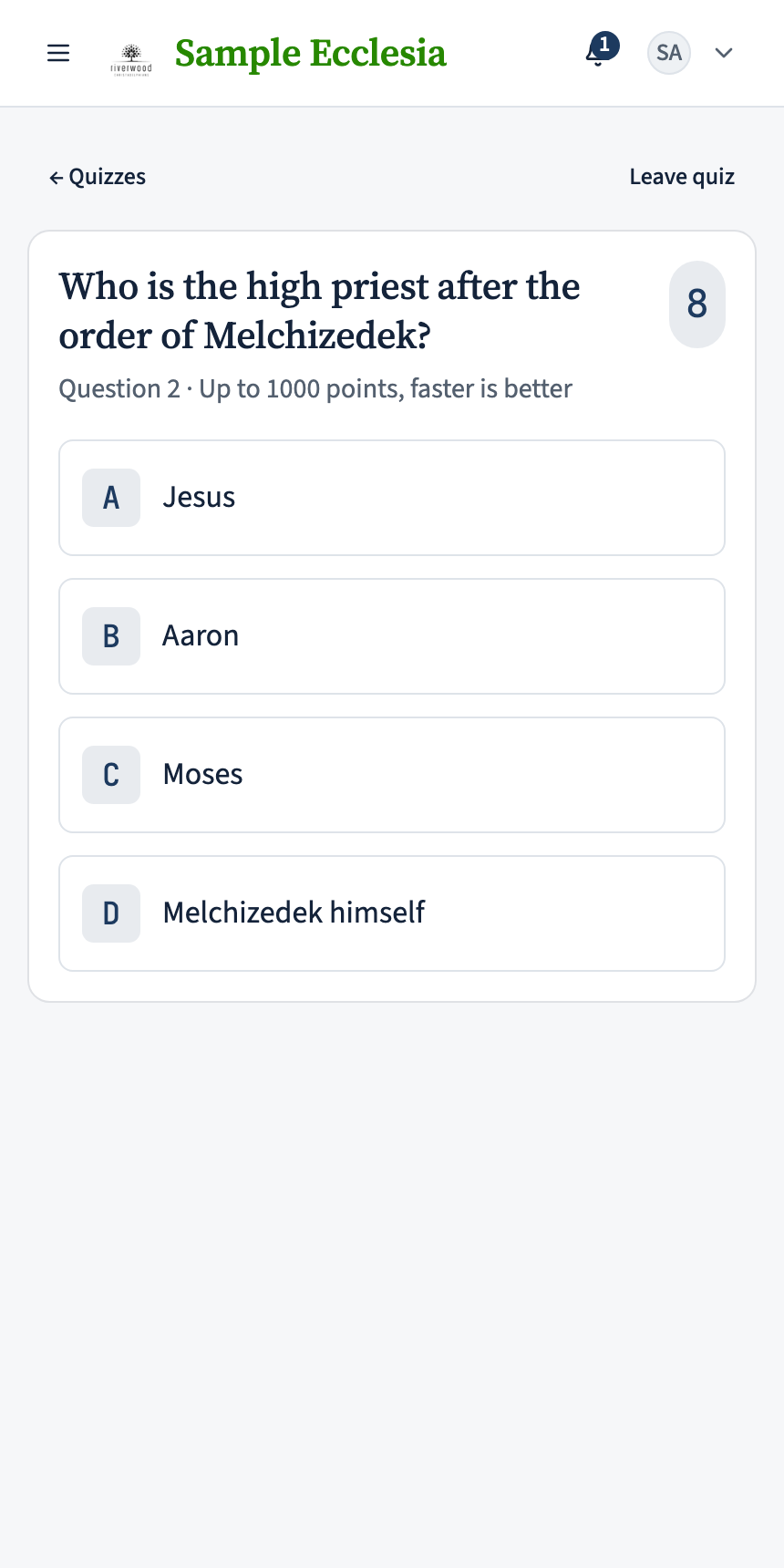
A visitor scans the projector’s QR code (or types the address it shows), enters the six-digit code and a nickname, and plays exactly like a member — no account, no app, nothing to install. Their access lasts for that one session: they can watch the final leaderboard afterwards, and nothing about them is kept beyond the game. If the host started a members-only session, the code politely finds no quiz.
Scores, reveals, and the podium
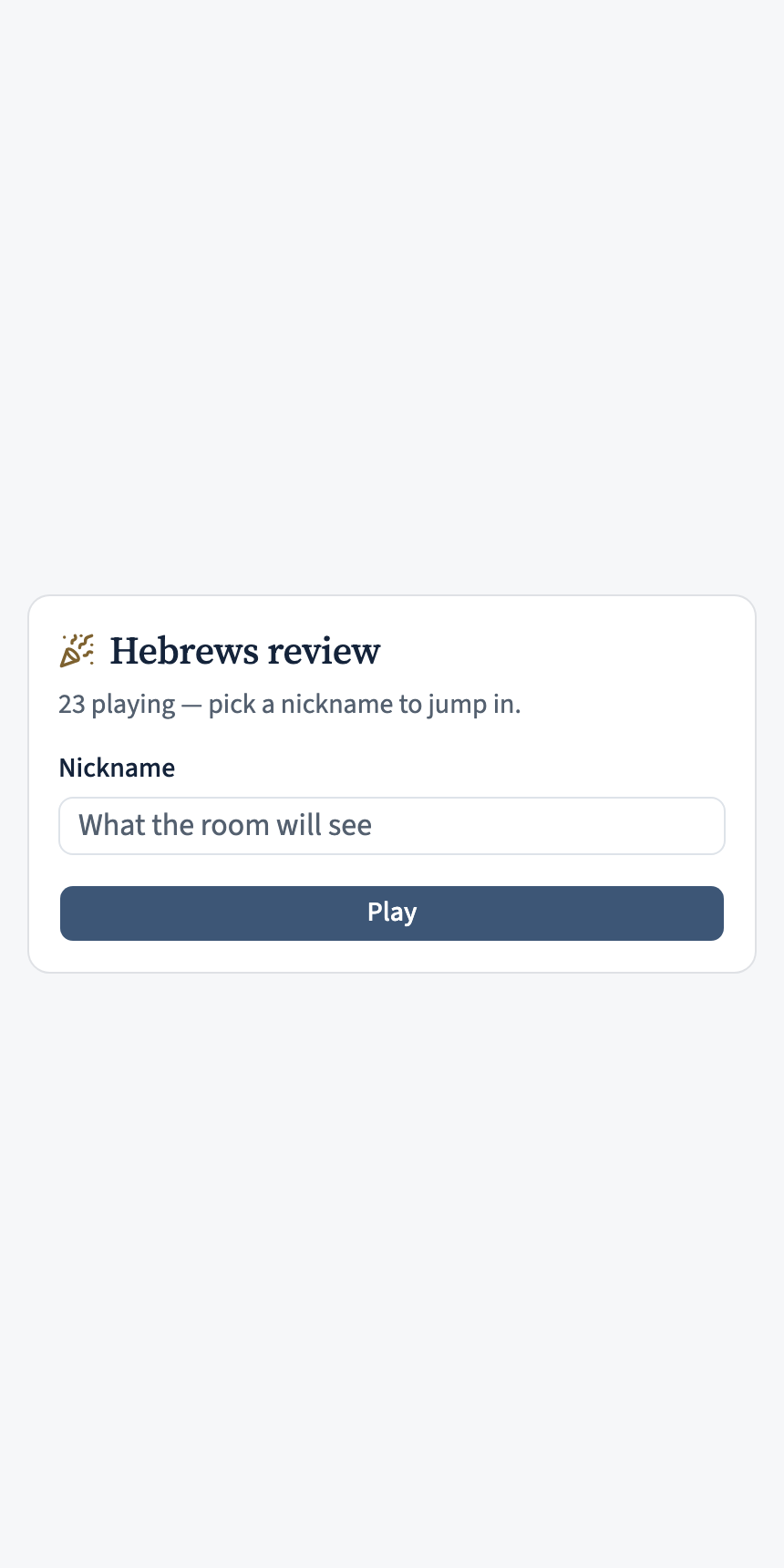
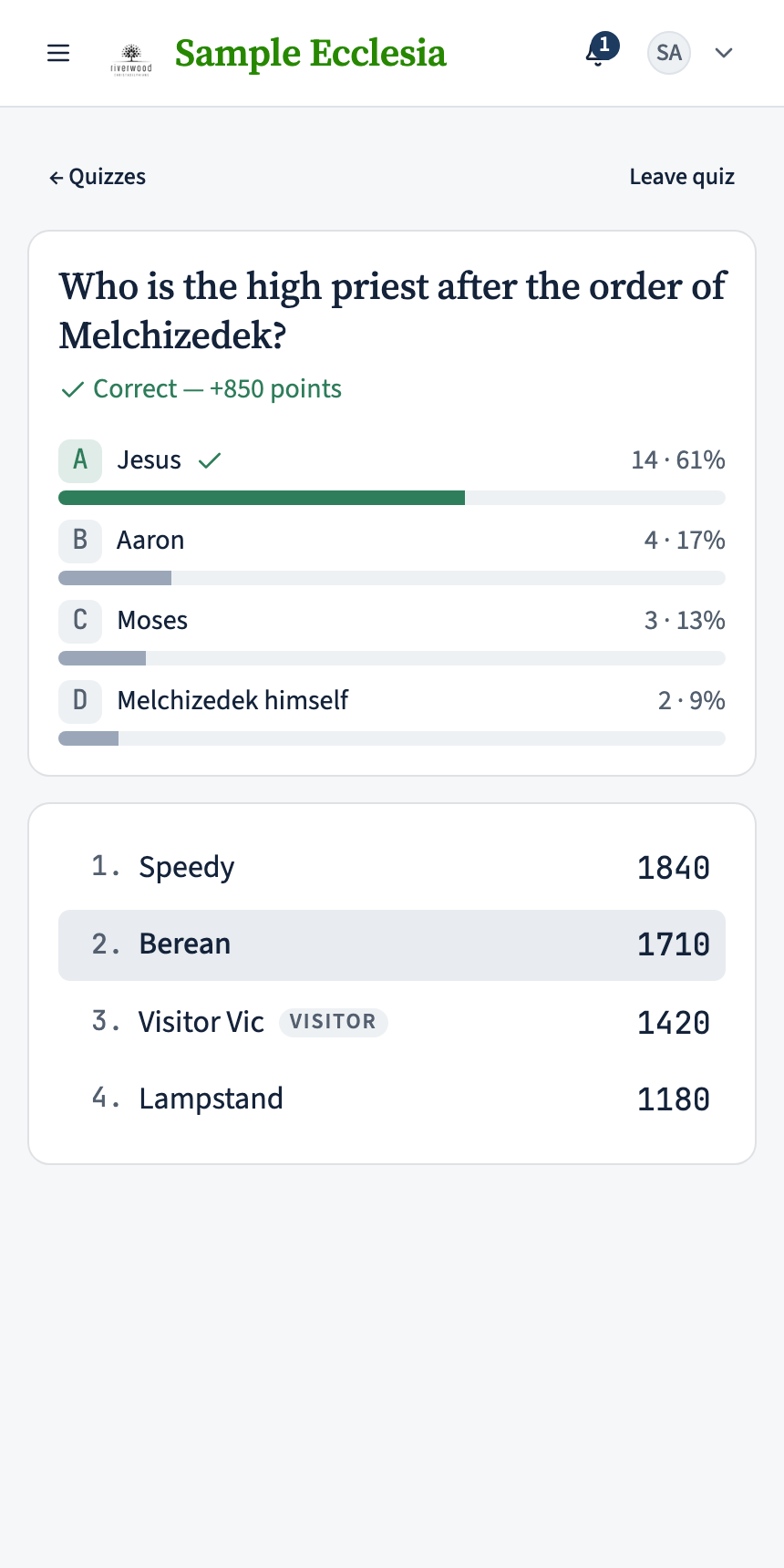
While a question is open, nobody — not even your own phone — knows the right answer; everyone learns it together at the reveal, along with the tallies and your points. Speed matters on scored questions: a correct answer at the buzzer earns full points, tapering to half at the deadline. Ties share a rank. Polls skip all of that and just show the spread.
After the last question the projector shows the podium. The session stays under Past sessions on the Quizzes page, final leaderboard intact, until the host deletes it.
On the iPhone app
Join, start, and end quiz sessions from the app; the live play (advancing questions, the projector) is run from the web.
Profile → Quizzes lists every quiz (e.g. “Bible Quiz Night · 1 question”).
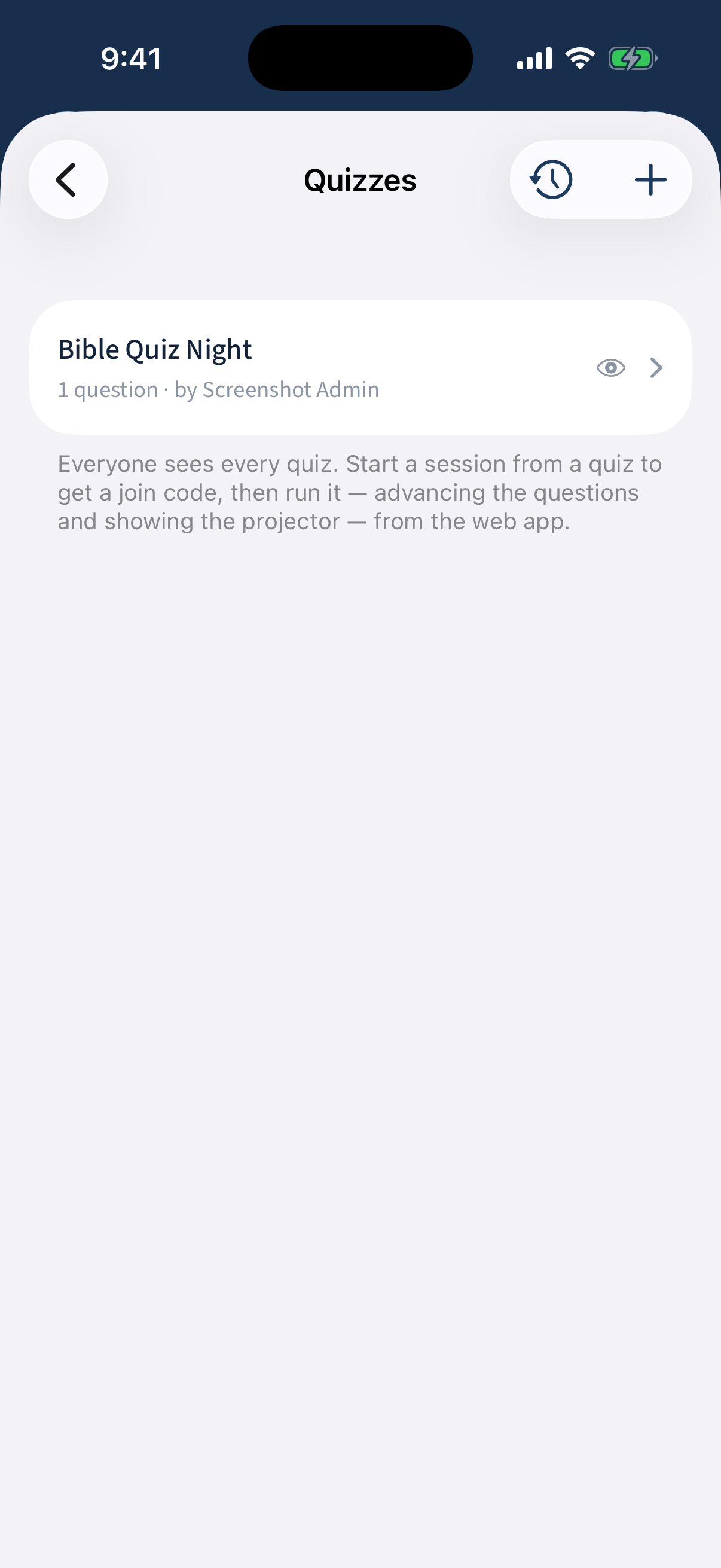
Profile → Quizzes: the list of quizzes. Open a quiz for its detail — a view-only banner for members, the question summary, and a Play section (Look, Allow guests, Notify members, Start a session).
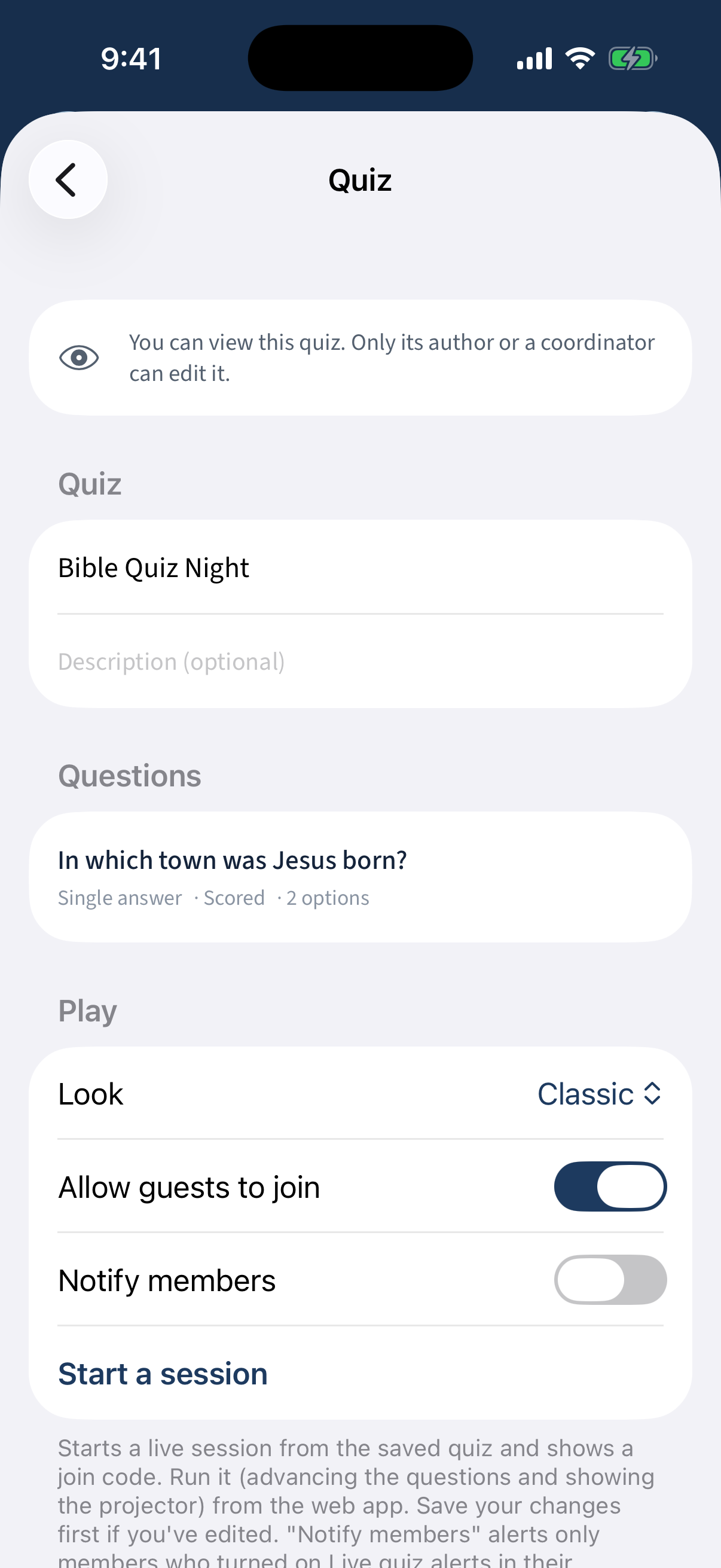
A quiz detail: a view-only banner, the question summary, and a Play section with Start a session. Start a session shows the join code — members join from Home, and you run the session (advance questions / projector) from the web.
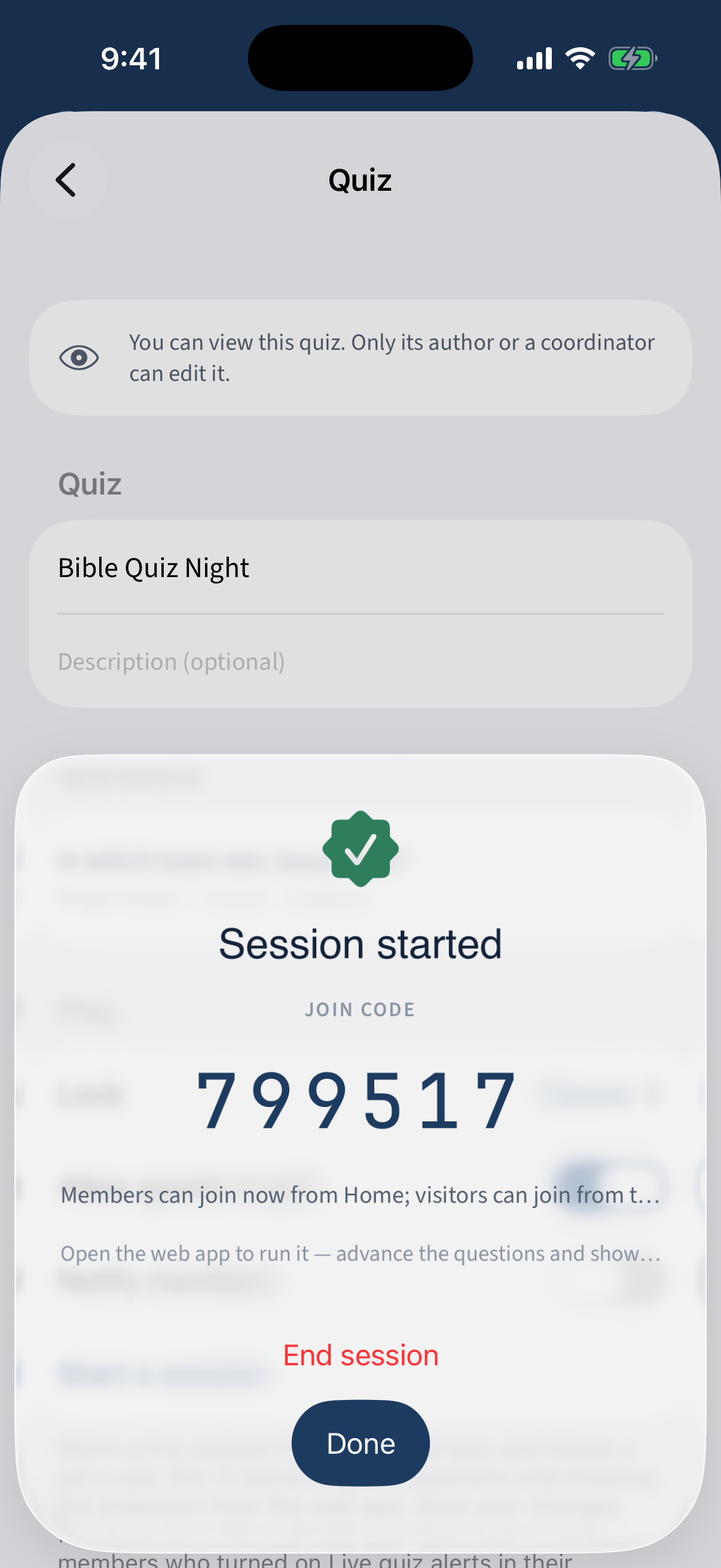
Session started with a big JOIN CODE. While a session runs, a “1 live session — resume or end” banner appears on the Quizzes list.
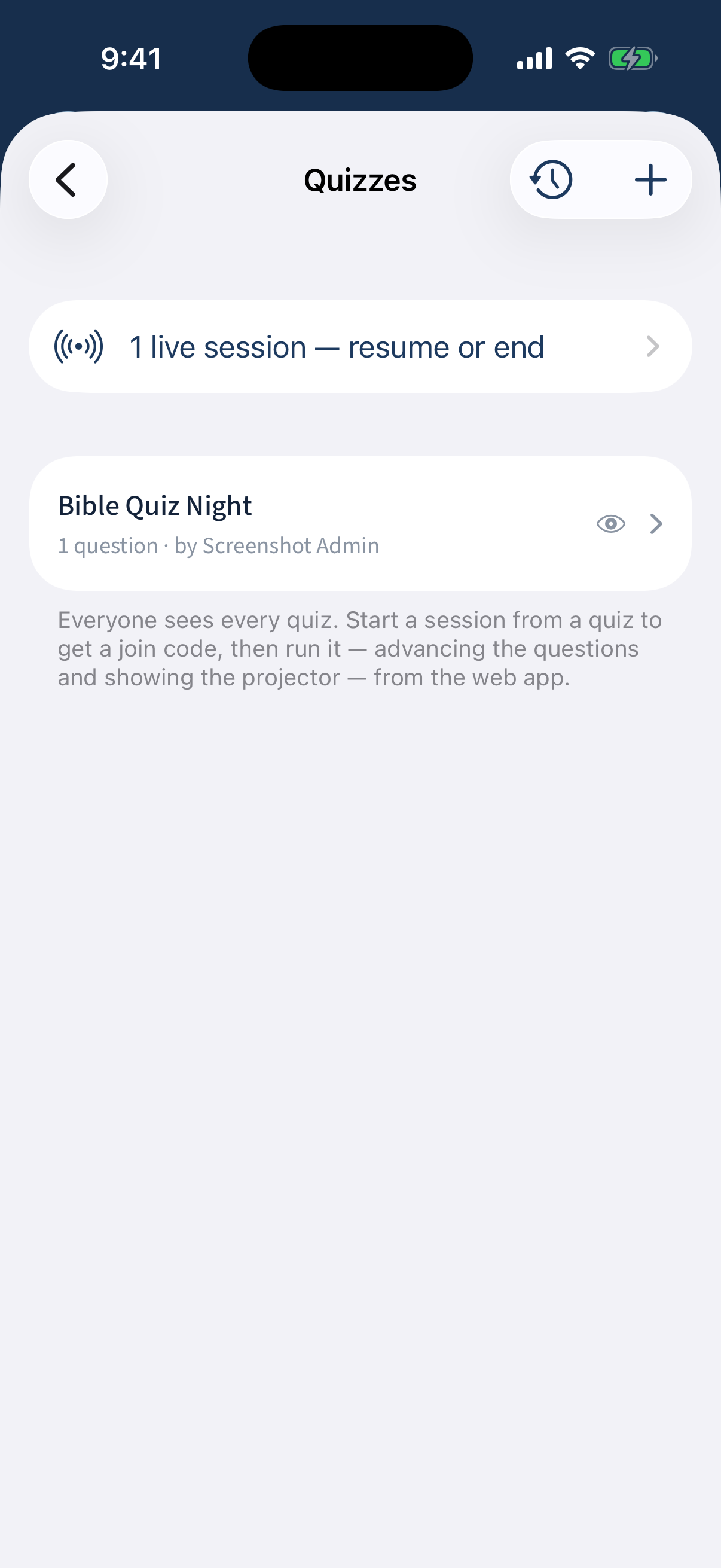
A “1 live session — resume or end” banner on the Quizzes list. The Quiz sessions screen has Live now (join code, End) and an Ended history (delete clears results).
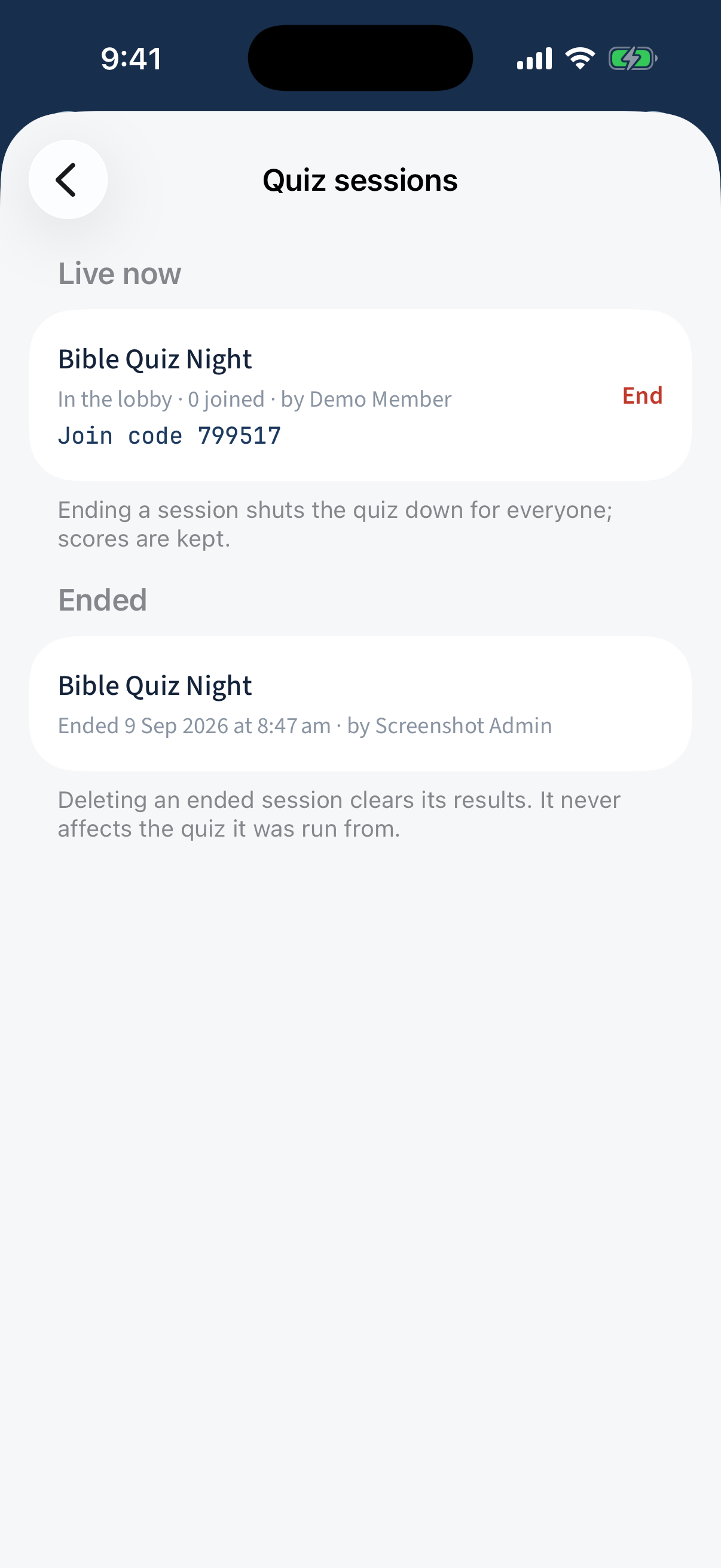
Quiz sessions: Live now (join code, End) and an Ended history.
On the web only: Running the live quiz — advancing questions and the projector — and members typing the join code to play happen on the web / in the room.