Households and manager grants
A household groups related people so someone can view and edit assignments on behalf of the family — a parent seeing their childrens’ duties, a spouse managing a partner’s availability during illness. A household shares an address by default and shows up as one row on the Members directory to keep things tidy.
This guide covers three flows: creating a household from your own profile, being invited to an existing one, and (for administrators) the manager grant system that gives one person edit access to another’s profile. Reading time: five minutes.
Create a household from My profile
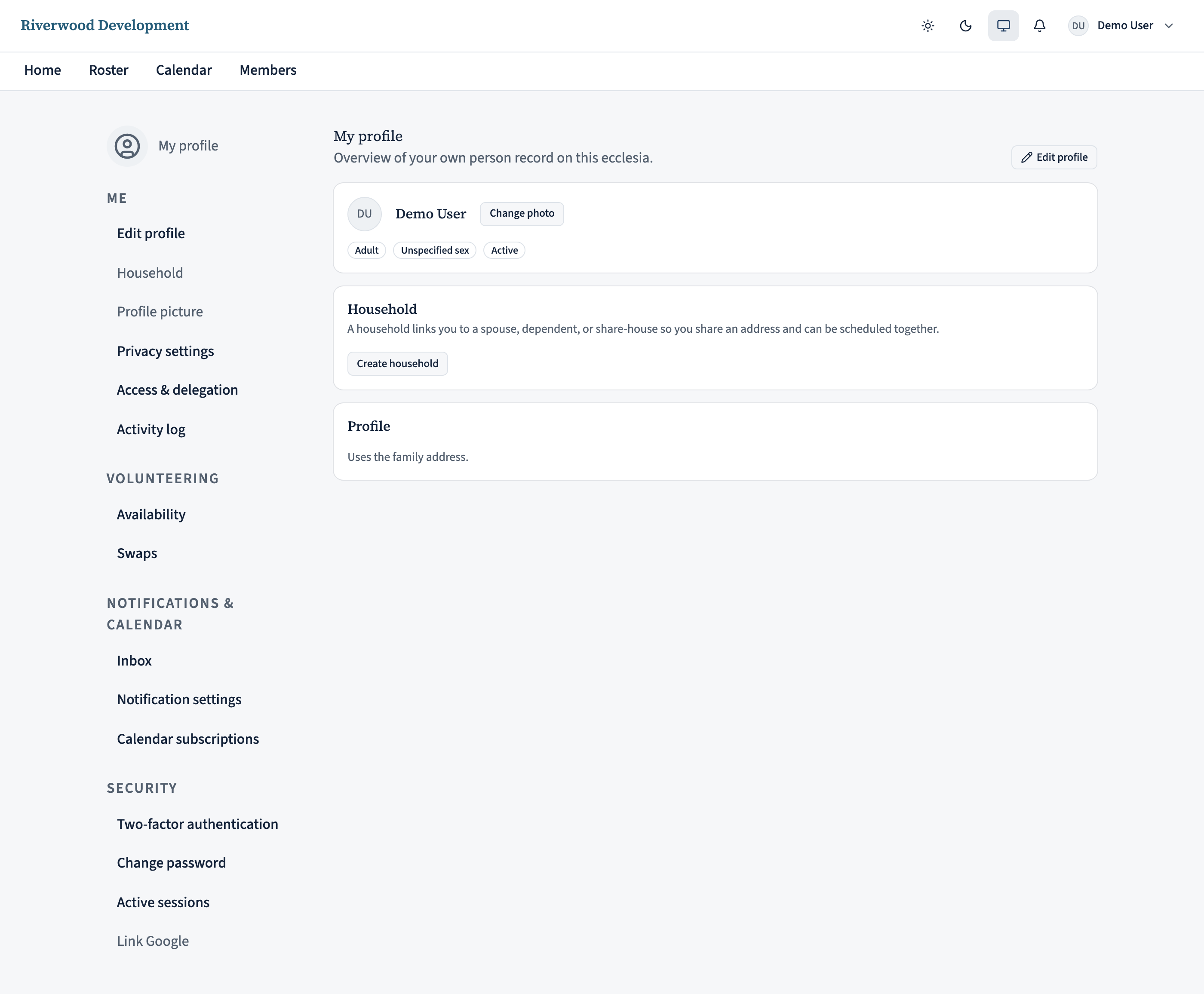
Sign in and open My profile from the top-right avatar menu. In the profile sidebar, click Household.
If you’re not currently in a household, the page leads with a Create household card. Enter a family name — typically your surname (“Ward family”) — and click Create. You’re now the household’s first member and its initial manager.
Invite family members
On the household page, click Invite adult and search for the person by name in the picker — you’re linking an existing adult member, not sending an email. (Minors are added to a household by an administrator from the member record.) When you send it, they get a household invitation on their home page to accept or decline; accepting joins them to your household.
Pending invitations show up on the household page under Pending invitations with a Pending badge. You can cancel one from the same row if you picked the wrong person.
Accept an invitation to join a household
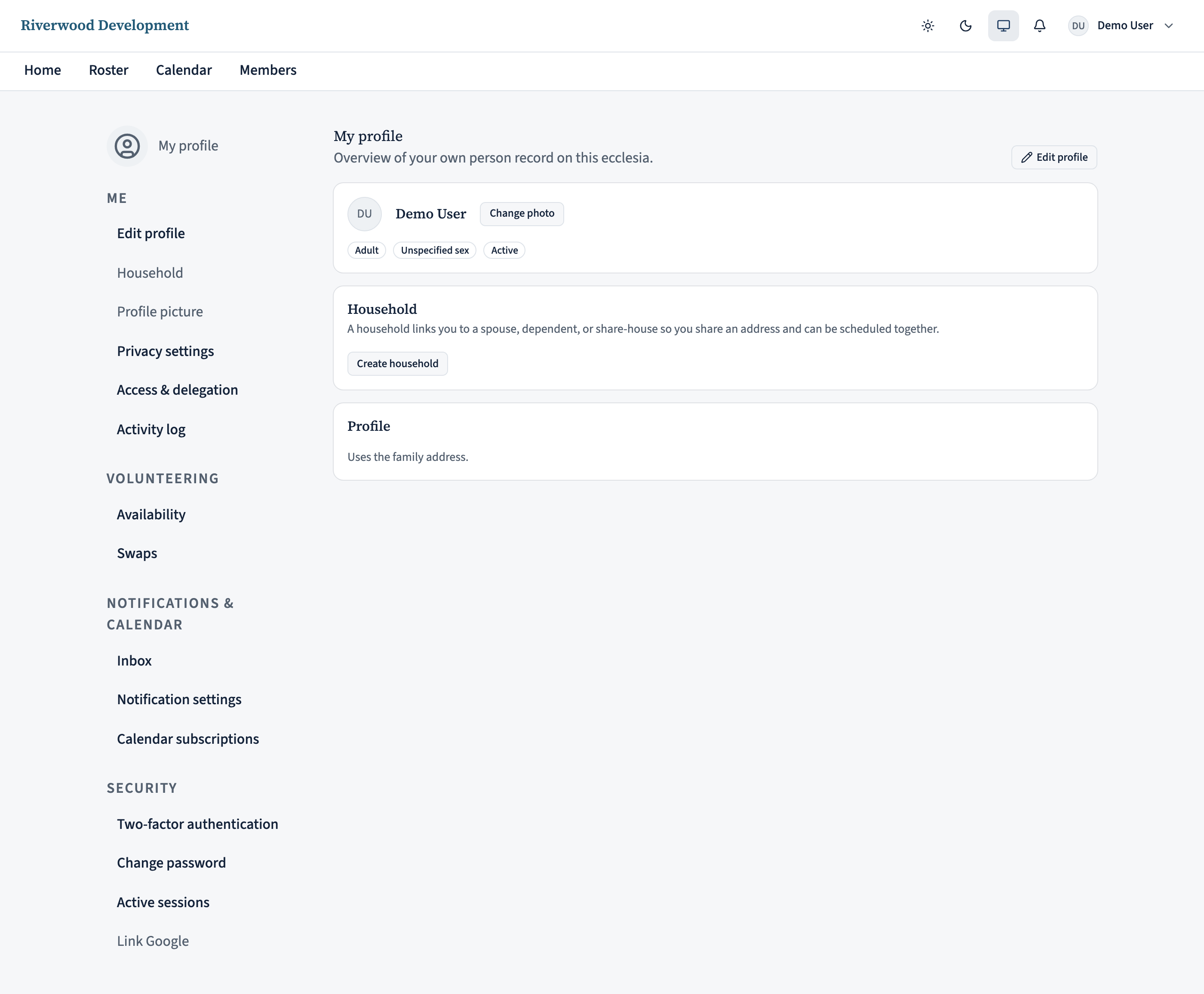
On the receiving end, an invitation surfaces on your home page in a Household invitations card with two actions: Accept or Decline.
Accepting adds you to the household; if the household has an address set, you inherit it automatically (you can override on your own profile if you actually live elsewhere).
Choose how your family is rostered together
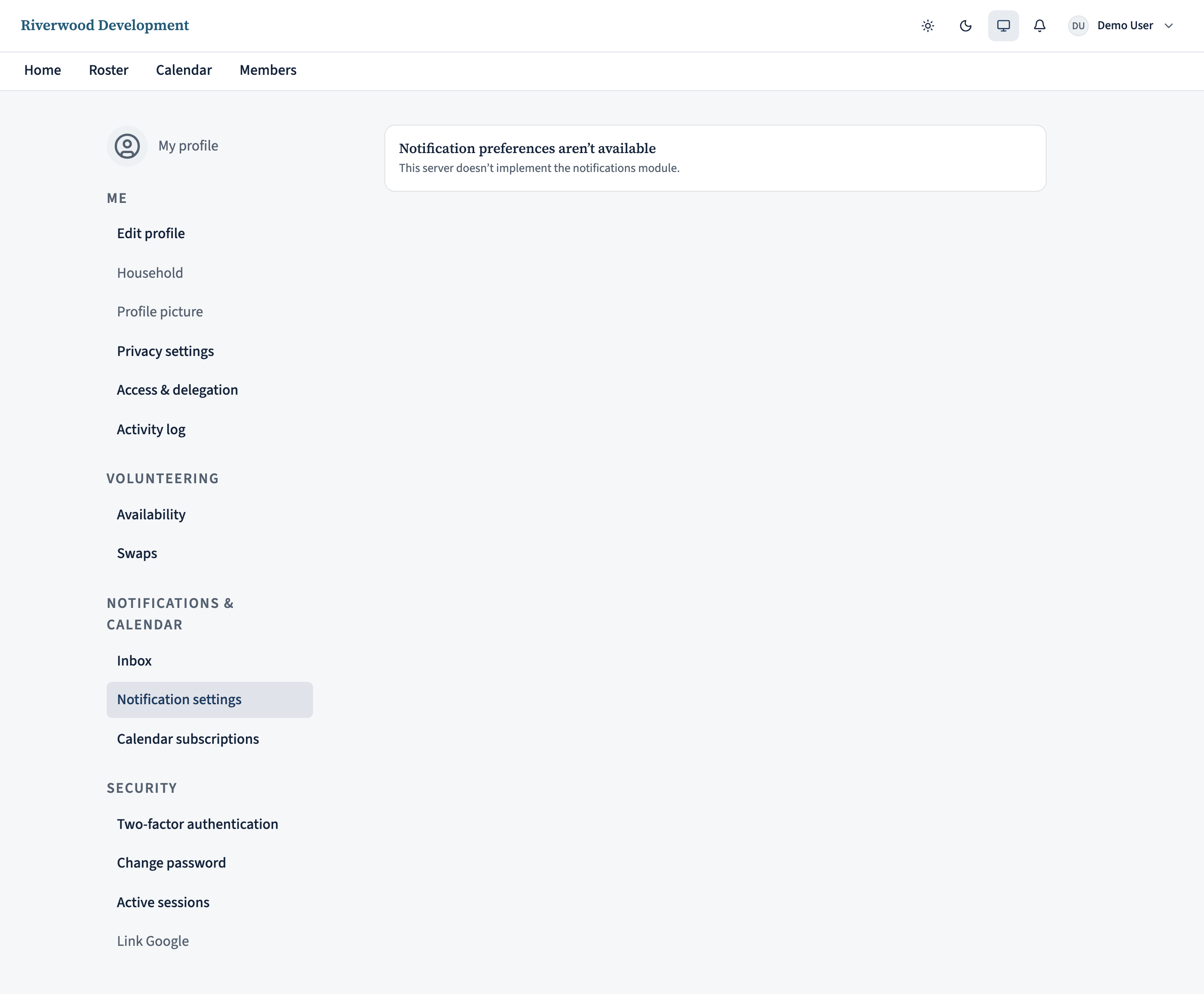
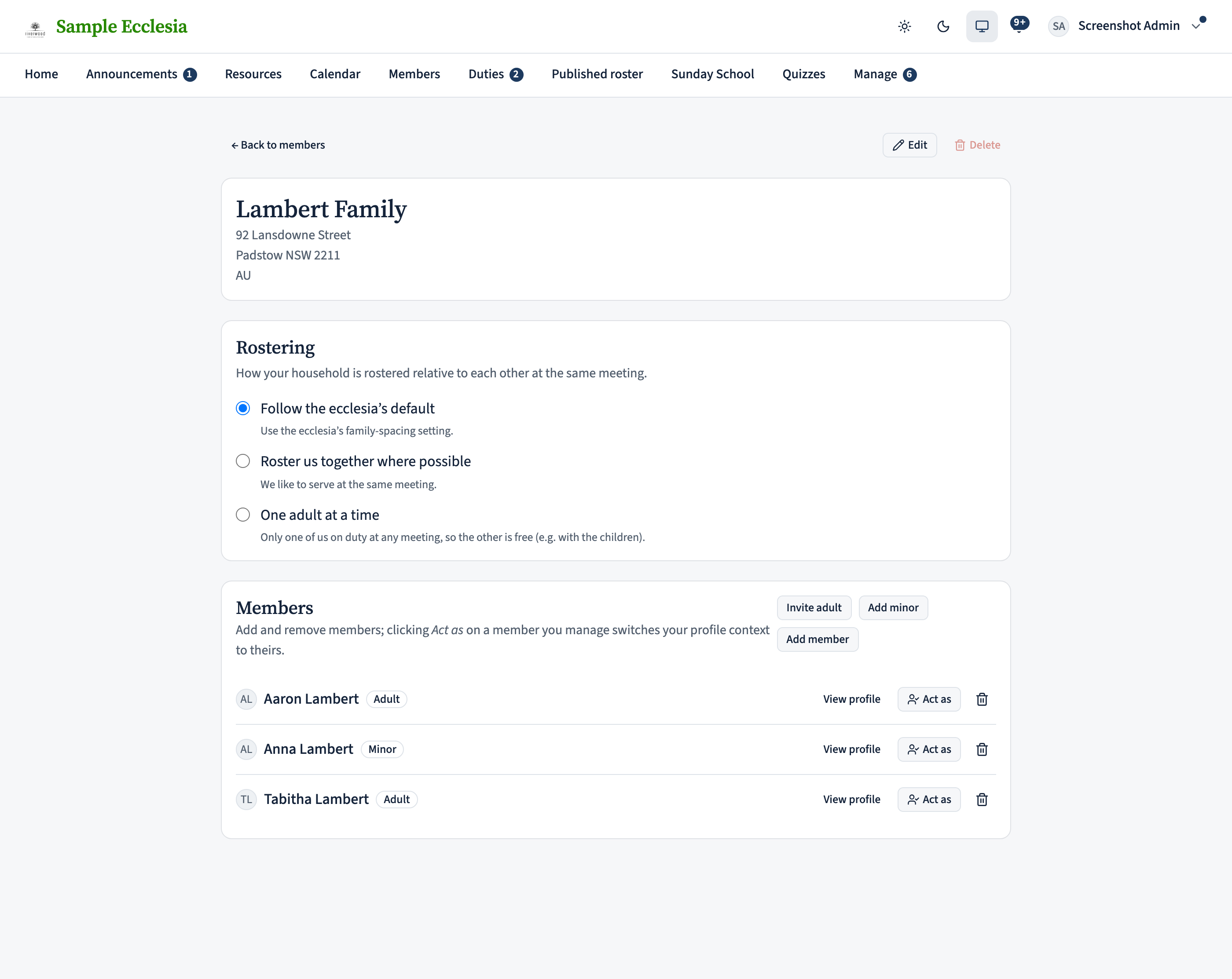
Families differ: some like serving at the same meeting; a family with small children needs one adult free. On the Household page the Rostering card lets your family say. Any adult member of the household (or an administrator) can set it; everyone else sees the current choice.
- Follow the ecclesia’s default — use whatever family-spacing the ecclesia has set. This is the default.
- Roster us together where possible — “we like to serve at the same meeting.” Family spacing won’t keep you apart, and once one of you is placed on a meeting the scheduler prefers the rest of the household there too.
- One adult at a time — only one adult of the household on duty at any meeting, so the other is free (e.g. with the children). The scheduler treats this as a hard rule; children don’t count.
It saves as you choose it and takes effect on the next roster run (and straight away on manual-assignment warnings). Coordinators see a small badge — Rosters together or One adult at a time — next to a member while rostering, so a family kept together or spaced apart reads as intentional. Administrators can also set this on the household’s edit page.
Grant a manager access to edit for you
Household membership groups you visually + shares an address, but it doesn’t itself grant edit rights. For a parent to set availability on behalf of a child, or a spouse to update a partner’s profile, you need a management grant.
Open My profile → Access & delegation and use the Managers card. Click Add manager and pick the person you want to give access to. They can now edit your profile, set your availability, respond to volunteer requests on your behalf, and swap your assignments — every action is audited under their actor id + a “Managing X” banner.
Revoke a grant at any time from the same page. A manager grant is separate from being a household member: you can be someone’s manager without being in their household (e.g. a coordinator who manages a scattered set of members) and vice versa.
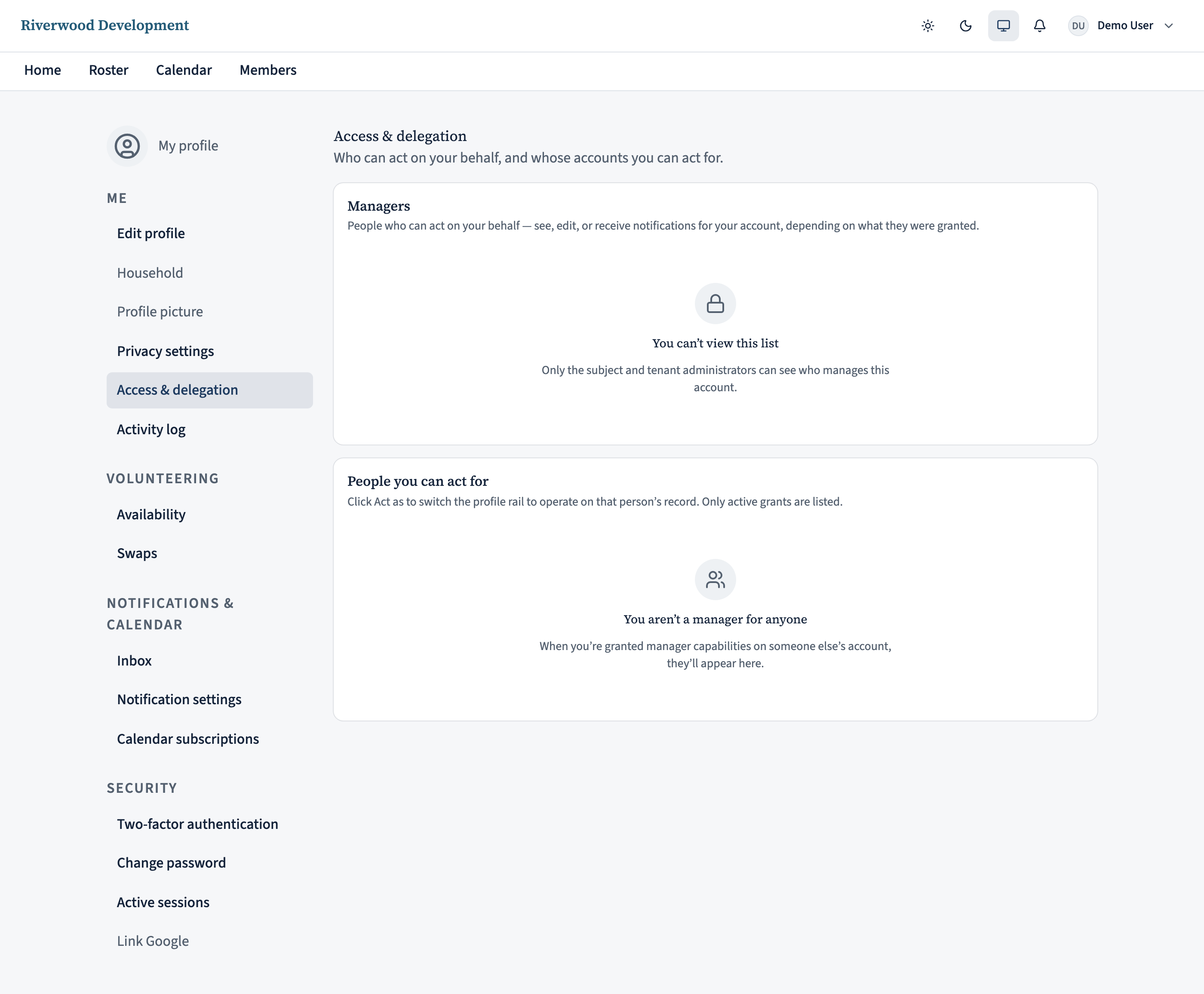
Act as a household member from the Household page
Once a grant is in place, open the Household page and click Act as on the row of a member you manage. A banner appears at the top of the app making it obvious every edit you make now applies to them, not you. Return to yourself from the same banner.
The banner is deliberately prominent so you never accidentally set your own availability while trying to update a family member’s.
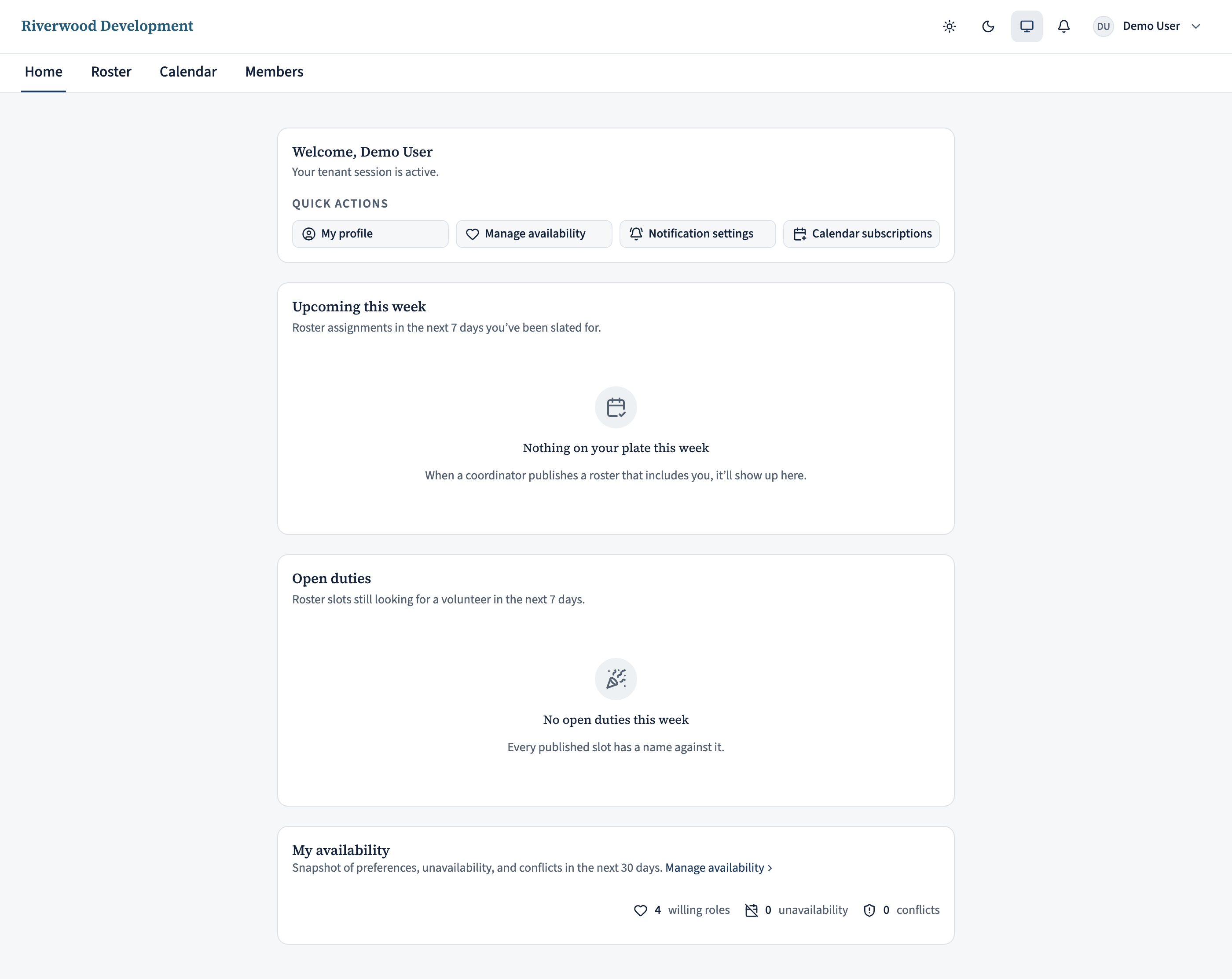
On the iPhone app
View or create your household from the app.
Profile → My household shows your household — or, if you’re not in one, an empty state with Create a household.
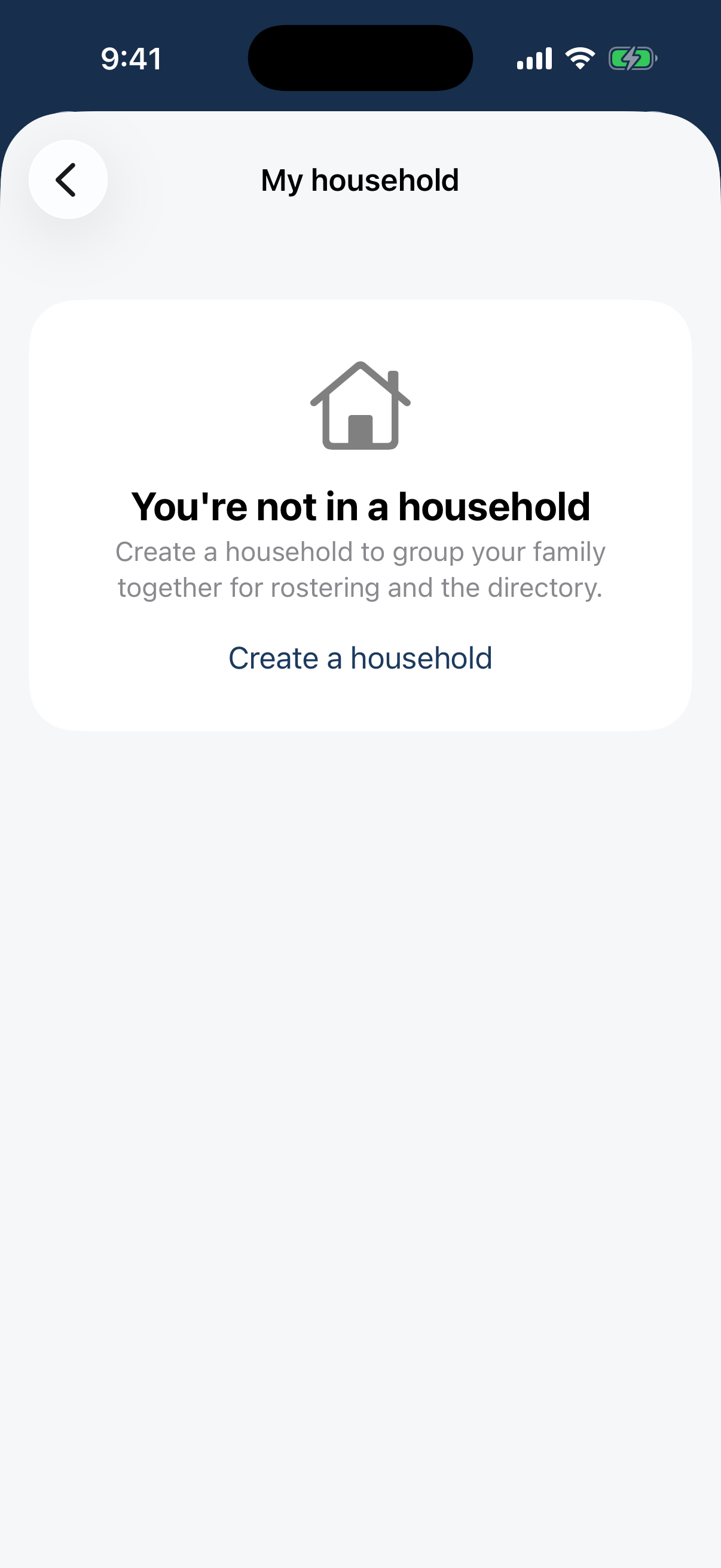
Profile → My household: an empty state with Create a household. Create a household opens a name dialog (e.g. “Coad Family”) with Cancel / Create.
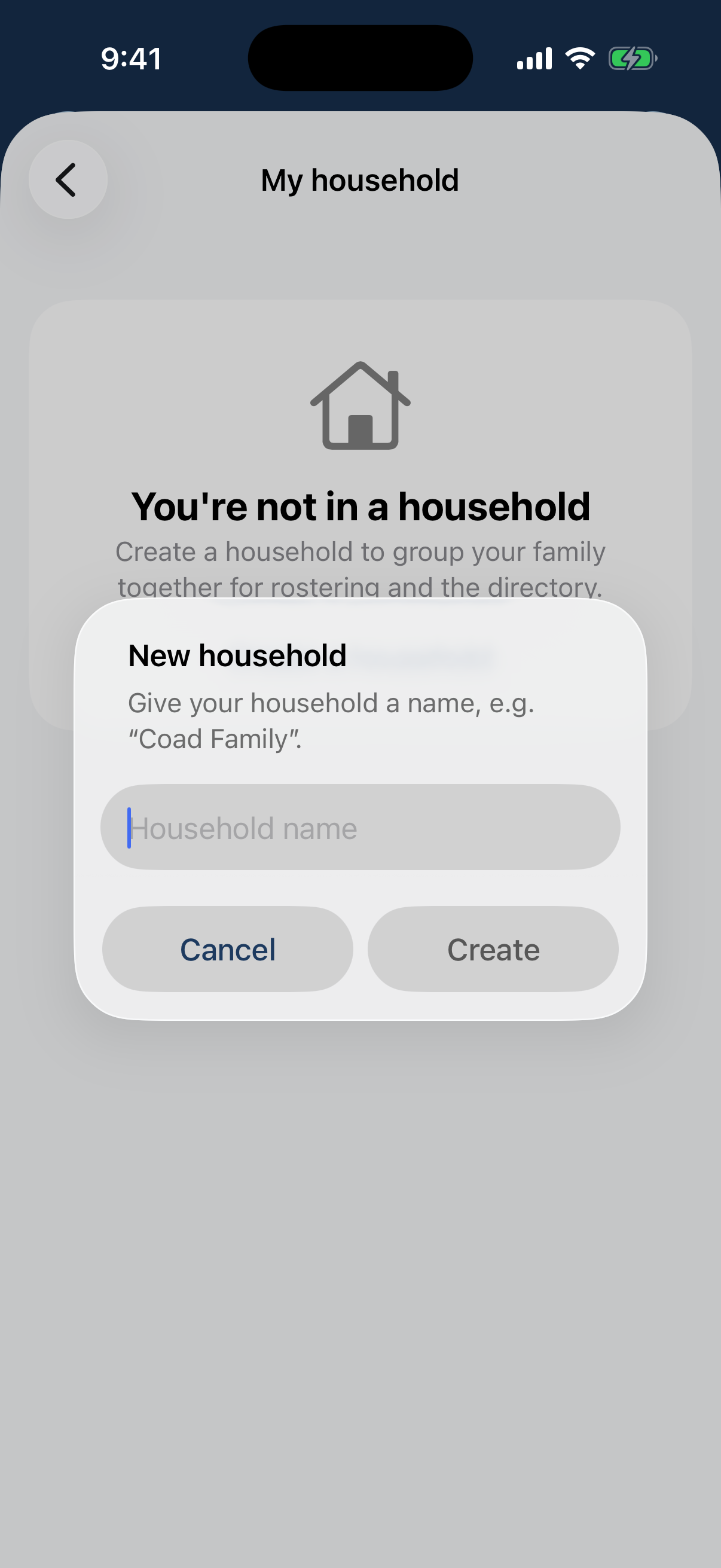
The New household name dialog with Cancel / Create.
On the web only: Editing membership and manager grants stays on the web; the app is view + create.
What next?
- Managing your availability covers the flow of setting role preferences and unavailability — useful once you can edit on a household member’s behalf.
- Family members leaving the household? Remove them from the same Household page. They stay as tenant members; they just no longer share the household’s address or appear grouped on the directory.