Using the iPhone app — quickstart
CDRoster for iPhone puts your duties, the ecclesia calendar, and news in your pocket — three minutes to set yourself up. You’ll need an activated CDRoster account first; if you haven’t signed in before, start with Getting started. The app is on the App Store as CDRoster.
The iPhone app shows this same quickstart when you first sign in, and you can re-open it any time from Profile → Quickstart guide.
Find your way around
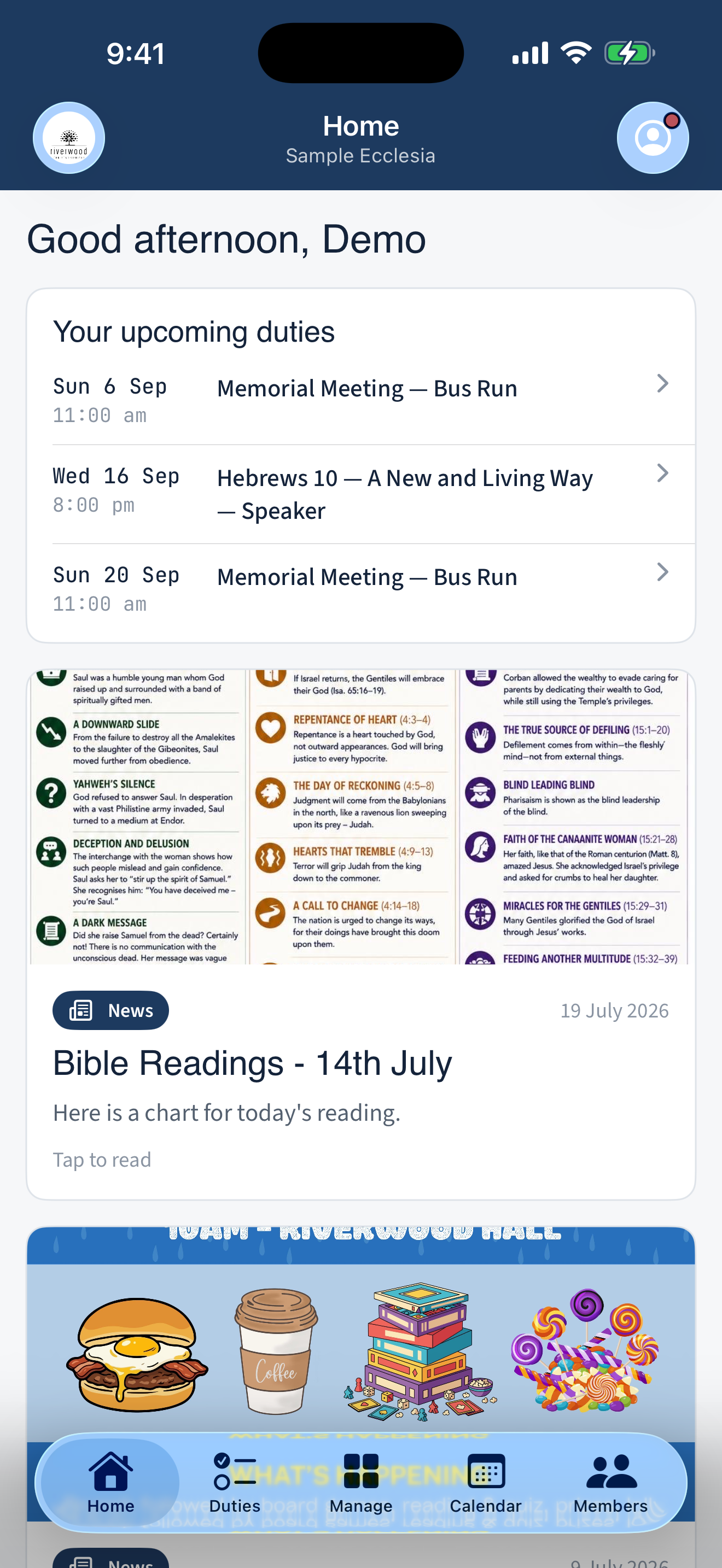
The tabs along the bottom: Home for ecclesial news and your next duties, Duties for everything you’re rostered on, Calendar for the month’s meetings, and Members for the directory. If you hold a coordinator or administrator role, a Manage tab appears too.
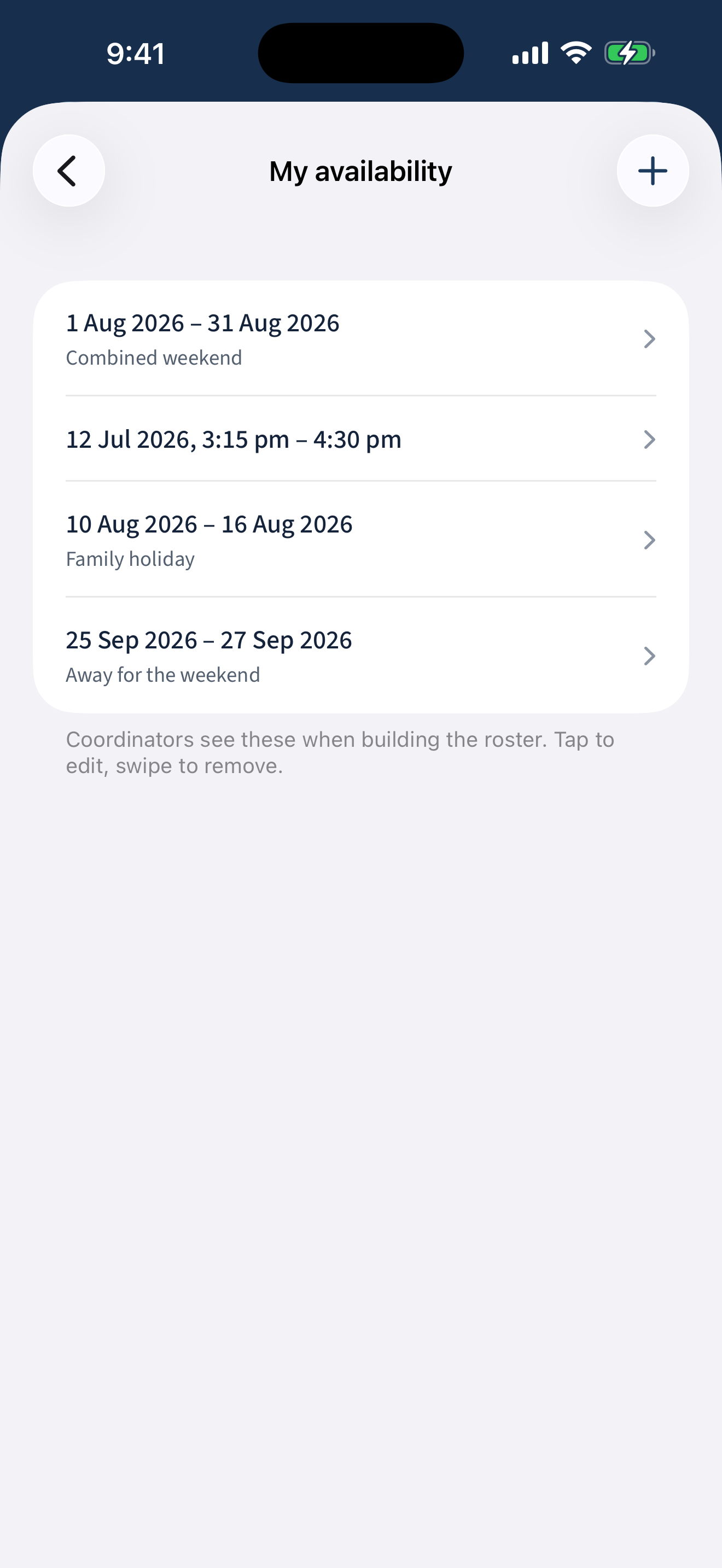
Tell us when you're away
Tap the Profile icon (top-right) → My availability. Add the dates you’re travelling or unavailable, and the roster will never place you on a duty you can’t serve. Add or remove dates any time — the next roster run picks them up.
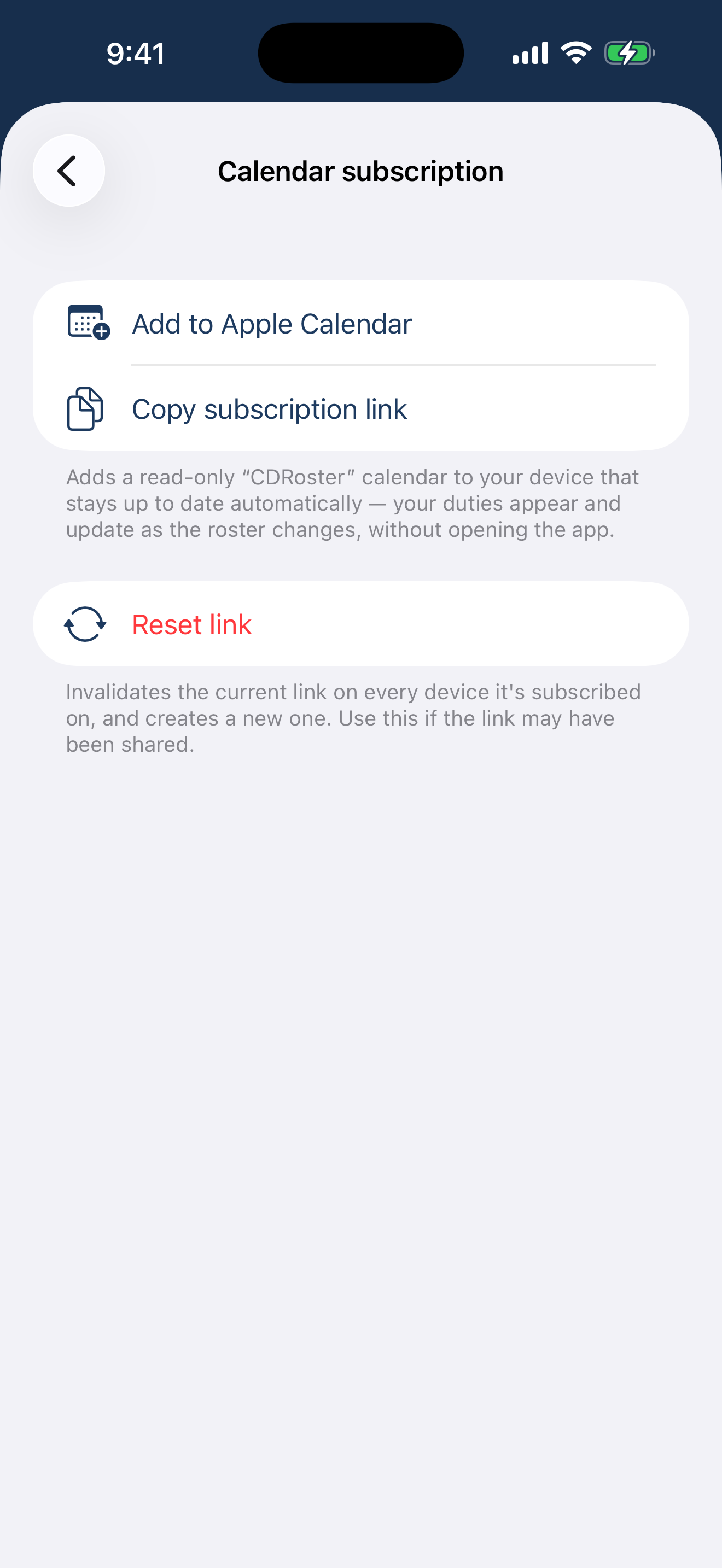
See the roster in your iPhone Calendar
Profile → Calendar subscription. Subscribe once and the ecclesia’s meetings appear in the Calendar app you already use — kept up to date automatically, with your own duties included. Prefer just one event? Every occurrence also has an Add to Calendar button.
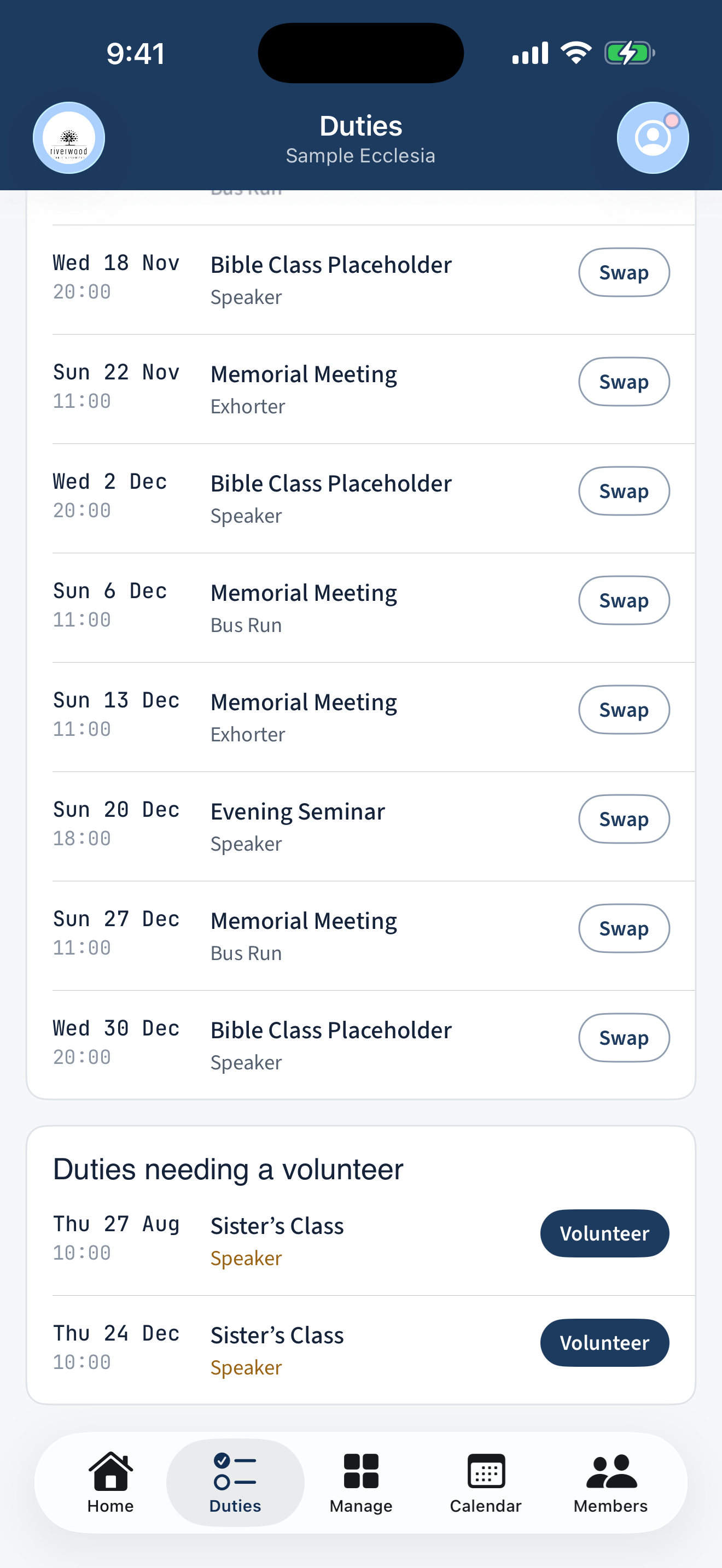
Swap and volunteer
The Duties tab shows what you’re rostered for. Can’t make one? Tap Swap and the coordinators will sort a replacement. Got capacity? Volunteer for any open duty listed there.
Stay in the loop
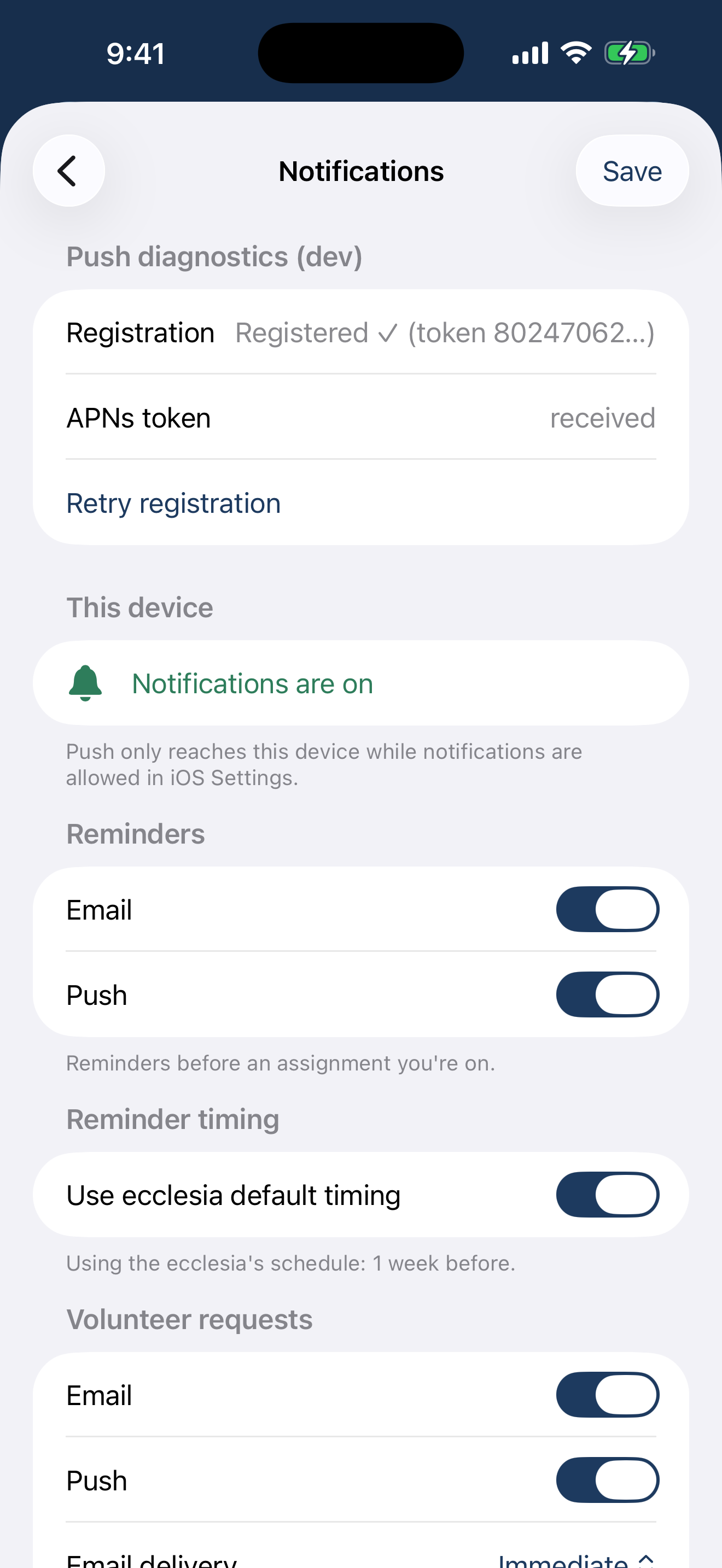
Allow notifications when the app asks and you’ll get duty reminders, roster publications, and ecclesial news as they happen. Fine-tune what arrives under Profile → Notification settings.
Sign in with Face ID
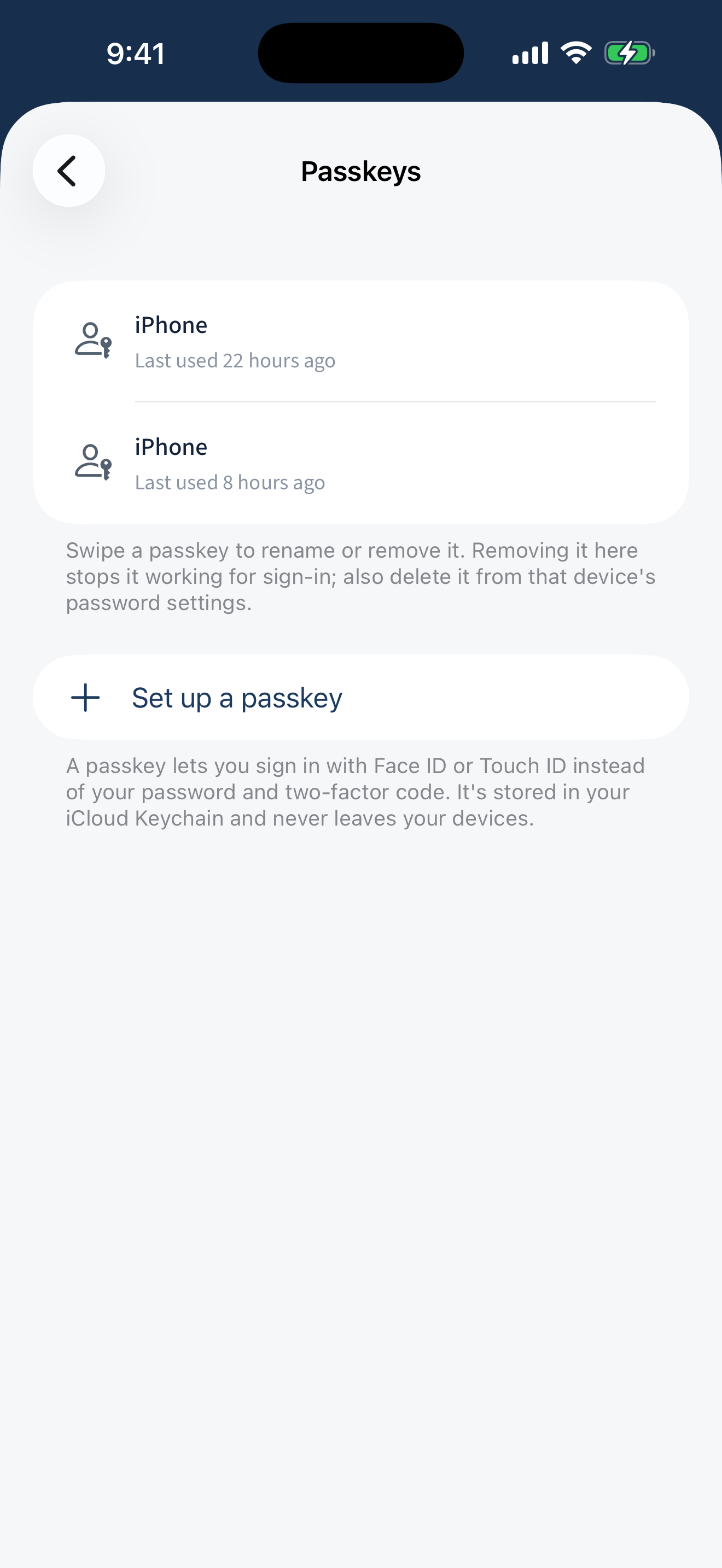
If your ecclesia has passkeys switched on, set one up under Profile → Passkeys and future sign-ins are a single glance — no password, no code. Passkeys made on the phone also work for signing in on the web.
What next?
- Managing your availability
- Swapping scheduled assignments
- Getting started — the basics that apply on every device.