Occurrence notes: readings, hymns, and duty detail
A roster says who is doing what. A note says what the duty is — the passage a reader has been given, the hymns the organist chose, what the AV desk should have ready. It’s the detail that usually travels by text message and is lost by Sunday morning.
Notes live on the occurrence (a single dated meeting or activity), and anyone who can see that occurrence can read them — that’s the whole point: the AV operator can act on the organist’s selection without chasing anyone.
Reading time: about three minutes.
Find the notes on an occurrence
Open any occurrence — from the Calendar, the Occurrences list, or a link on your own duty — and scroll to the Notes card. Each note shows a tag (like Reading or Music selection), the note itself, who wrote it, and the role it concerns if it names one.
In the occurrences list, an occurrence that already has notes carries a small note badge (a count), so you can see which ones have detail without opening each.
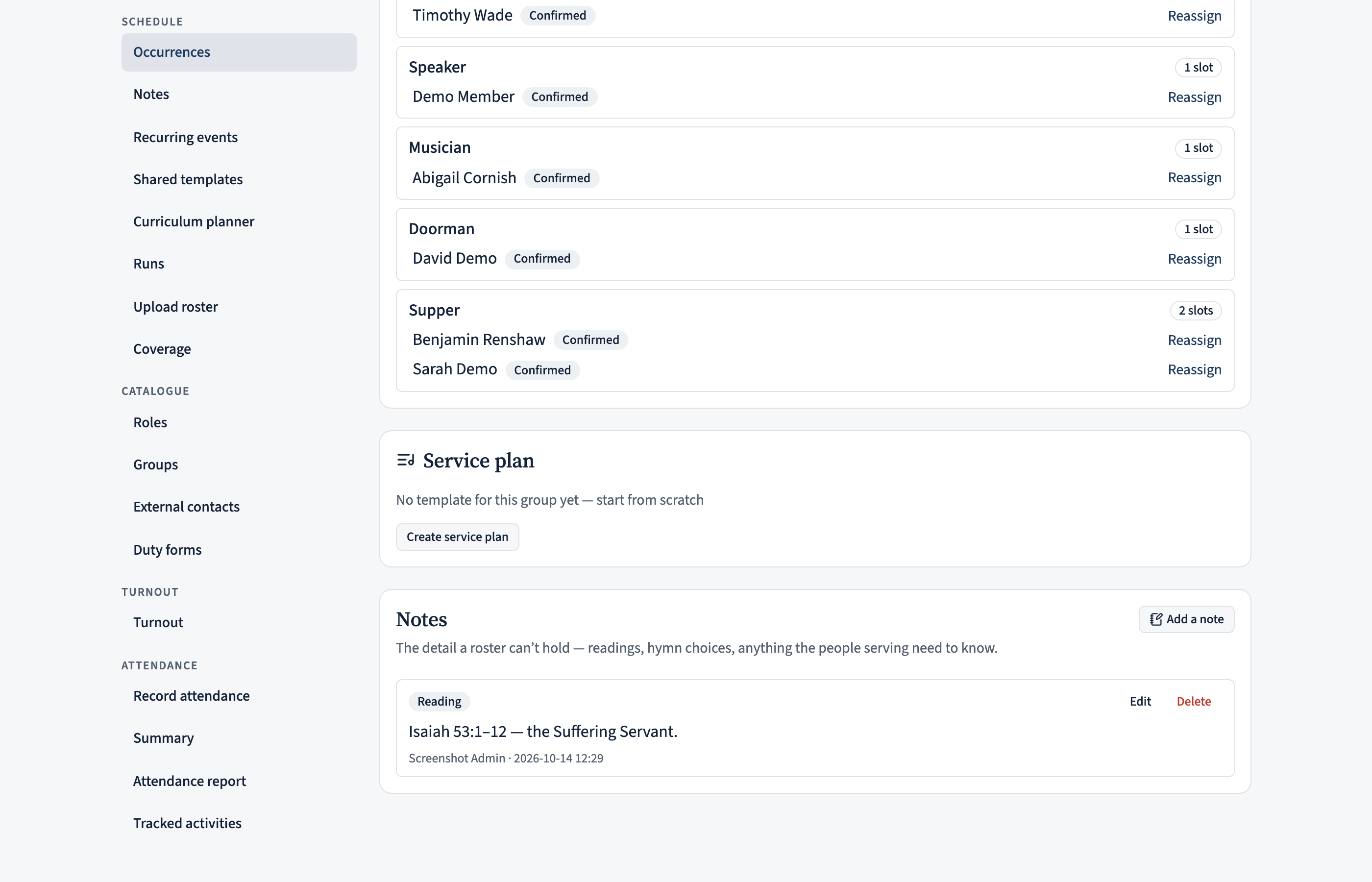
Add a note
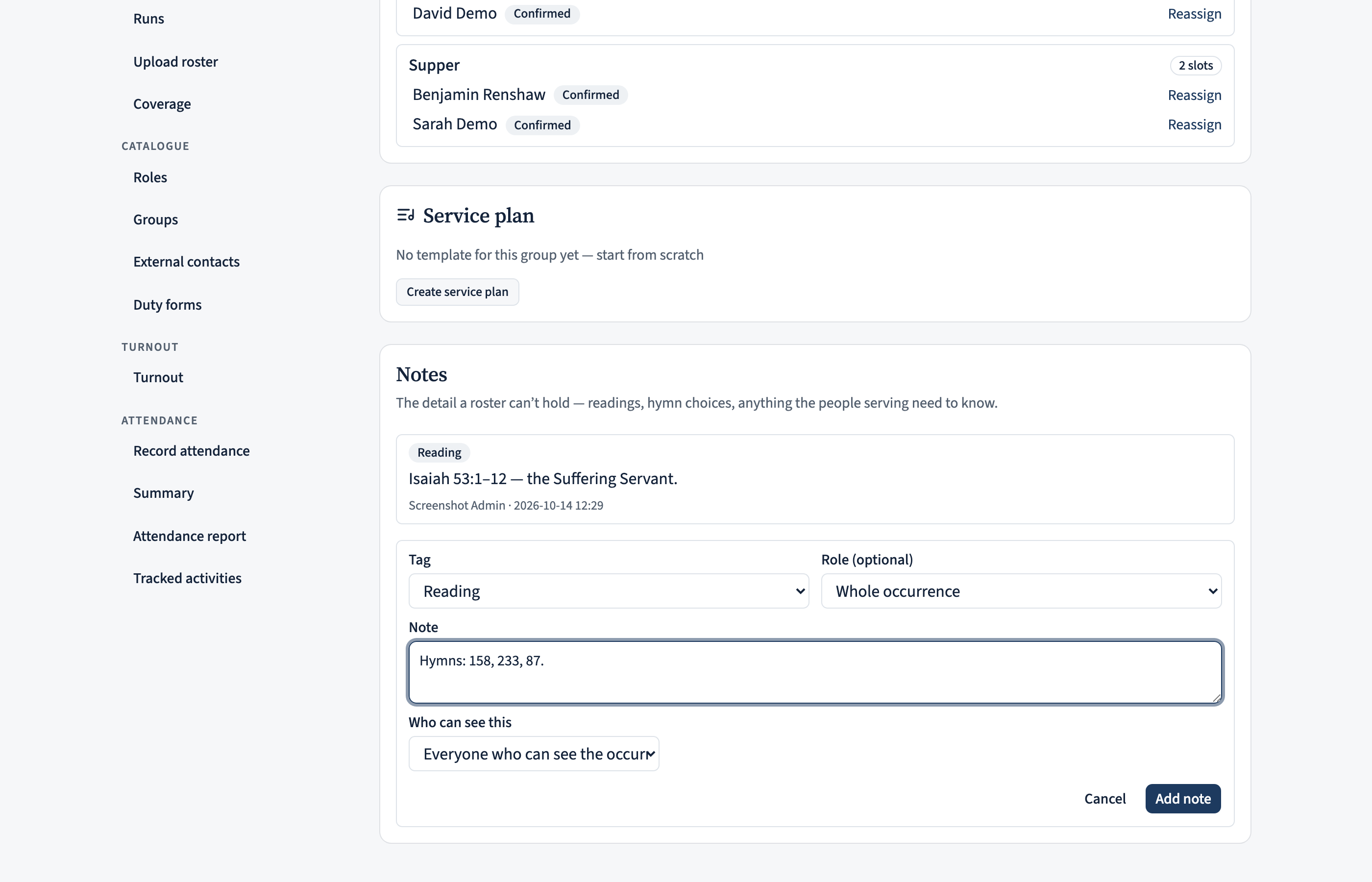
Choose Add a note, then:
- Pick a tag that describes it — the list is your ecclesia’s own (Reading, Music selection, AV, General to start).
- Optionally pick the role it’s about (a reading is usually about the Reader slot). Leave it on Whole occurrence for anything general.
- Type the note — a passage, a hymn list, a reminder — and Add note.
Who can add notes: a coordinator or administrator, or anyone rostered on that occurrence. That last part is the point — the reader records their own passage, the musician their own hymns. If you’re not on the duty and not a coordinator, you’ll see the notes but not the Add a note button.
Fix or remove a note
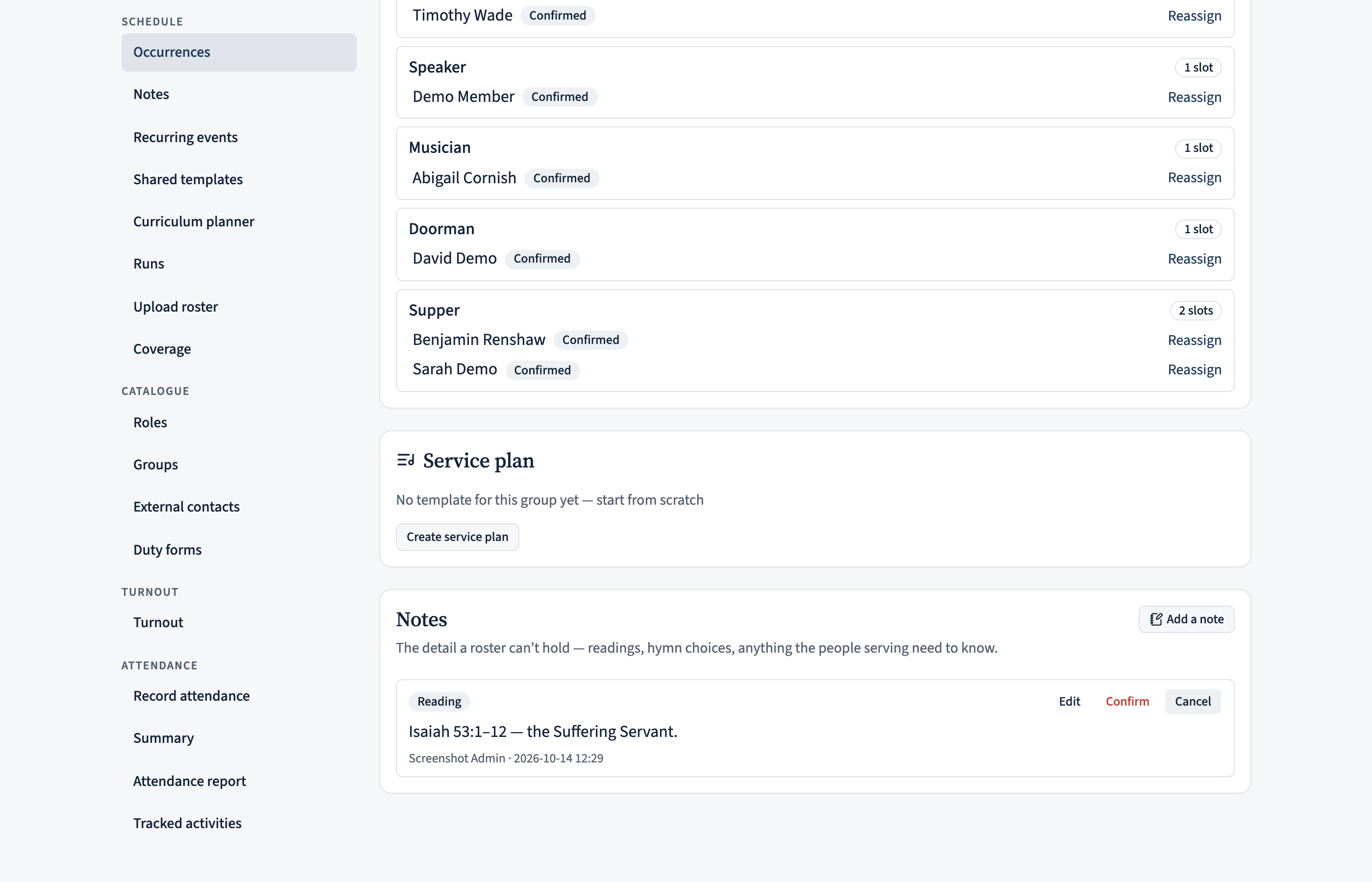
Got the hymn number wrong? Edit or Delete appear on a note you can change. You can change your own notes; coordinators and administrators can change any note on their occurrences. Adding your own note is collaboration; quietly rewriting someone else’s isn’t — so a note is fixed by whoever typed it or by whoever runs the meeting.
Delete asks you to confirm, because it can’t be undone.
Coordinators: keep a note staff-only
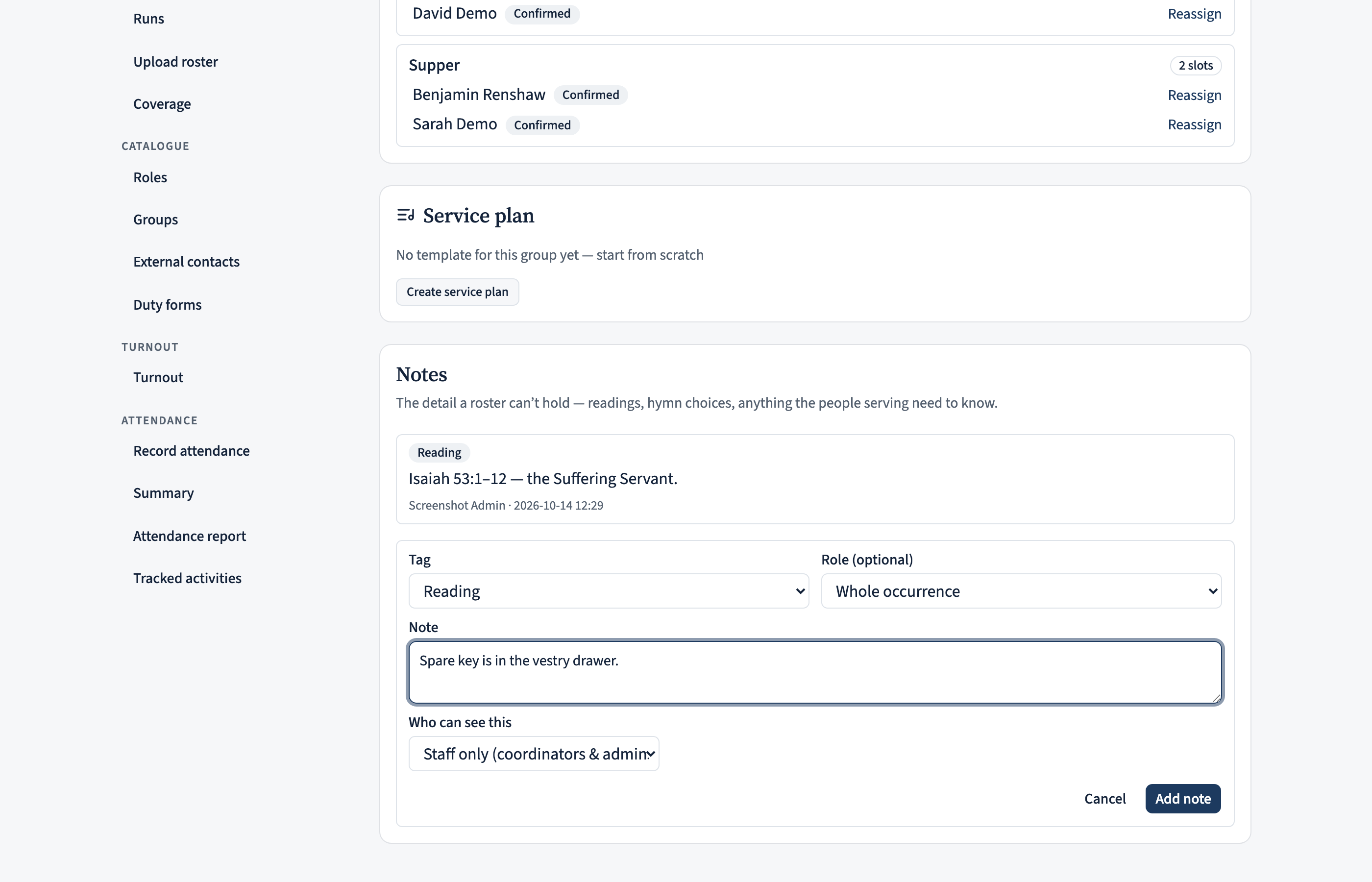
Most notes are for everyone — that’s the default and it’s usually right. But a coordinator or administrator can set a note to Staff only using the Who can see this control. A staff-only note is visible only to coordinators and administrators of that occurrence’s group; an ordinary member never sees it, even one holding a duty. Those notes carry a small Staff only marker so you can tell at a glance.
Ordinary members don’t see this control at all — their notes are always visible to everyone who can see the occurrence.
Administrators: the tag list
The tags come from a list your ecclesia controls, under Manage › Note tags. It starts with a sensible set (Reading, Music selection, AV, General) the first time anyone opens a composer, and you can rename, reorder, or add tags there.
There’s no delete — you archive a tag instead. Archiving stops it being offered for new notes, while every note already tagged with it keeps showing correctly. Renaming a tag updates it everywhere at once, including on old notes.
Good to know
- Notes don’t notify anyone. They’re there next time someone opens the occurrence — add the reader’s passage when you know it, not the day before.
- They survive a swap. A note about the Reader slot stays put even if a different person ends up reading, and you can add one while the roster is still a draft — which is usually when a reader is told their passage.
- Plain text only — no attachments or formatting. For sharing a document, use Resources instead.