Duty forms: checklists and agendas attached to a duty
Duty forms are fillable checklists, agendas, and registration forms. You build a form, then decide who fills it in — the people rostered to a duty, everyone in an audience (like Sunday School parents), or anyone you hand a public link to. A few common shapes:
- A cleaning checklist — section headings and tickable lines, attached to the hall-cleaning role, with one copy per assignee so each week’s cleaner ticks their own.
- A Memorial Meeting agenda — short and long text and a date, attached to the presider role, with one shared copy per occurrence so any presider edits the single agenda for that meeting.
- A Sunday School registration — a repeatable “child” group and consents, sent to the Sunday School parents audience with one shared copy per household so a family enrols once.
Who does what: a coordinator (or administrator) builds forms, adds their items, and attaches them to a duty or an audience. Members complete the forms they’re asked for; non-members can too, through a public link. Reading time: about eight minutes.
Switch the feature on
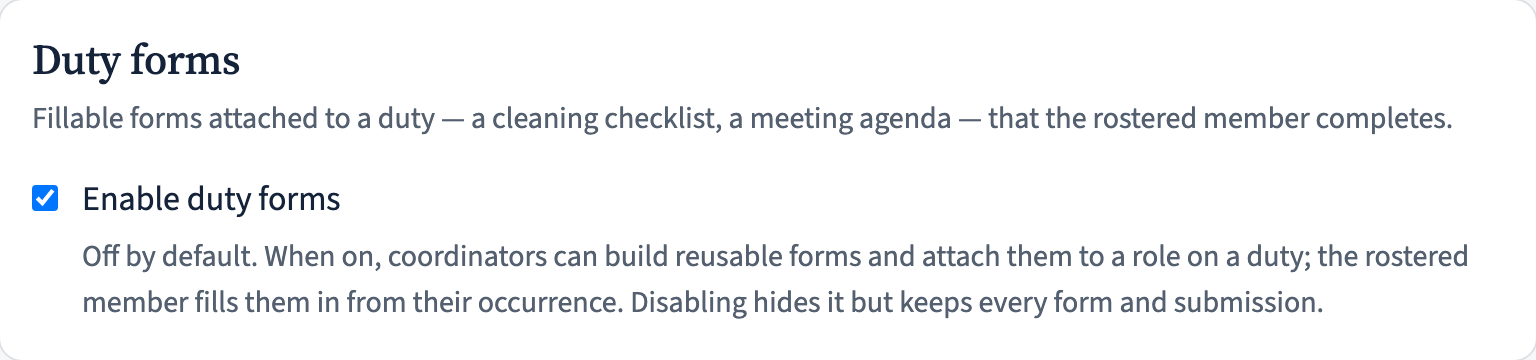
Duty forms are off until an administrator enables them: Manage → Settings → Duty forms. Once on, a Duty forms entry appears in the Manage area (under Coordinator → Catalogue) for coordinators, and members start seeing the forms they owe on their occurrences. Switching it off later hides the feature but keeps every form and submission.
Create a form and choose how copies work
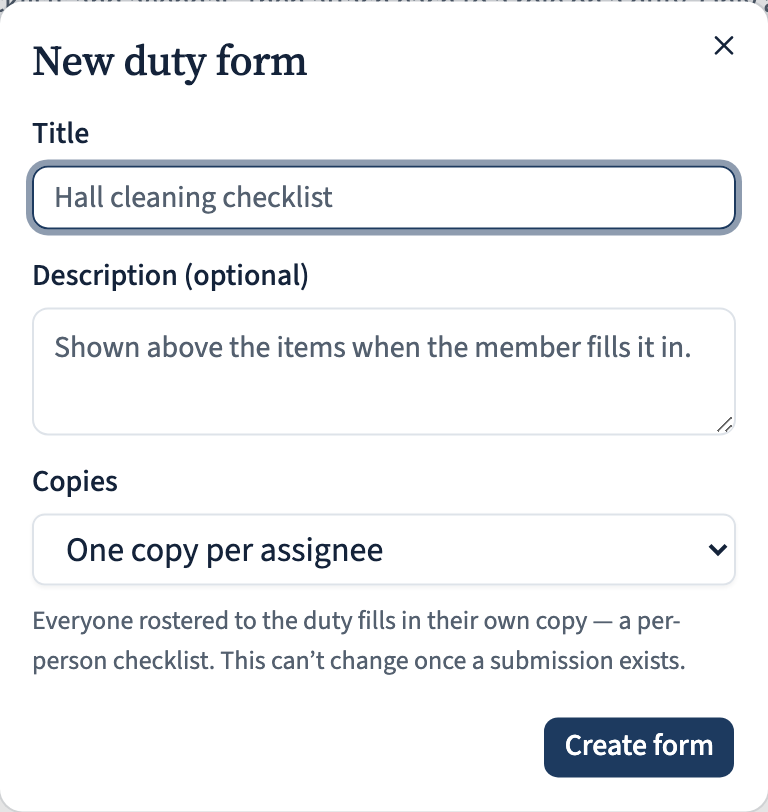
From Manage → Duty forms, click New form and give it a title. The main decision is copies — how many submissions the form collects:
- One copy per assignee — everyone rostered to the duty fills in their own, like a personal checklist.
- One shared copy per occurrence — a single document any current holder of the role can edit, like a shared agenda for the meeting.
- One shared copy per household — for a form sent to an audience: one copy per family, which any adult in the household can edit (the “one registration per family” case). This one is audience-only — it isn’t offered for a duty form.
You can change copies later if you need to — even after responses have come in. Existing responses are kept exactly as they were collected; the new setting simply applies from then on. A new form starts as a draft, invisible to members until you activate it.
Build the items
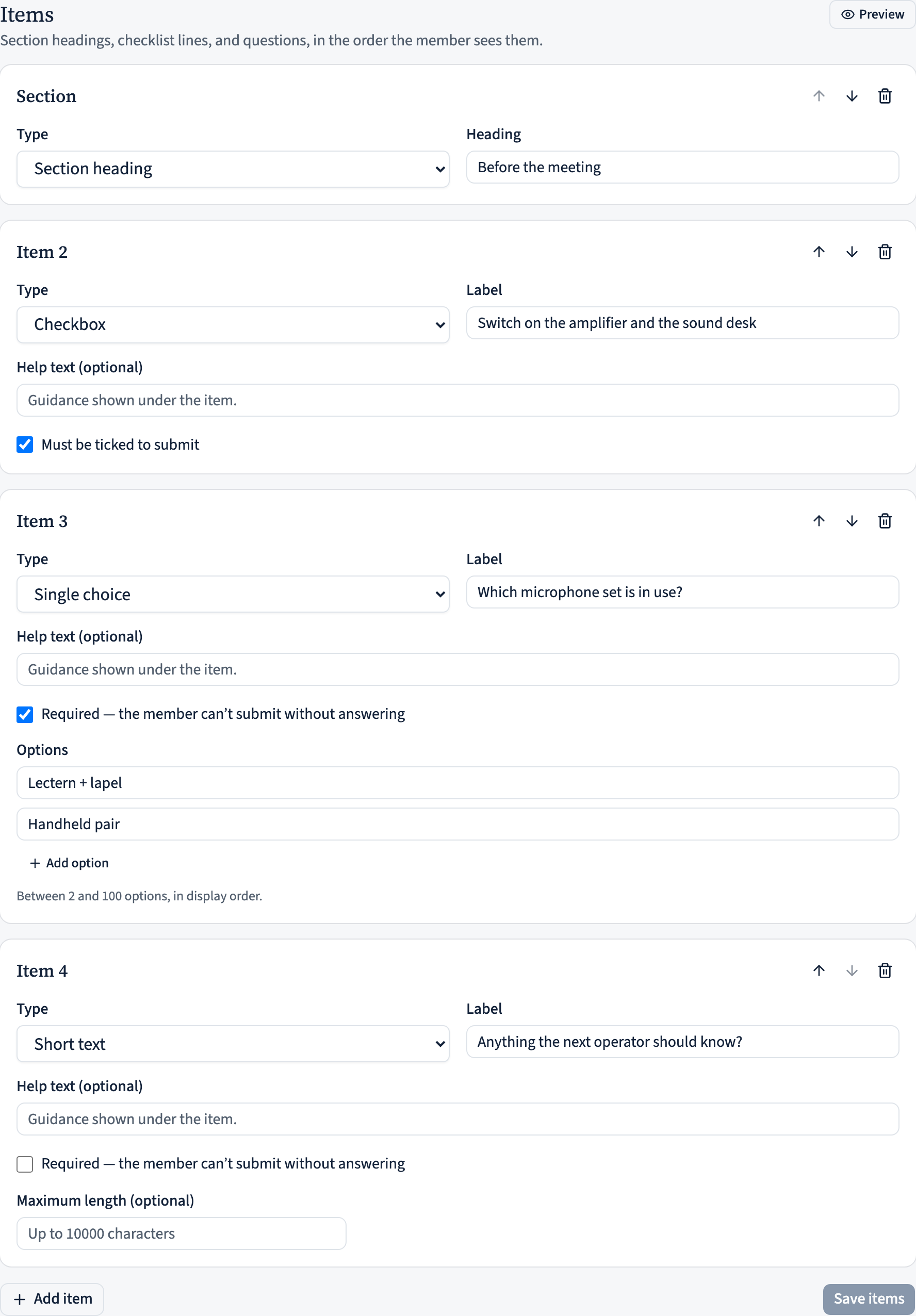
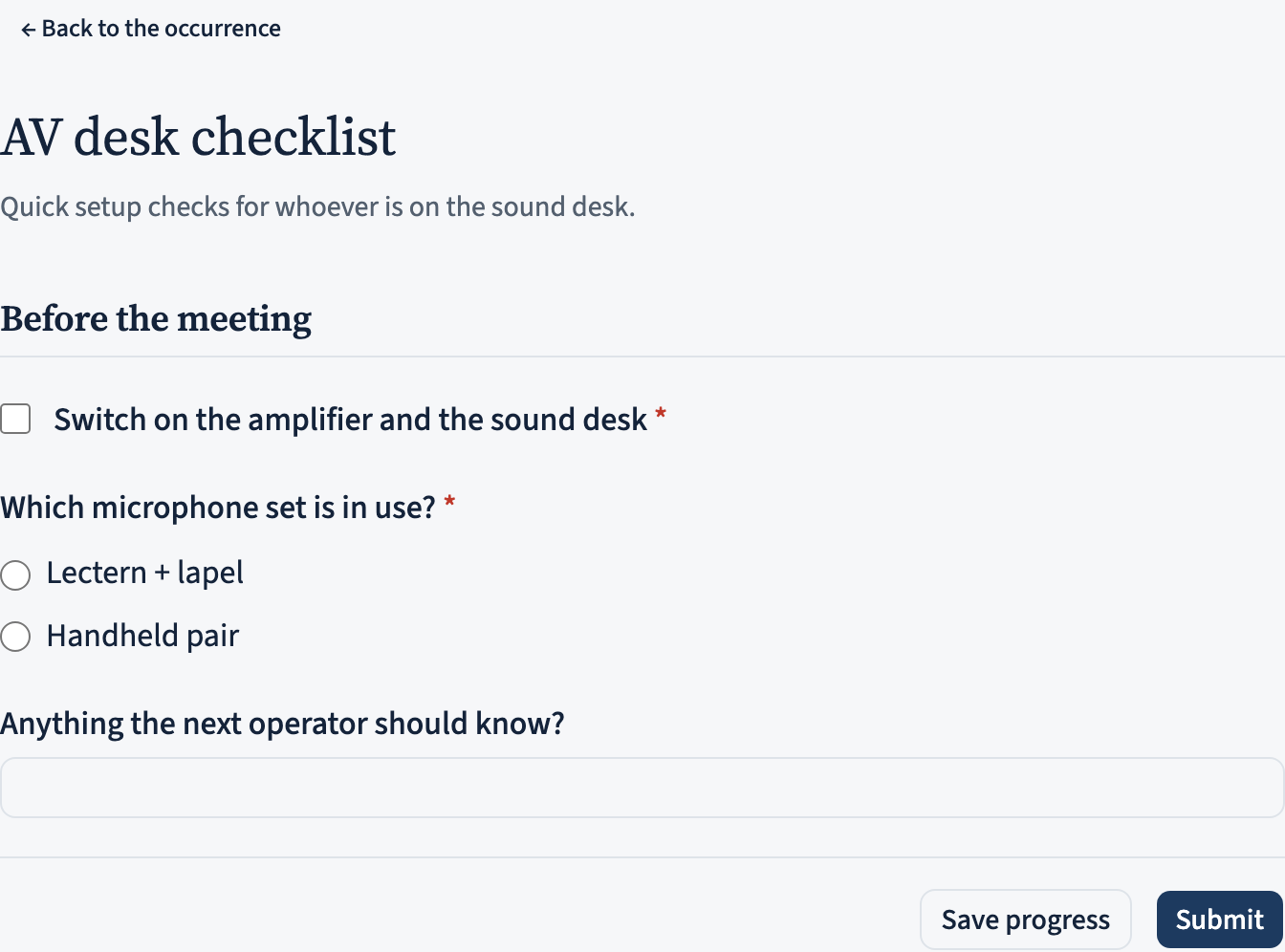
Add items in the order the member should see them. Each item is one of: a section heading (to group things, like “Main hall”), a checkbox (a checklist line), short or long text, a date, a single or multiple choice question (2–100 options), a person field (pick a member, or type a visitor’s name), or a repeatable group — a set of fields the filler completes once per item, with an “Add …” button (e.g. one block per child). Mark any input required so the member can’t submit without it.
Two extra touches. A text, person, or date item can pre-fill from the roster — the assigned member’s name, or the occasion’s date — as an editable starting point. And a section can link a shared document from Resources (a guidelines PDF, say); it shows as a tappable card beneath the section so the filler can open it while completing the form. Any web address you put in an item’s help text becomes a tappable link on the fill page too.
At any point, Preview shows the form exactly as a member will see it — tick and type to try it, and nothing is saved. Reordering an item is just moving it up or down; the numbering follows. You can keep editing a form after responses have come in: saving item changes then creates a new version of the form — existing responses keep the questions they were collected with, and new responses use the updated form, so nothing is ever lost or muddled.
Send it to a duty or an audience, then activate it
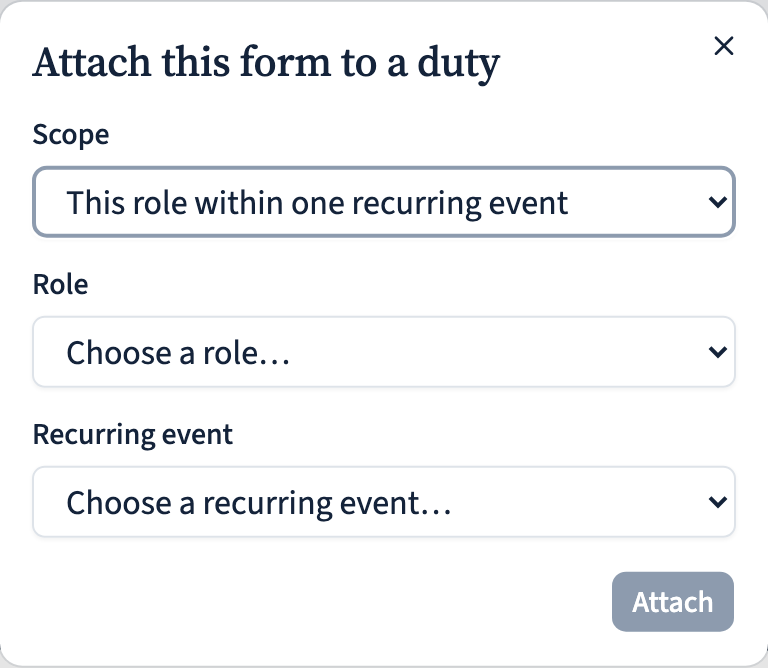
A form does nothing until it’s attached to someone. In the form’s Attached to card, click Attach and pick a scope. A duty targets the people rostered to a role:
- This role, every occurrence — e.g. the cleaner, wherever that role is rostered.
- This role within one recurring event — e.g. the presider, but only on the Memorial Meeting.
- This role on one occurrence — a single one-off meeting.
Or target an audience — a group of members rather than a duty: Sunday School parents (every adult in a household with a current enrolment) or people with a qualification you choose. Everyone in the audience is asked to complete it once, and it appears for them under My forms → Other forms. (The Sunday School parents option only shows when Sunday School is switched on.)
Finally, set the form’s status to Active (top-right of the editor). Only an active form is offered to anyone — a draft stays invisible. Detaching a form later leaves any submissions already collected untouched.
Share it with non-members (optional)
Some forms need answers from people who don’t have an account — visitors, or parents you only reach by a flyer. On an active form, the Public link card turns on a shareable link that lets anyone fill the form in once without signing in. Their answers arrive in your submissions list marked Public / Anonymous. A QR code appears under the link — Copy the link for an email, or Download the QR code to drop into a printed notice or a slide. Revoke the link at any time to stop it working.
If a section links a document, remember non-members can only open it when that document also has its own public link — turn one on from Resources → edit the document → Make shareable.

People complete it
When a member holds a duty that carries an active form, a Forms to complete card appears on that occurrence, each row showing whether it’s not started, in progress, or submitted. Audience forms show up under My forms → Other forms. Either way, Save progress keeps a half-finished copy and Submit marks it complete once every required item is answered. A member sees everything they owe in one place from Home → Quick actions → My forms, which carries a count badge when something’s waiting.
For a shared form (per occurrence or per household), the page says so plainly: it’s a single document that saves for everyone who may edit it. If two people edit at once, whoever saves second is told the document changed and it reloads. When a member is newly asked for a form, they get an “A form to complete” notification linking straight to it; the in-app notice always appears, and the phone push follows Notification preferences → Duty forms (on by default).
Whoever fills a form in can keep their own copy: Save as PDF gives a tidy, branded document and Download as text a plain-text version — handy for their records or to print.
Review, summarise, and export the responses
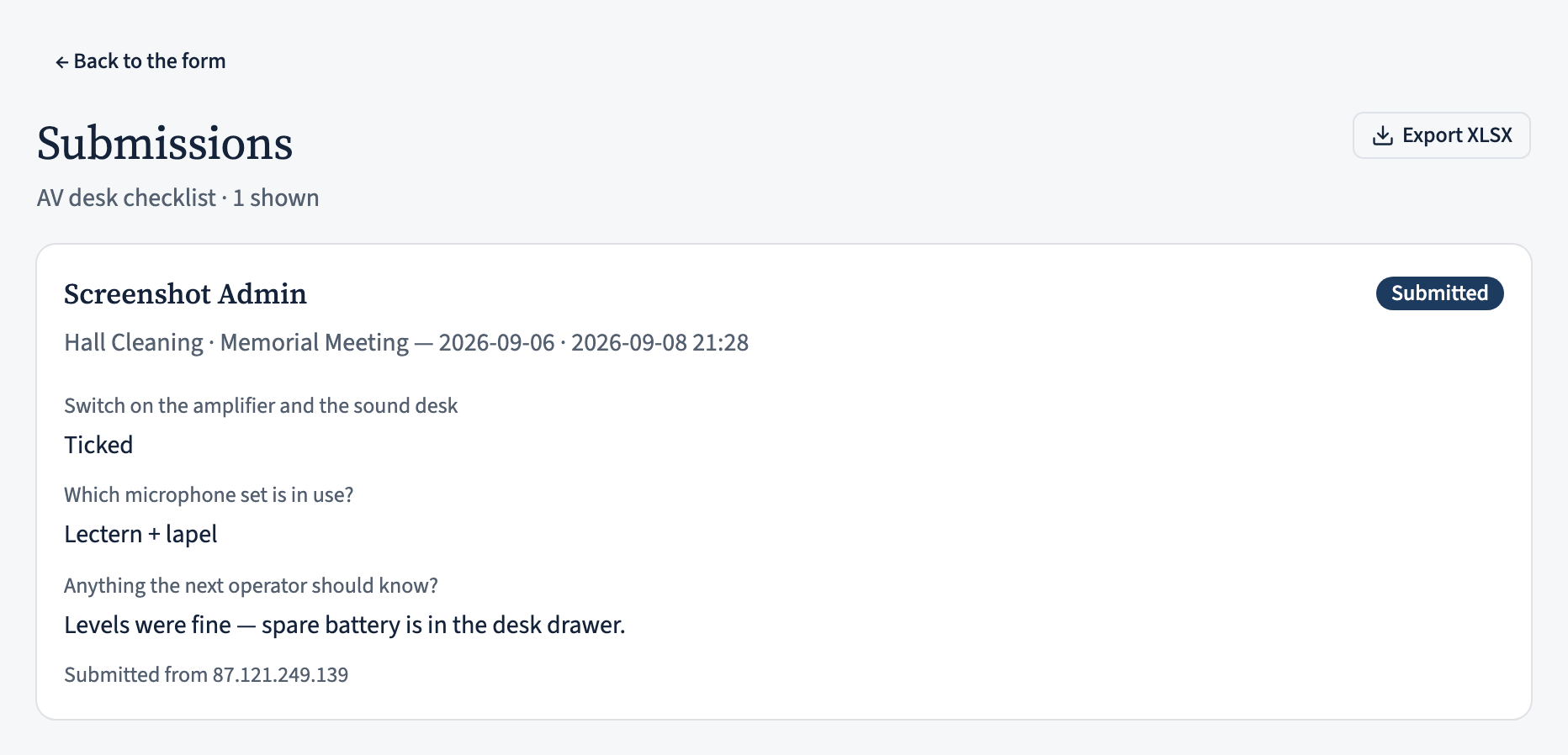
Once responses come in, View submissions on the form editor lists every one — who completed it (or Public / Anonymous), for which role and occurrence, when, and their answers laid out against the form’s items. Each card has a Download PDF for a single branded copy, and a delete control if a response needs removing. Export XLSX downloads the auditable spreadsheet: one row per submission, a column per input — the record for anything needing a paper trail, like a signed-off working-with-children check. If you edited the form after responses arrived, each older response is badged with the version it was collected on and shown against that version’s own questions.
For a bird’s-eye view of the answers, open Summary: a per-question breakdown across every response — tick counts for checkboxes, per-option tallies for choice questions — split by form version so nothing is mis-counted after an edit.

For the other question — which weeks was this actually done, and who missed? — open Completion. It lays out each rostered occurrence the form applies to over the last six months, marks each done or outstanding against the published roster, and for a one-per-assignee form names exactly who hasn’t submitted yet — your chase list. To check what a form asks without opening the editor, click its title in the list for the member’s-eye preview.
Back a form up, or move it between ecclesias
A form’s Portable definition card offers Download JSON — the form’s settings and items saved to a file. It carries the definition only: no submissions and no attachments (those point at this ecclesia’s roles and events). Back at the forms list, Import reads such a file and creates a new draft — a quick way to reuse a checklist or share one between ecclesias. After importing, add its attachments and set it active as usual.

On the iPhone app
The app covers both halves — coordinators build, attach, and review forms, and members complete them. Everything on this page is in the app too.
Manage → Forms lists every form with its collect mode, item and submission counts, and status. Tap + to build a new one.
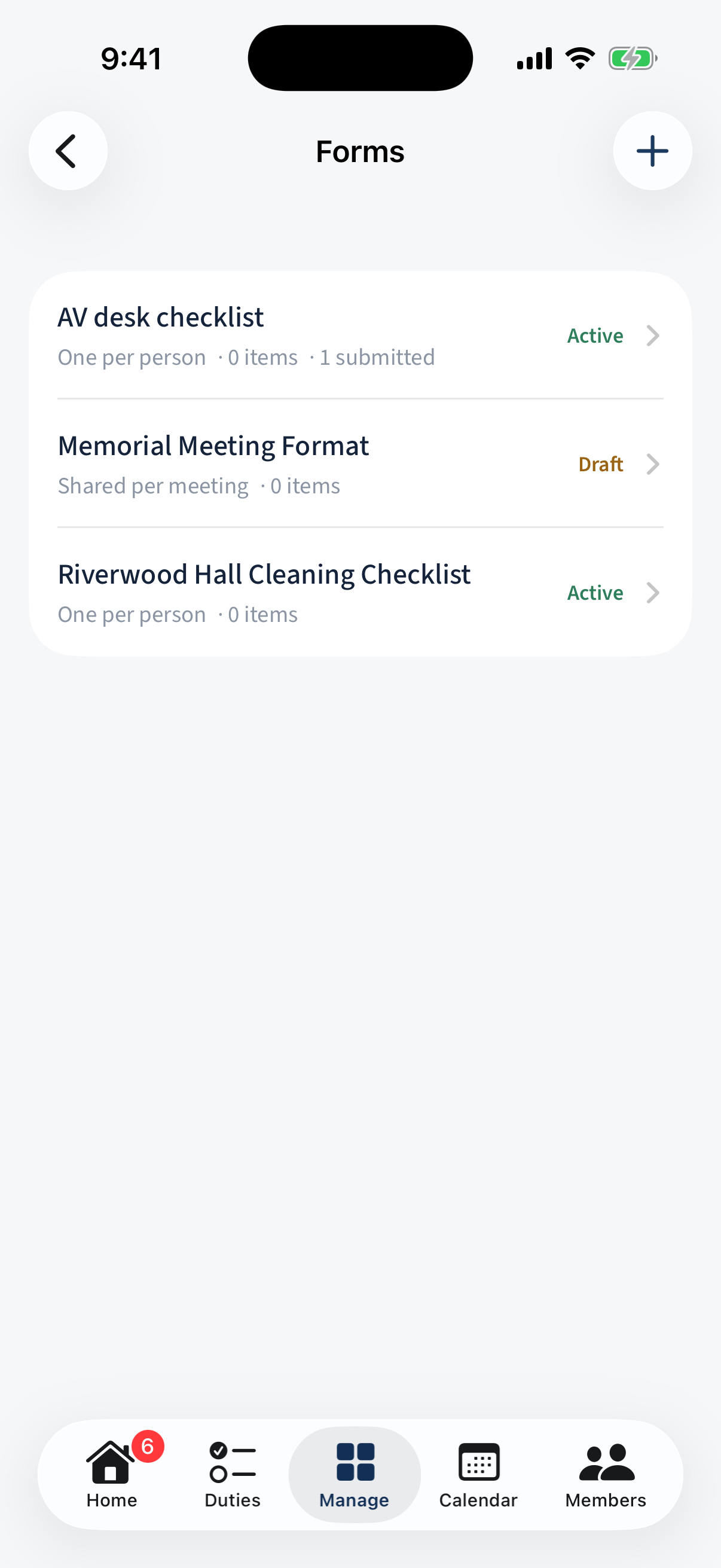
Manage → Forms: each form with its collect mode, item and submission counts, and Active/Draft status. Open a form to edit its name and description, its Collect mode (One per person / Shared per meeting / One per household), and the Items — section heading, checkbox, single or multiple choice, short or long text, date, person, or a repeatable “Add another” group. You can keep editing after responses arrive: it saves a new version, and past responses stay tied to theirs.
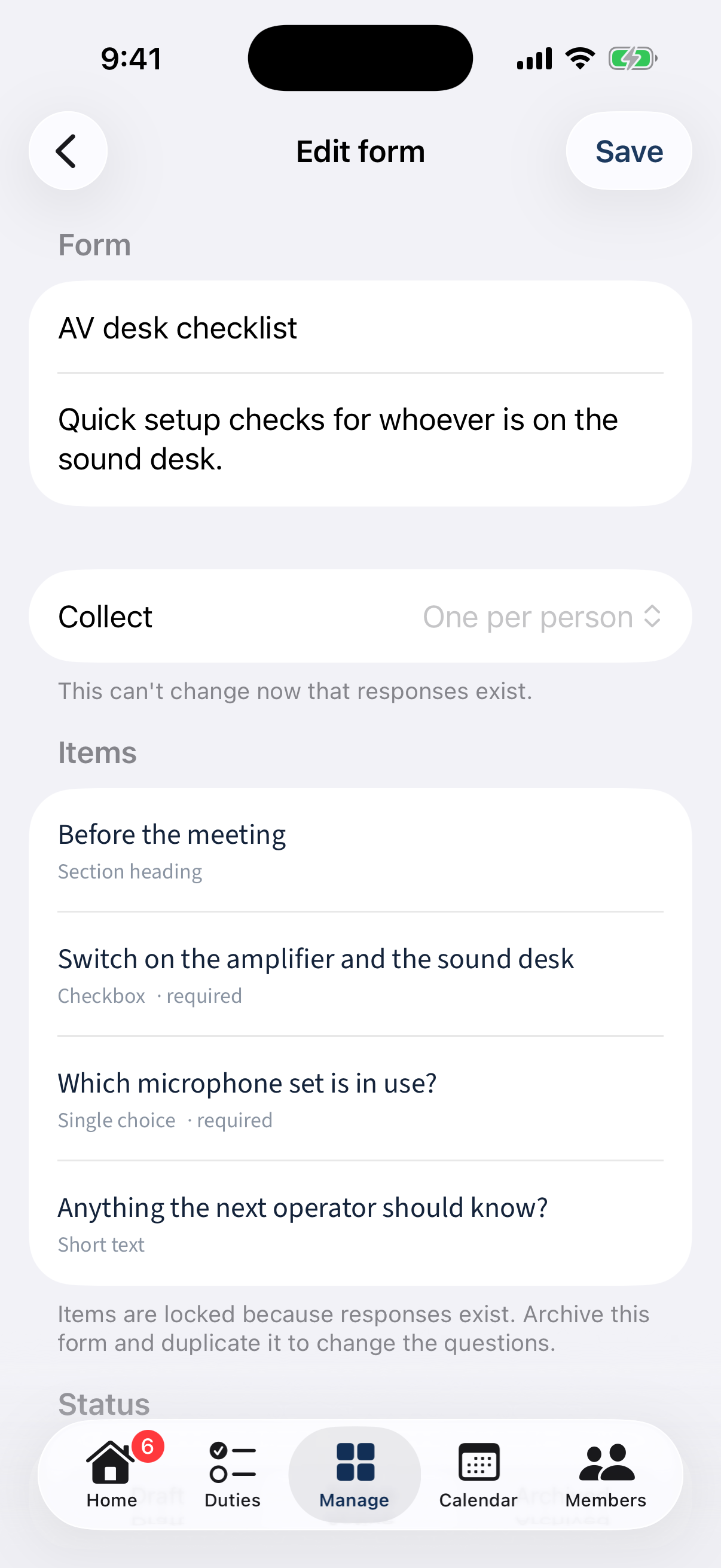
The form editor: name, description, Collect mode, and the item list. Beyond a duty, a form can go to an audience: tap the editor’s Audience row and pick everyone with a qualification or Sunday School parents (shown when Sunday School is on). They complete it once, from My forms.
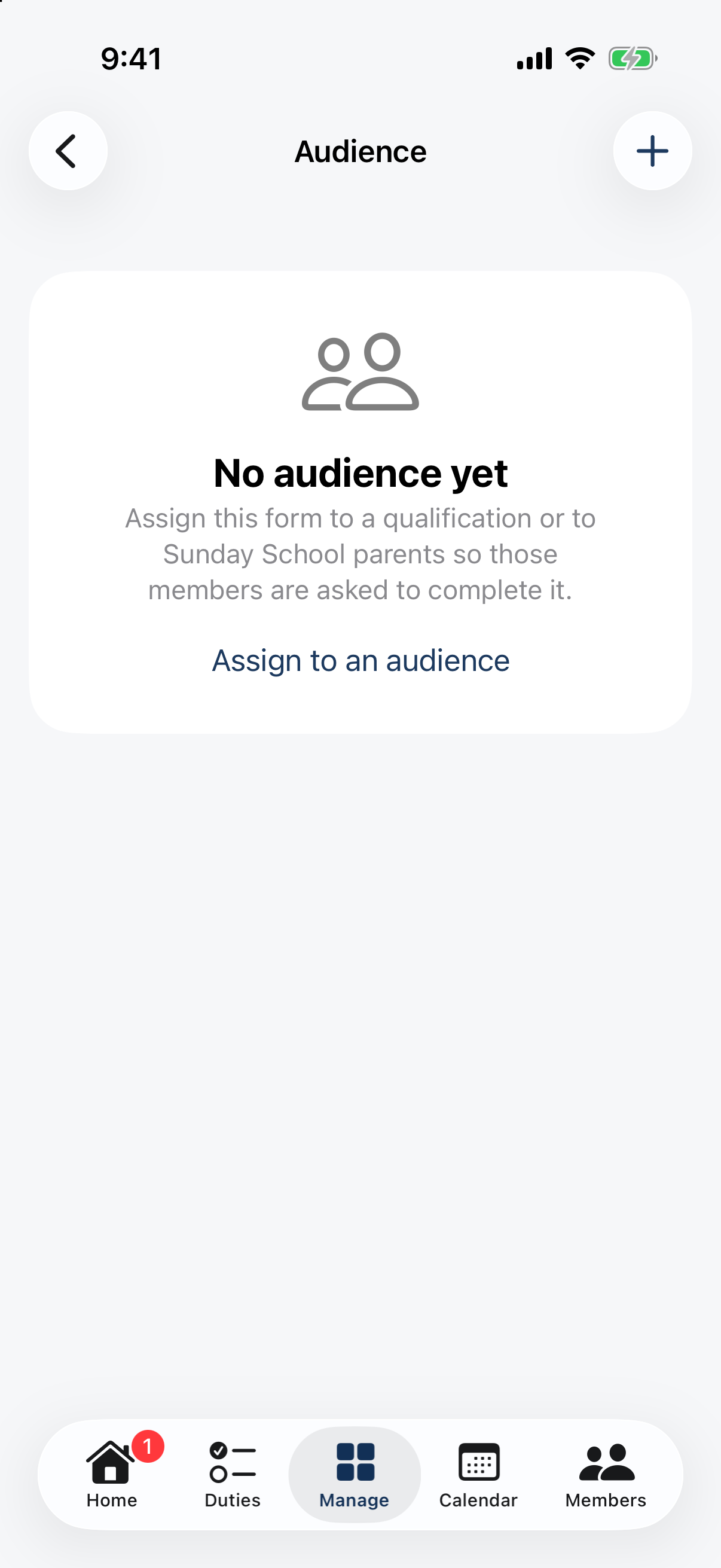
The form editor's Audience row: choose a qualification or Sunday School parents. A Section heading item can carry body text with a link, or a Linked document — tap Choose a document to attach one from Resources; it opens in-app beneath the section while filling in.
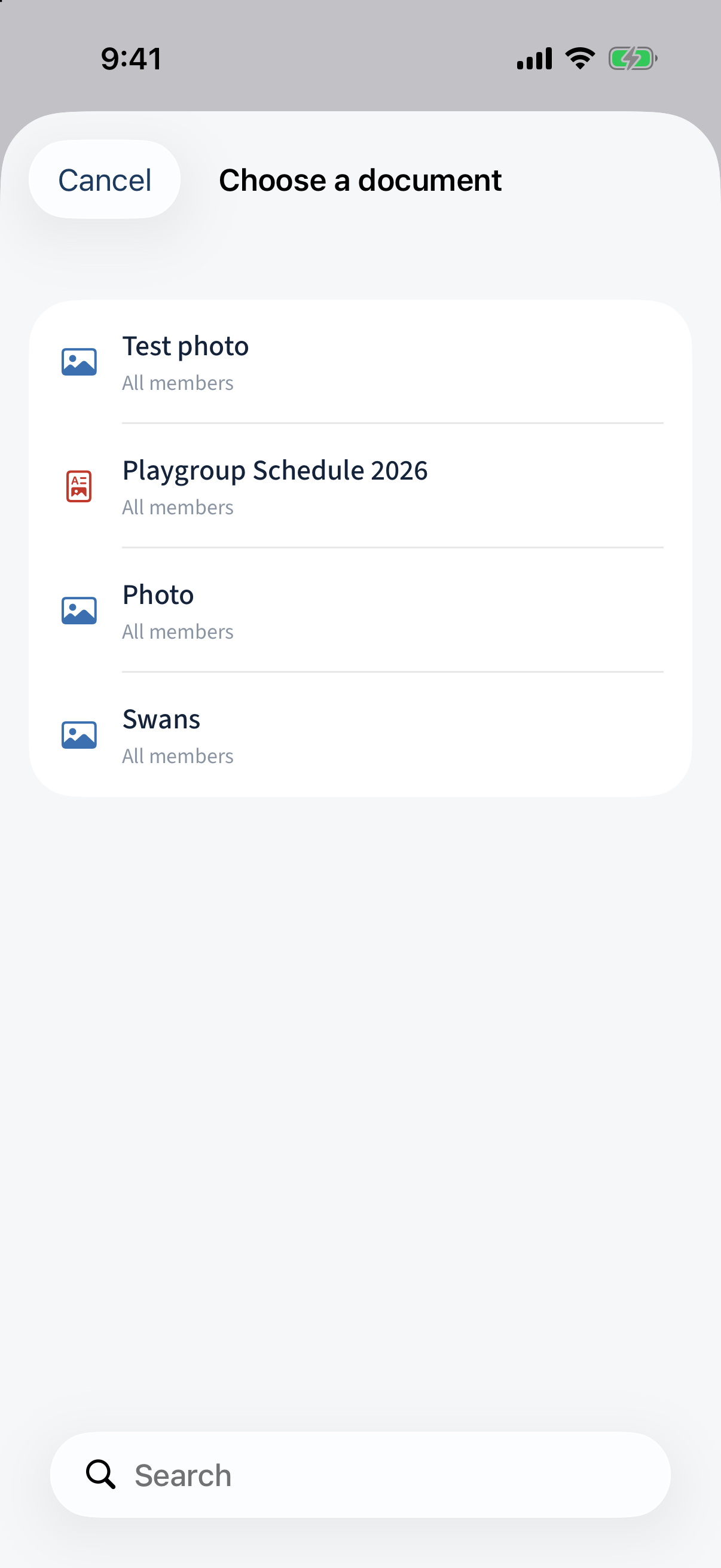
A section item with a Linked document picker choosing a shared document. Below the items sit Status (Draft / Active / Archived), Attach, Responses, Summary, Export, the public link (for non-member submissions), and Delete. Only an Active form reaches anyone.
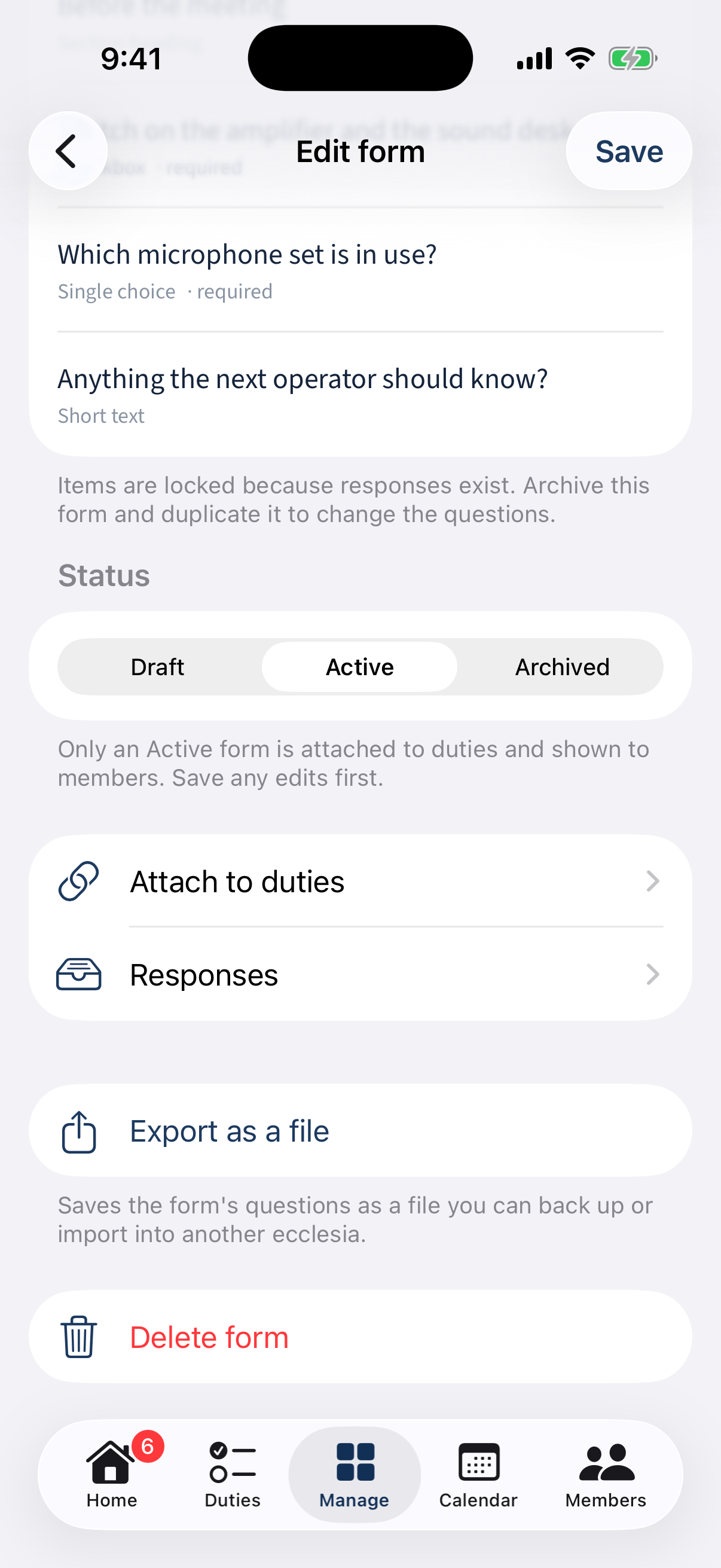
Below the items: Status, Attach, Responses, Summary, Export, public link, Delete. Responses lists each submission by person and occurrence; open one to Save as PDF or share it.
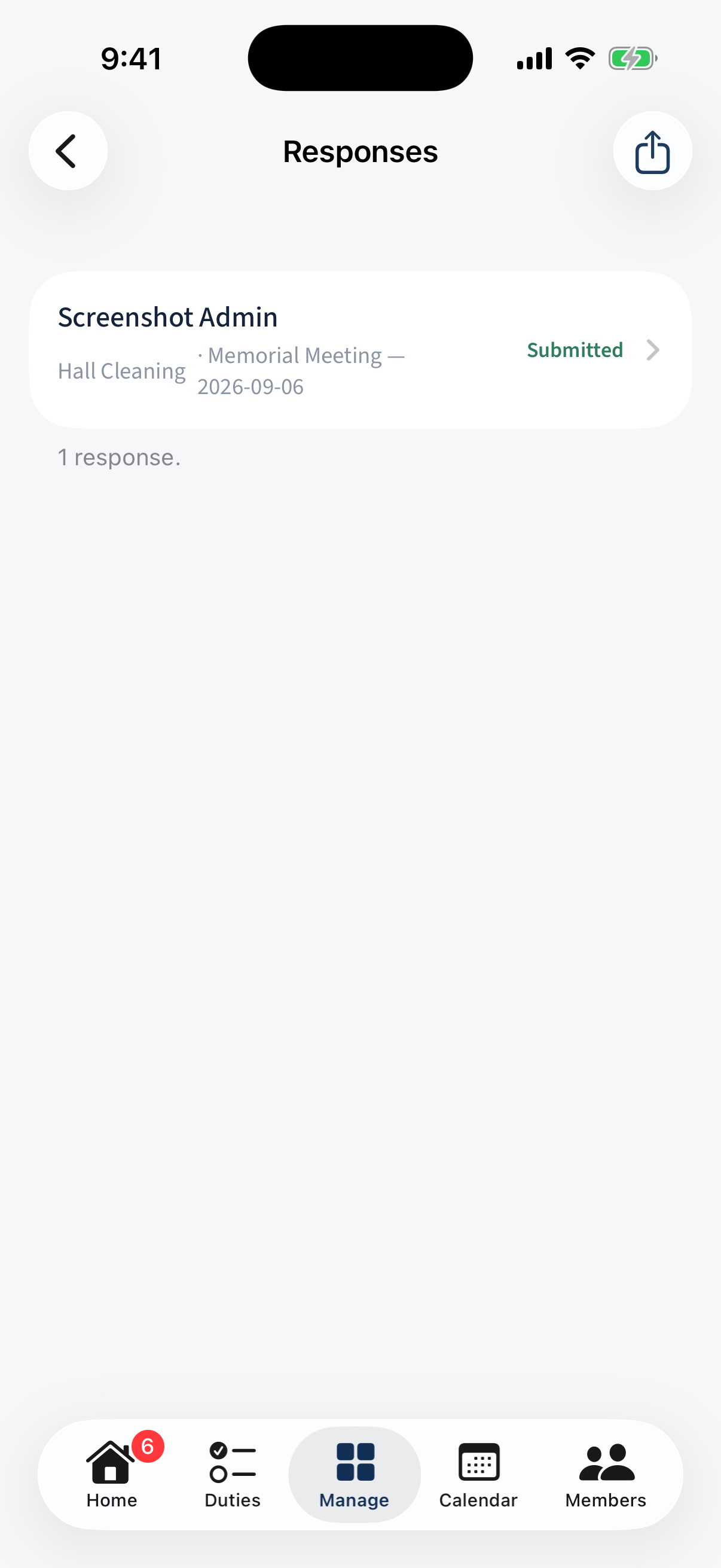
The submissions list: each response by person and occurrence with a Save-as-PDF / share icon. Summary gives per-question tallies — choice counts, checkbox Yes/No, “N answered” — broken down by form version once a form has been re-versioned.
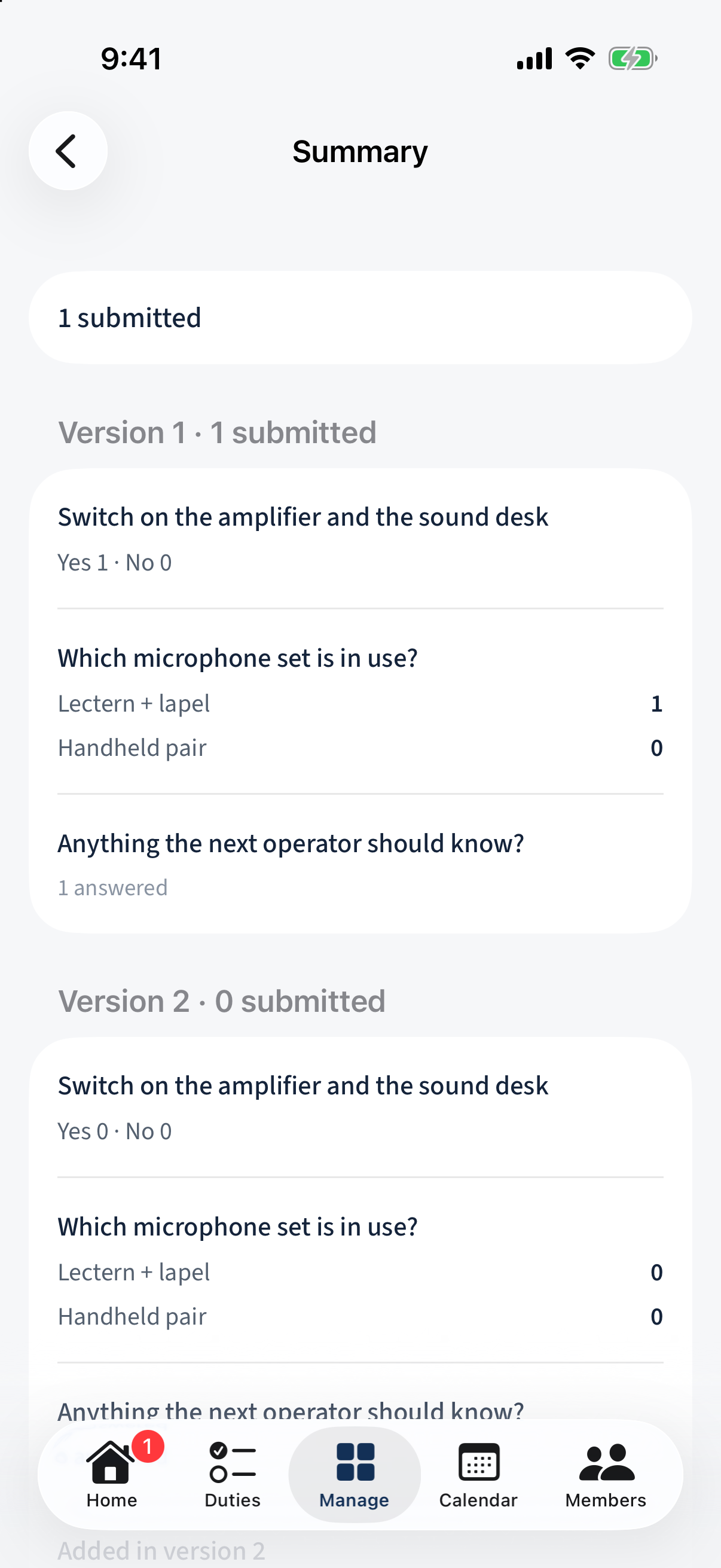
The Summary screen: per-question tallies, broken down by form version. Members complete forms in the app too: Profile → My forms (or the occurrence’s “Forms to complete” card) opens the checklist. Forms you get from an audience appear under “Other forms”; a household form shows a household form banner. Save to keep a draft, Submit when done.
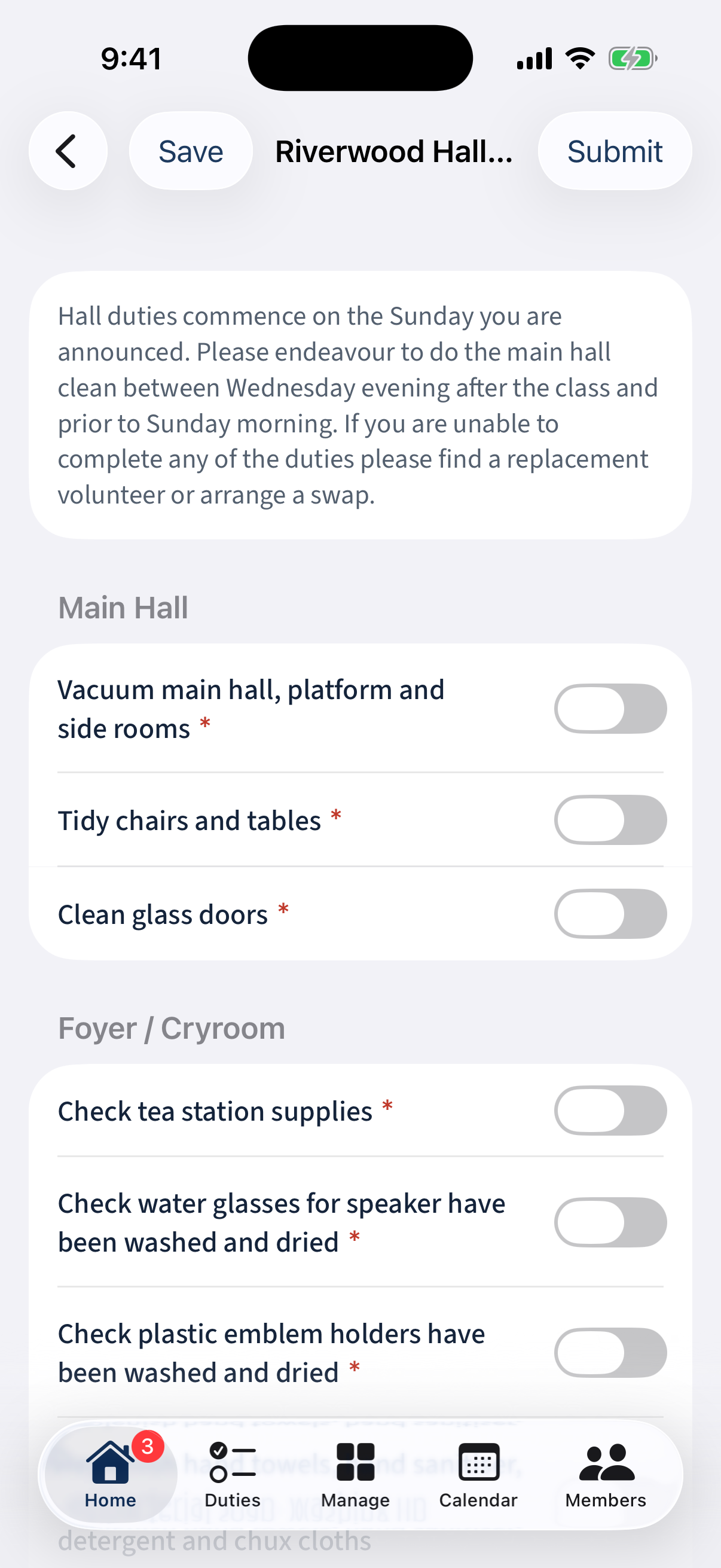
A member's form open: an intro blurb, grouped required toggles, and Save / Submit. Ticking an item turns its toggle solid; on a repeating section, tap Add another for each extra entry. Submit once every required item is done.
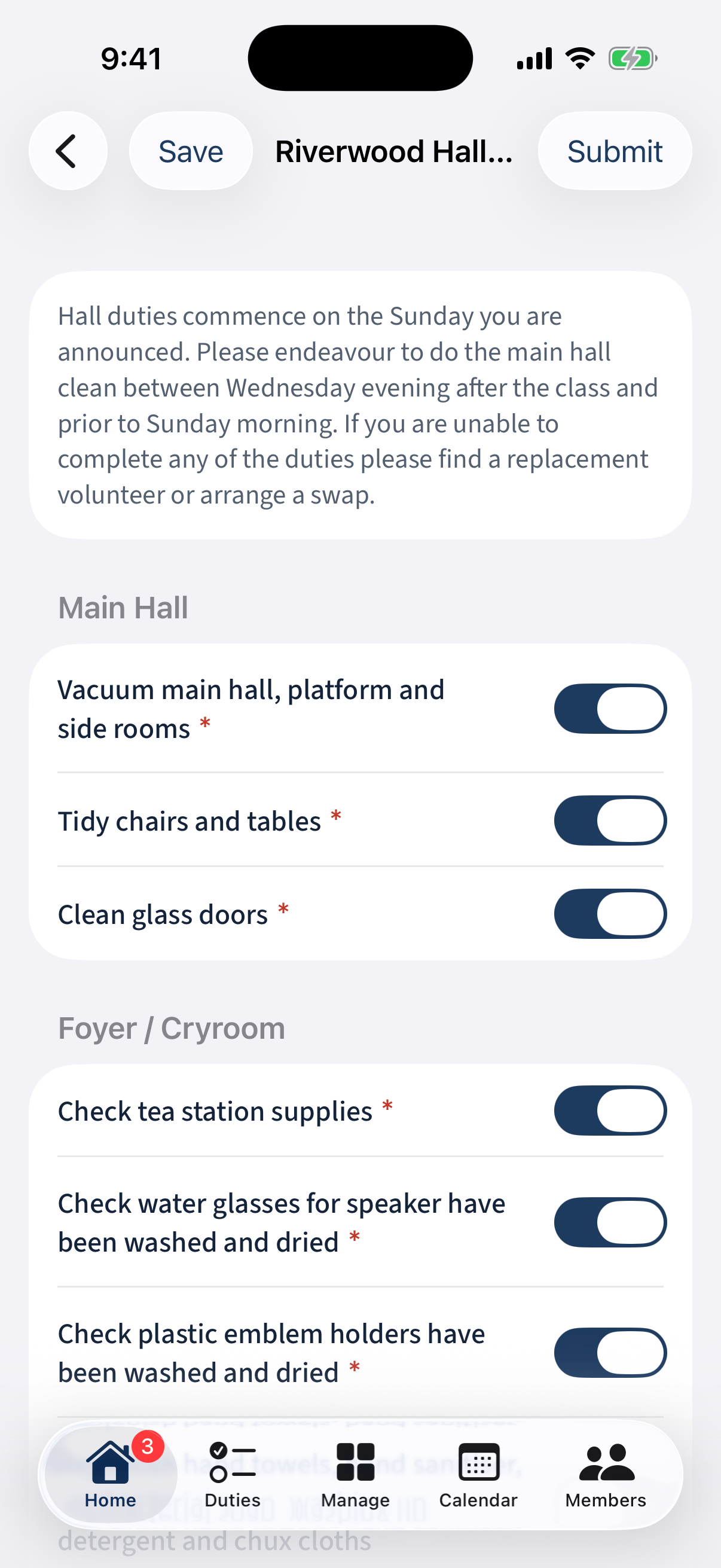
Ticking items: each requirement toggle turns solid when done.
Different on the app: Building, attaching, and reviewing are all in the app — nothing here is web-only.