Roles and eligibility
Roles are the roster’s building blocks — Chairman, Emblem Bearer, Reader, and so on. Each role captures who’s eligible (age, sex, baptism status, qualifications) and who’s willing by default. The scheduler consults both when it fills a slot; getting the roles right up front saves a lot of manual override work later.
This guide walks a tenant administrator through creating a role from scratch and understanding what each setting actually does. Reading time: five minutes.
Open the Roles page
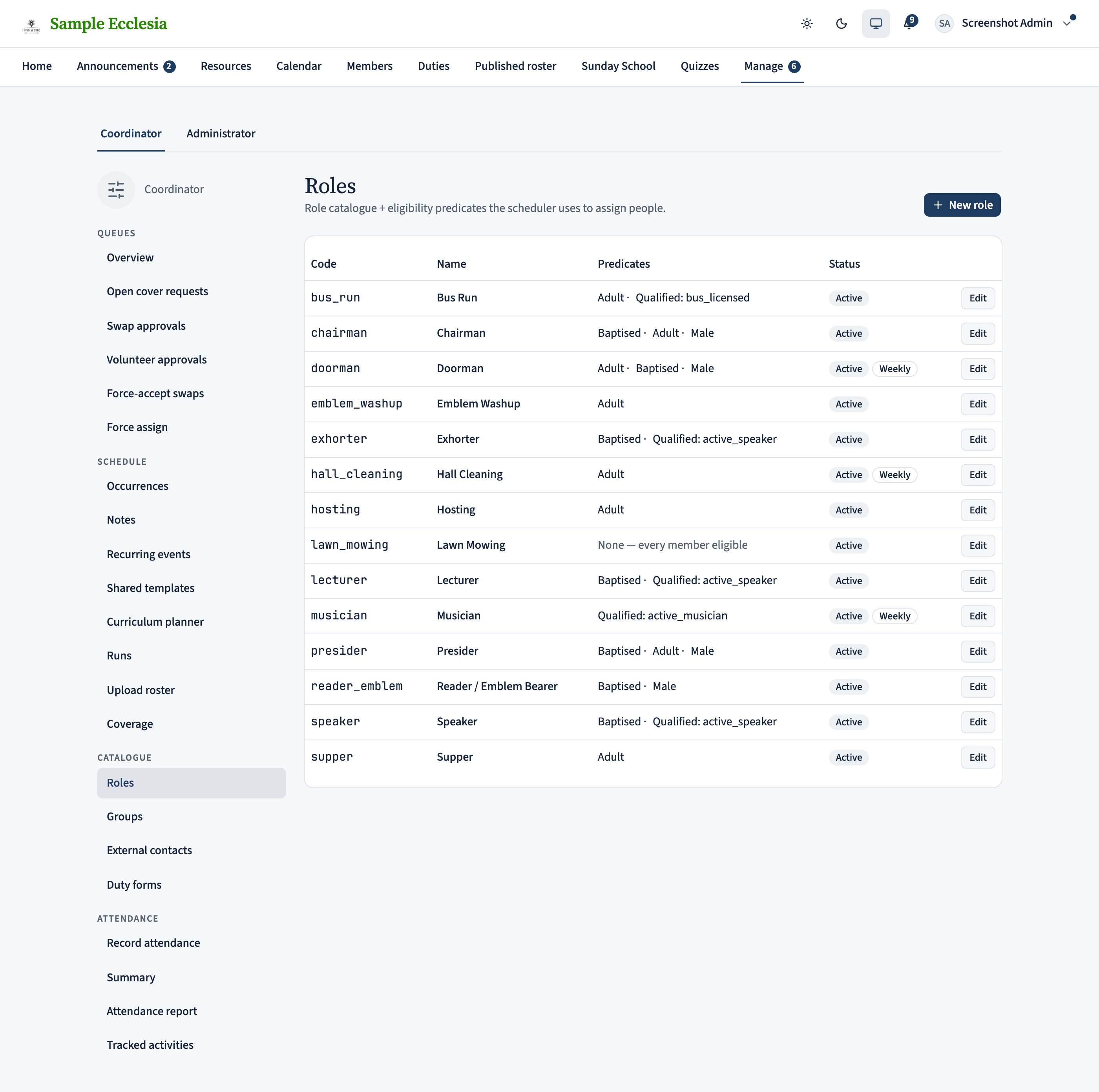
Open Manage in the top navigation, then Roles in the left sidebar (under Catalogue). The list shows every role your ecclesia has, with a summary of its eligibility rule and its default preference. Existing roles can be edited in place; new ones start from the New role button in the top-right.
Name the role and set its default preference
Give the role a short, unambiguous name — Chairman, Presider, Reader / Emblem Bearer. Members see this name on their profile and their calendar, so match your ecclesia’s usual language.
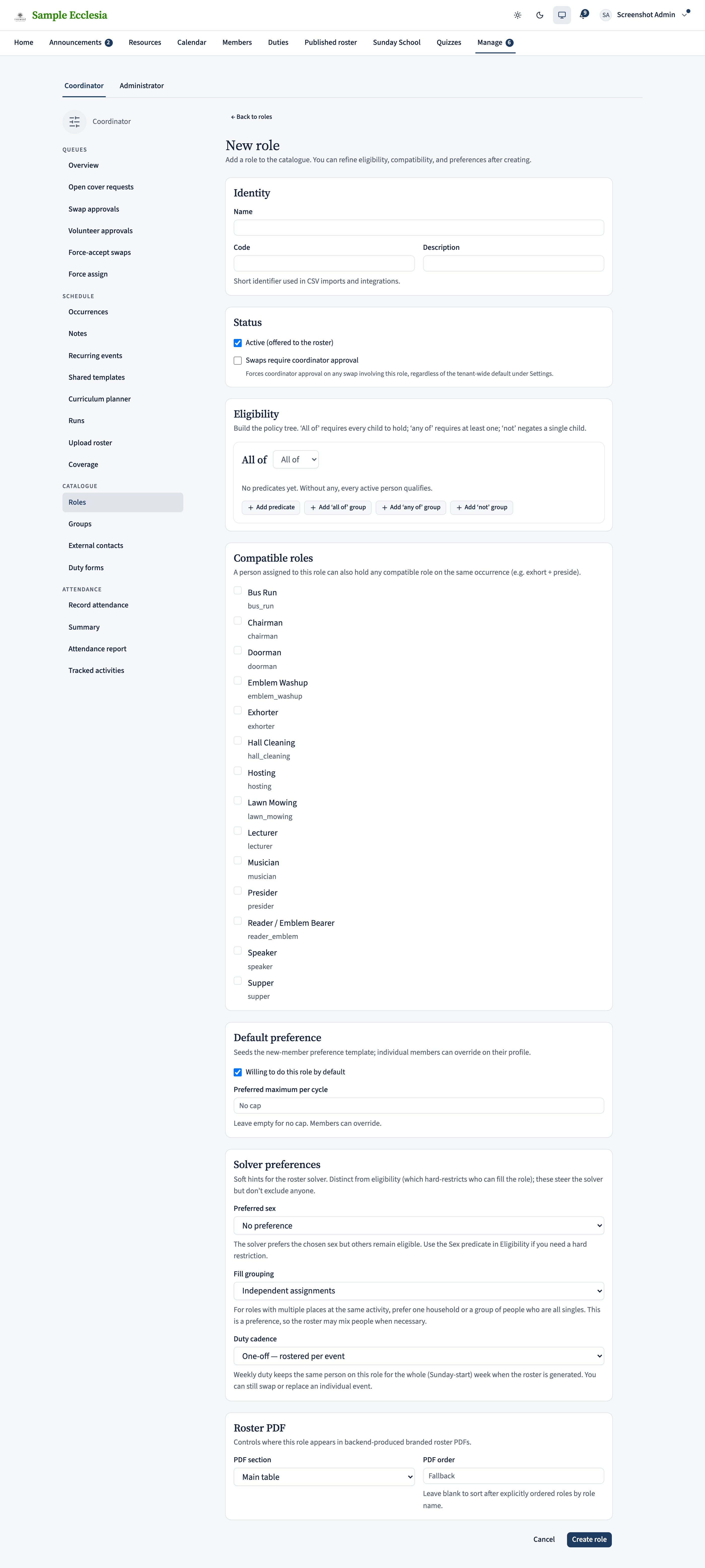
The Default preference card seeds the preference every new member starts with (each member can override it on their own profile):
- Willing to do this role by default — leave it ticked and every eligible member is on the solver’s candidate list without any per-member action. Untick it for roles that need personal comfort (e.g. an Exhorter), and only members who opt in on their profile are considered.
- Preferred maximum per cycle — a soft cap on how often a new member is asked to serve in this role. Leave it empty for no cap; members can raise or lower their own.
Build the eligibility rule
Eligibility is a policy tree you build up from simple predicates, so you can express anything from “must be an adult” to “baptised and (holds Public speaking or Reading)”. Each group has an operator:
- All of — every child must hold (AND). This is the root default.
- Any of — at least one child must hold (OR).
- Not — negates its single child.
Click Add predicate to add a leaf condition, or add a nested group for more complex logic. The predicate types are:
- Adult — the person is an adult; use it for leadership-shaped roles.
- Baptism status — baptised / unbaptised / unknown.
- Sex — male or female; only set when your ecclesia’s practice restricts a role.
- Has qualification (code) — the person holds a qualification you’ve seeded in the Qualifications catalogue.
- Person fact — a custom fact key for anything the other predicates don’t cover.
Leave the root group empty and every active person qualifies (the editor says as much) — handy for all-hands tasks like supper or hall cleaning.
Save and verify on a member's Role preferences
Click Save. The new role is available to the solver immediately.
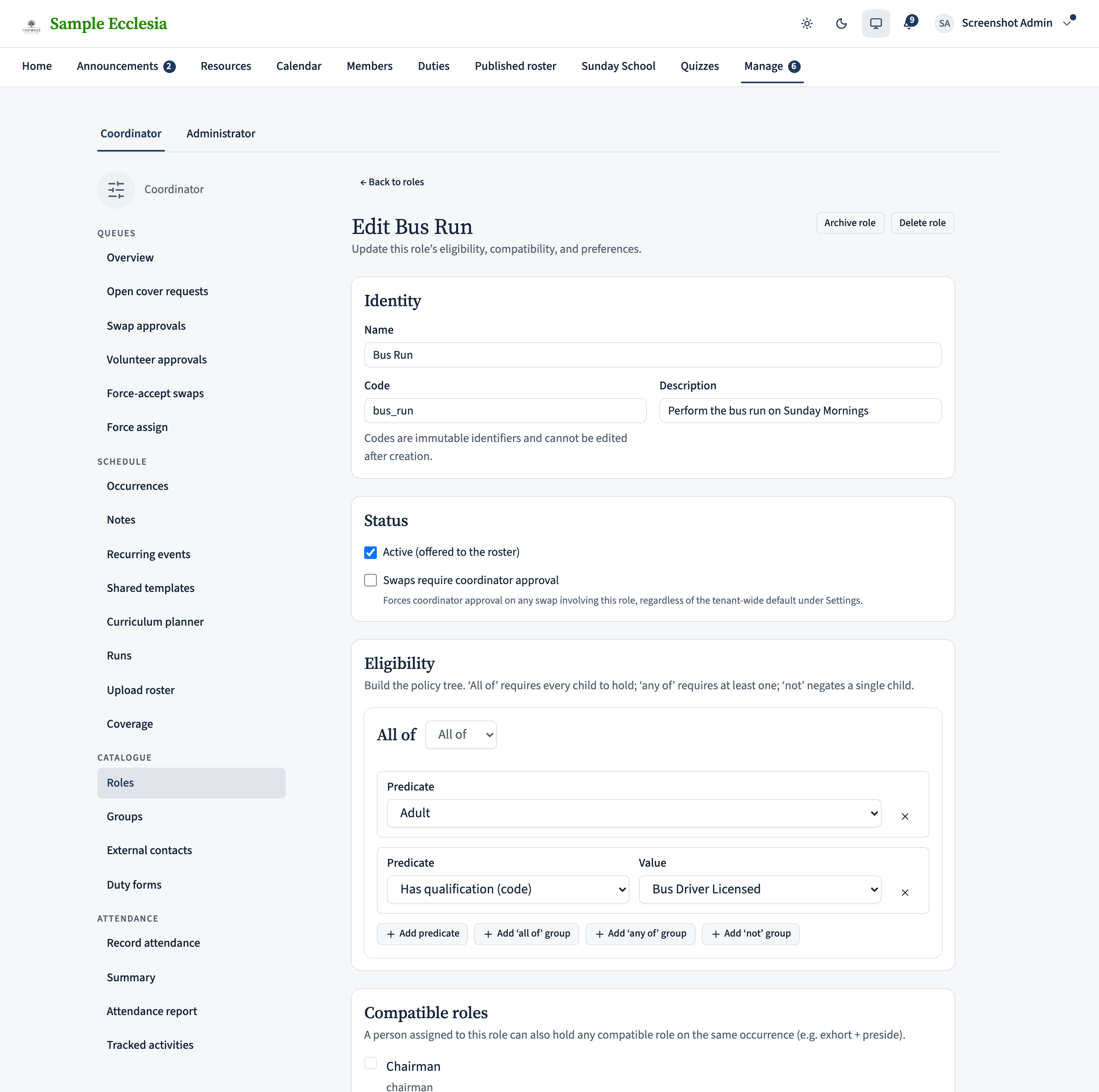
Open Role preferences (under Volunteering in the profile sidebar) for any member who satisfies the rule and confirm the new role appears with an Eligible badge and the willingness default you chose. For members outside the rule, the row renders as Ineligible with a reason spelling out the missing criterion — useful copy to point at when someone asks why they can’t be added.
On the iPhone app
The roles catalogue is in the app (Manage → Roster roles).
Manage → Roster roles lists the catalogue — each a display name and code. Tap + to add one.
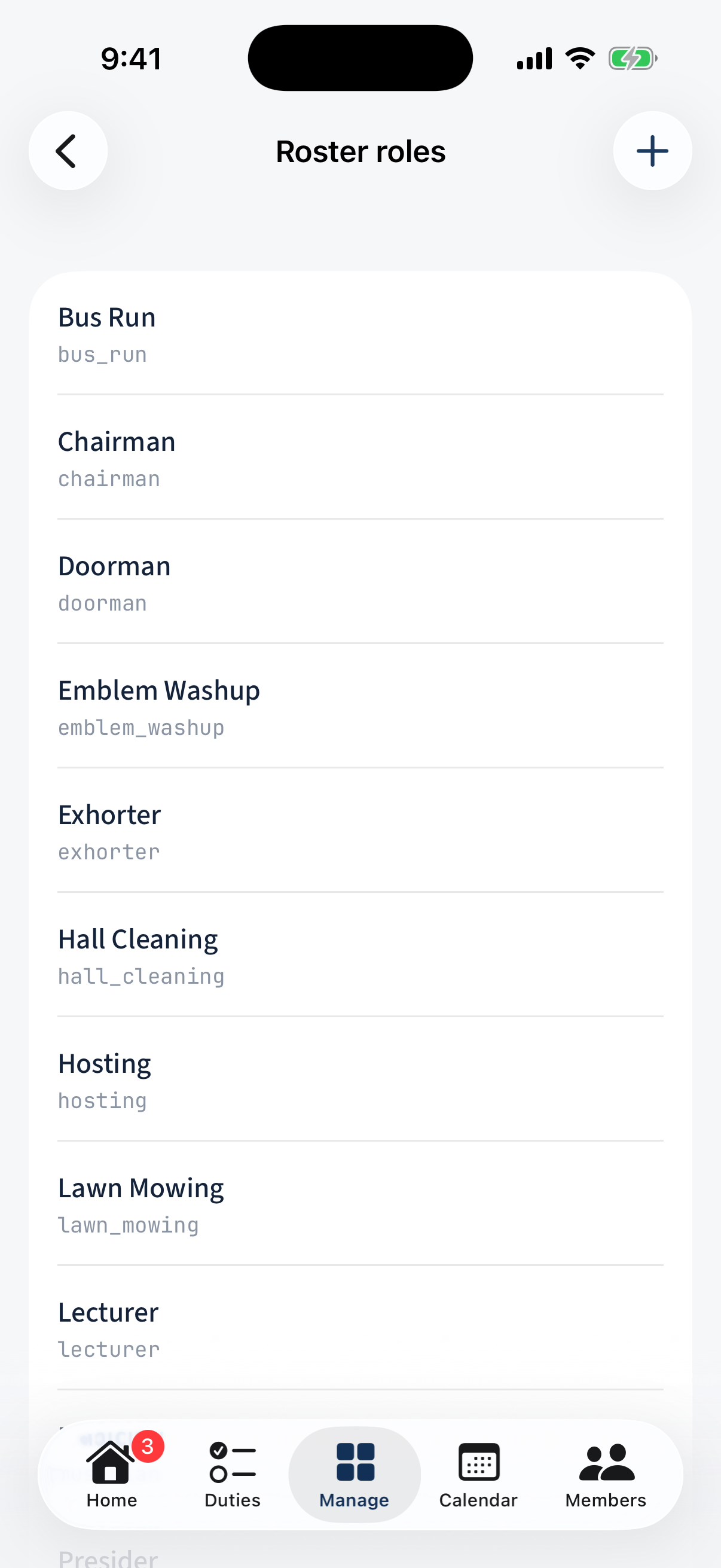
Manage → Roster roles: the catalogue, each row a display name and code, with a + to add. The role editor has Name / Code / Description, toggles for Members willing by default, Swaps need coordinator approval, and Active, plus Cadence and Preferred-sex pickers and an Eligibility rule builder (the age and qualification checks the solver enforces).
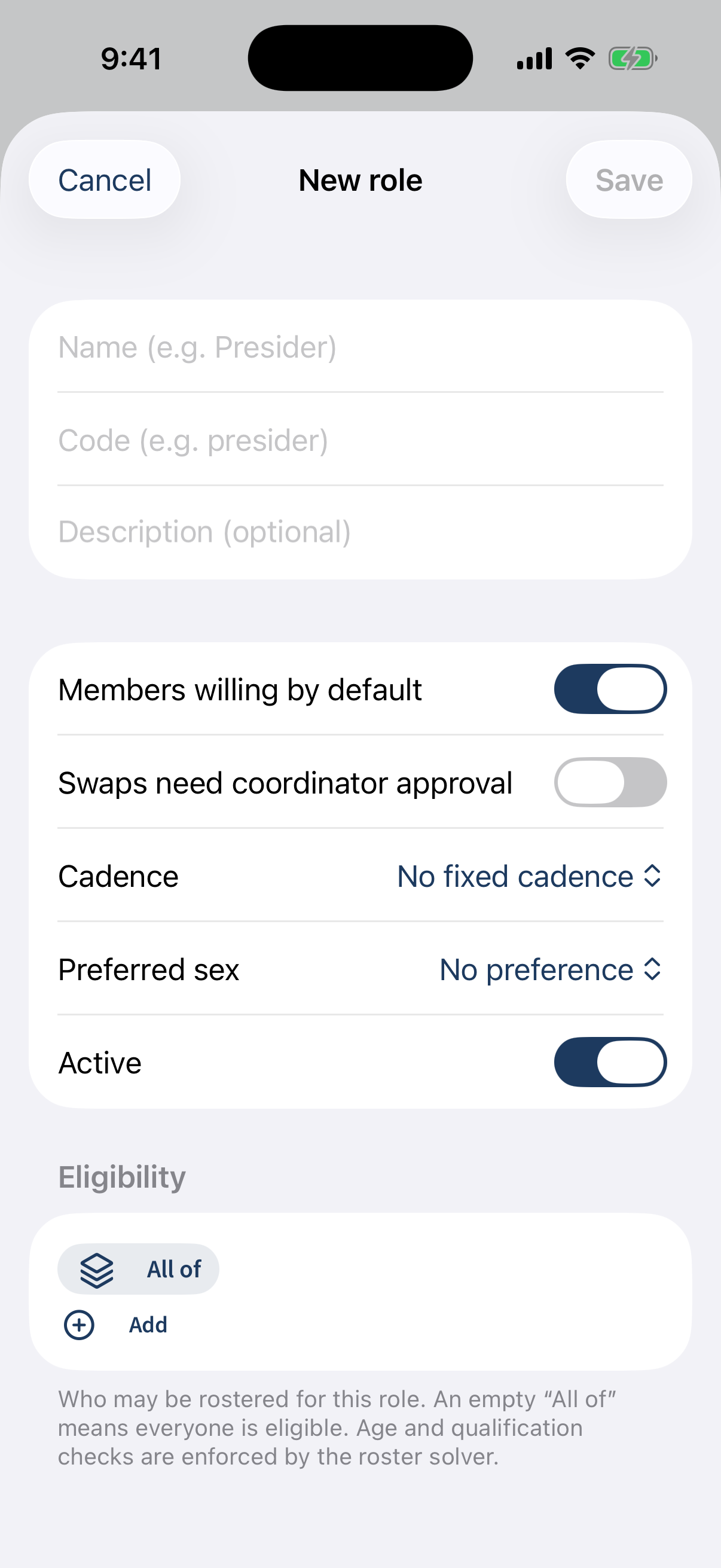
The role editor: Name/Code/Description, willing-by-default, swaps-need-approval, Active, Cadence, Preferred sex, and an Eligibility builder.
Different on the app: Tapping an existing role opens the read list; the + button opens the editor (a create form).
What next?
- Roles are consumed by activity templates — Add a recurring Friday youth event walks setting a template up.
- If a role is chronically hard to fill, the Coverage report highlights it — that’s usually a hint the eligibility predicate is too tight.
- Rename or retire an unused role from the same list. A role that still has assignments can be marked inactive rather than deleted.