Congregational attendance
Attendance records who was present at your regular meetings. You pick which activities are worth tracking, mark a simple present list each week, and get two views back: a per-member report showing who attended what, and a summary showing how numbers are trending.
It is for coordinators and administrators. Turning the feature on is an administrator task, called out in step 1.
This is not the Sunday School register. That one is per-class and tracks enrolled students; this one is congregation-wide and tracks members. They are separate features with separate records — see the Sunday School guide for the other.
Reading time: about five minutes.
Turn attendance on (administrator)
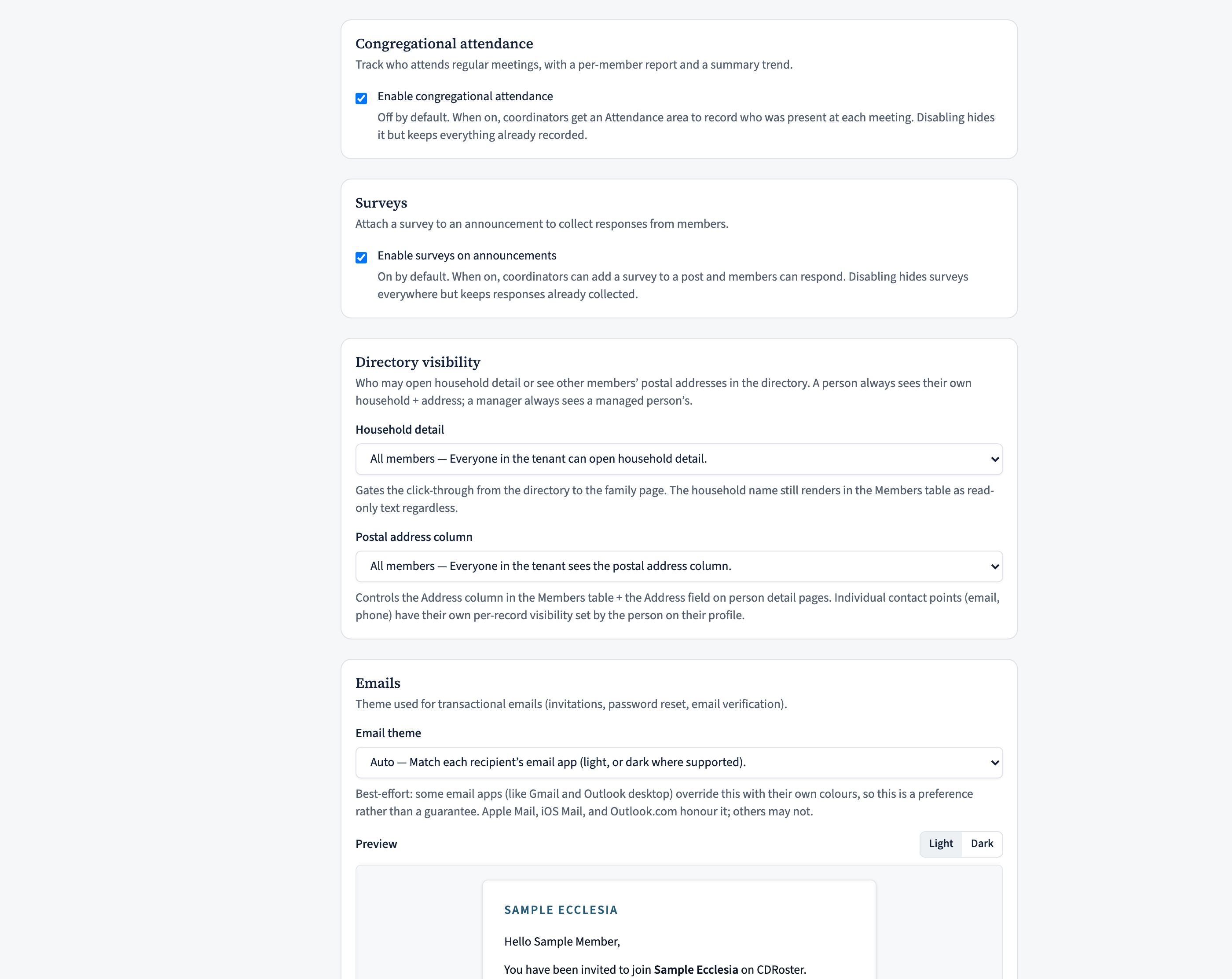
Attendance is off by default, so nothing appears until an administrator enables it. Go to Manage → Settings, find the Attendance card, and tick Enable congregational attendance. Save.
Attendance now appears under Manage (in the Coordinator section) for coordinators and administrators. If you ever switch it back off, it disappears but everything already recorded is kept — turning it on again brings your history back exactly as it was.
Choose which activities to track
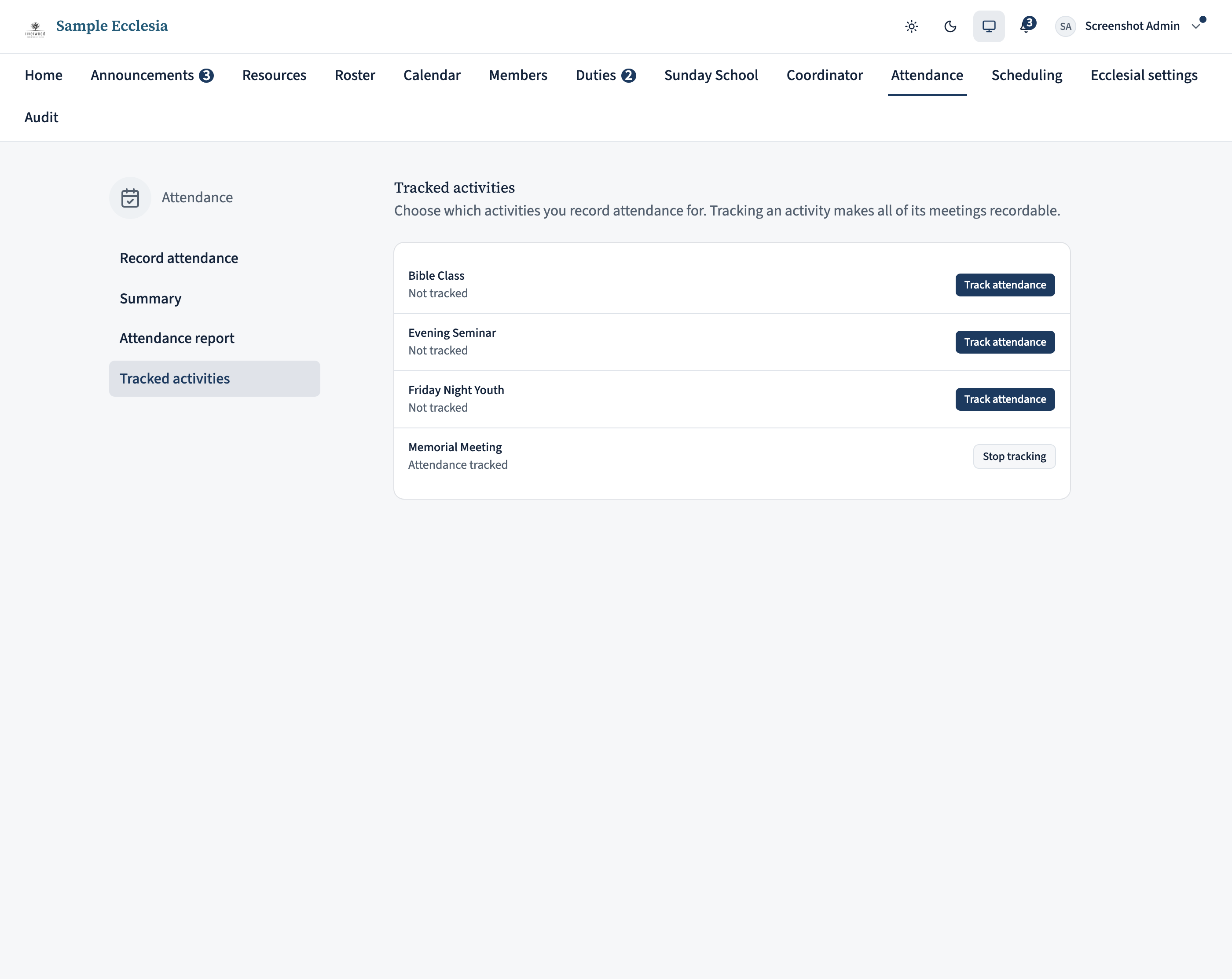
Open Attendance and then Tracked activities in the side rail. You will see your activities — Memorial Meeting, Bible Class, and so on — and you choose which ones to keep attendance for.
Track only what you actually want to count. Nothing can be recorded against an untracked activity, and a smaller list keeps the weekly job quick. You can change your mind at any time; untracking an activity hides it from the recording screens but does not delete what has already been recorded.
Open a meeting to record
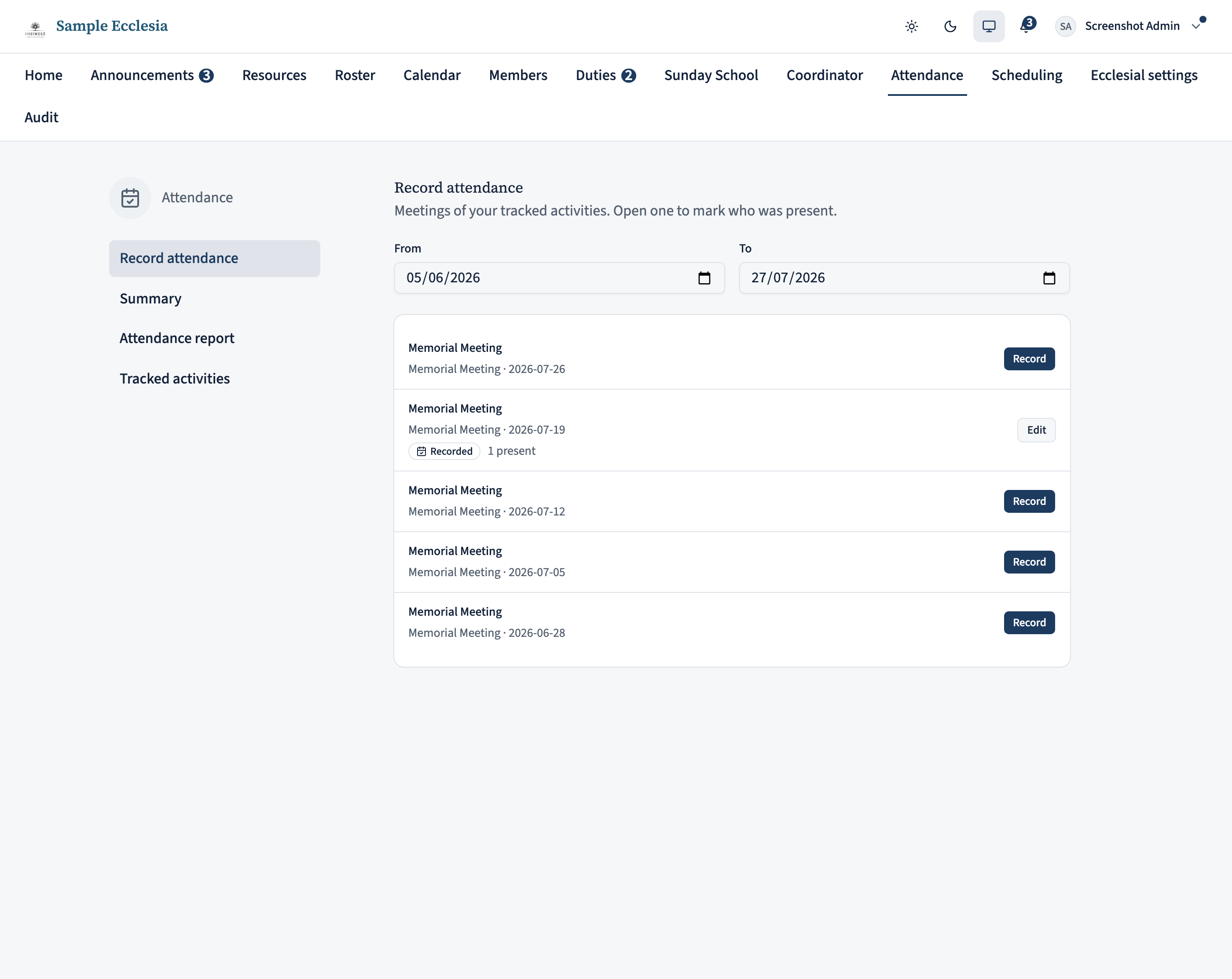
Record attendance is the page you will use most. Set the From and To dates to the period you are catching up on — usually just the last week or two — and you will get every meeting of a tracked activity in that window.
Click a meeting to open its register. Meetings you have already recorded stay in the list, so you can go back and correct one.
Mark who was there
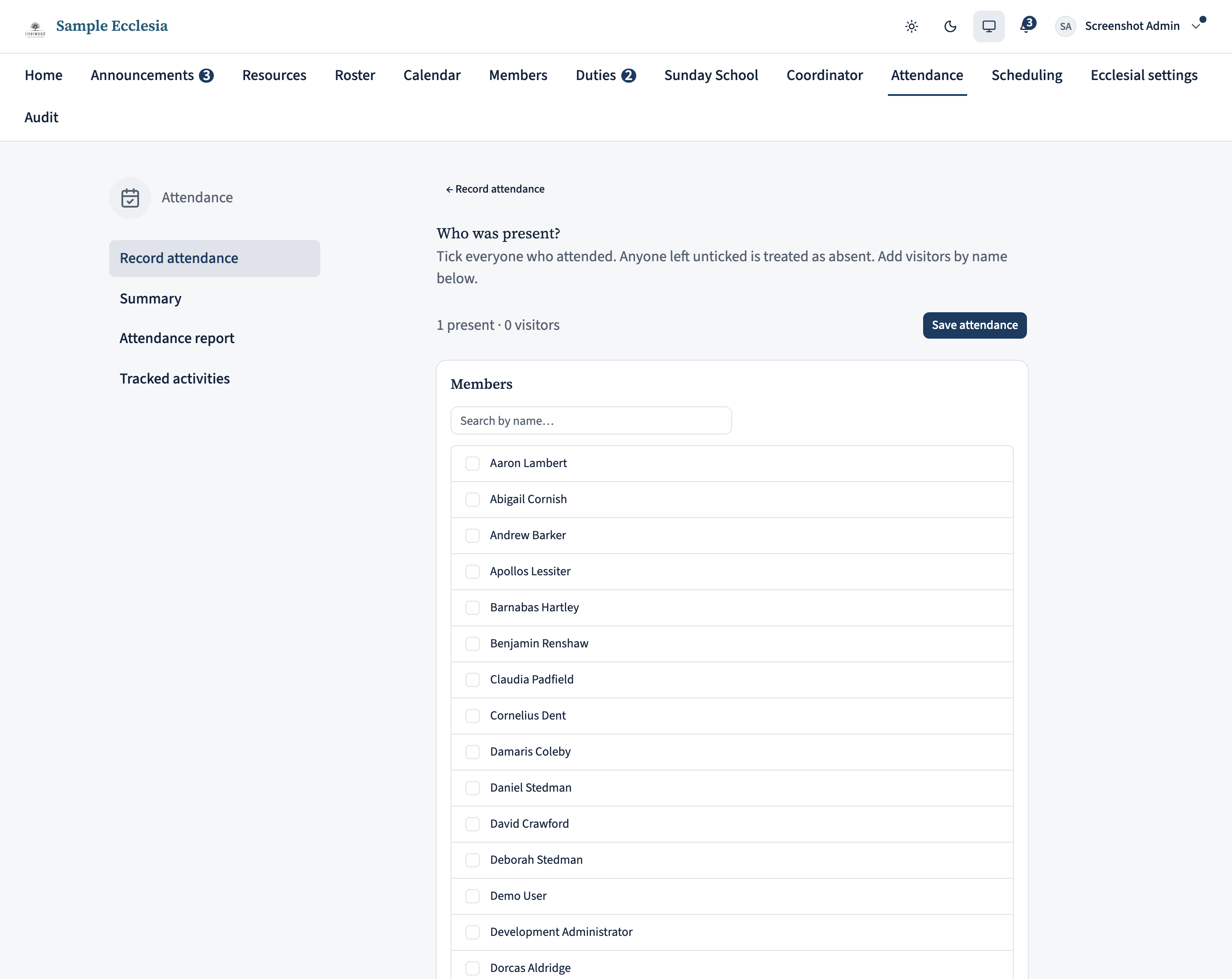
The register lists your members. Tick everyone who was present — that is all it records. There is no “absent” mark and no reason to give: anyone not ticked is simply not counted as present. A running total sits at the top so you can sanity-check against your own headcount.
For anyone who is not a member — visitors, family from another ecclesia — use the visitors box and add them by name. They count toward the meeting’s headcount and appear in the report, without needing a member record.
Save when you are done. Saving replaces that meeting’s register with exactly what is on screen, so if you reopen it later to fix something, make sure the ticks reflect the whole meeting and not just your correction.
Read the per-member report
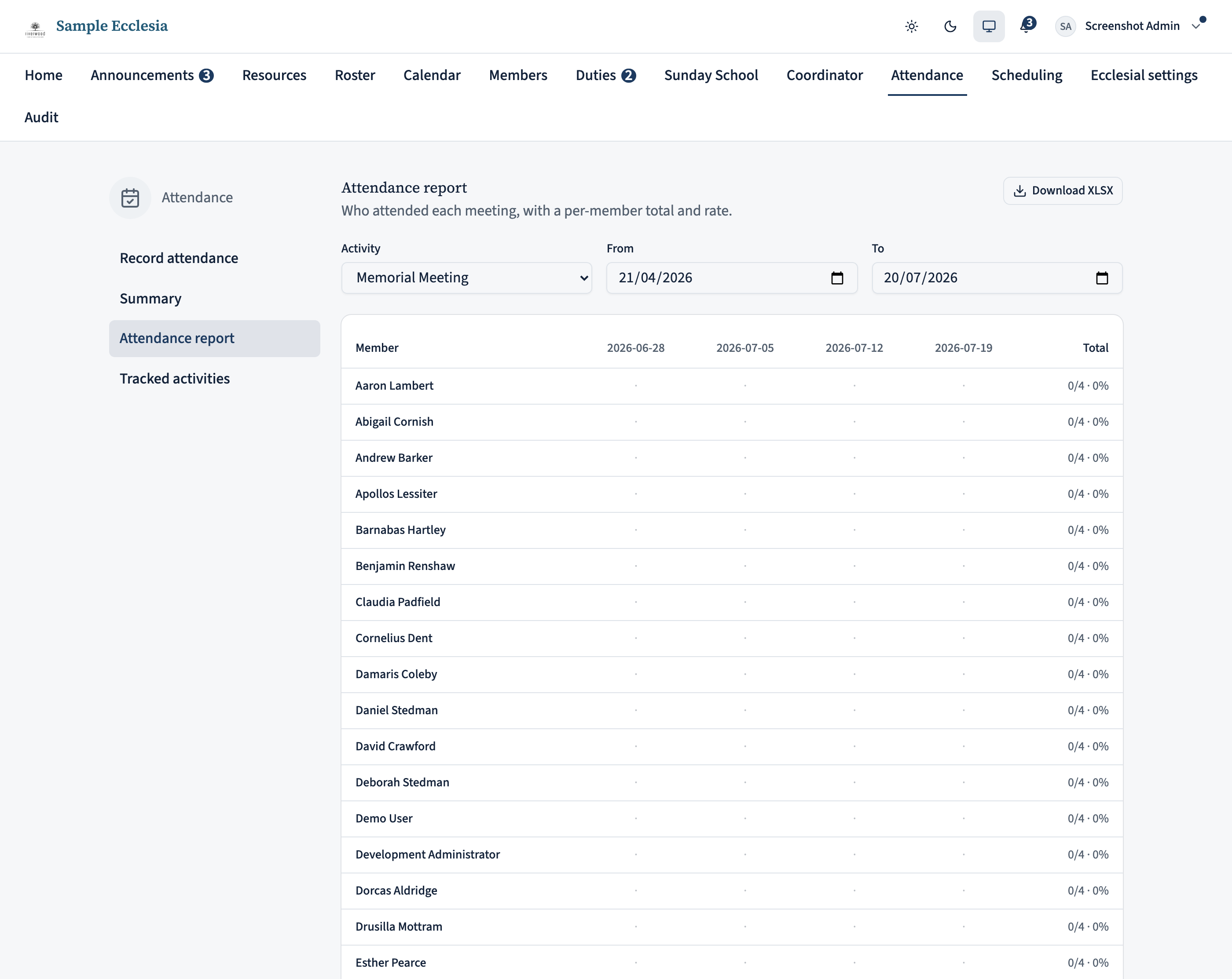
Attendance report answers “who has been coming?”. Pick an activity and a date range and you get a grid: members down the side, meeting dates across the top, a tick where someone was present, and a total and percentage at the end of each row.
Visitors are listed underneath, with the date they came, rather than in the grid — they have no row of their own to fill.
Download XLSX gives you the same grid as a spreadsheet, which is the easier form if you want to sort it, chart it, or keep a copy outside the system.
Watch the trend
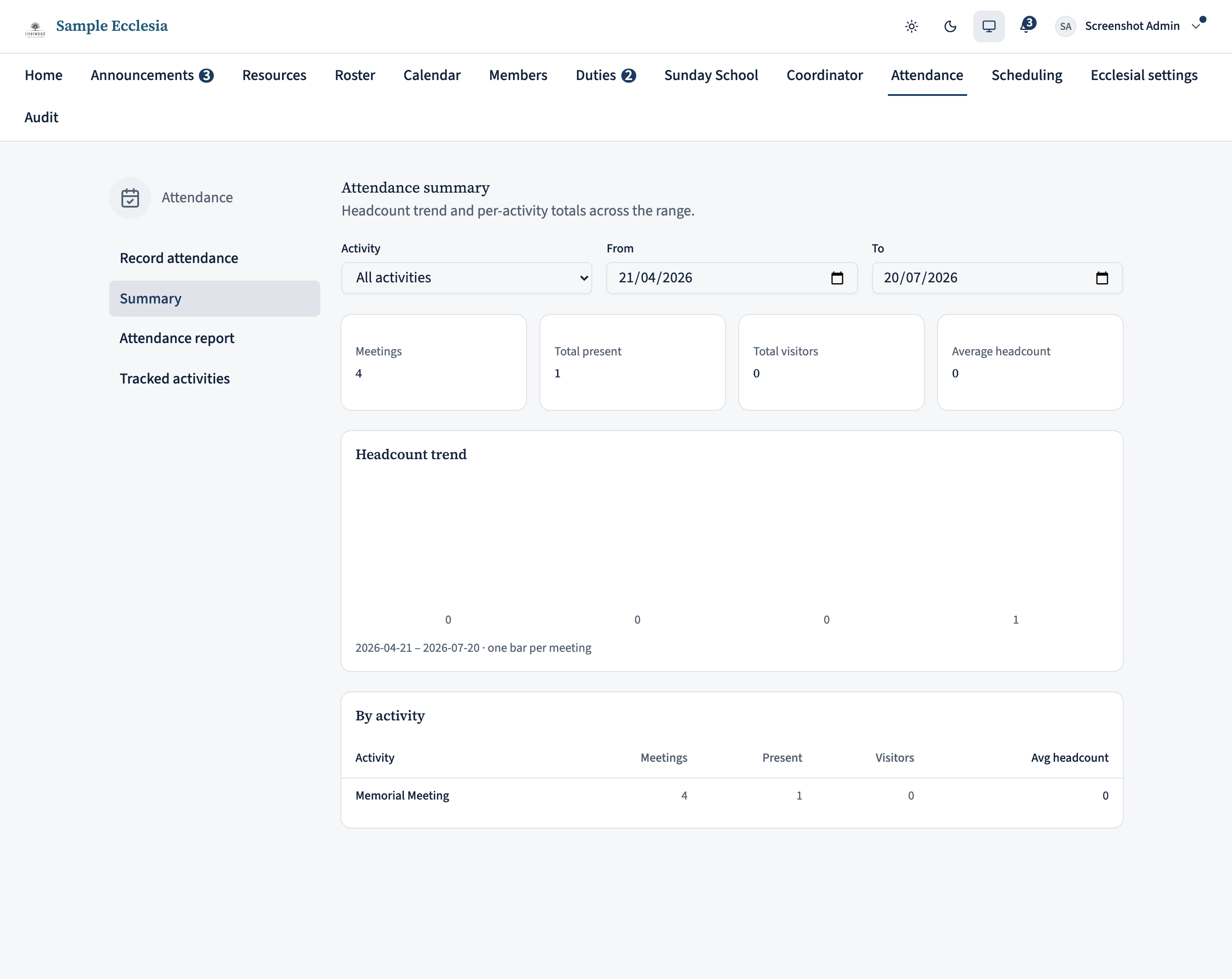
Summary answers the other question: “how are we tracking overall?”. It shows a headcount trend across the meetings in your range, and a by-activity breakdown so you can compare, say, Memorial Meeting against Bible Class.
Leave the activity filter clear to see the whole ecclesia, or pick one activity to focus on it. This is the view worth glancing at once a month; the per-member report is the one for following up on individuals.
On the iPhone app
Record attendance from the app too (gated on the same tenant setting).
Manage → Attendance lists recordable occurrences; the top-right icons switch to trends / table views and filters.
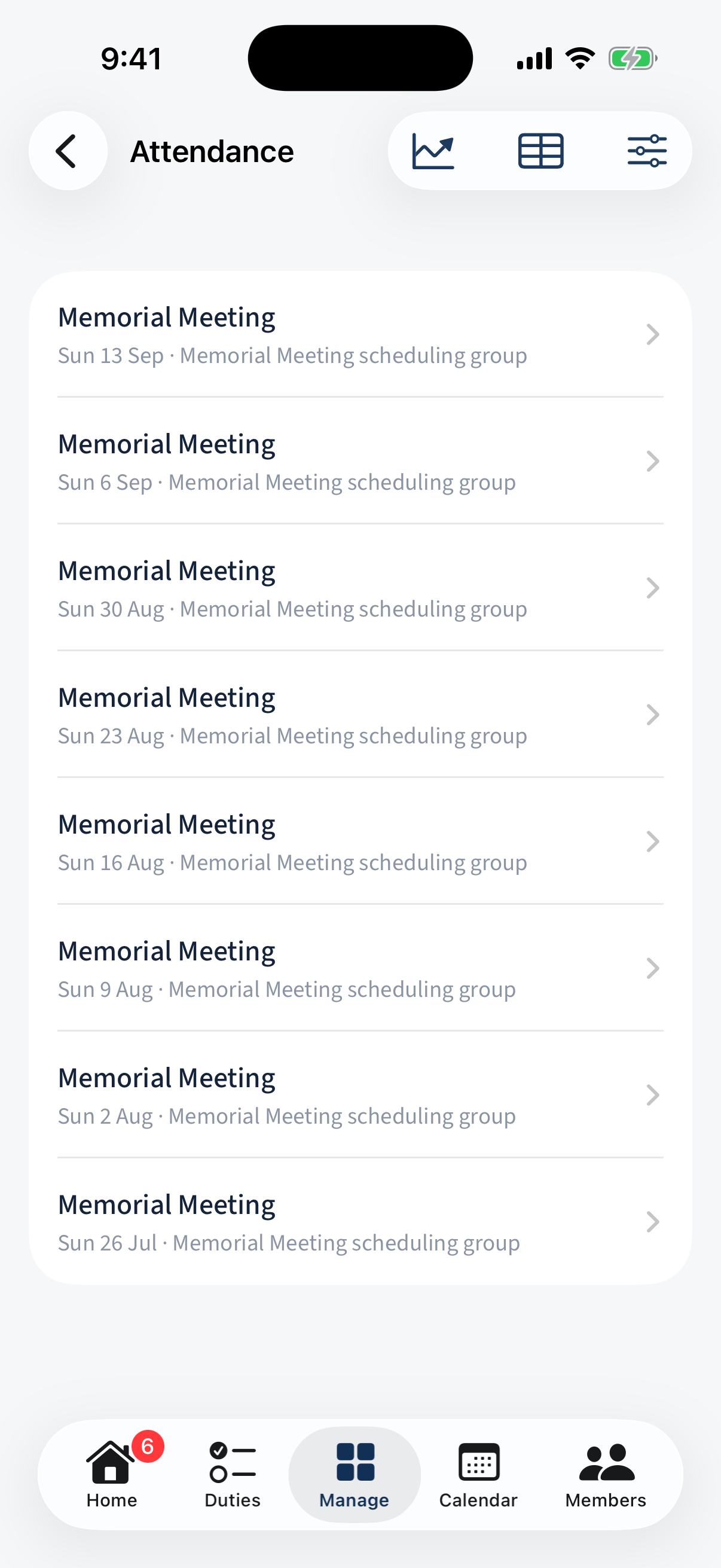
Manage → Attendance: recordable occurrences, with trends/table/filter icons top-right. Open an occurrence and tap a name to mark them present (a green check); the header keeps a live “N present” count. Save commits.
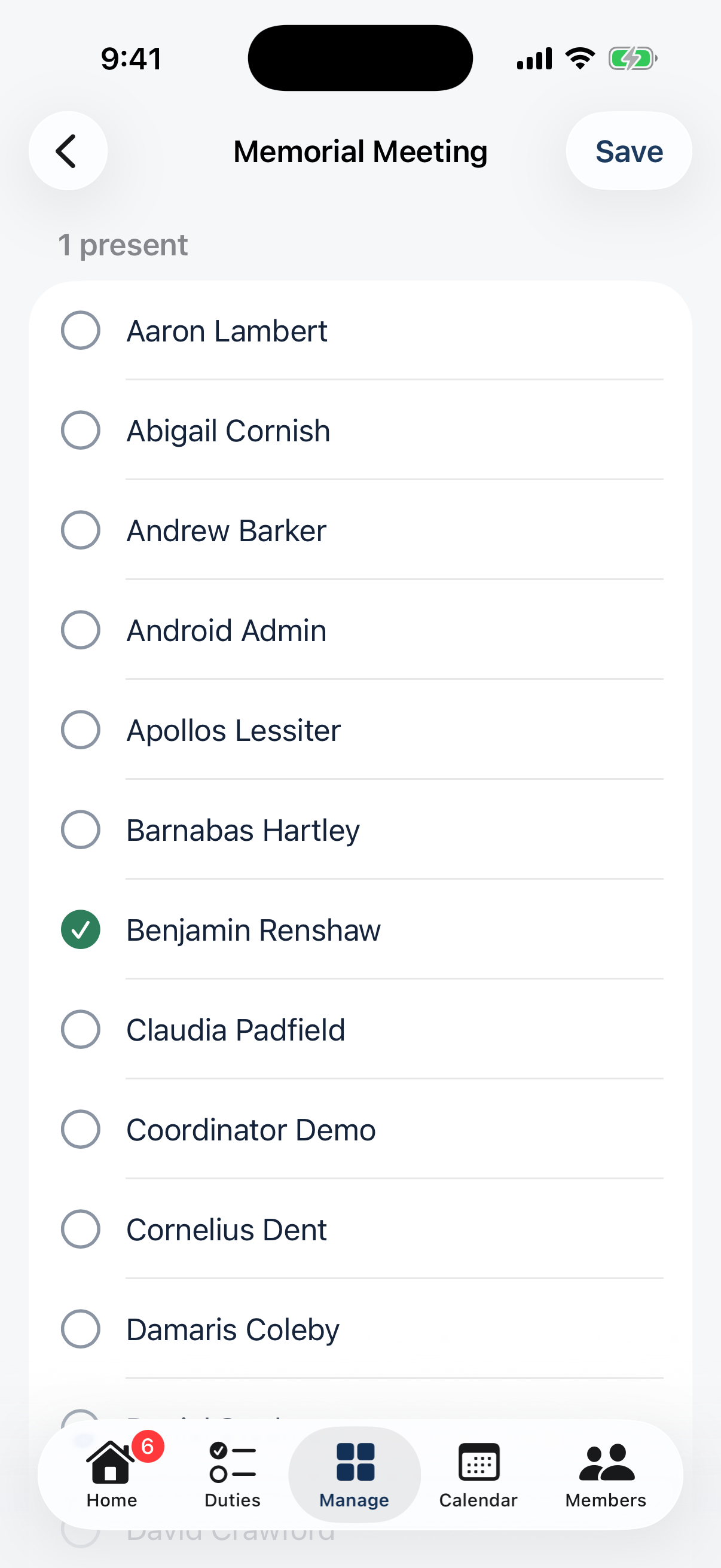
Recording attendance: tap a name to mark present (green check), a live count, and Save.
A note on privacy
Attendance records are visible to coordinators and administrators only — members cannot see their own attendance or anyone else’s. Treat the report as pastoral information: it is useful for noticing someone who has quietly stopped coming, which is rather the point, but it is not a public record.