Adding a role to an existing activity
Say your ecclesia has just introduced a Sunday bus service to pick up members who can’t drive to Memorial Meeting. You’d like the scheduler to roster a Bus Run driver each week alongside the existing Presider, Exhorter, Reader / Emblem Bearer, Musician, Doorman, and other slots. This guide walks through both moving parts:
- Create the Bus Run role definition.
- Add a new version of the Memorial Meeting activity template that includes Bus Run in its role slots.
A role definition lives once per ecclesia; an activity template’s role slots decide which roles the scheduler picks between when it generates each week’s occurrence. Reading time: five minutes.
Create the Bus Run role
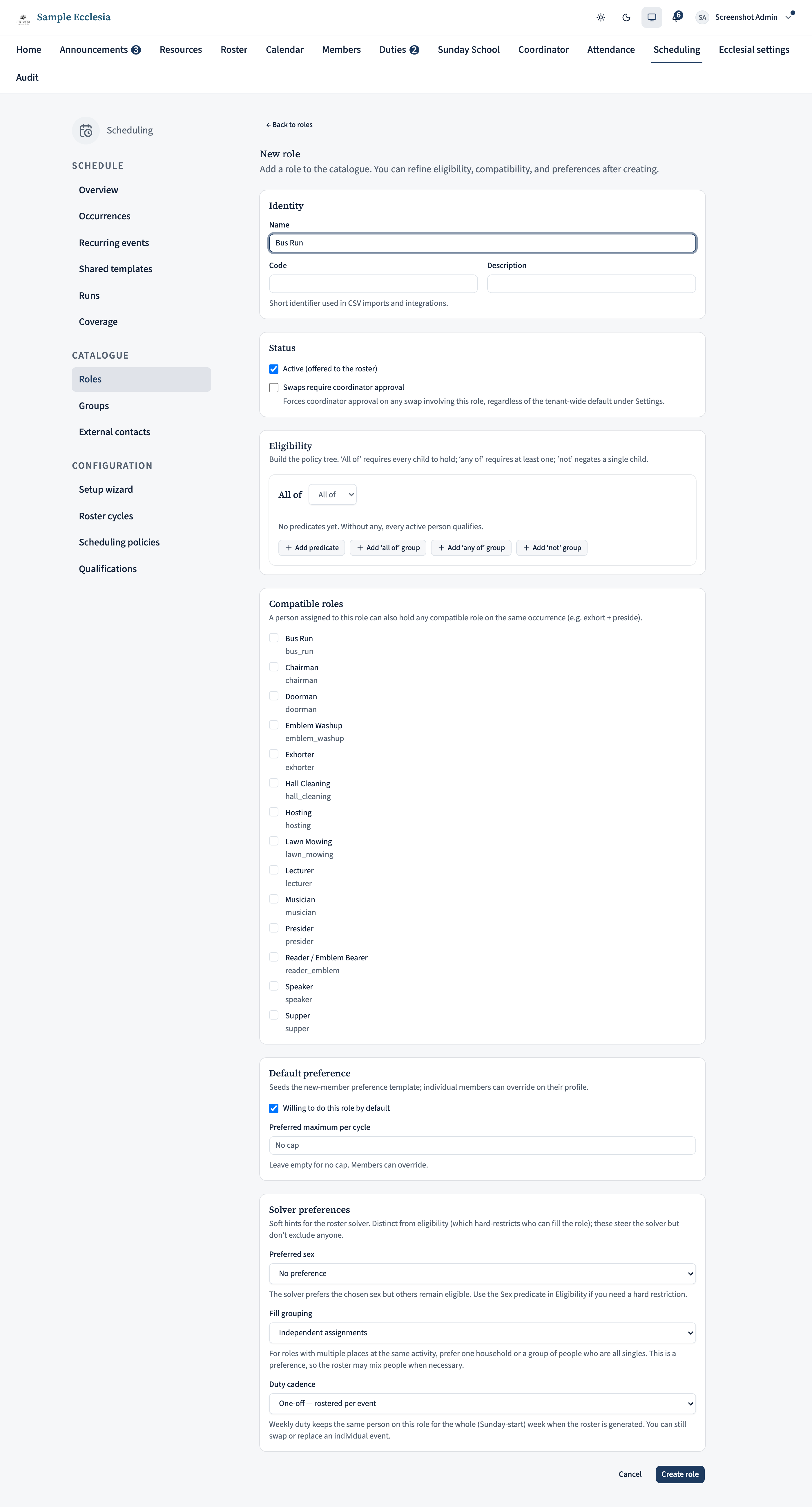
Click Manage in the top nav, then Roles in the sidebar, then New role. Give it a short name — Bus Run — that reads well on a roster PDF and on a member’s availability page.
For a role like Bus Run:
- Default preference: leave Willing to do this role by default unticked so the solver only picks members who’ve explicitly opted in — not every adult wants to drive a bus.
- Eligibility: use Add predicate to add an Age status is Adult rule, and a Has qualification rule pointing at a “Licensed driver” qualification (create one from Manage › Configuration › Qualifications first if it doesn’t exist yet).
Click Save. The role is now available to any activity template, and every eligible member sees it appear on their availability page with a Willing toggle.
Open the Memorial Meeting template
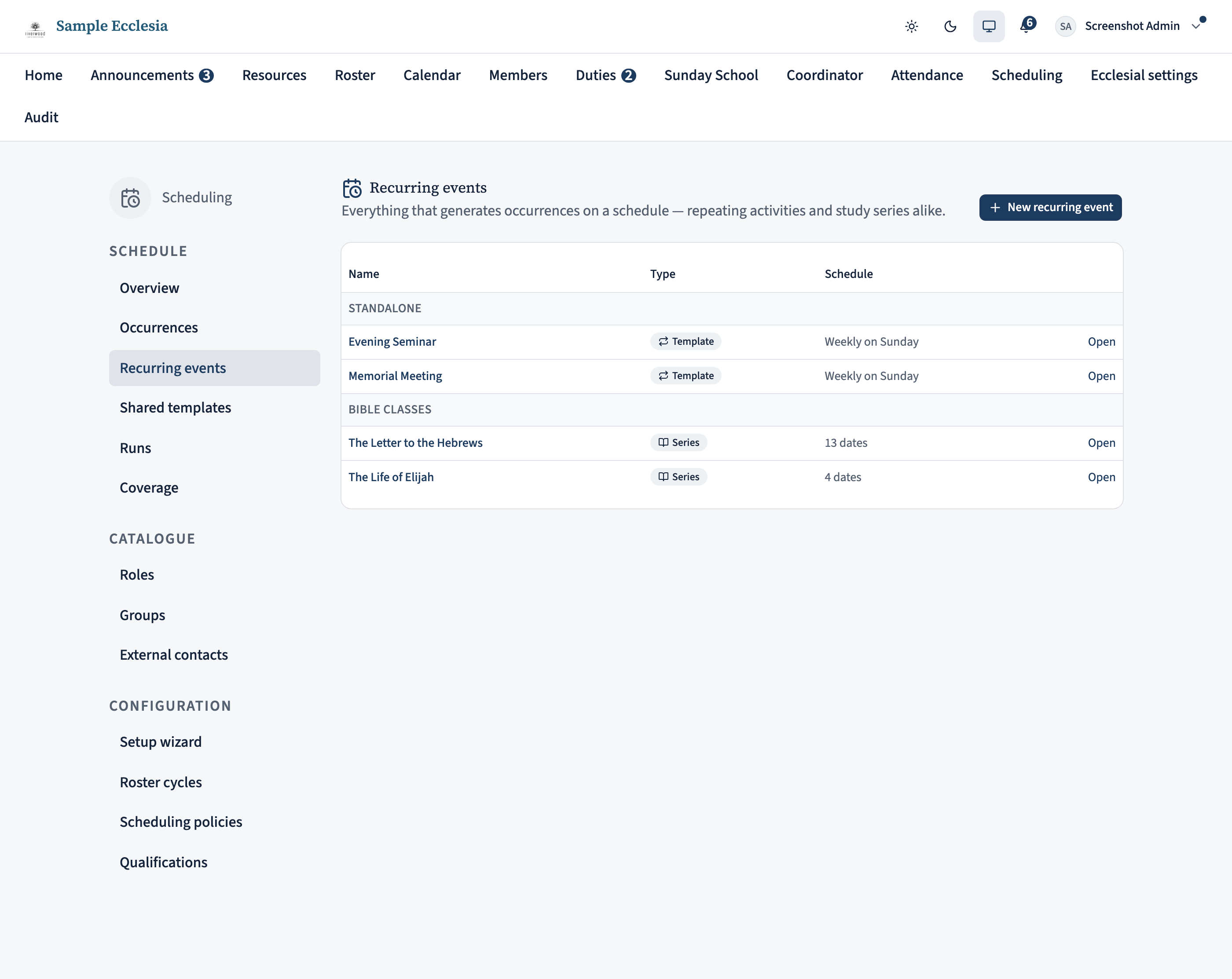
Head to Manage → Recurring events. The list shows every recurring event your ecclesia has (each badged Template or Series). Click Memorial Meeting to open it.
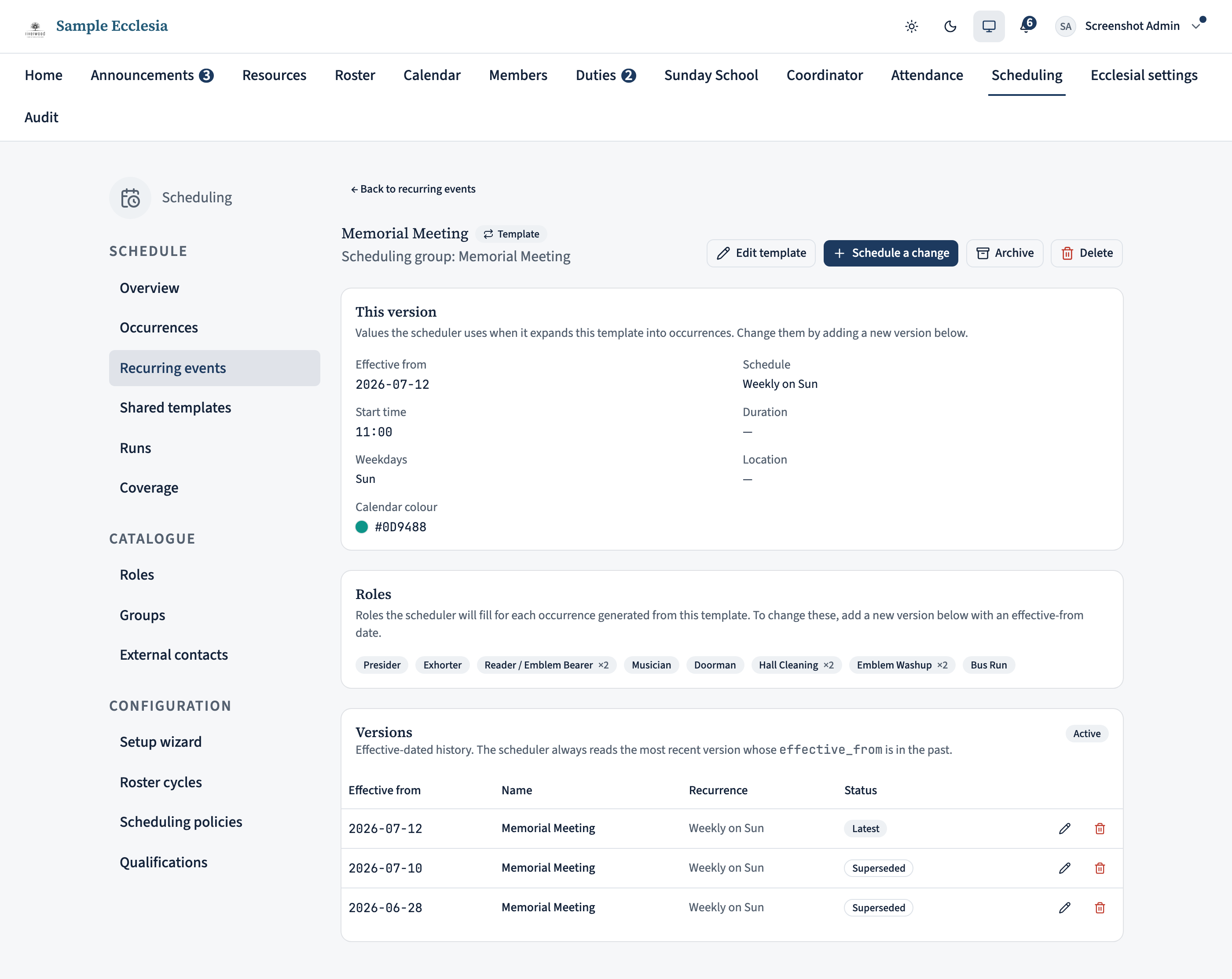
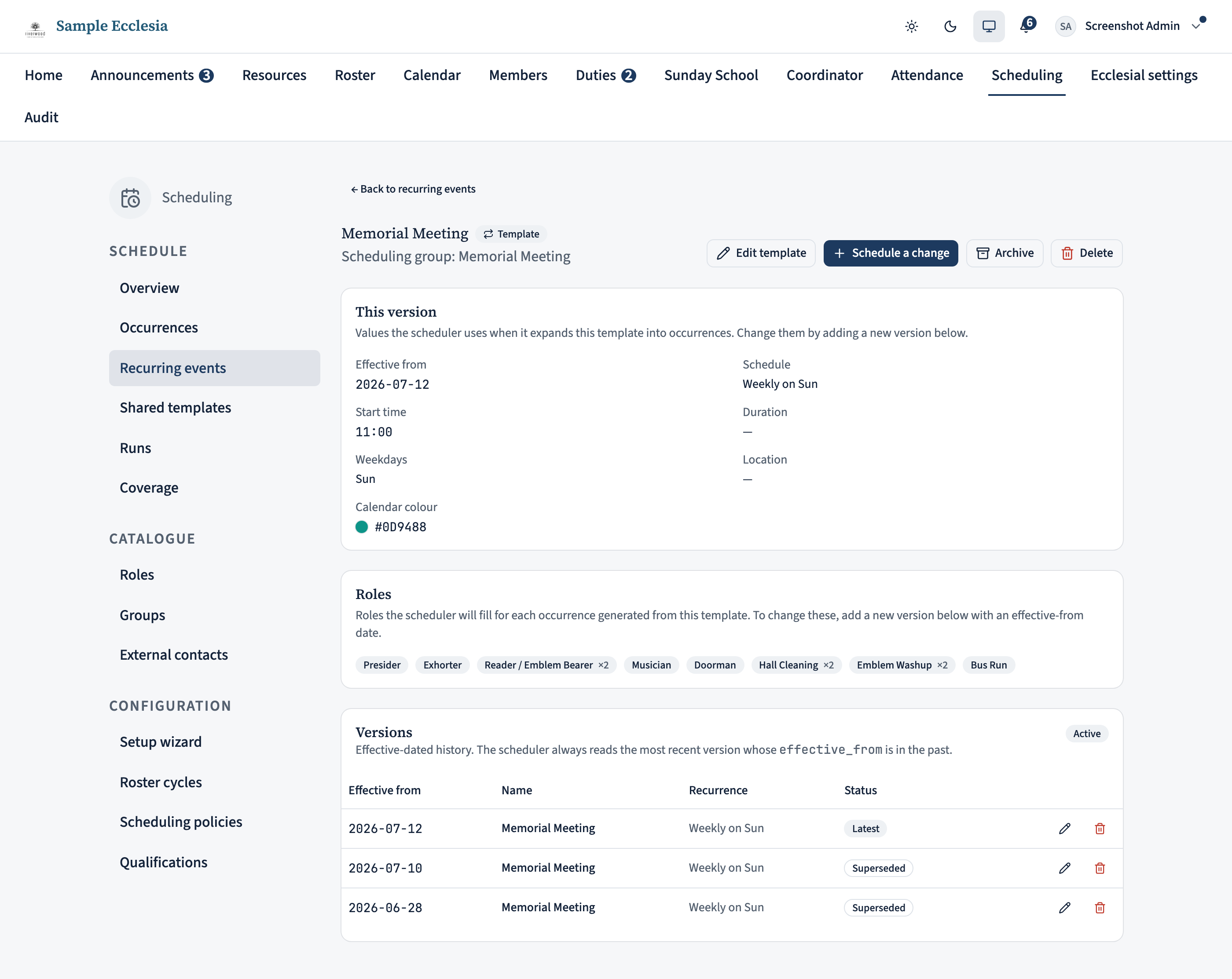
The detail page opens on the Roles card, which lists the current version’s slots. This is the list you’re about to extend.
Add a new version
Activity templates are immutable once saved — you don’t edit an existing version, you add a new one with a future or past effective-from date. The scheduler always uses the most recent version whose effective_from is on or before the occurrence date. Occurrences that already exist inside the new version’s window are updated to the new shape too — with one deliberate exception: dates that are cancelled, hand-edited, or already on a published roster are left exactly as members saw them. A template edit never silently rewrites a roster people have already been given; step 6 shows how to push the change onto those dates when you mean to.
Click Schedule a change in the top-right of the detail page. Pick an effective from date. For a role that’s starting next Sunday, use next Sunday’s date. For a role that will retroactively apply to any occurrence generated from now on, use today.
Copy the existing slots and add Bus Run
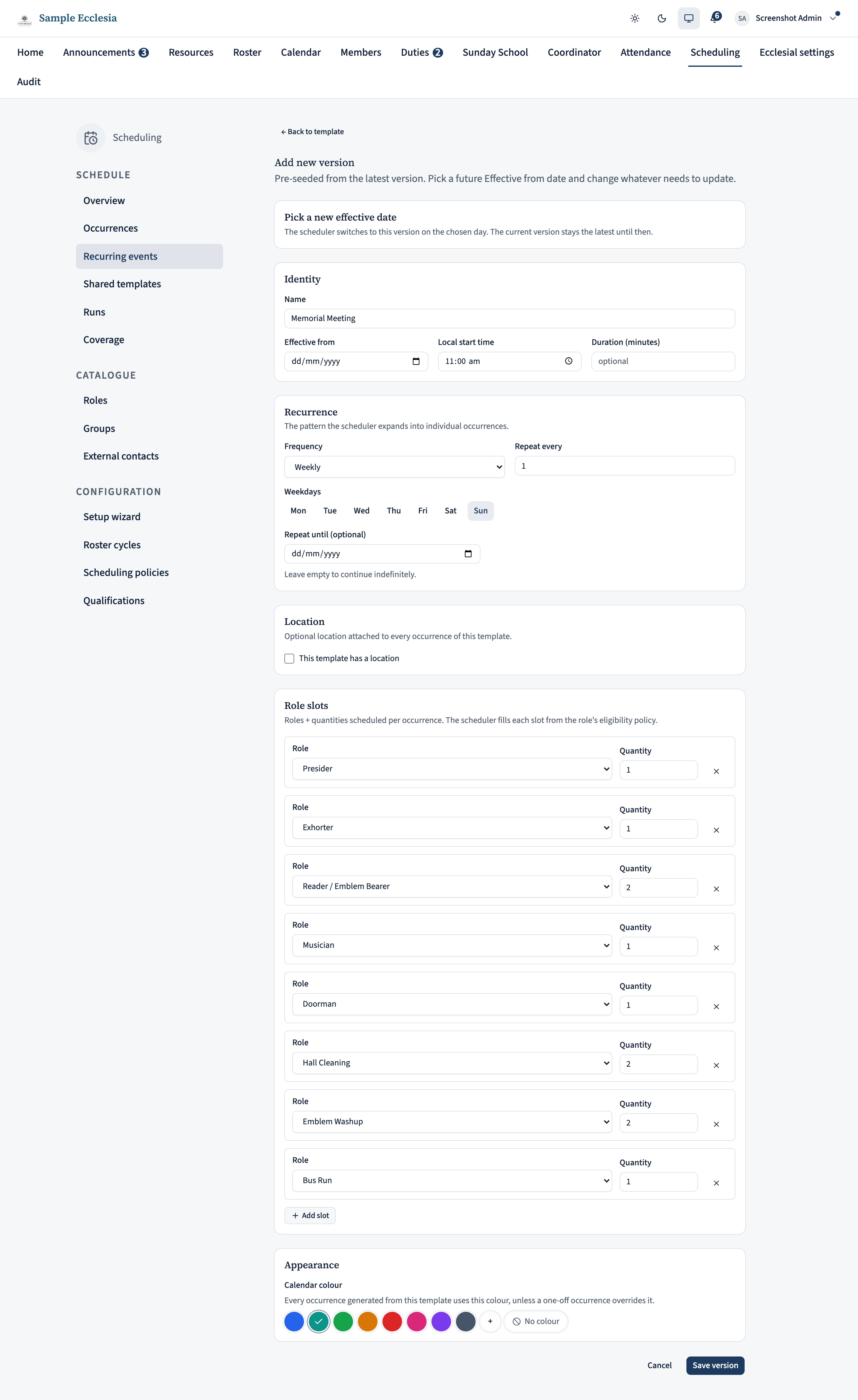
The form pre-seeds every field from the current version so you don’t have to re-type meeting time, recurrence, or location. Scroll to the Role slots section.
Every existing role should already be there. Click Add slot at the bottom of the list, pick Bus Run from the role dropdown, and leave the quantity at 1 (unless you run more than one bus).
Double-check the whole list before saving — the new version replaces the old one from the effective date, so anything you accidentally leave out disappears from future occurrences.
Save and confirm on the detail page
Click Save. You’re bounced back to the template’s detail page.
The Roles card at the top updates to include the Bus Run chip, and the Versions table picks up a second row. Your new version is marked Latest; the previous version becomes Superseded from its effective date onwards.
Apply the change to already-published dates
If some Memorial Meetings in the window are already on a published roster, they still show the old shape — that protection is deliberate. To bring them up to date, find the This version card on the detail page and click Apply to existing occurrences.
The dialog always previews first: how many occurrences will be updated, anything it refuses to touch (only when the change would remove a role someone is published against — each date names the people involved, so you can unpublish or reassign and run it again), and anything skipped because it was cancelled or hand-edited. Adding a role, as here, is never refused.
Nothing is created or deleted — occurrences are re-shaped in place, so existing roster assignments and recorded attendance stay put. Tick Also correct past occurrences only if you want history corrected as well.

Regenerate the next roster run
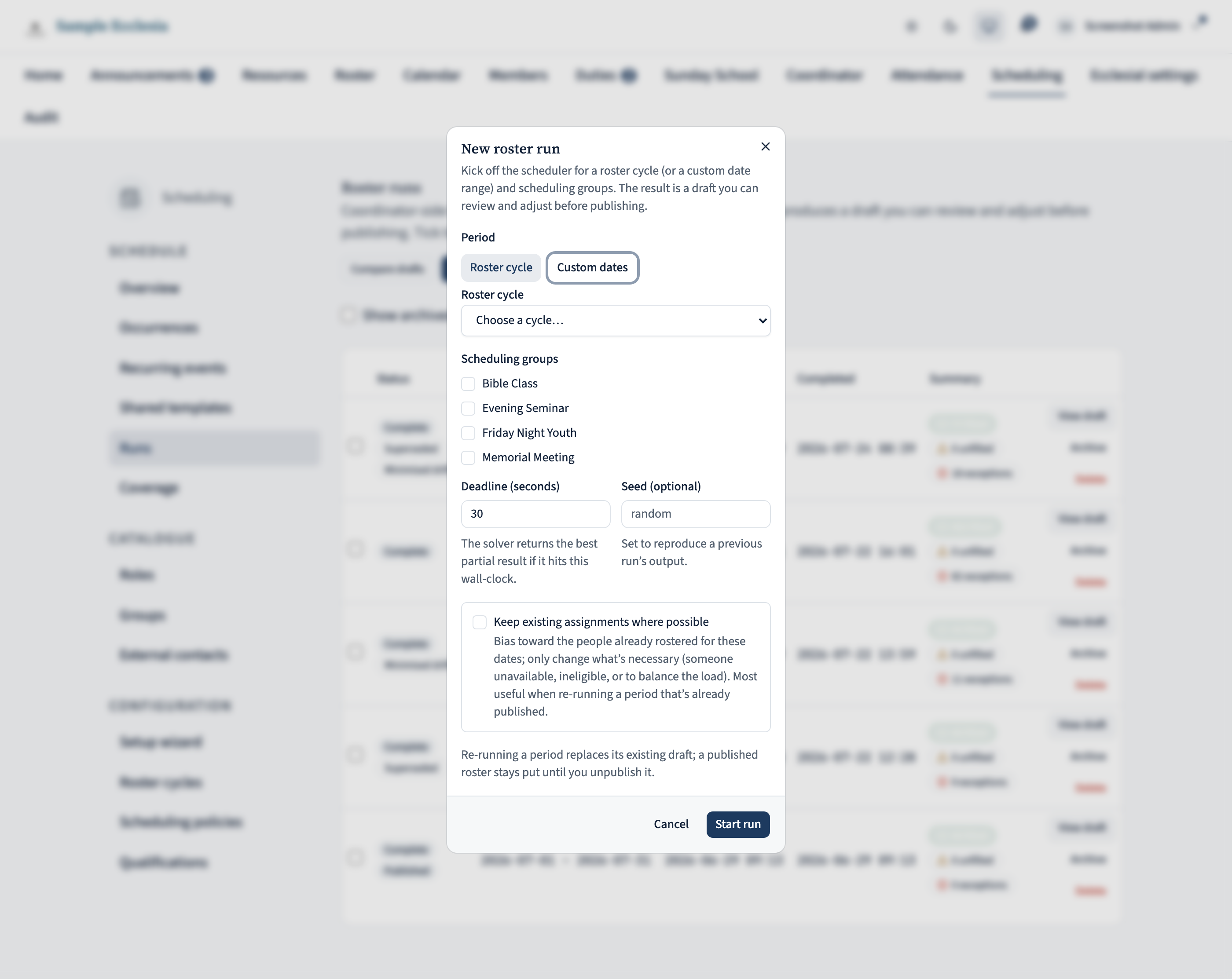
A roster run that’s already been generated doesn’t pick up the new version — the run’s draft was baked when it was created. To pull Bus Run into the current cycle, head to Manage › Runs and click New run. Pick the run’s period — the roster cycle you’re rostering, or a custom date range — and tick Memorial Meeting in the groups list; the solver re-reads every template at its current latest version, so Bus Run appears as an unfilled slot on every Memorial Meeting occurrence from the effective-from date onwards.
Review the draft, adjust anything the solver missed, and publish as normal. Members who ticked Willing on Bus Run see themselves in the mix; the rest see the new role appear as an option on their availability page next time they open it.
On the iPhone app
On the app this splits across two places — there's no single ‘add a role to a group’ screen.
Manage → Scheduling groups lists your groups (Bible Class, Memorial Meeting, Friday Night Youth, …).
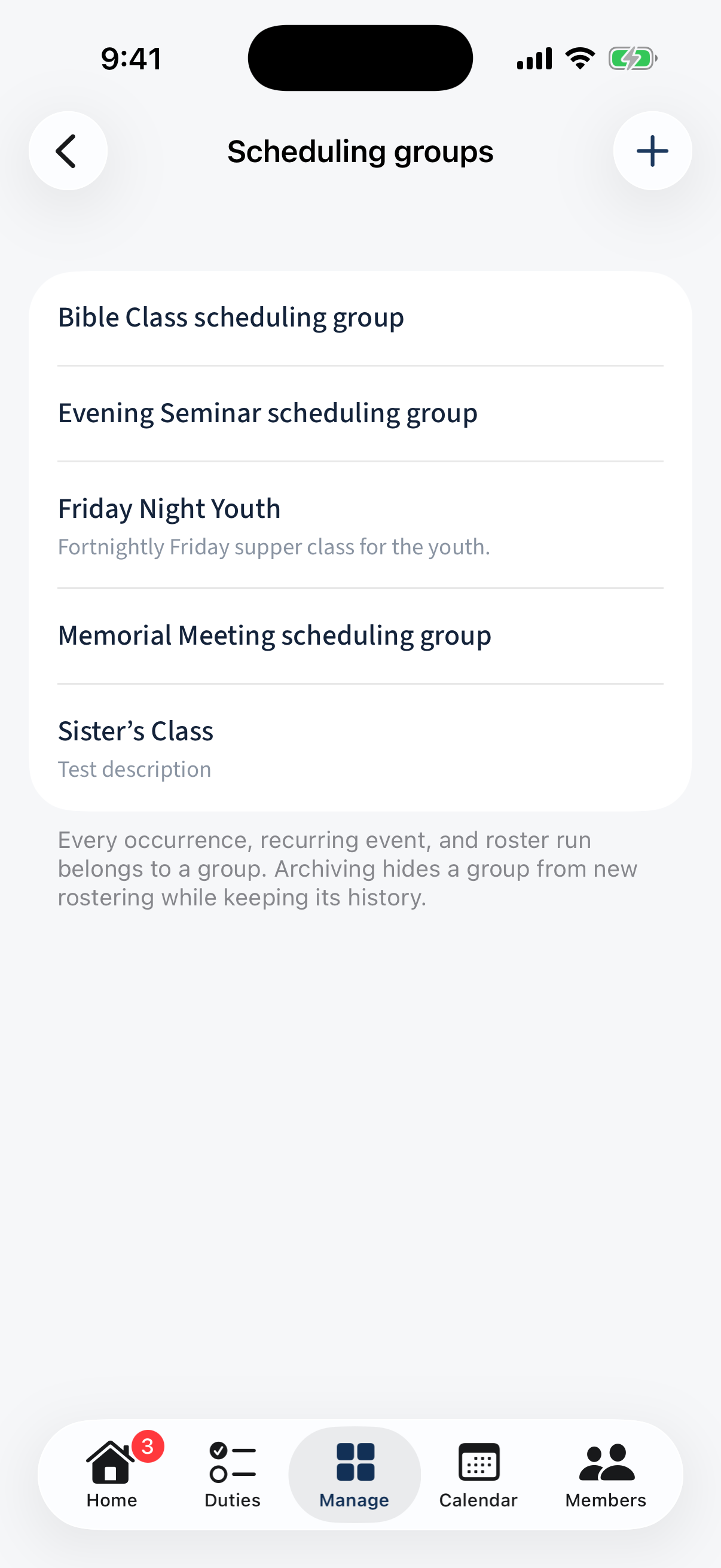
Manage → Scheduling groups: the groups list (Bible Class, Memorial Meeting, …). Opening a group configures the group itself — name, On the roster / Archived, coordinators, and Sunday-School flags. There are no roles here.
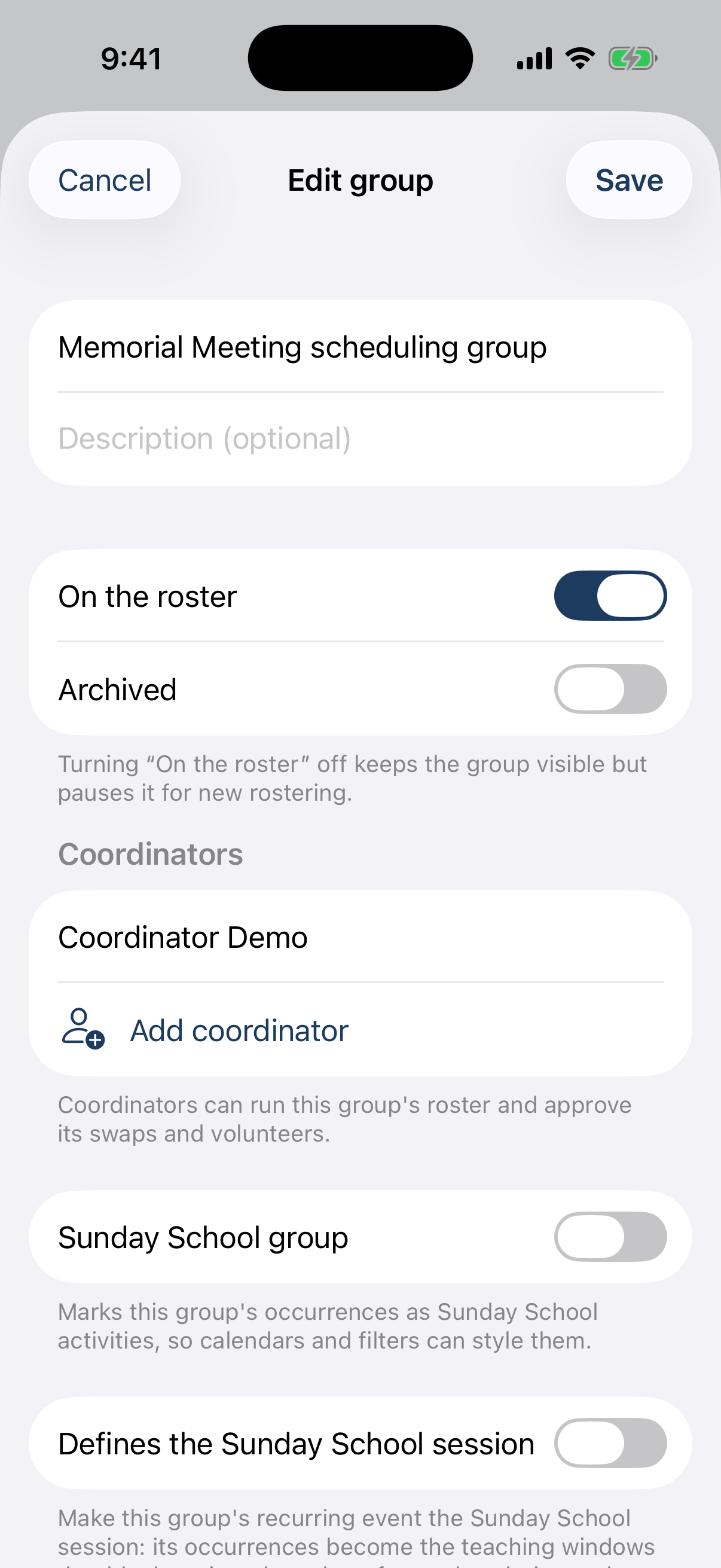
The group editor: name, On the roster / Archived, Coordinators, Sunday-School flags — no roles.
Different on the app: On the app the role is two places: define it in Manage → Roster roles, then add its slots in the recurring-event editor. The Scheduling-groups editor only configures the group.