Coordinator: Bible Class classes & study series
Many ecclesias run a Bible Class that works through one book for a term, then another the next — Elijah, then Hebrews, then Romans. The meeting’s shape stays the same every term (the same role slots, the same speaker arrangement, the same night and hall); only the studies change. CDRoster models this with two pieces:
- A shared settings template — the reusable settings the whole family of series shares: scheduling group, start time, role slots (Speaker, Chairman, Doorman, Musician…), which slot the speaker fills, and calendar colour. You define it once.
- A study series run under that template — e.g. “Elijah” or “Hebrews”. A series adds only its own name, its dates, and its curriculum (the ordered topics + speakers). Everything else it inherits from the template.
The pay-off: setting up next term’s series takes a minute (name, dates, topics), and if the template arrangement changes — a new role slot, a different start time — you edit the template once and every series under it updates. This guide walks the whole thing using a Bible Class running Elijah then Hebrews. You need coordinator or administrator access. Everything lives under Manage in the left rail.
Create the template
From Manage, open Shared templates in the left rail and click New template. A shared settings template is where the shared settings live. Before you start, make sure you have:
- A scheduling group for the template (e.g. “Bible Class”), set up under Manage → Groups.
- The roles each template needs — at least a “Speaker”, plus Chairman, Doorman, Musician, or whatever your Bible Class rosters — under Manage → Roles.
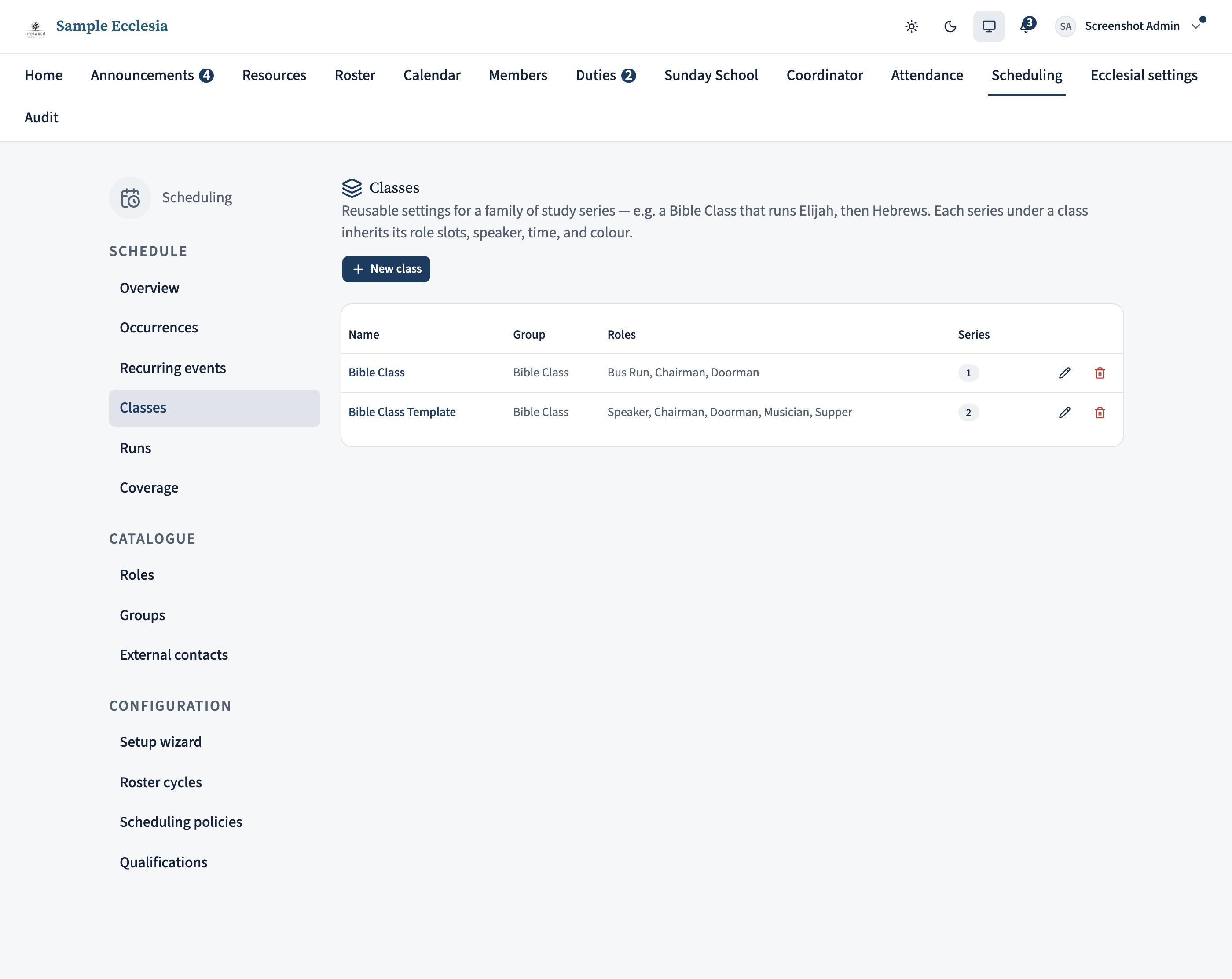
Fill in the template's shared settings
These are the settings every series under the template will share:
- Name — e.g. “Bible Class”. This is the template label; each series keeps its own name (Elijah, Hebrews).
- Scheduling group and start time — the group whose coordinators roster it, and the night’s start time (e.g. 19:30). Duration is optional.
- Location — tick and fill in if the template meets somewhere other than the tenant default.
- Role slots — the roles the scheduler fills on every template: Speaker, Chairman, Doorman, Musician, and so on, each with a quantity.
- Speaker role — which slot the curriculum speaker pins to when the roster is published. Pick Speaker.
- Calendar colour — optional; every occurrence under the template inherits it.
Hit Create class. You now have a reusable Bible Class — but no dates or studies yet. Those come from the series you run under it.
Create the first series under the template
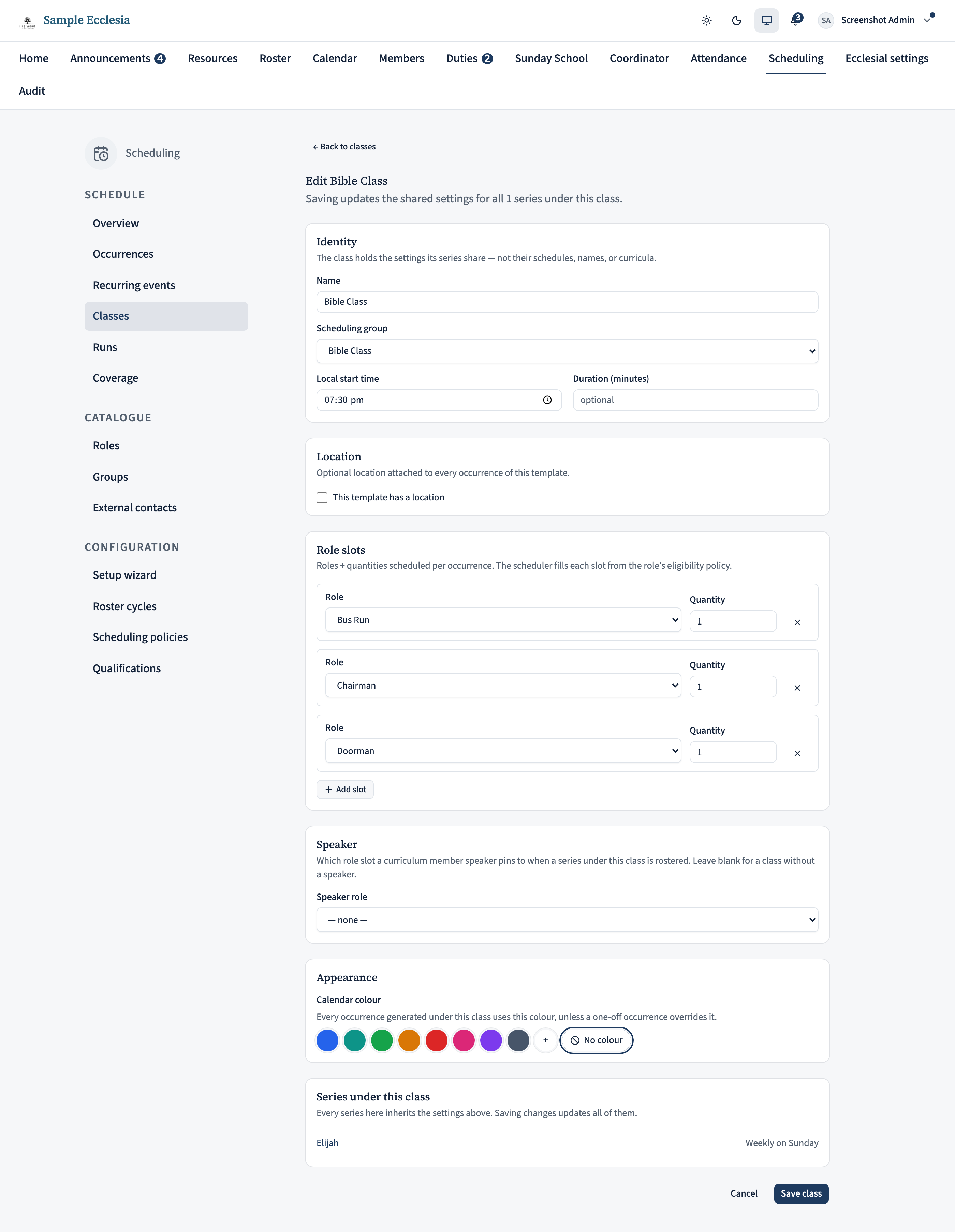
Go to Manage → Recurring events, click New recurring event, and choose Study series. At the top of the form is a Class picker — choose Bible Class.
As soon as you pick the template, the group, start time, role slots, speaker, and colour sections disappear — they’re inherited. The form now asks only for what’s unique to this series:
- Name — “Elijah”.
- Schedule — either a recurrence (e.g. weekly on Sunday, fortnightly with “Repeat every” = 2, or monthly on the 3rd Thursday) inside a from/until window, or Explicit dates if you want to hand-pick the nights.
Click Create series. You land on the series’ page, ready to add its curriculum.
Build the curriculum
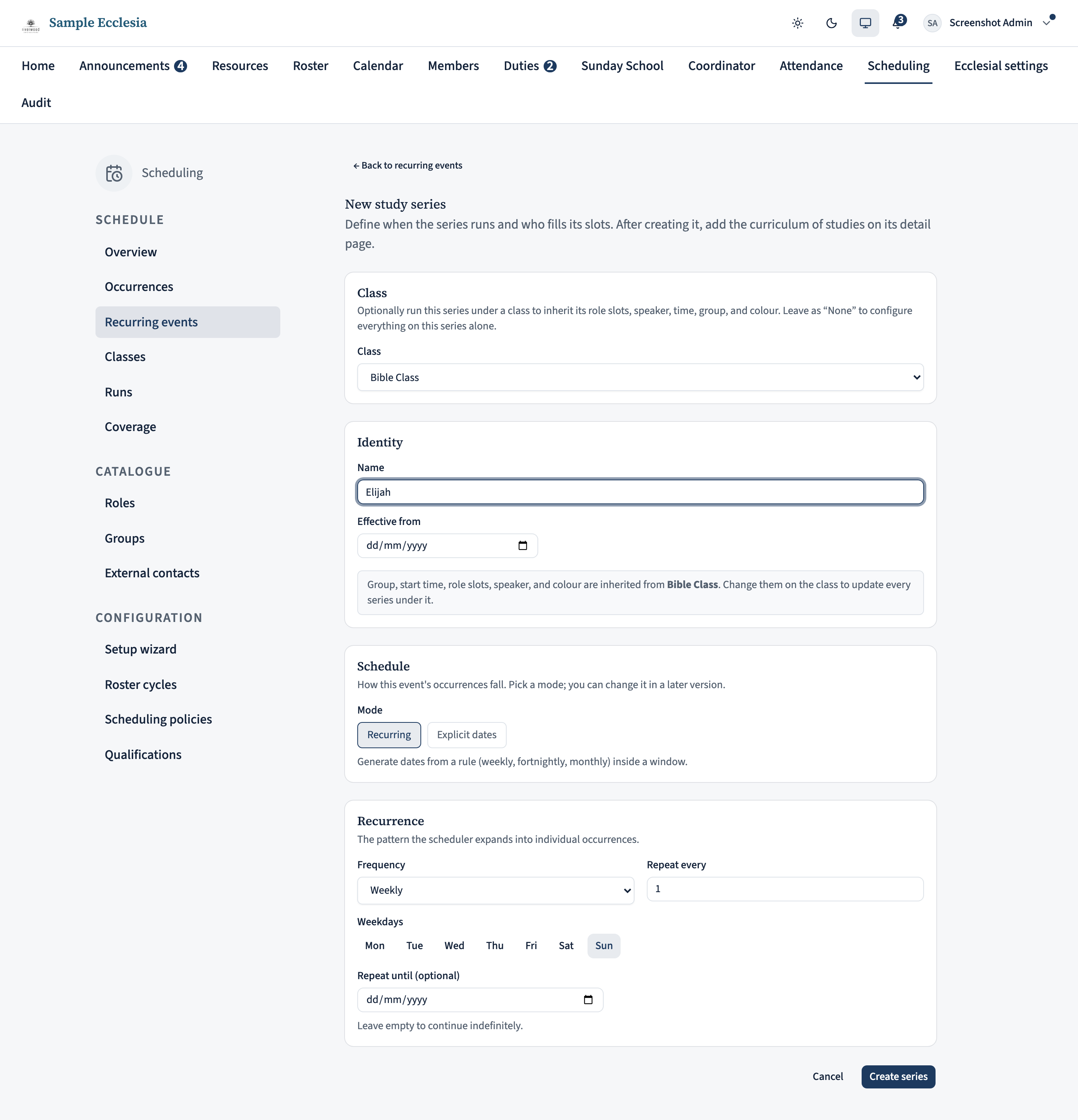
On the series’ detail page, find the Curriculum card and click Manage curriculum. Add one entry per session in the order you’ll teach them:
- Title — becomes the occurrence name, e.g. “Elijah 1: The Drought”.
- Subtitle — optional (a reference or sub-theme).
- Speaker — a member (pinned to the template’s Speaker slot when the roster publishes) or an external contact. Leave as “none” for a template with no set speaker. You can mix members and externals freely.
Entries are consumed in order — the first pairs with the first date, and so on. Use the up / down arrows to reorder; the ordinals renumber and the next generation run follows the new order.
Already have the programme in a spreadsheet? Click Import spreadsheet on the same Curriculum card instead of typing entries in: a CSV or XLSX with title, speaker, and (optionally) date columns builds the whole curriculum in one upload, resolving member names against the directory as it goes.
Generate the occurrences
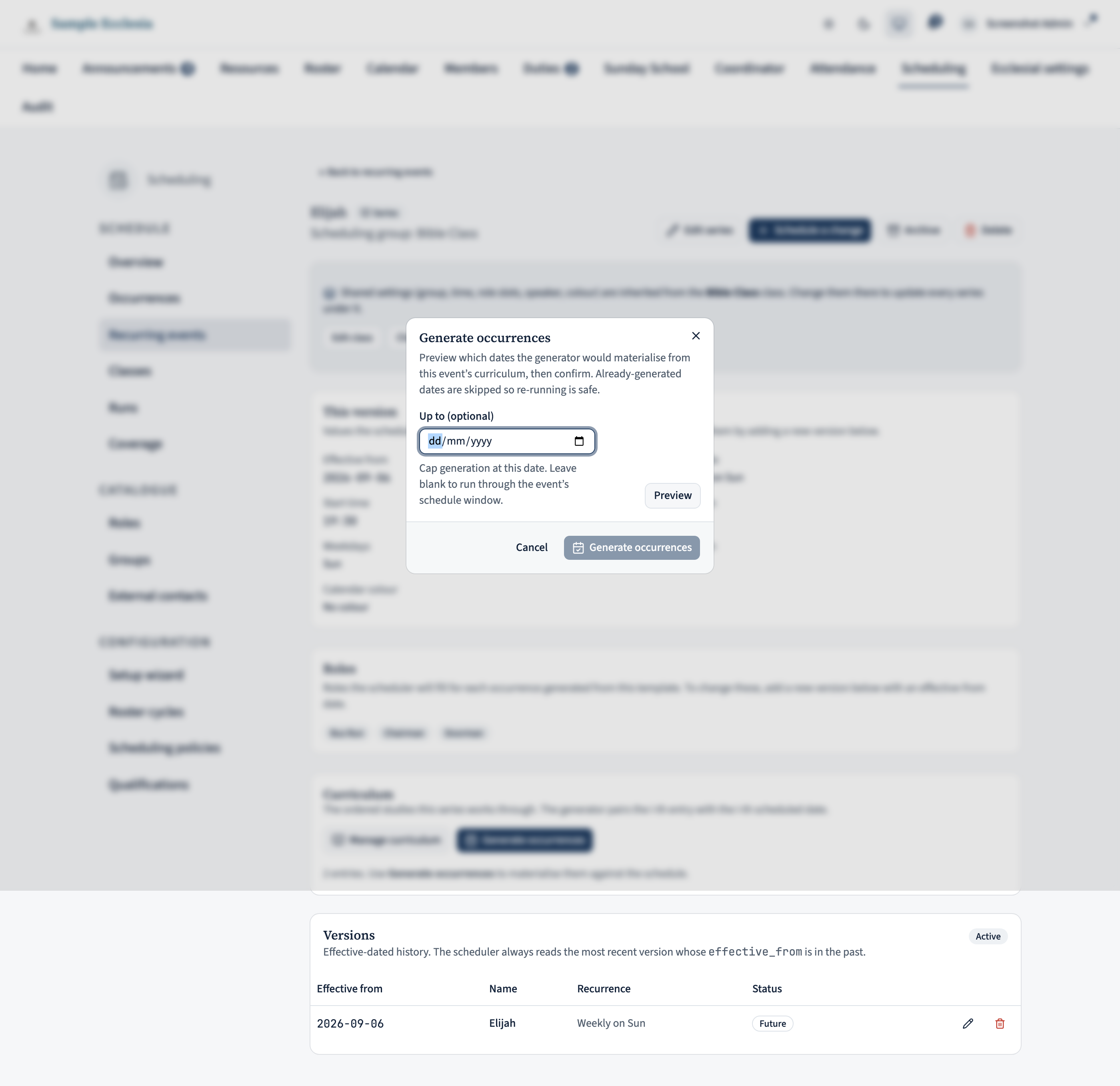
Back on the series’ detail page, click Generate occurrences. CDRoster walks the schedule, pairs each date with the next curriculum entry, and creates one occurrence per pairing — inheriting the Bible Class role slots, speaker slot, time, and colour. Hit Preview to see the plan, then Generate occurrences to commit. Already-generated dates are skipped, so re-running after you extend the schedule is safe. An optional Up to date caps a run at, say, the end of term. If you change the curriculum after generating — retitling a study, swapping a speaker — re-run with Re-sync existing ticked: dates that already have an occurrence are re-titled from their entry in place, keeping the occurrence (and any roster assignments on it) rather than reporting the date as already covered.
From here the normal flow takes over — the occurrences show on the calendar as “Elijah 1: The Drought” and step through the series; run a scheduler draft, review, and publish.
Run the next series under the same template
When Elijah finishes and Hebrews begins, you don’t re-enter any of the template settings. Just repeat step 3: New recurring event → Study series, pick Bible Class, name it “Hebrews”, set its dates, and build its curriculum. Two minutes, not the full setup.
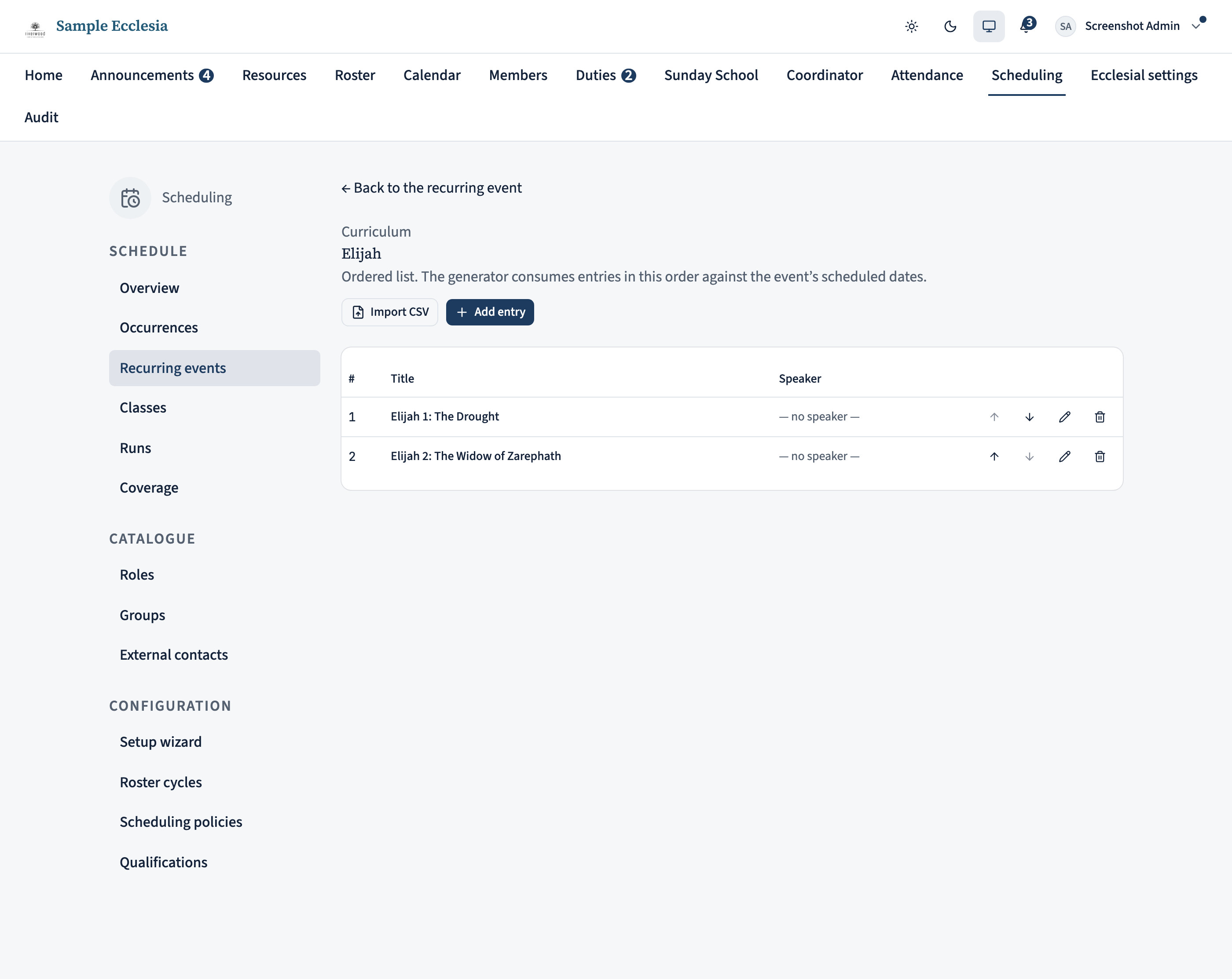
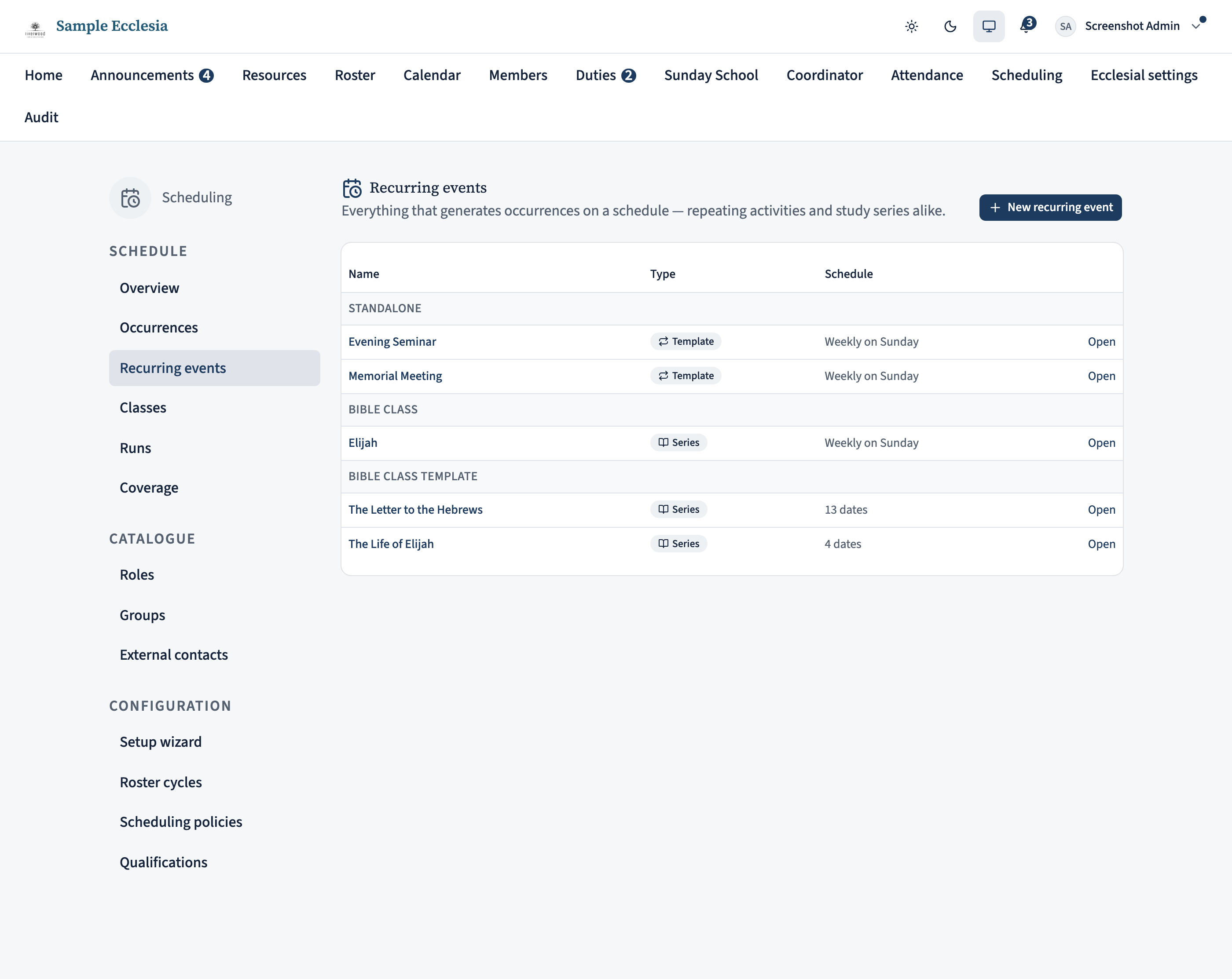
On the Recurring events list, Elijah and Hebrews now sit together under a Bible Class heading, so it’s clear at a glance which series belong to the template. Open the template from Manage → Shared templates and you’ll see every series running under it listed on its page.
Change the template once — every series updates
This is the point of a template. Say the Bible Class adds an AV role slot, or moves from 19:30 to 20:00. Open Manage → Shared templates, edit Bible Class, make the change, and save. Every series under it — Elijah, Hebrews, and any future ones — picks up the new settings live; re-generating a series then applies the new shape to its occurrences, and colour changes re-tint existing occurrences immediately.
A template-linked series’ own page shows a banner — “shared settings are inherited from Bible Class” with an Edit template link — so it’s always clear where the shared settings are managed. On the series you still edit its name and schedule; the shared settings you edit on the template.
You can’t delete a template while series still run under it — unlink or delete those series first. That guard keeps a live Bible Class from vanishing out from under its Elijah and Hebrews.

On the iPhone app
Set the curriculum for a study series from the app's Manage hub.
Manage → Curriculum planner lists each study series with its date count and scheduling group.
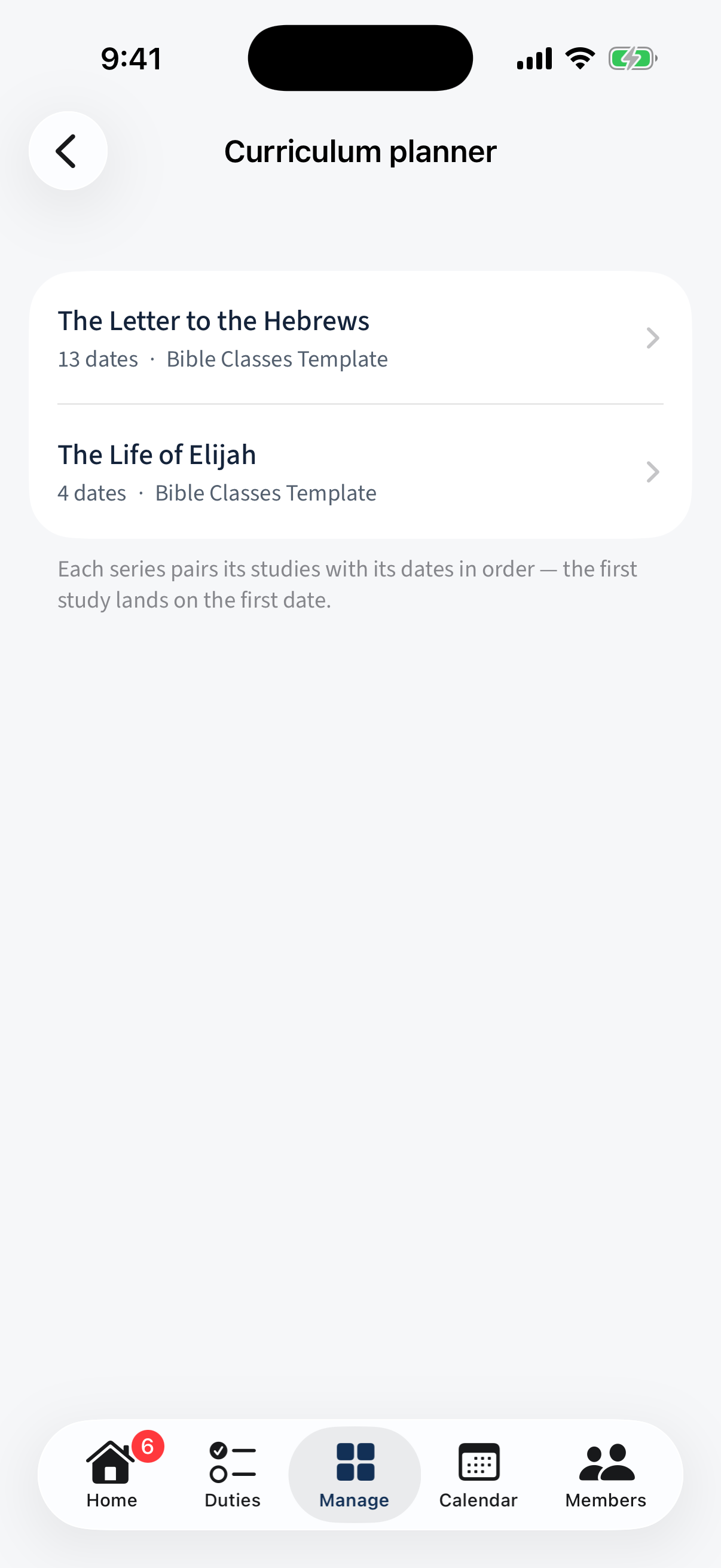
Manage → Curriculum planner: each series with its date count and scheduling group. Open a series: each dated entry is one occurrence — its title, reading, assigned Speaker, and an optional staff-only note. Reorder entries to change which study lands when.
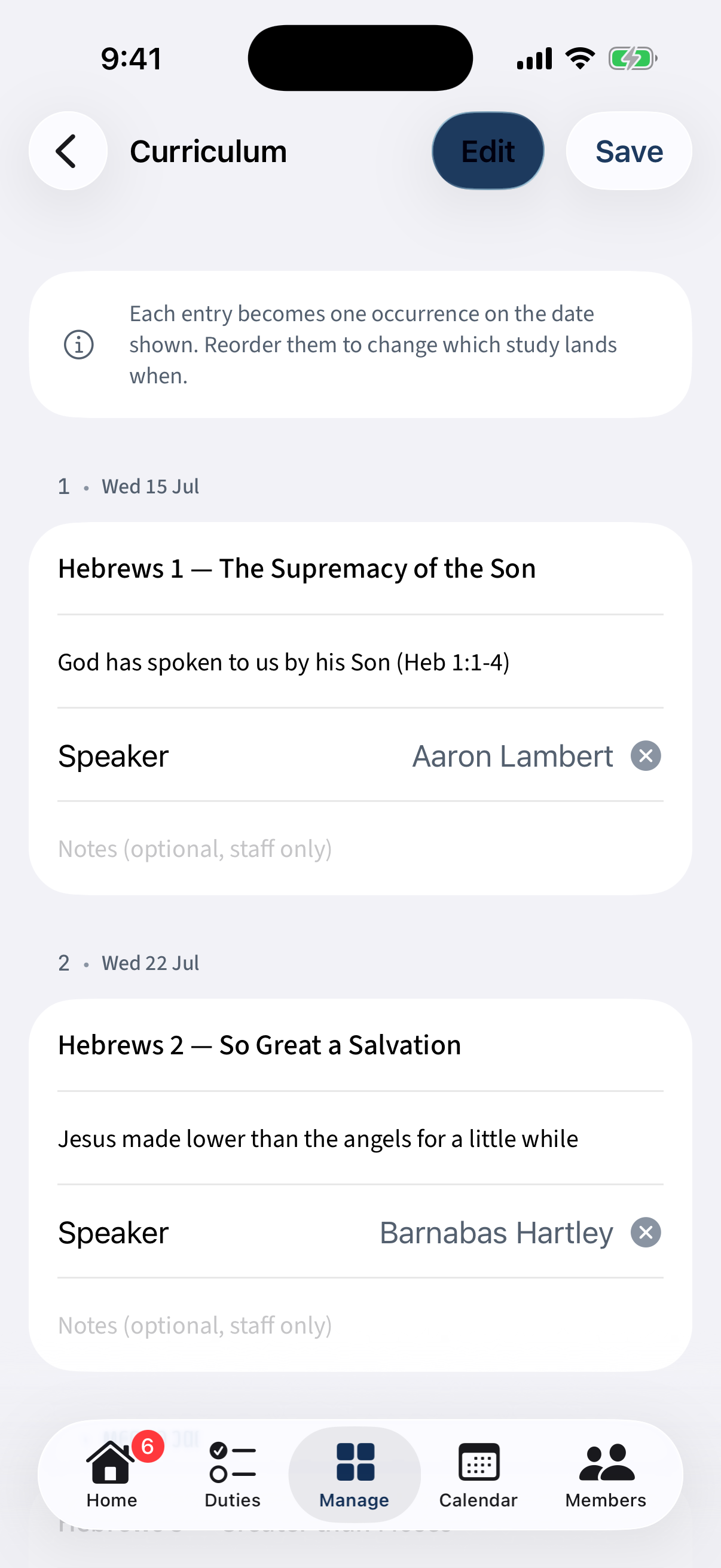
A series: each dated entry is one occurrence — title, reading, assigned Speaker, staff note; reorder to reschedule.
Planning several series at once
Once a few series are running, the Curriculum planner (Manage › Curriculum planner) shows every study series on one page — a table per series with its dates down the side — so you can fill a whole quarter’s topics and speakers in one sitting instead of opening each series in turn.
Started life as an automatic event?
An event created as a plain repeating template (where every occurrence is identical) doesn’t have to be rebuilt to gain a curriculum. On its detail page, Convert to series switches it in place: every occurrence already generated is kept — along with its roster assignments and recorded attendance — and the Curriculum card appears, ready for entries or a spreadsheet import. The conversion is one-way: a series can’t go back to being automatic.
When to skip the template
A shared settings template earns its keep when several series share one shape. For a one-off series that won’t recur — a single summer study, say — you can skip the template entirely: on the create form, leave the Template picker on “None — standalone series” and configure its role slots, speaker, and time on the series itself. Everything else in this guide (curriculum, generate, roster) works the same.