Add a recurring Friday youth event
If your ecclesia runs a youth class on a repeating cadence — say every second Friday for Rangeville Youth Class (RYC) — setting it up once as an activity template is usually the last time you have to think about it. CDRoster expands the template into individual occurrences on the calendar, sends the right reminders, and lets your youth coordinator roster leaders and speakers directly against each Friday.
This guide walks a tenant administrator through creating one, from sign-in to the first occurrence appearing on the calendar. Reading time: about five minutes. Actual setup: two or three.
Sign in and open Recurring events
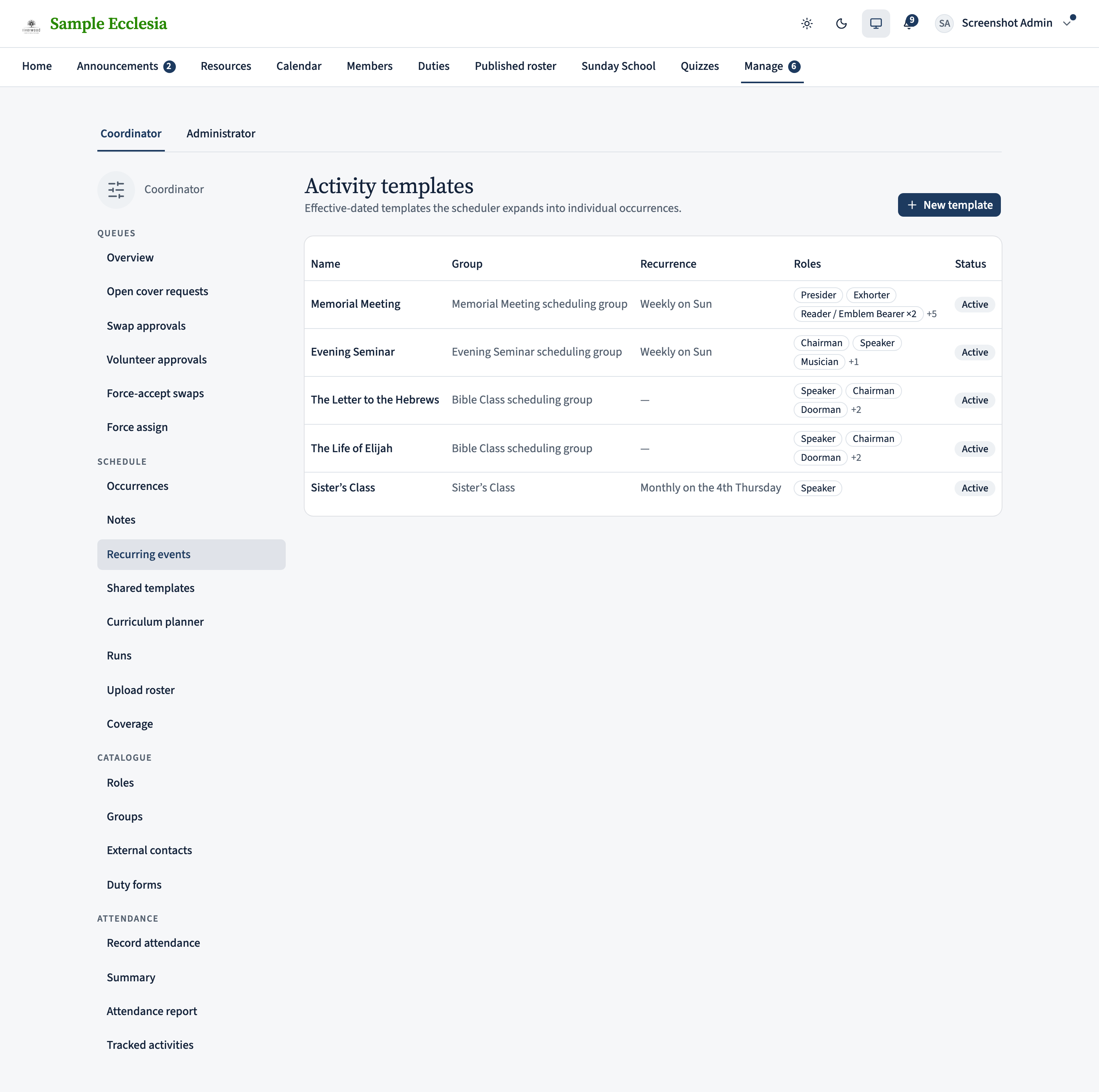
Sign in to your ecclesia (e.g. riverwood.cdroster.com) and pick Manage → Recurring events from the left rail. This is the administrator’s home for repeating events. Every recurring class, meeting, or gathering — alongside your existing memorial meeting or seminar — starts here.
Before you create the template itself you’ll need an scheduling group to file it under — that’s the next step.
Create the Friday Night Youth group
Scheduling groups bucket related events together and let you assign a coordinator scope. Even if a “Bible Class” group already exists, giving the youth their own group keeps the roster workload separate from the mainline meeting and lets you appoint a dedicated youth coordinator later.
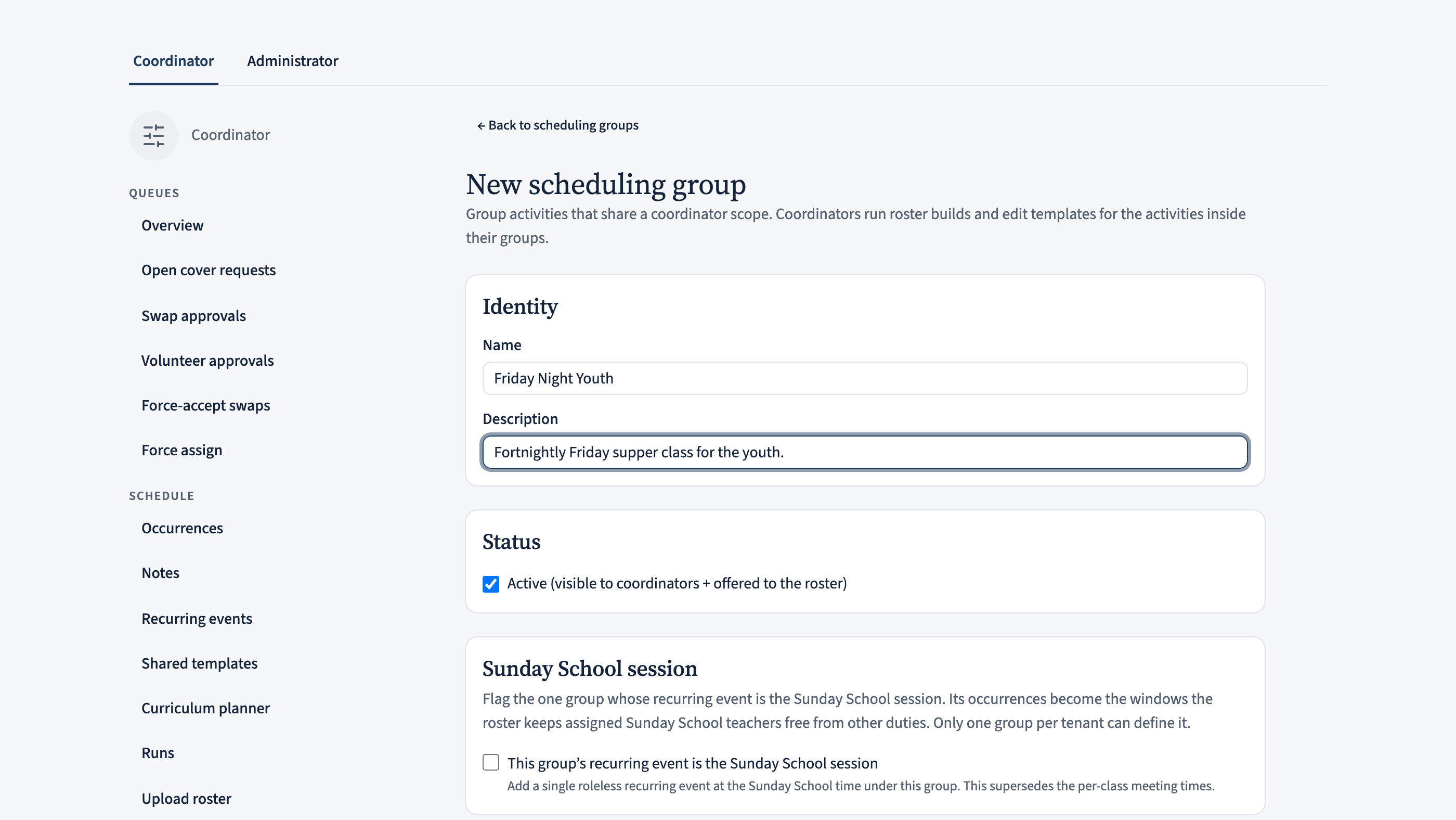
Pick Groups from the Scheduling sidebar, click New group, then fill in:
- Name: “Friday Night Youth”.
- Description: a one-liner your coordinators will read later — e.g. “Fortnightly Friday supper class for the youth”.
Click Create group. You’ll land back on the groups list with Friday Night Youth in it — ready to attach templates to.
Start a new activity template
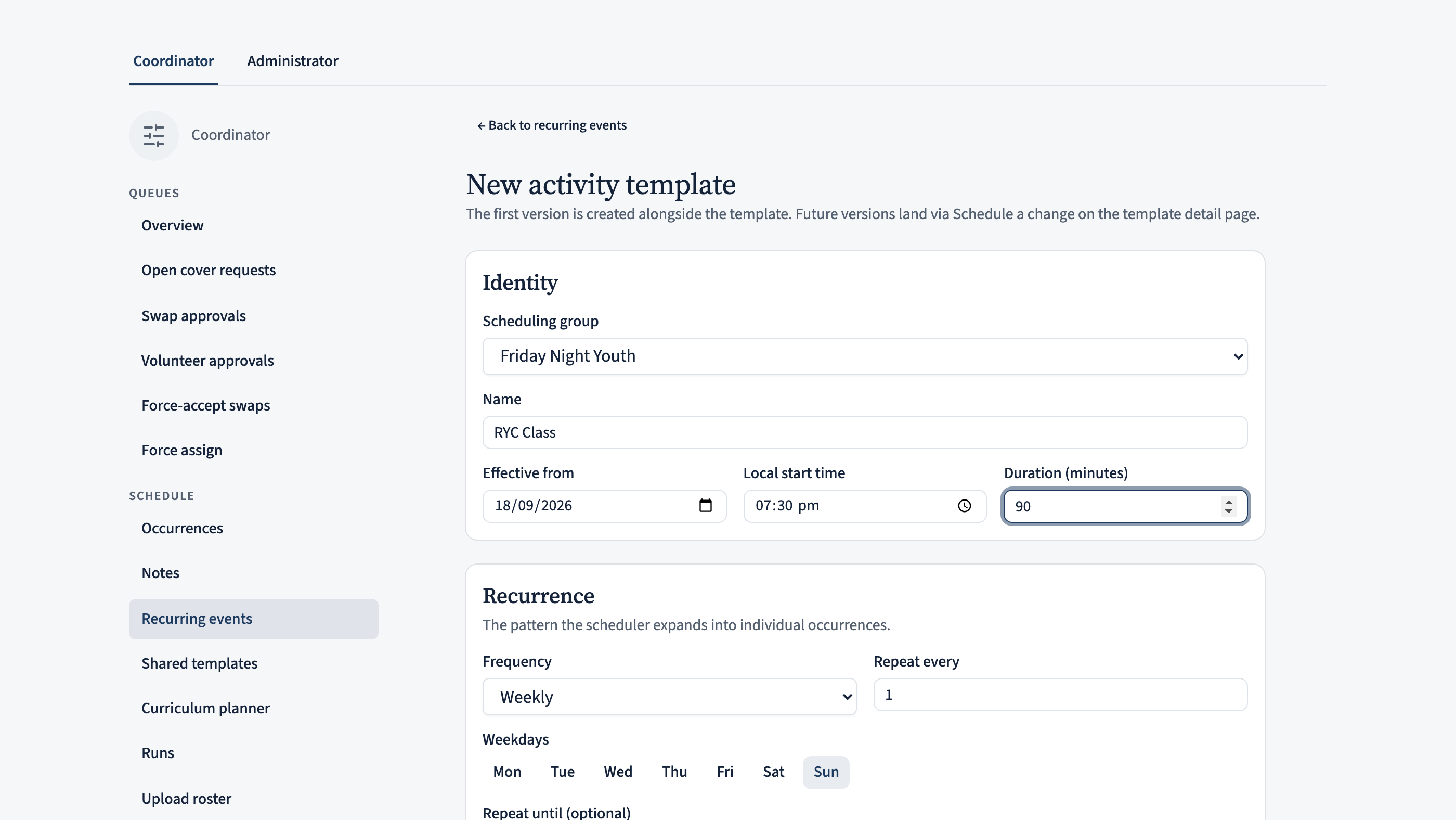
Back on Recurring events, click New recurring event in the top-right corner and choose Activity template (a repeating event where every occurrence is the same — as opposed to a study series that walks a curriculum). Don’t agonise over the choice: if the event later turns out to need a curriculum, Convert to series on its detail page switches it in place, keeping every occurrence and its roster history. On the form:
- Pick the Scheduling group you just created — “Friday Night Youth”.
- Give the template a short, recognisable Name. Members see it on the calendar and in reminder emails, so “RYC Class” reads better than “Youth template v2”.
- Set Effective from to the first Friday you want this cadence to start.
- Pick the Local start time — typically the time supper begins, say 7:30 PM — and enter a Duration (minutes) if you want reminders to show the finish time. Duration is optional; leave it blank if the class runs until people go home.
Set the recurrence to every second Friday
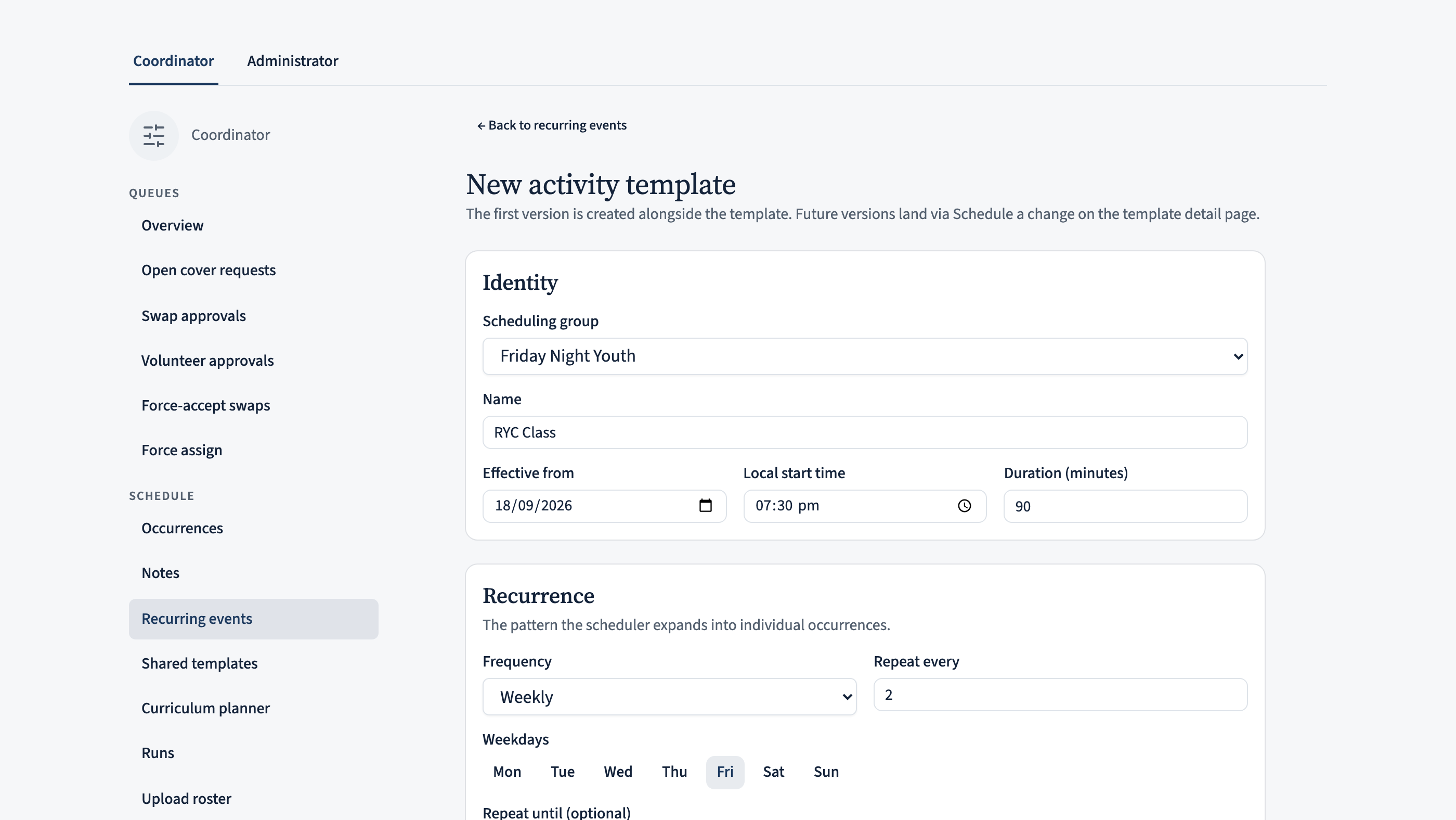
Scroll to the Recurrence card and set three fields:
- Frequency: Weekly.
- Repeat every: 2. Combined with Weekly, this reads “every two weeks”.
- Weekdays: tap Fri so it’s highlighted. Leave the other days off.
If your RYC year has a natural end date — say December for the summer break — set Repeat until. Leaving it blank means the calendar keeps generating occurrences on that cadence with no cut-off, which is usually what you want for a program that resumes each year.
Monthly patterns: if instead your event meets monthly, set Frequency to Monthly and pick a pattern — either On a day of the month (e.g. the 15th) or On a weekday, where you choose an ordinal (first – fifth, or last) and a weekday. That’s how you get “the 3rd Thursday of every month”. Choose last for the final weekday of the month; the fifth only occurs in some months.
Note: the first occurrence is the earliest Friday on or after your Effective from date. So if you want the very first class on a specific Friday, set Effective from to that Friday exactly.
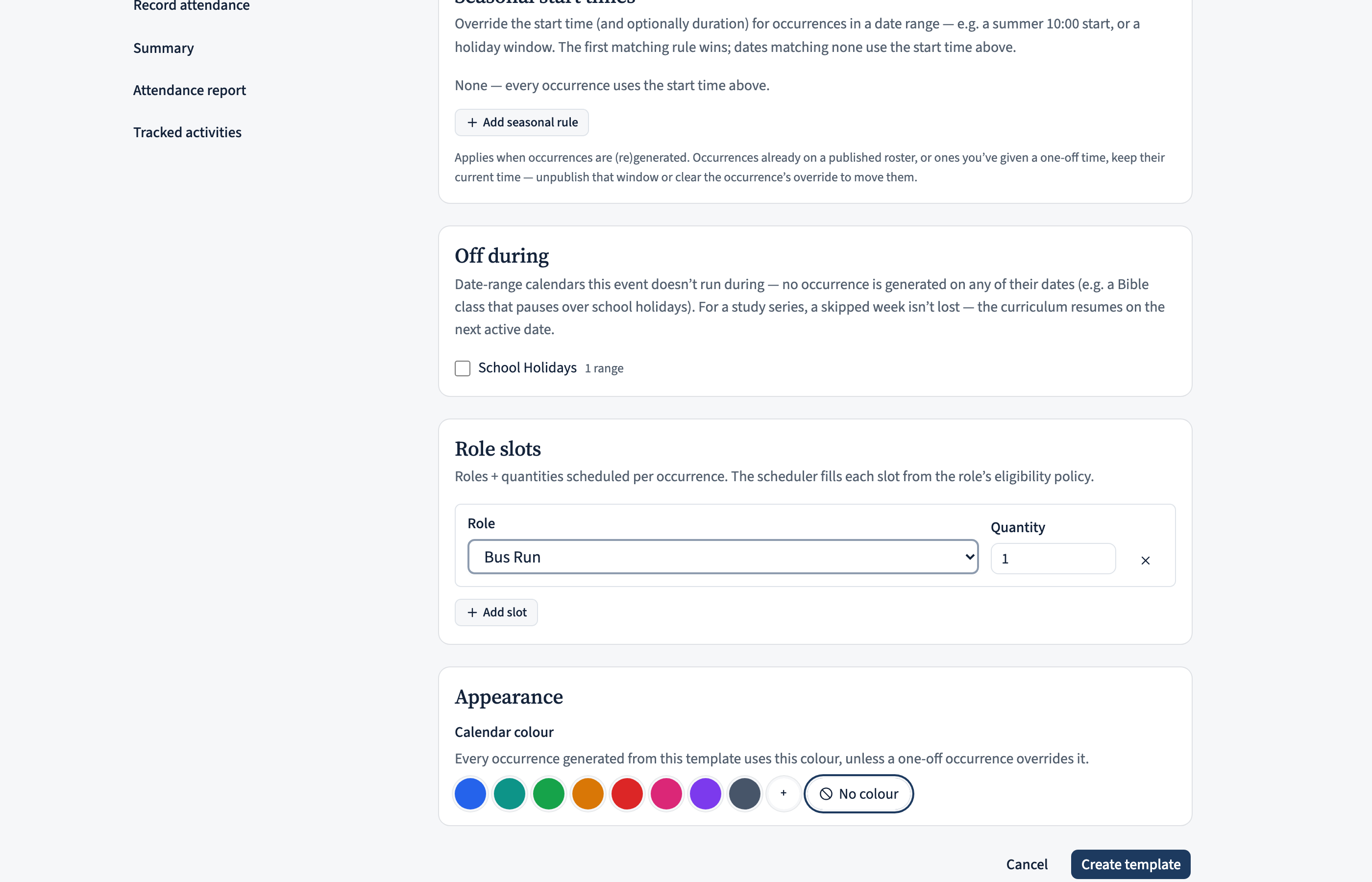
Seasonal start times: if the event shifts time with the seasons — a summer 10:00 start, an evening winter one — you don’t need two templates. In the Seasonal start times section add a rule per season: a date range and the start time (and optionally duration) to use inside it. Tick Repeats every year and give the range as MM-DD (a From after the To wraps the year end, so 12-01 → 01-31 covers December and January); untick it for a one-off range and use full YYYY-MM-DD dates. Occurrences inside a rule’s range use its time; the rest fall back to the start time above.
Add role slots
Role slots tell CDRoster which jobs need volunteers at each occurrence. Click Add slot and pick a role from the dropdown — something like Chairman or Speaker, at quantity 1. Click Add slot again for each additional role: an upfront supervisor, a supper coordinator, whoever your class format needs. Bump quantity to 2 if you routinely need two people in the same role on a busy night.
You can also leave this section empty — either on the first pass, to edit later once the youth coordinator confirms the format, or for good. A roleless recurring event still expands onto the calendar; it’s just a plain repeating entry the scheduler never tries to fill. That’s exactly right for something like a Sunday School session or a standing social that needs a calendar slot but no roster.
Create and confirm on the calendar
Click Create template. CDRoster stores the pattern and immediately expands the next several occurrences onto the calendar (out to the tenant’s occurrence horizon — 18 months by default; your administrator can nudge it in Ecclesial settings).
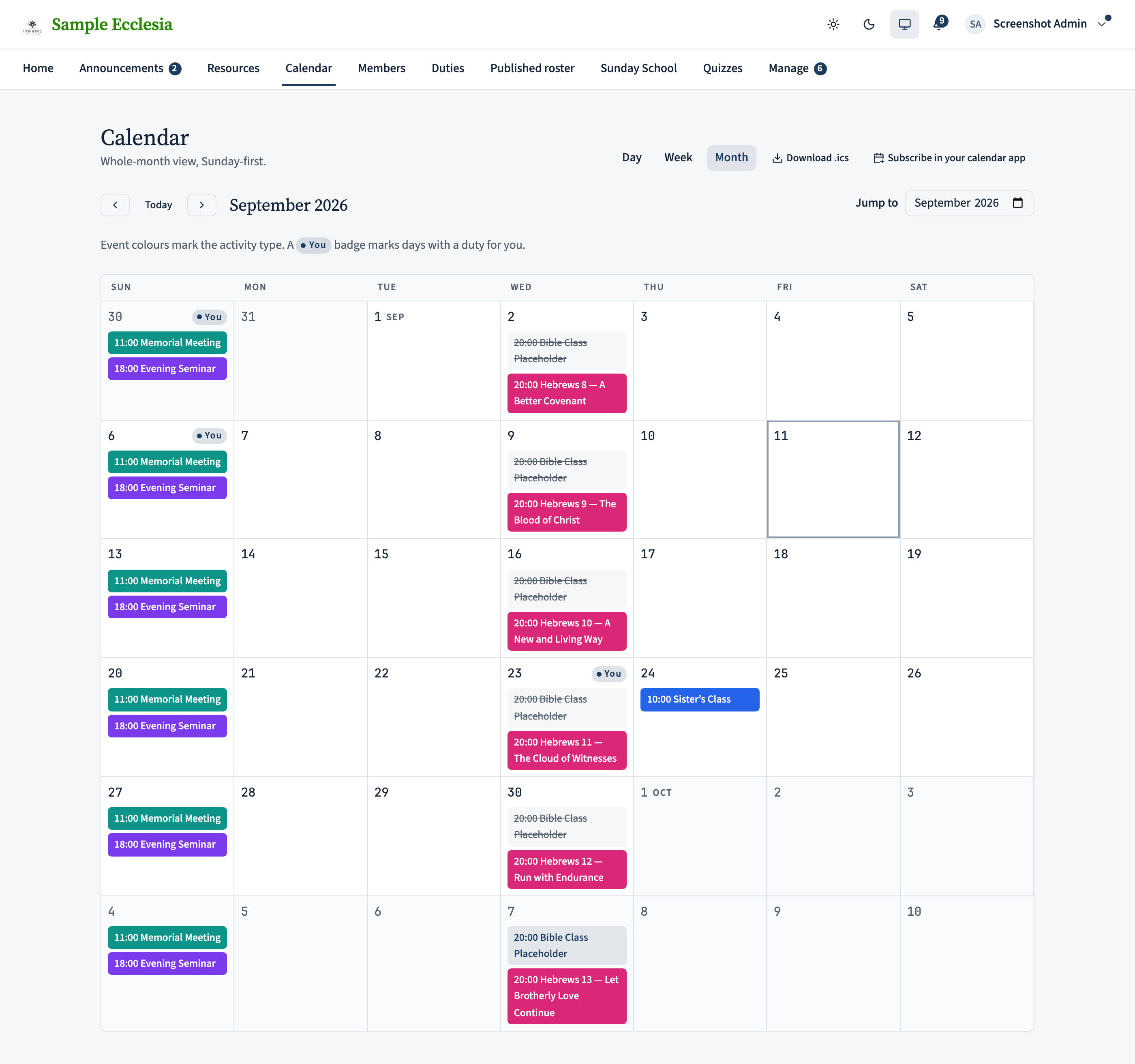
Head to Calendar from the top nav and jump to the month of your first Friday. You should see a chip labelled with your template name on every second Friday, alongside your other recurring events. Click one to open the occurrence detail page — that’s where the youth coordinator will roster the class leader and speaker.
On the iPhone app
Recurring events are visible and editable from the app's Manage hub.
Manage → Recurring events shows your colour-coded events with their cadence — automatic weekly or monthly, or a manual template with N set dates — grouped by template. Tap + to add one.
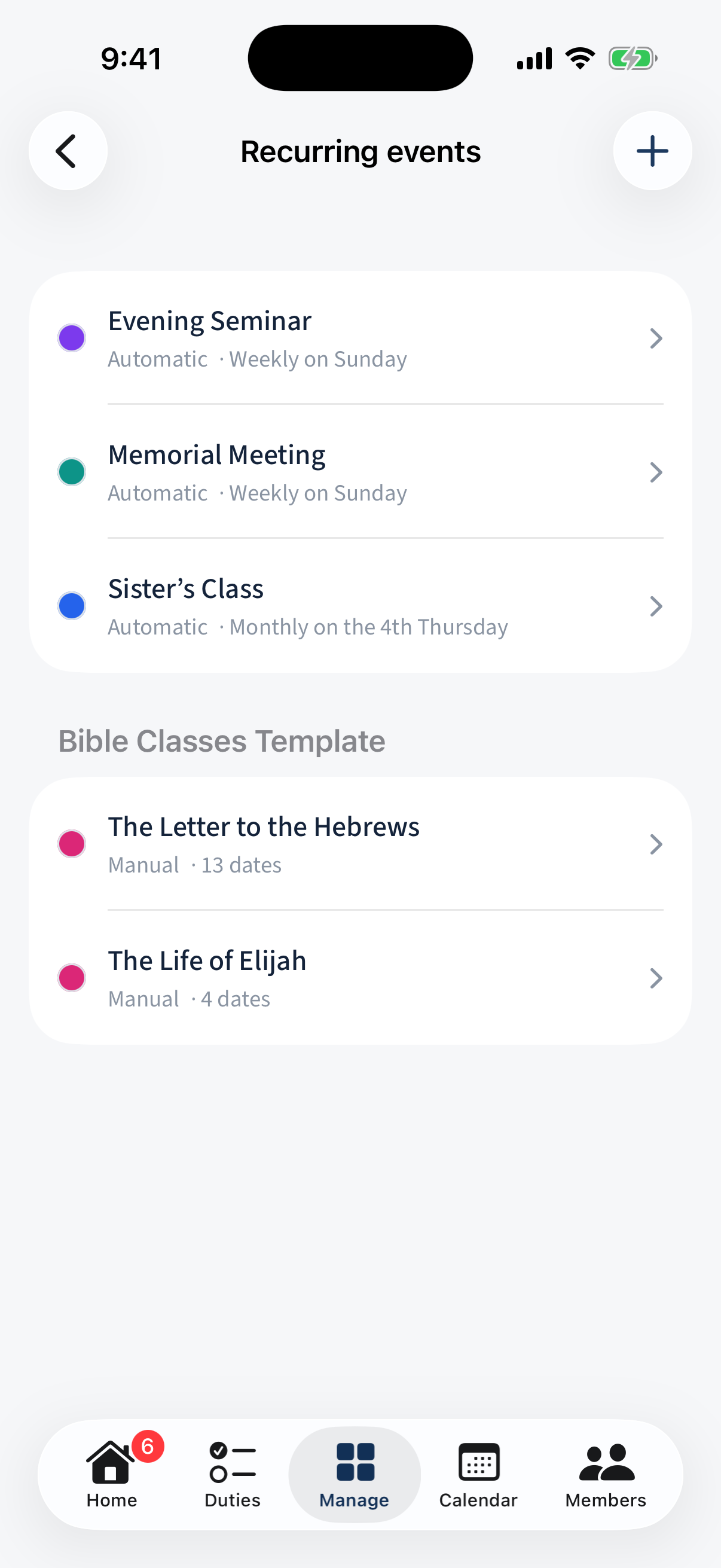
Manage → Recurring events: colour-coded events with their cadence, grouped by template, and a + to add.
On the web only: The finer edit flow may differ from the web wizard; this is the list + create entry point.
What next?
- Roster people to your new occurrences — the coordinator’s next step.
- Set availability — each volunteer’s next step.
- Need to skip a specific Friday? Open the occurrence and cancel it — the template pattern stays, only the one occurrence disappears.
- Running a multi-day event — a weekend away, a camp? Open the occurrence and set an End date; it then spans every day from its date through to that end, showing as a band across the calendar.