Date-range calendars: school-holiday breaks
A date-range calendar is a named set of dates you define once — like School Holidays or Term Dates — and then point recurring events at. Two things an event can do with one:
- Skip it — generate no occurrence on any date inside the calendar (a Sunday-evening seminar or Bible class that doesn’t run over the school holidays).
- Shift its start time — run at a different time during the calendar’s dates (a summer 10:00 start).
The point is reuse: set the holiday dates once, and every event that references the calendar re-applies them the next time it generates. Change the calendar and they all follow. Creating and editing calendars is an administrator task; pointing an event at one is done by whoever edits recurring events (a coordinator or administrator). Reading time: about four minutes.
Create the calendar
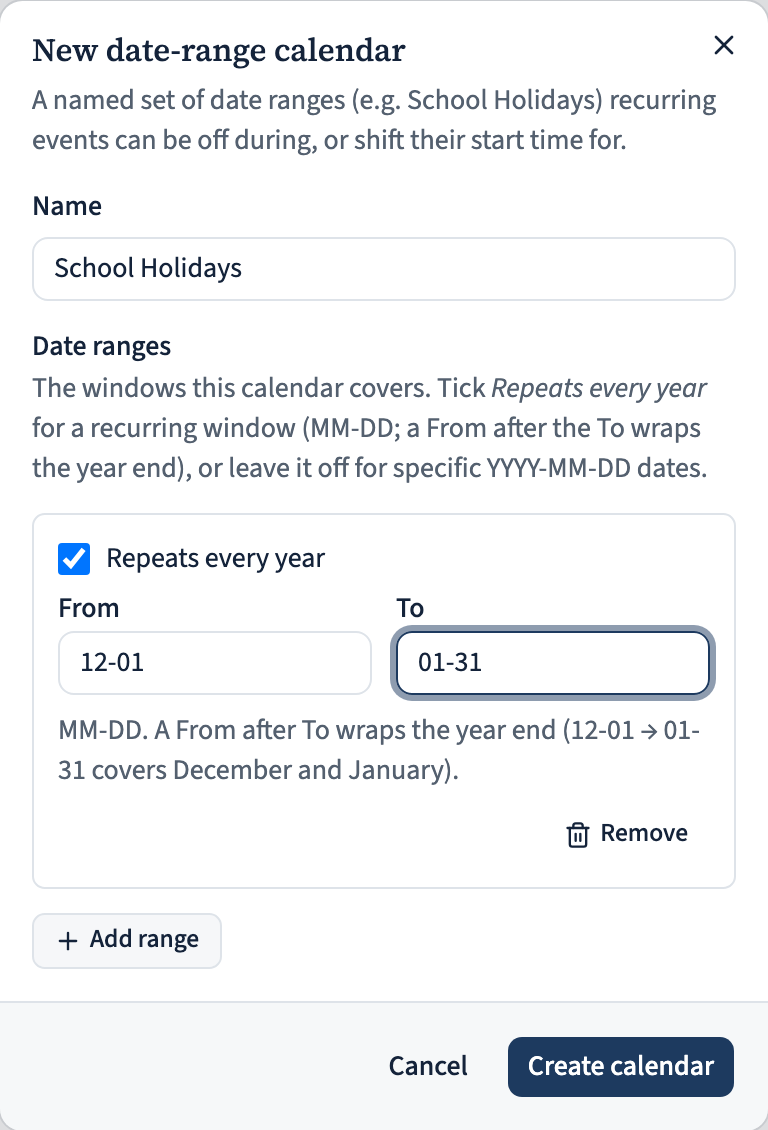
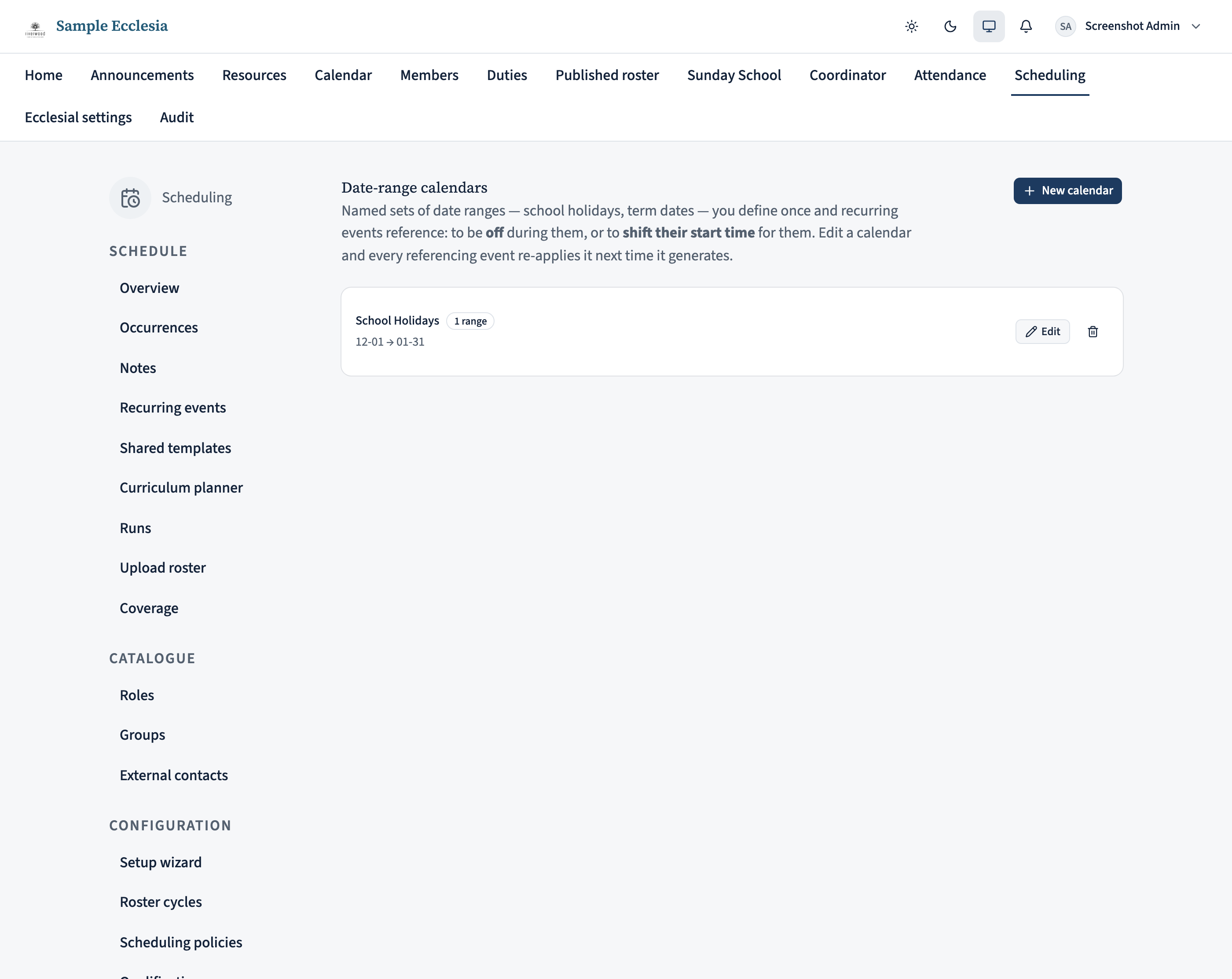
Go to Manage and, in the Configuration section of the side rail, open Date-range calendars. Click New calendar and give it a clear name — School Holidays. Names are unique per ecclesia.
Now add the date ranges it covers with Add range. Each range is either:
- Repeats every year (ticked): give the From and To as
MM-DD— e.g.12-01to01-31. A From that’s after the To wraps the year end, so that example covers December and January every year. - A one-off window (unticked): give full
YYYY-MM-DDdates, To on or after From — e.g. the April break2026-04-06to2026-04-20.
Add as many ranges as the calendar needs, then Create calendar. You can mix yearly and one-off ranges in the same calendar.
Skip a recurring event during it
Open the recurring event you want to pause — Manage → Recurring events, pick the event, then Edit template (or Schedule a change to start a new version). On the editor you’ll find an Off during card listing your date-range calendars. Tick School Holidays.
Save, and from now on the event generates no occurrence on any date inside that calendar — the seminar simply doesn’t appear on the calendar over the holidays. You can tick more than one calendar; the event is off during any of them.
Study series don’t lose weeks. If the event walks a curriculum, a skipped date doesn’t consume a lesson — the series just resumes on the next active date, so a 12-week study spans the holidays instead of losing weeks to them.

Optional: shift the start time instead of skipping
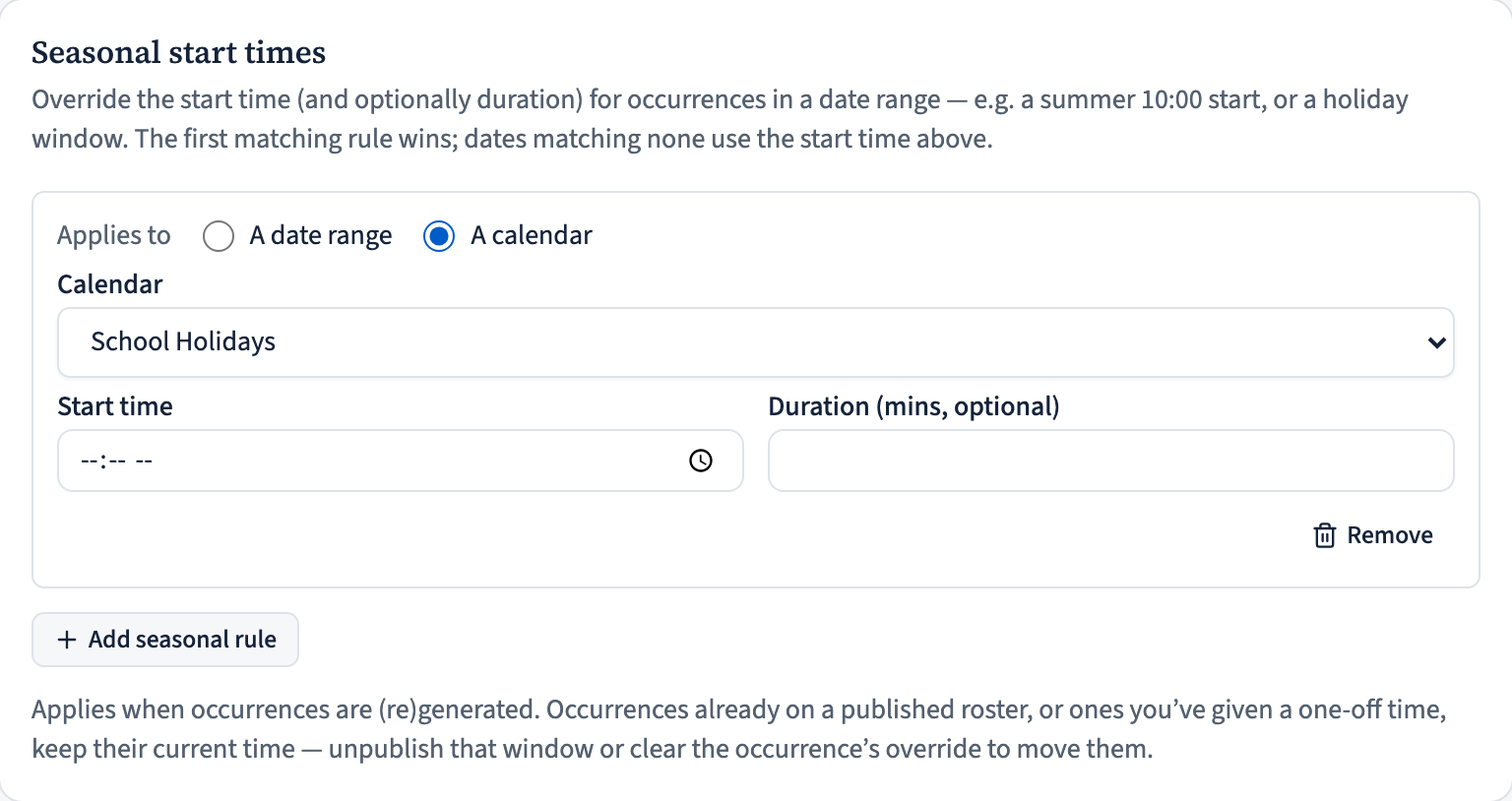
Sometimes an event still runs during a window but at a different time. On the same editor, the Seasonal start times section lets a rule point at a calendar: set Applies to to A calendar, choose School Holidays, and give the start time (and optionally a duration).
Occurrences on the calendar’s dates then use that time; the rest use the event’s normal time. It’s the same calendar driving both behaviours — one place to keep the holiday dates right.
Edit once, and it follows everywhere
When the dates change — a new year’s term dates, an extra camp week — edit the calendar once from the Date-range calendars list. Every event that references it re-applies the new dates the next time it generates. You never have to touch the events themselves.
A calendar that’s still referenced can’t be deleted — you’ll be told to remove those references first (untick it in each event’s Off during and any calendar-linked seasonal rule), then delete it.
Note on occurrences already out there. A calendar change re-applies when occurrences regenerate, and that leaves occurrences already on a published roster or ones you’ve hand-edited untouched — changing what members already see is never silent. To apply a change to those, unpublish that roster window (or clear the occurrence’s override) and let it regenerate.
On the iPhone app
Manage named date ranges from the app.
Manage → Date-range calendars lists your calendars (e.g. School Holidays). Tap + to add one. A calendar in use can’t be deleted until it’s removed from the events that reference it.
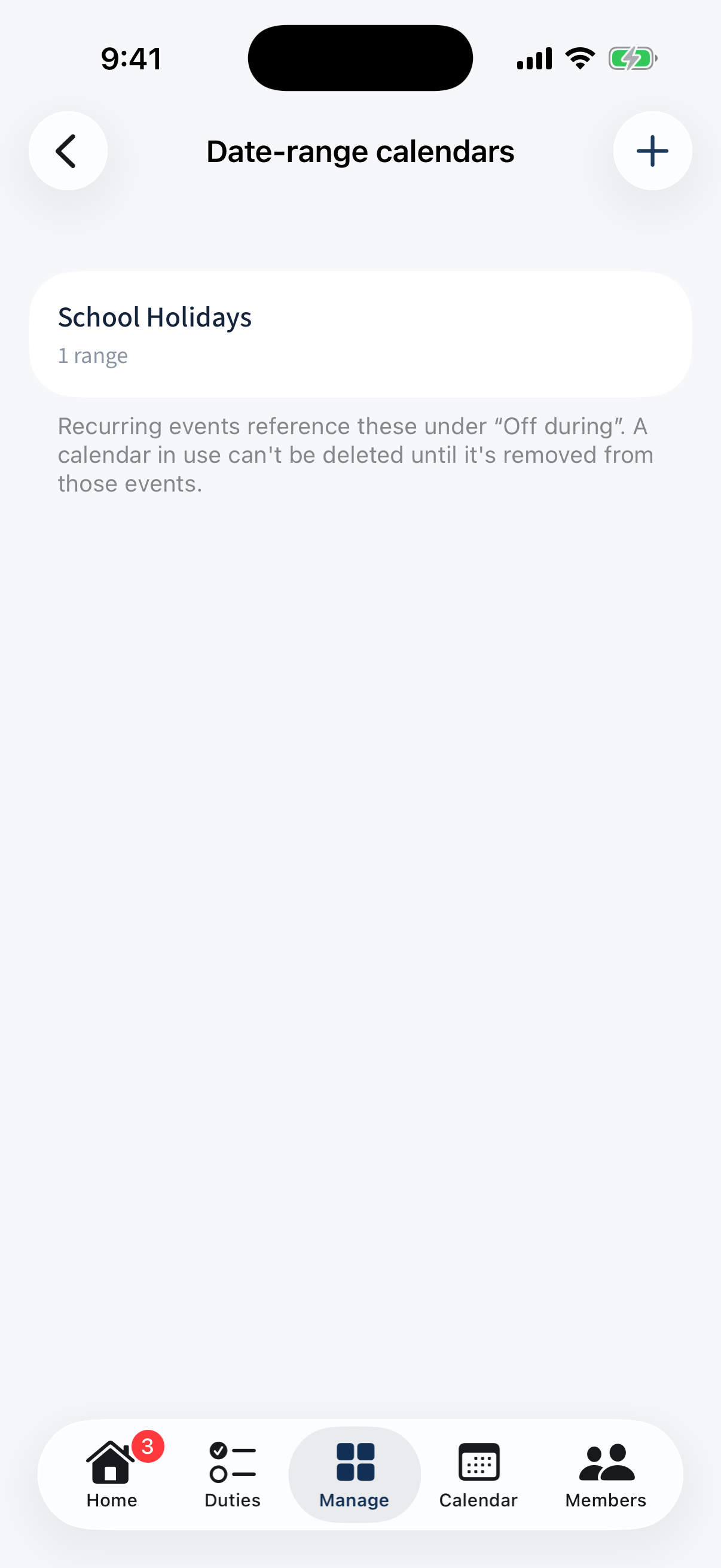
Manage → Date-range calendars: the calendars list (School Holidays · 1 range) with a + to add. The editor is a name field plus a Ranges section — Add a range for each period.
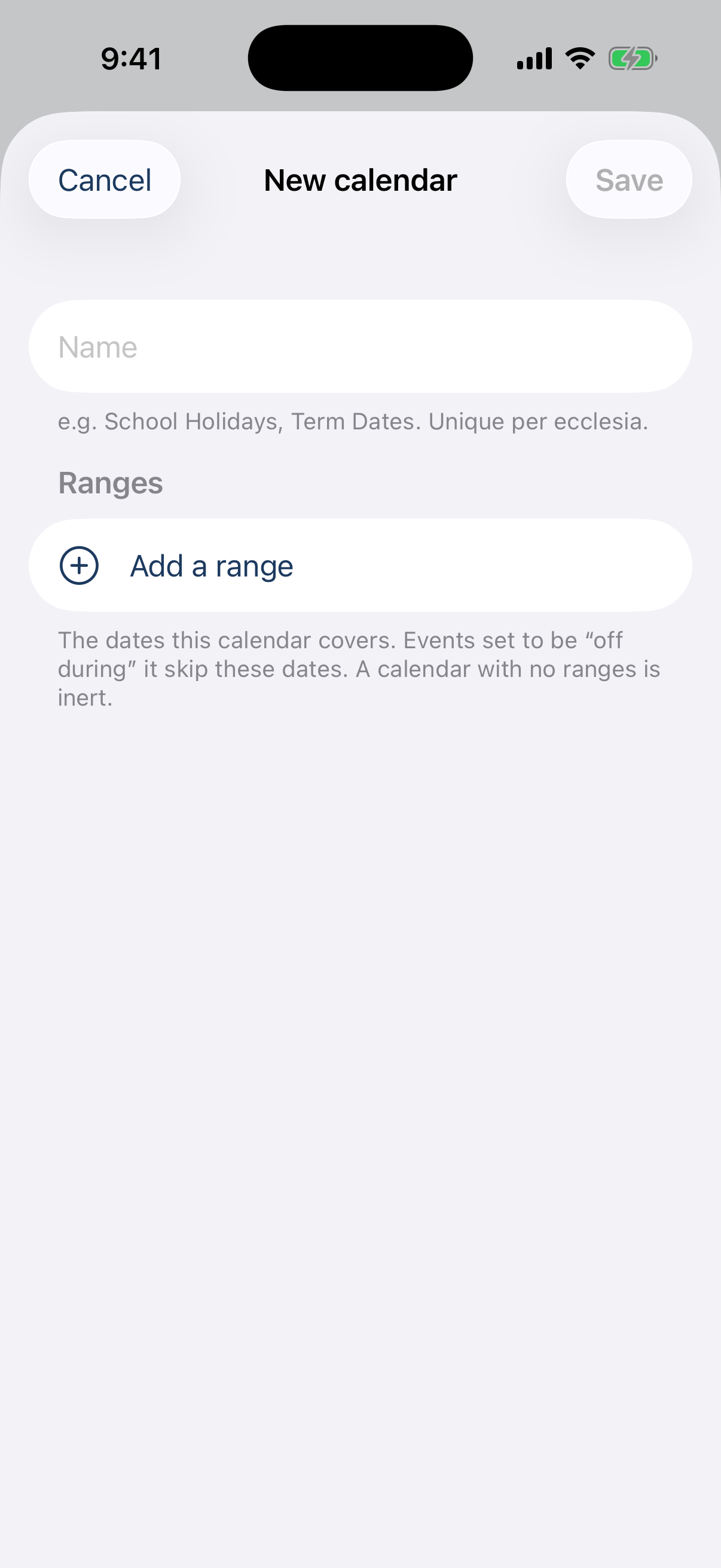
The calendar editor: a name field and a Ranges section with Add a range.
Different on the app: Tapping an existing calendar shows the list; the + opens the editor.