Coordinator: the coordinator page
The Coordinator page is a running list of things waiting on a coordinator or administrator’s attention: swaps two members have agreed on but need your sign-off, members who volunteered for a role that requires approval, swaps stuck waiting on an unresponsive counterparty, and roster slots nobody’s covering yet. If you’re the go-to person for “is anything on fire?”, this is the page you check first each week — and the two force queues are how you push things through when the normal flow stalls.
It lives under Manage, which appears in the top navigation once you have the coordinator or administrator role. A small number badge next to the Manage label tells you how many items are actionable across all the queues combined — the same badge stays visible on every page, so you don’t have to remember to check.
Reading time: six minutes.
Open the Coordinator page
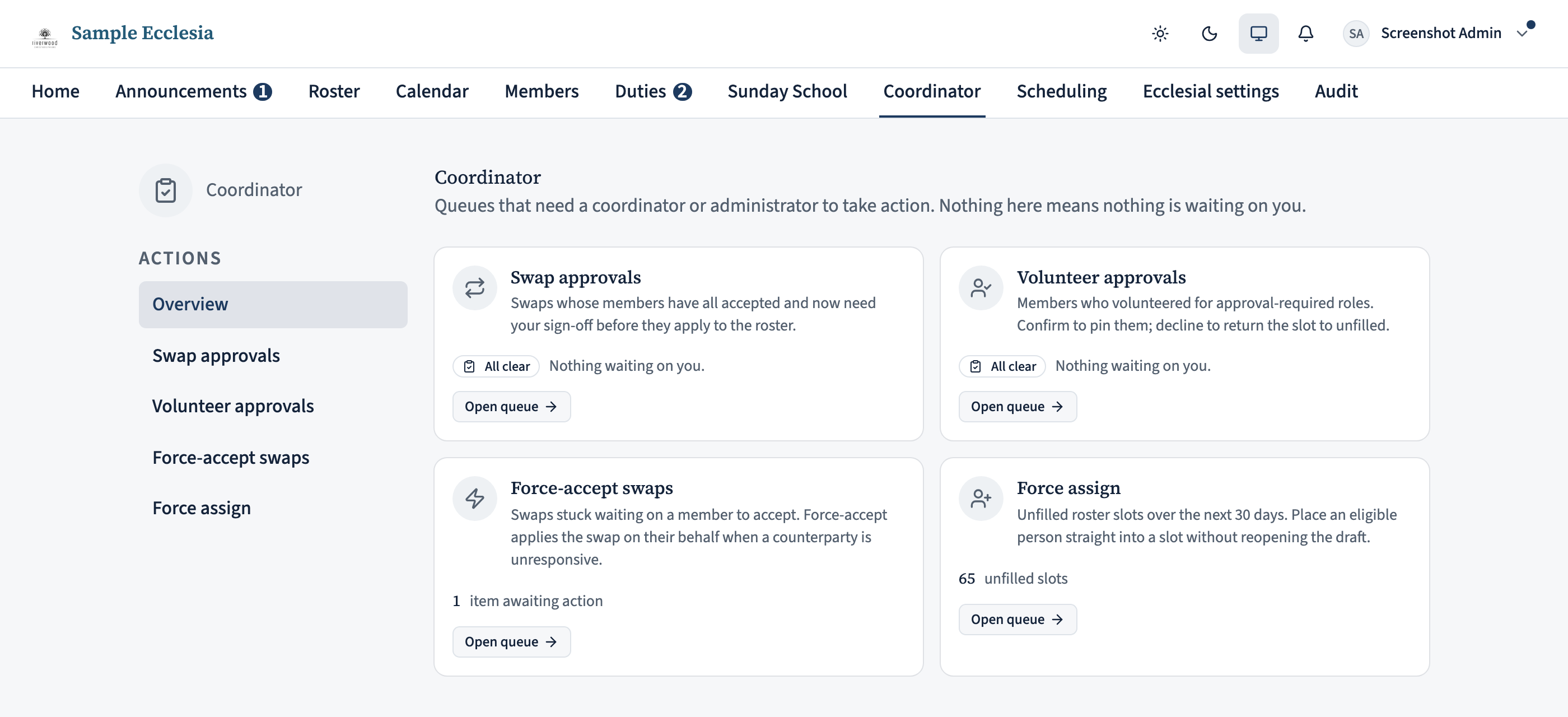
Click Manage in the top navigation; the Coordinator section’s Overview is this page. The badge next to the label is the total across every queue — in the screenshot above, three items need a coordinator or administrator to act. When there’s nothing waiting, the badge disappears entirely.
The page has a sidebar on the left (like Scheduling) with the available queues, and the current queue’s content on the right. The Overview card is what lands by default and gives you a top-level summary of every queue at once.

Overview: what’s waiting
The overview surfaces one card per queue. Each card carries the current count and an Open queue link that jumps you into the full list. The four cards:
- Swap approvals — swaps whose members have all accepted each other, but where the role involved (or the tenant default) requires a coordinator’s sign-off before the change hits the published roster.
- Volunteer approvals — members who self-volunteered for a role that requires coordinator confirmation.
- Force-accept swaps — swaps stuck waiting on a counterparty to accept. Force-accepting applies the swap on their behalf.
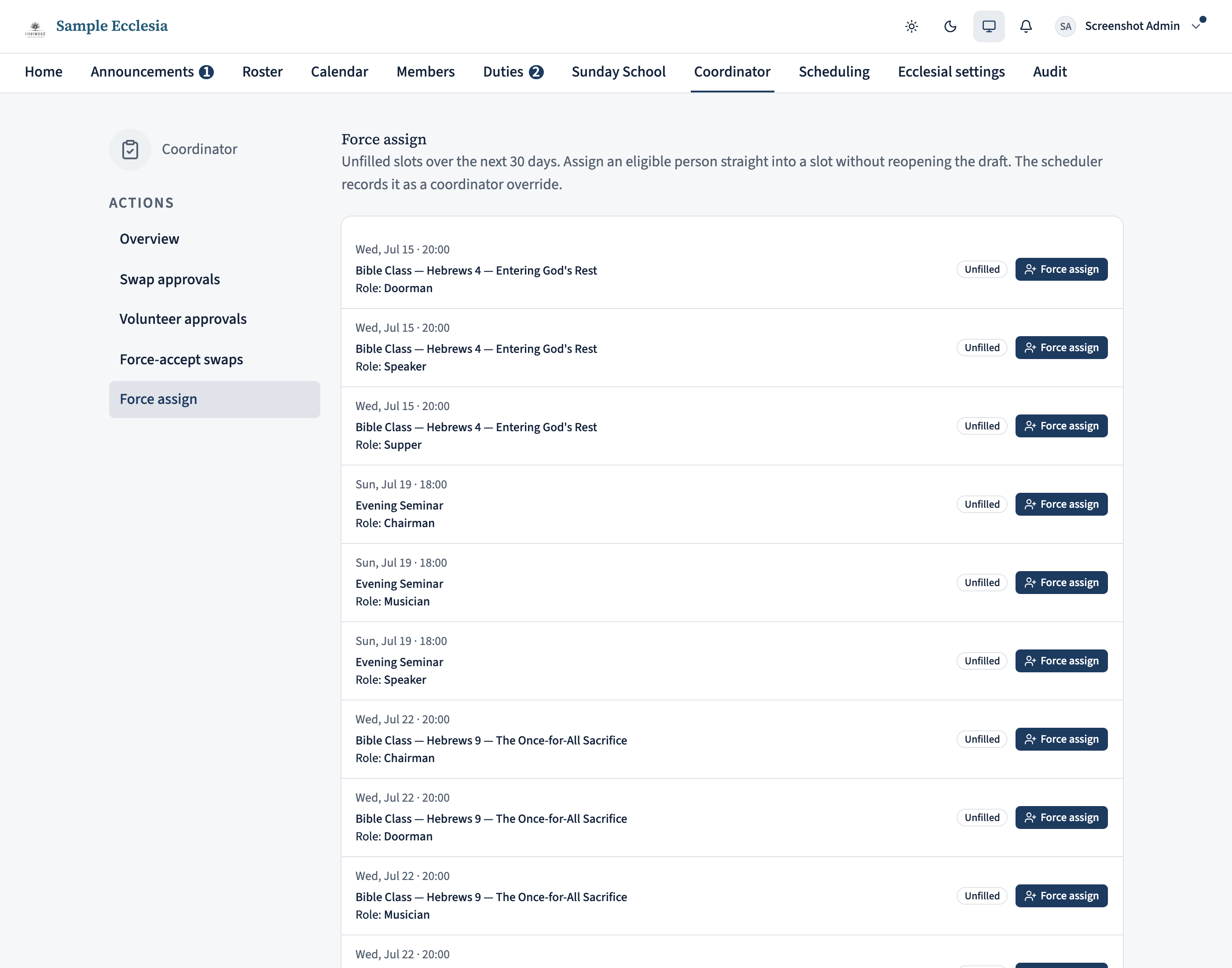
- Force assign — unfilled roster slots over the next 30 days that you can fill directly, without reopening the draft.
When a queue is empty, the card shows an “All clear” badge instead of a number — you can skip past it and move on.
Approve a swap
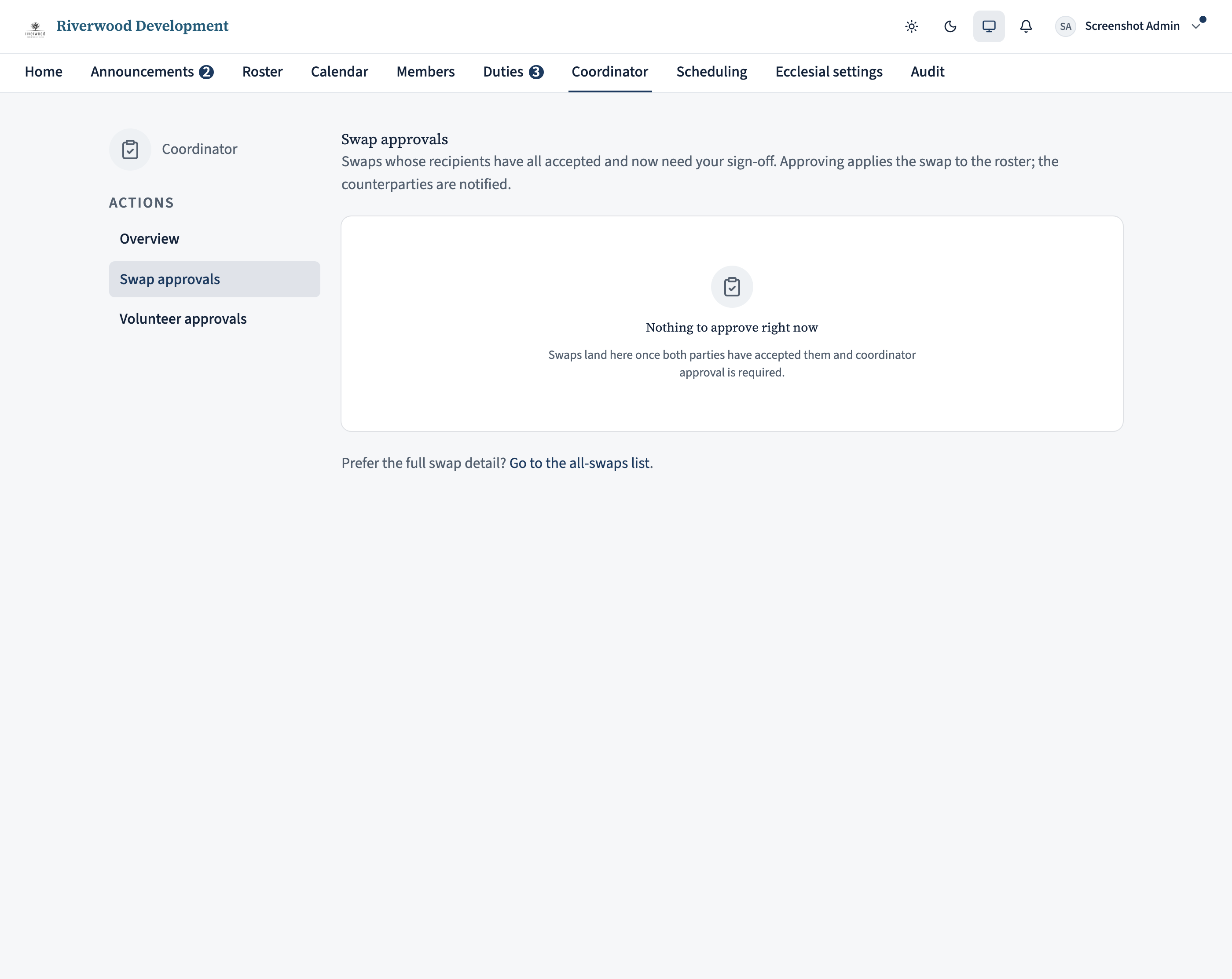
The Swap approvals queue shows swaps where the members involved have all accepted, but coordinator approval is required before the swap applies. When a swap lands, each row summarises the type (Takeover or Exchange), when it expires, and who’s handing what to whom.
Clicking Approve applies the swap and notifies the counterparties. Use Open to jump to the full swap detail page if you need to read the requester’s note, or to decline instead.
Whether a swap needs approval at all comes from two tenant settings: an ecclesia-wide default (Settings > “Swaps require coordinator approval”) and a per-role override on each role’s edit page. The role-level setting always wins.
Review a volunteer request
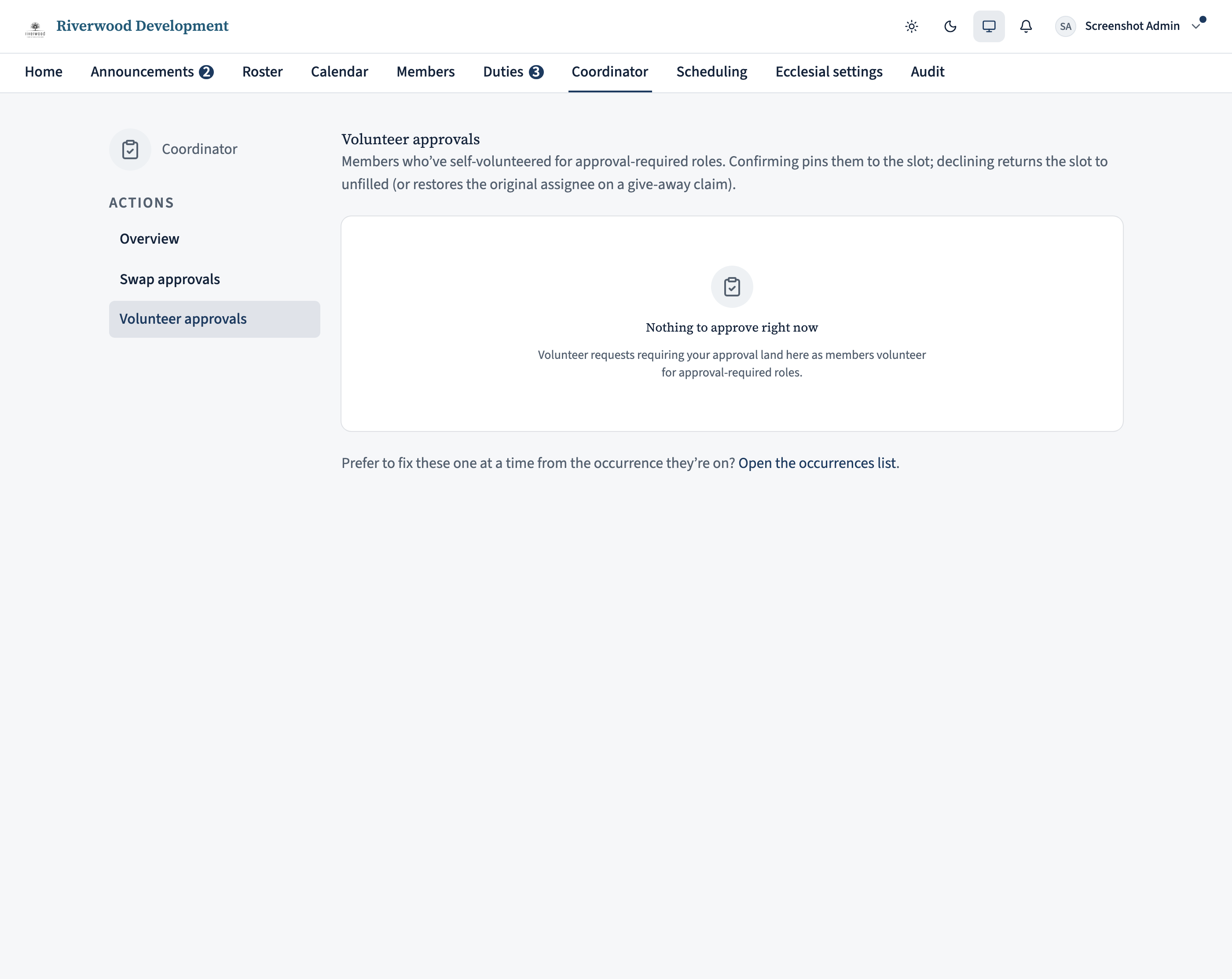
Some roles require coordinator confirmation before a member volunteers themselves in. This queue lists every such volunteer waiting on you. Two shapes appear here: a plain self-volunteer (an unfilled slot a member offered to take) and a give-away claim (a member offering to take over someone else’s assignment). Click Review on any row to confirm (which pins the slot to them) or decline (which leaves the roster unchanged).
Force-accept a stuck swap
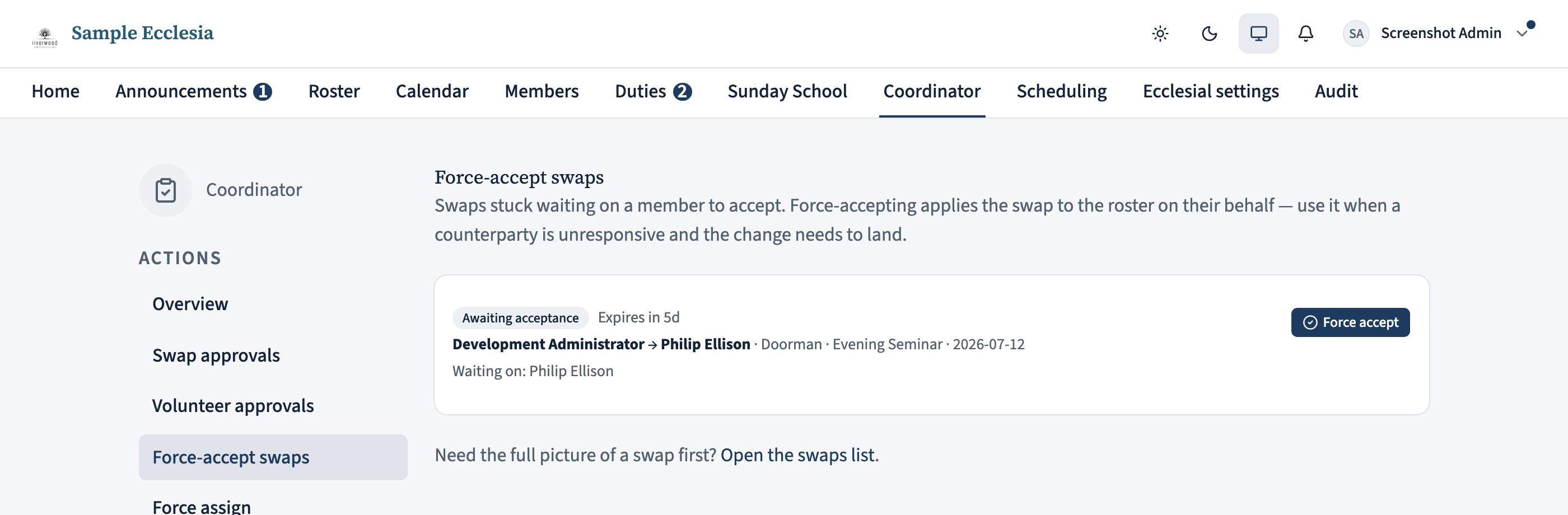
Sometimes a swap gets stuck: both people agreed informally, but the counterparty never clicked Accept and the roster date is closing in. The Force-accept swaps queue lists exactly those — swaps still waiting on a member to accept — so you can push them through on their behalf.
Each row tells you:
- The legs — who’s moving to whom, with the role and occurrence.
- Waiting on — the member(s) whose acceptance is still outstanding.
- Expiry — how long before the swap lapses on its own.
Clicking Force accept accepts on the outstanding party’s behalf, satisfies any coordinator approval, and applies the swap to the roster in one step. Use it when a counterparty is not responding and the change needs to land — not as the normal path (members should accept their own swaps where they can). This queue only shows swaps in the “awaiting acceptance” state, so it never overlaps with the Swap approvals queue above.
Force assign an unfilled slot
The Force assign queue lists every unfilled slot on the published roster over the next 30 days — the same gaps the coverage report counts — and lets you fill them without reopening the draft. Each row is one open slot: the occurrence, the date, and the role.
Click Force assign on a row to open a picker of the role’s eligible people. Choose one and confirm, and they’re placed straight into the slot. The scheduler records it as a coordinator override, and if the assignment breaches a soft policy (for example the person is over their preferred cap for the cycle) it still succeeds but tells you so, so you can reconsider.
This is the fastest way to plug a known gap for someone you know can cover. For a member-driven fill instead, open the occurrence and use Open to volunteers — and to shape a whole roster before it publishes, see Coordinator: building a roster, which covers overriding assignments while the draft is still open.
See the per-role picture
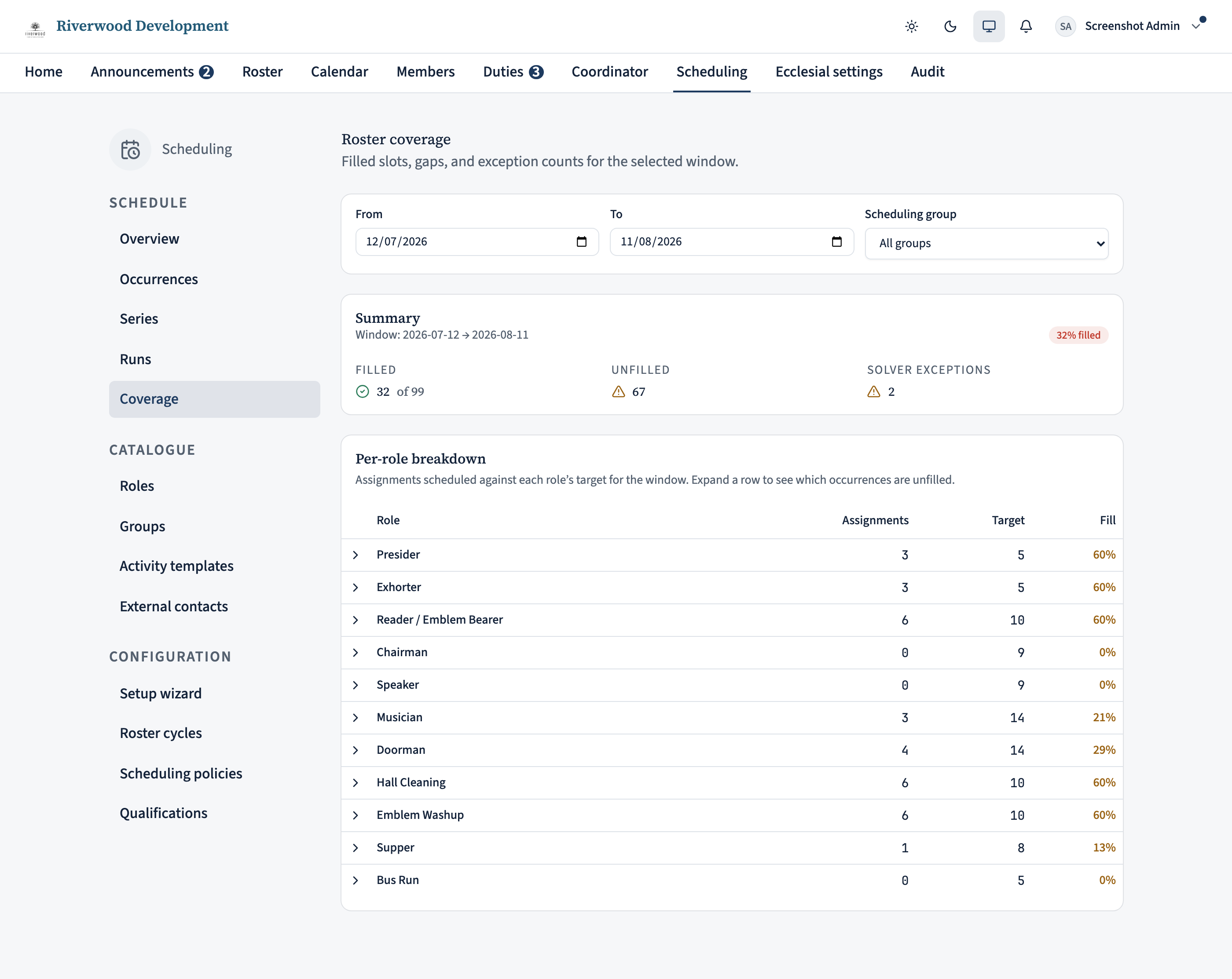
When you want the bird’s-eye view rather than a flat list of slots, the coverage report breaks coverage down per role over the window and highlights the low-fill roles worth chasing first. Reach it from the Open the coverage report link at the bottom of the Force assign page, or from the Reports area. It defaults to the next 30 days; widen the range or narrow to a scheduling group as needed. Expand a role row to see exactly which occurrences are short.
On the iPhone app
In the app the whole coordinator hub is the Manage tab (it only appears for coordinators and administrators).
The Manage tab is a single scrolling hub, grouped Sunday School · Coordinator · Rostering.
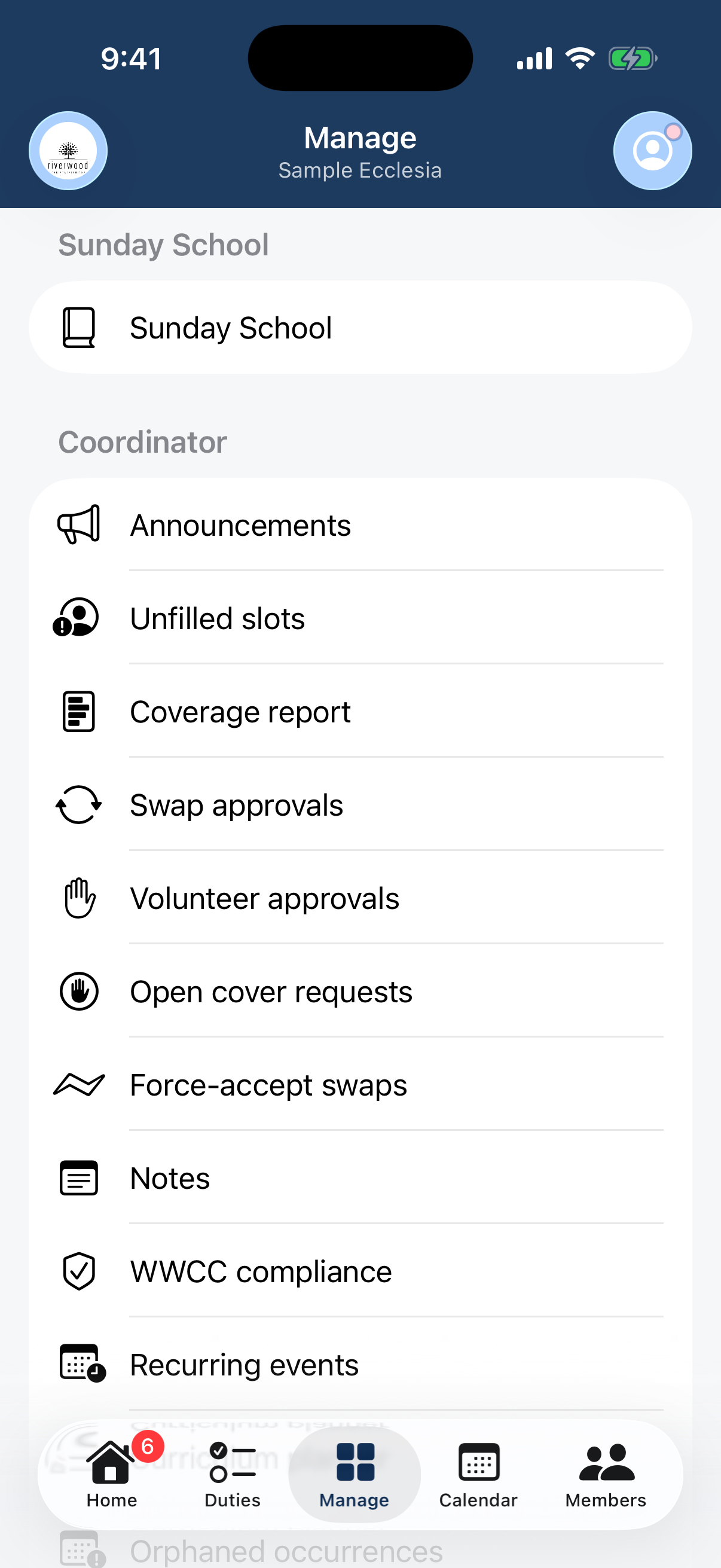
The Manage tab: a scrolling hub grouped Sunday School, Coordinator, Rostering. Unfilled slots lists every open role across upcoming occurrences, each with Force-assign.
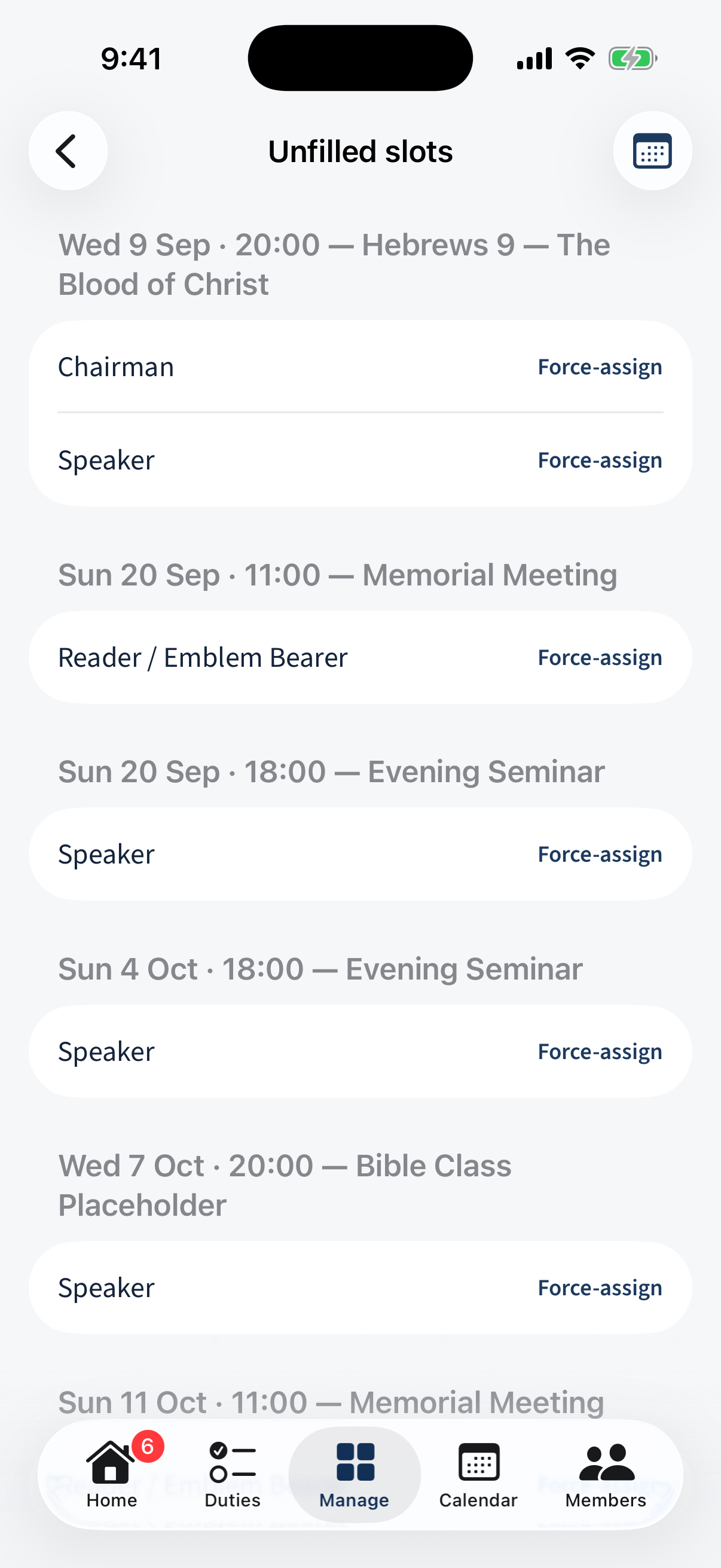
Unfilled slots: every open role across upcoming occurrences, each with Force-assign. Coverage report — pick a range and group, Run report, and read the summary (filled / unfilled / exceptions) plus a per-role breakdown.
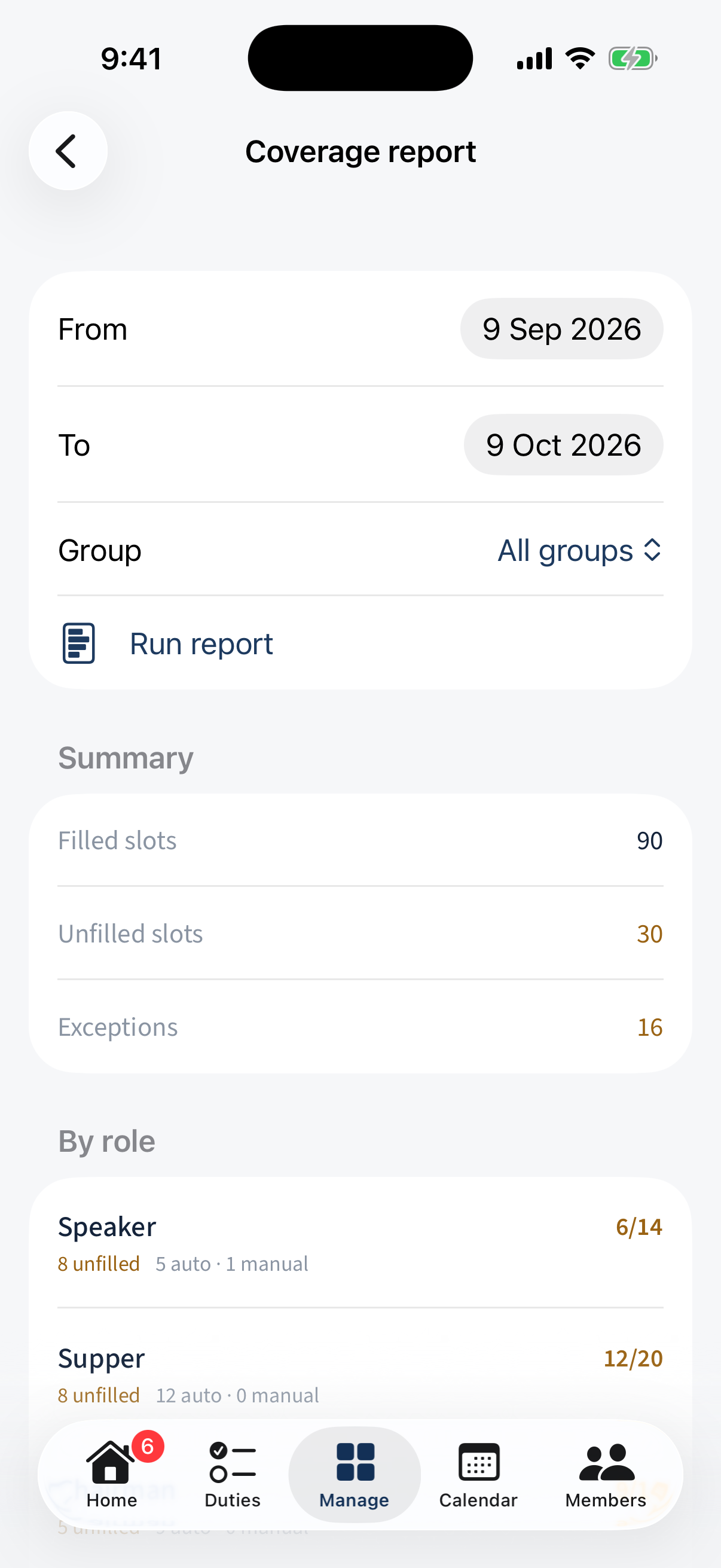
The coverage report: a summary of filled/unfilled/exceptions and a per-role breakdown. Notes shows role- and occurrence-scoped notes with a per-note actions menu.
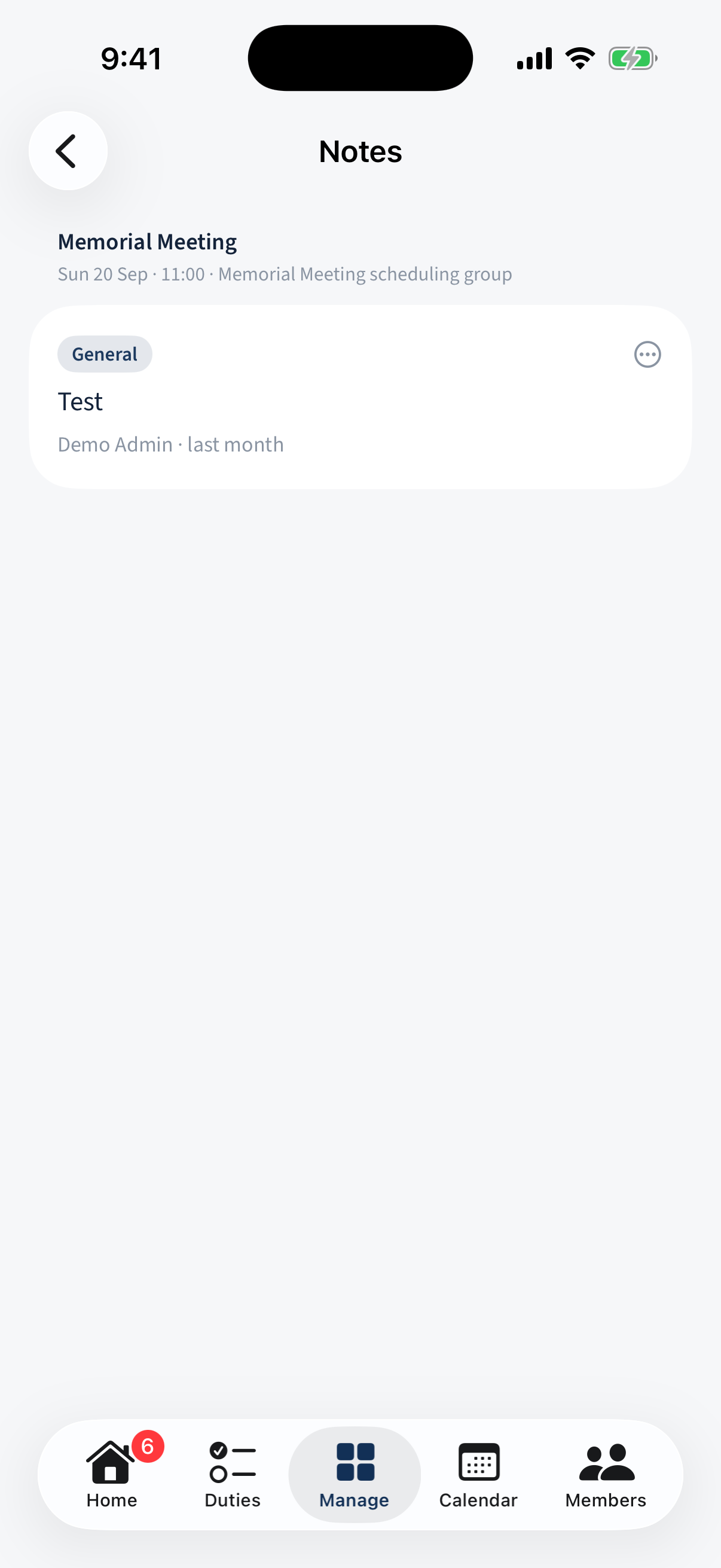
Role/occurrence-scoped notes with a per-note actions menu. WWCC compliance has All / Valid / Expiring / Expired tabs; each record shows the check type, expiry date, and status.
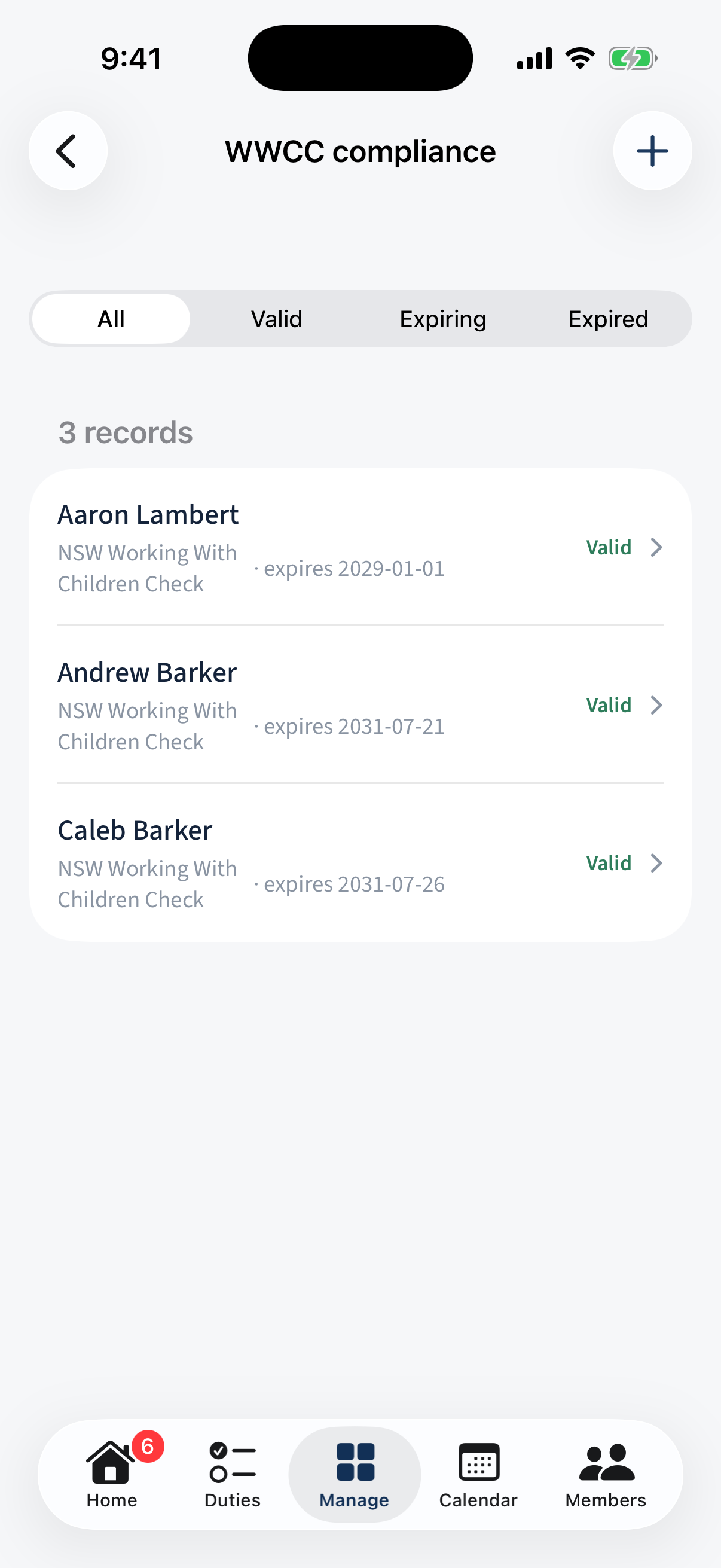
WWCC compliance: All / Valid / Expiring / Expired tabs with check type, expiry, and status. Volunteer approvals, Swap approvals, and Open cover requests live in the hub too — shown here in their empty state, as this tenant has none pending.
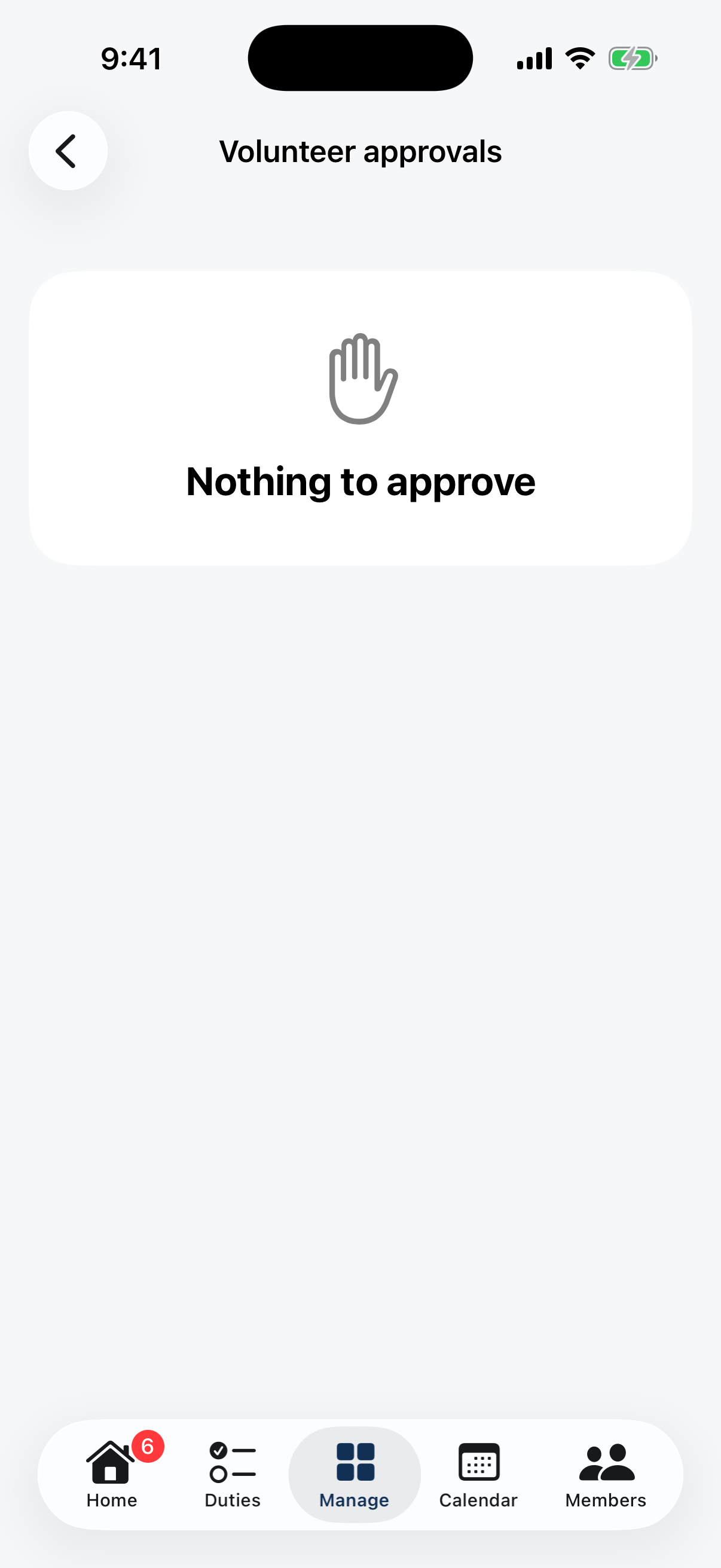
The Volunteer approvals empty state: nothing to approve.
On the web only: A populated swap-approvals queue needs a tenant that requires coordinator approval for swaps; on this one, swaps complete without it.
When you can’t see Manage
The Manage tab only appears when your account carries the coordinator or administrator role for the current tenant. If you expected to see it and don’t, ask your ecclesia administrator to check your role assignment; they can promote you from the Members page.