Submitting unavailability
Life happens. This guide covers the three ways to tell the scheduler you can’t serve on a particular day (or range, or weekly pattern), plus a related tool for recording a commitment away from home — a speaking engagement at another ecclesia, say.
Everything you record here is a hard block on the scheduler; your administrator can still override it on a specific roster if there’s no way around it, but the roster solver won’t pick you for those windows on its own.
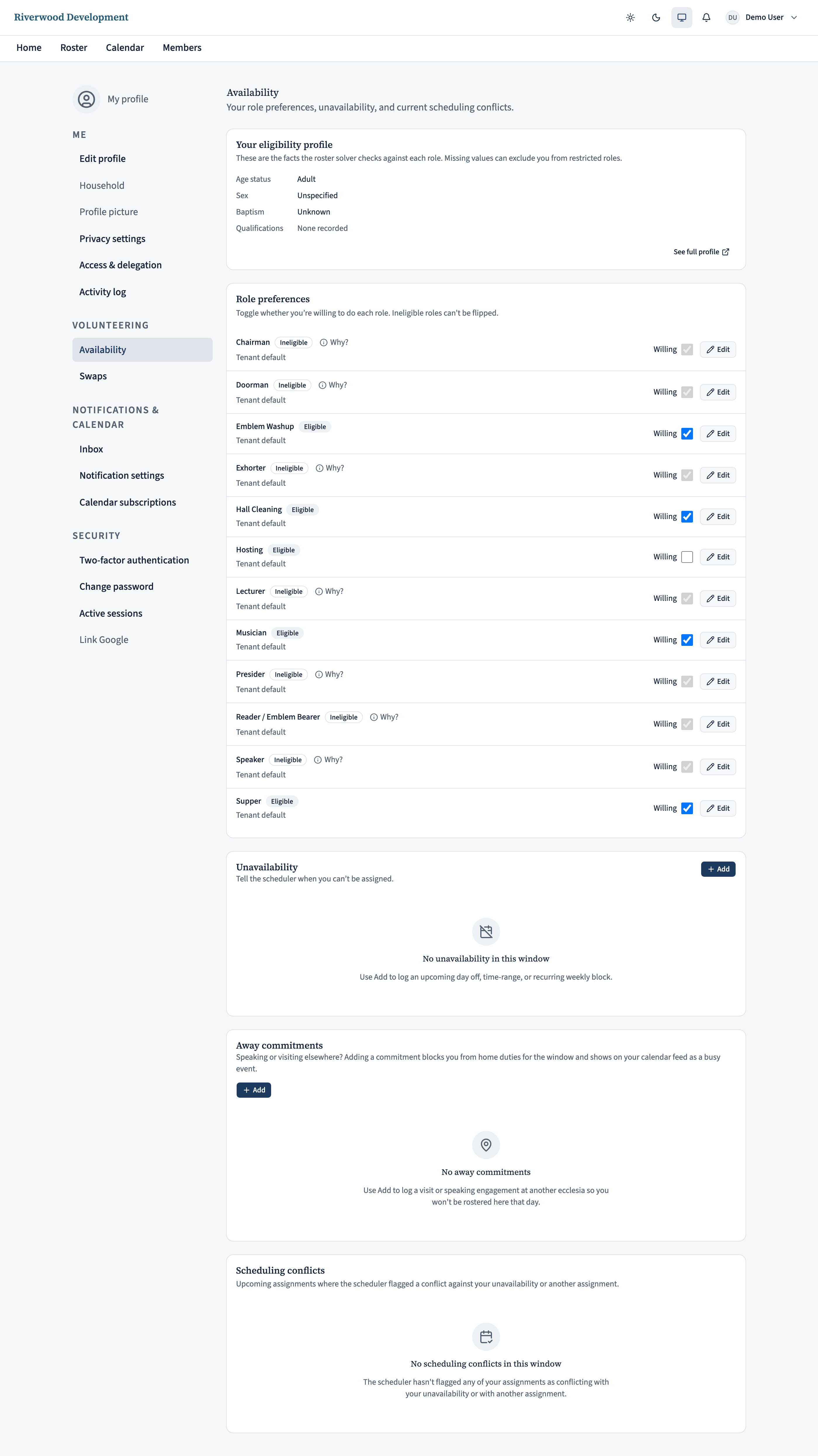
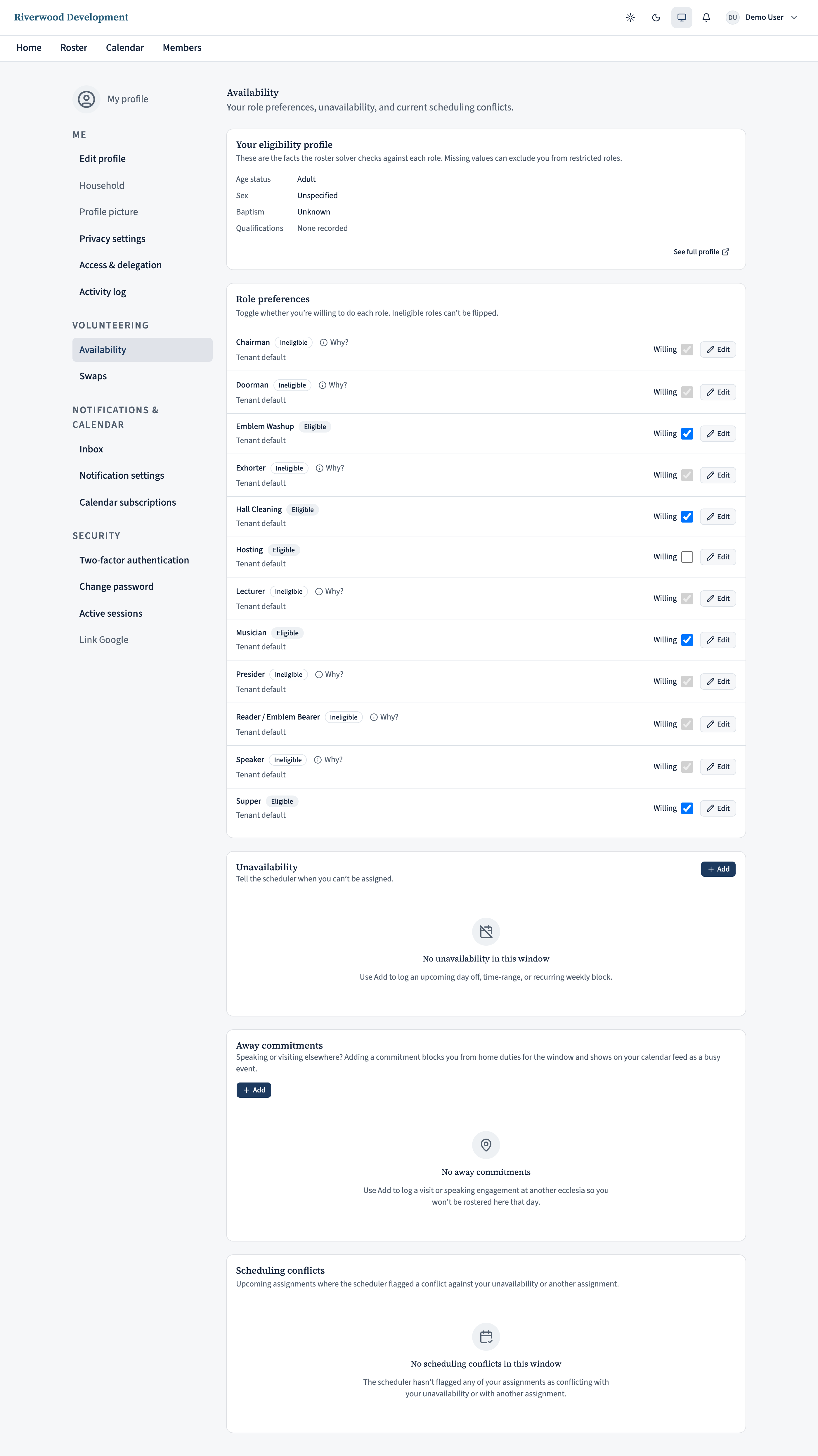
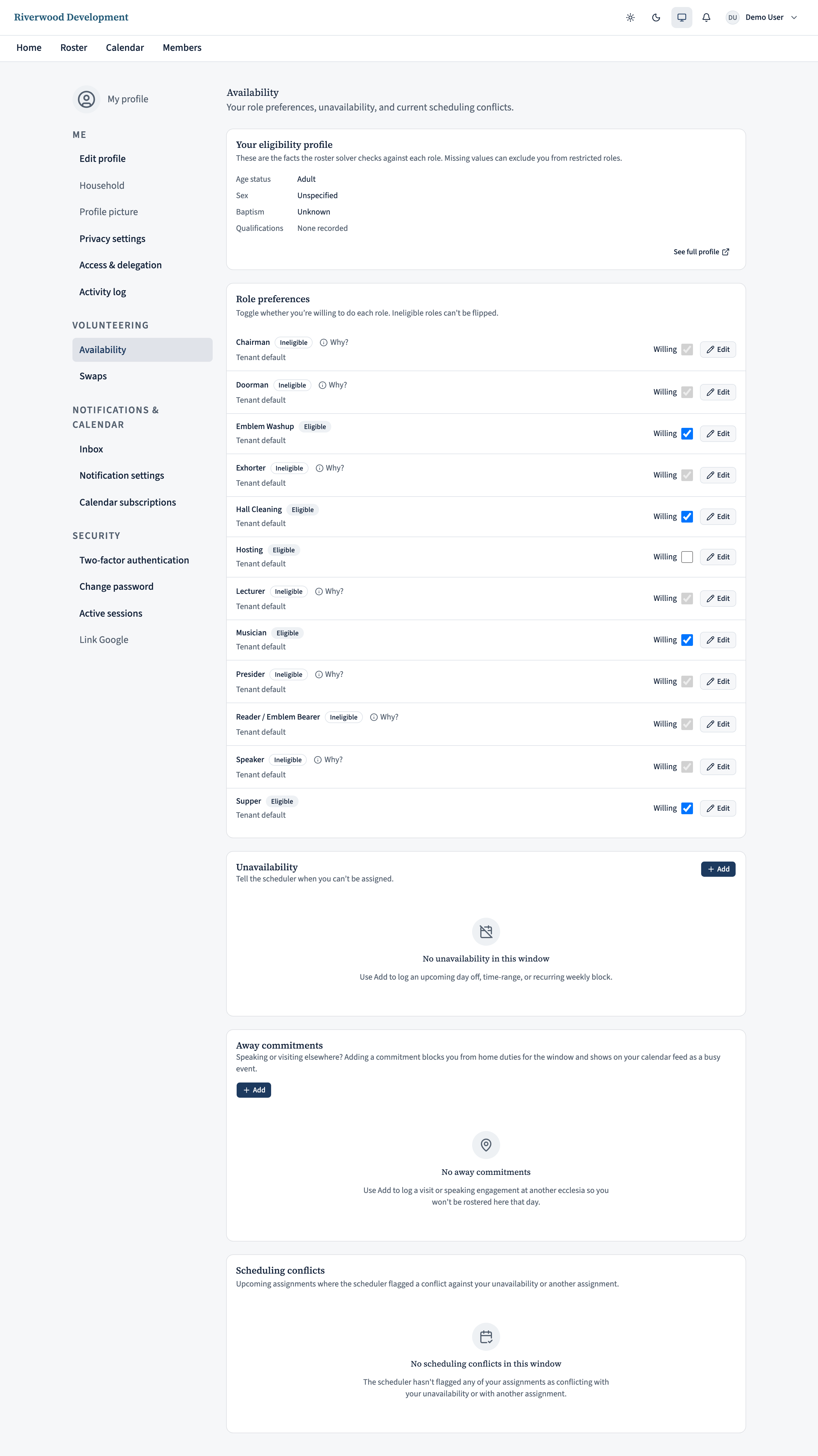
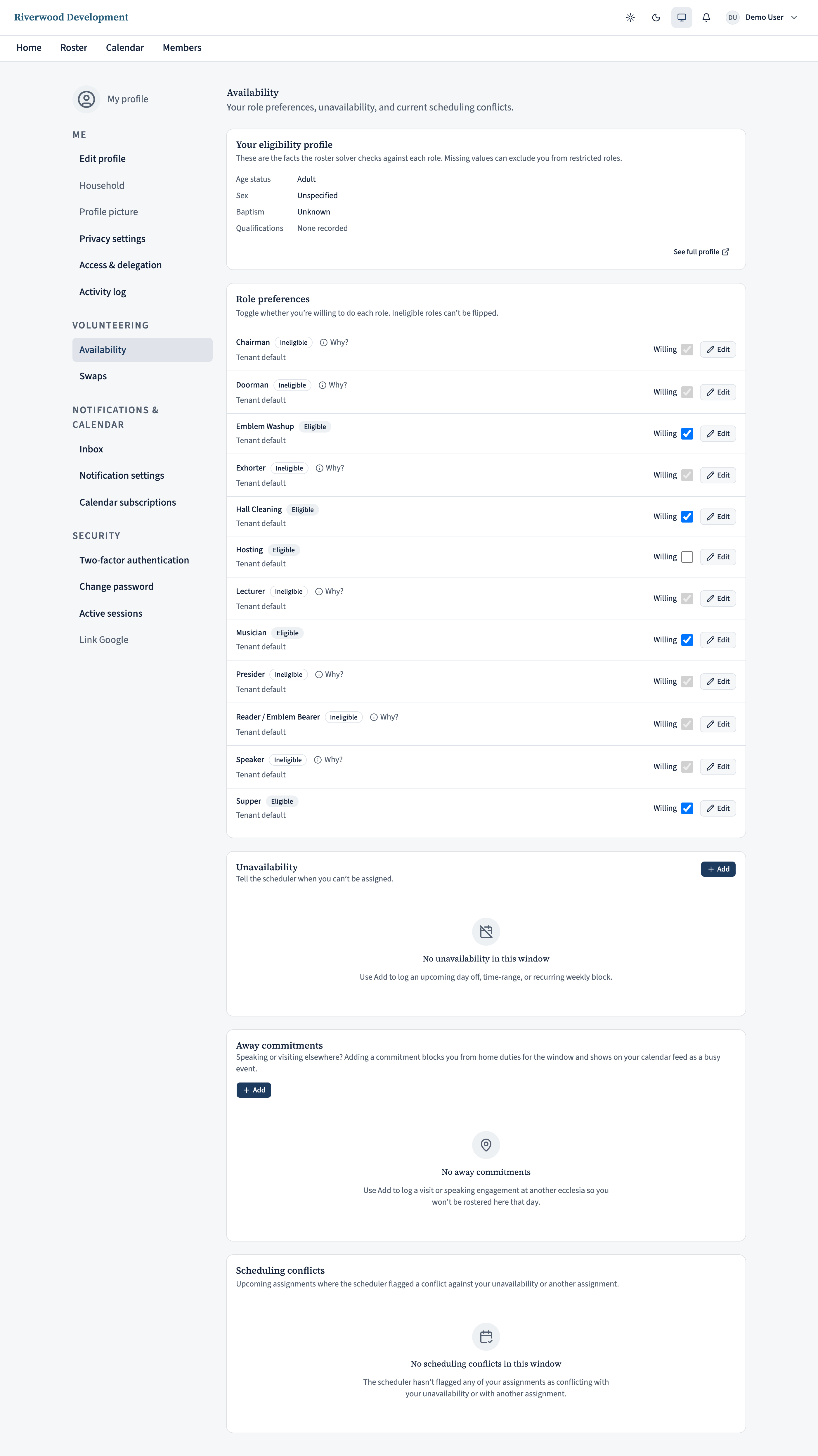
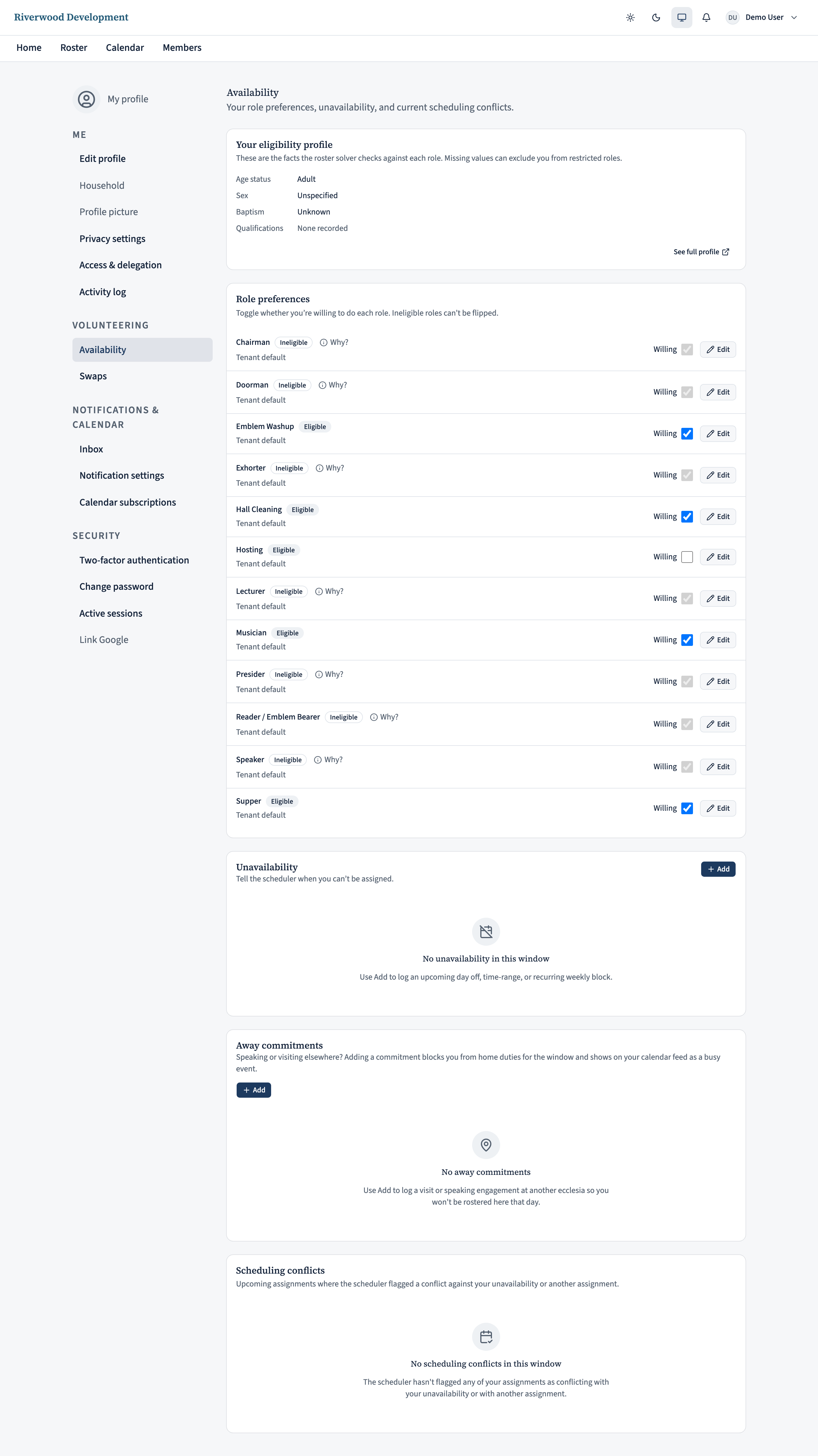
Open Availability and find the Unavailability card
Open your Availability page — either from the Manage availability tile in the Quick actions row on your home page, or from the top-right avatar menu → My profile → Availability. The Unavailability card is right at the top. If this is your first time, you’ll see an empty state.
Click Add to open the entry dialog. It supports three kinds of block, described below.
Block a single day or a date range
Pick All day. Set the same date for start and end for a one-day block, or a range for a holiday (say, 1 October through 14 October). The scheduler treats the range as inclusive on both ends.
The Note field is optional. Coordinators only see it if you set the visibility to “Coordinators can see”; otherwise it’s just for you. Handy for jogging your memory three months later (“family holiday in Cairns”).
Block a specific time on a specific day
Pick Time range for a one-off evening or afternoon — a wedding, a work function, a doctor’s appointment. Set start and end as day + time; the scheduler blocks you only for that window, not the whole day.
Time-range blocks are especially useful when your ecclesia has both a morning and an evening meeting: blocking just the evening leaves you available for the morning roster.
Block a recurring weekly pattern
Pick Recurring weekly for a standing commitment — a Wednesday-night class, a job that runs the same shift every Friday. Tick the weekdays it applies to and either checkAll day or specify a start/end time.
Almost always you also want to set Starts on and Ends on — otherwise the pattern is treated as forever, which usually isn’t what you mean. And if there’s a specific week you can serve inside the pattern (say, the last Wednesday of term is a public holiday), add it to the Exception dates list; the pattern skips those.
Log an away commitment
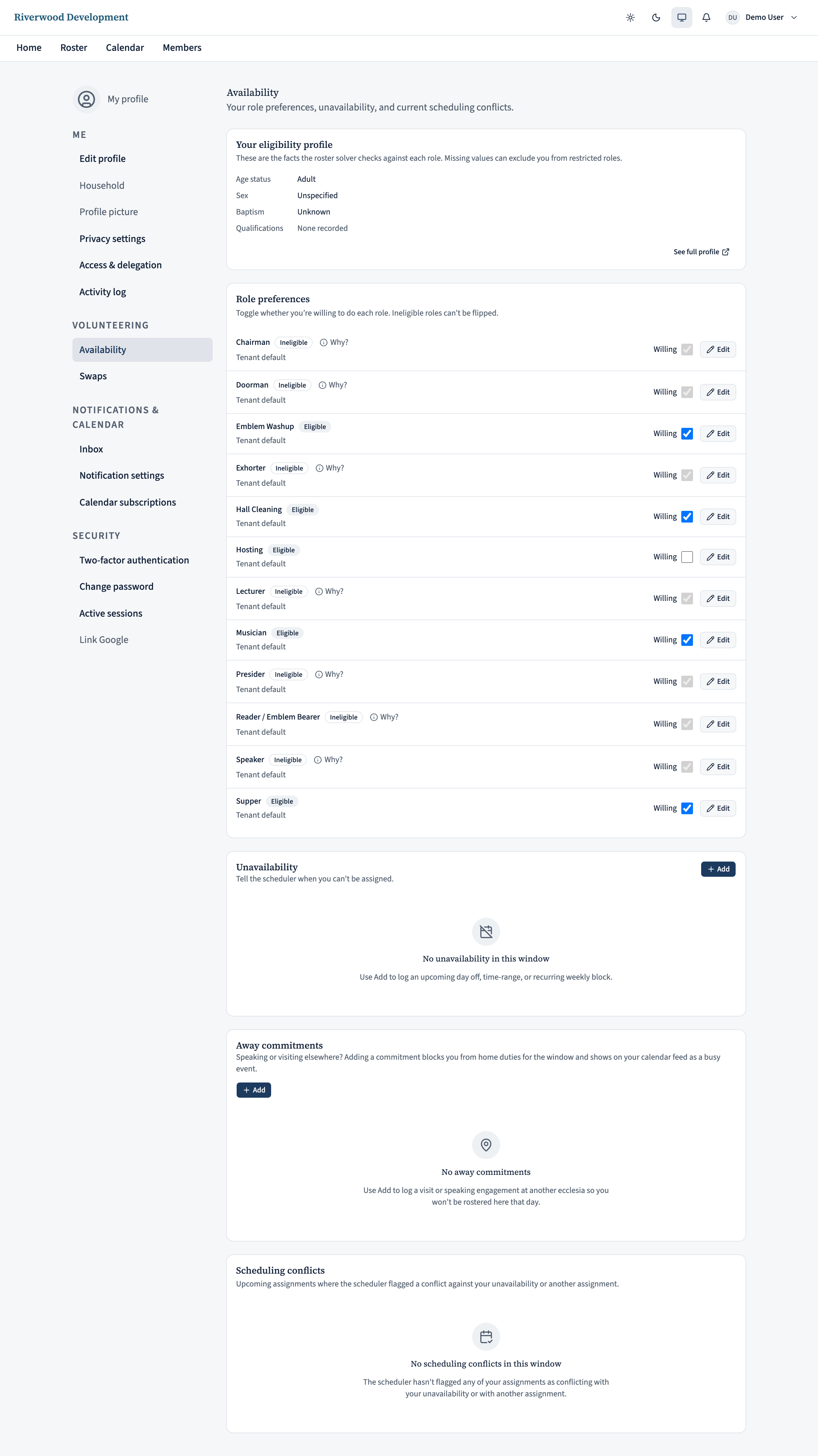
Just below Unavailability is Away commitments— a slightly friendlier surface for the specific case of “I’m at another ecclesia that day”. It has the same all-day / time-range choice as unavailability but drops the weekly-recurrence option (an away commitment is a concrete engagement, not a standing block).
What’s different: it captures a title (“Speaking at Southside Ecclesia”) plus optional host and location fields, and it also shows on your personal calendar feed as a busy event. So your household knows where you are, and the scheduler knows not to roster you here.
Review and edit later
Everything you add shows up as a list on the card, sorted by date. Edit (the pencil) opens the entry back up so you can adjust; Delete (the bin) removes it entirely.
Plans changed? Just edit — there’s no separate “submit” step. And if you’ve already been rostered for a slot that’s now blocked by an entry you just added, the Scheduling conflicts card near the bottom of the page will flag it so your coordinator can reassign.
On the iPhone app
Block out dates from the app as well.
Open Profile → My availability.
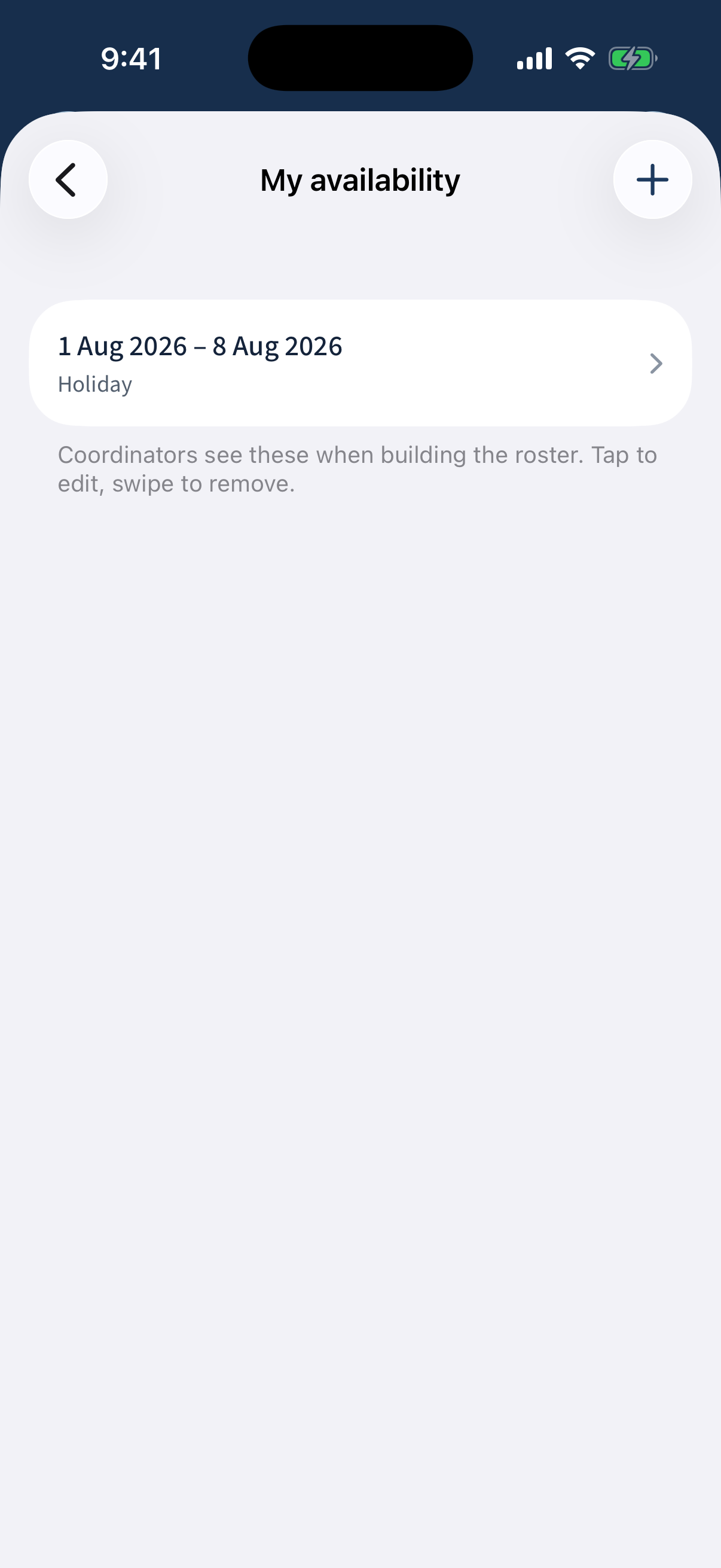
The app's My availability screen. Tap Add and choose an all-day range, a timed window, or a weekly repeat; set the dates and save. It appears in your list — tap to delete.
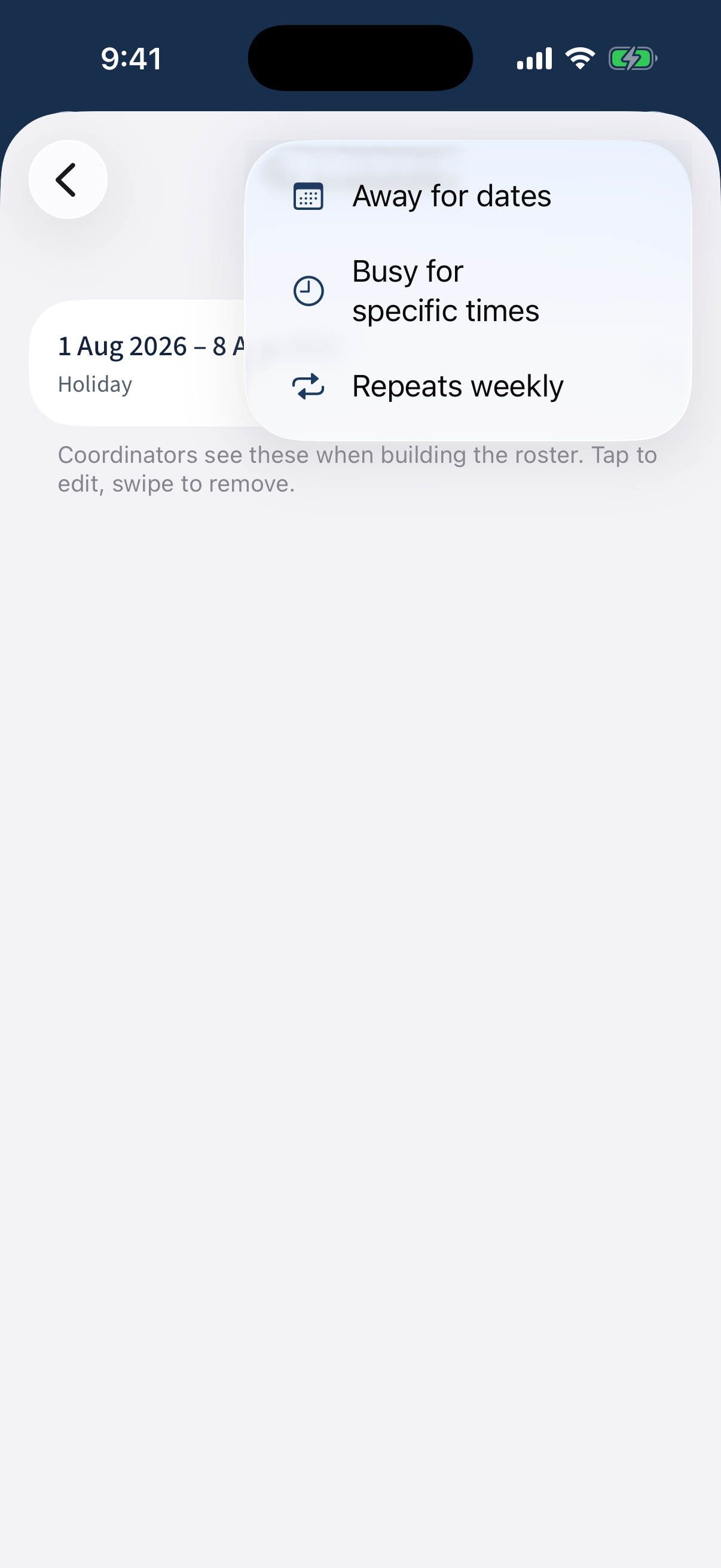
Adding an unavailability window: all-day, timed, or weekly.
Different on the app: All three window types (all-day, timed, weekly) sit behind one Add button.
What next?
- Managing your availability — pick which roles you’re happy to serve.
- Getting started — first sign-in and a tour of the home page.
- An away commitment came through via email? Your administrator or manager can add unavailability on your behalf too — handy for anyone who’s slower to update their own record.