Branding: your ecclesia’s name, colour, and logo
Your ecclesia’s identity — its name, brand colour, and logo — is what members see across CDRoster and on the emails it sends. Setting it is an administrator job, and a five-minute one.
Reading time: about three minutes.
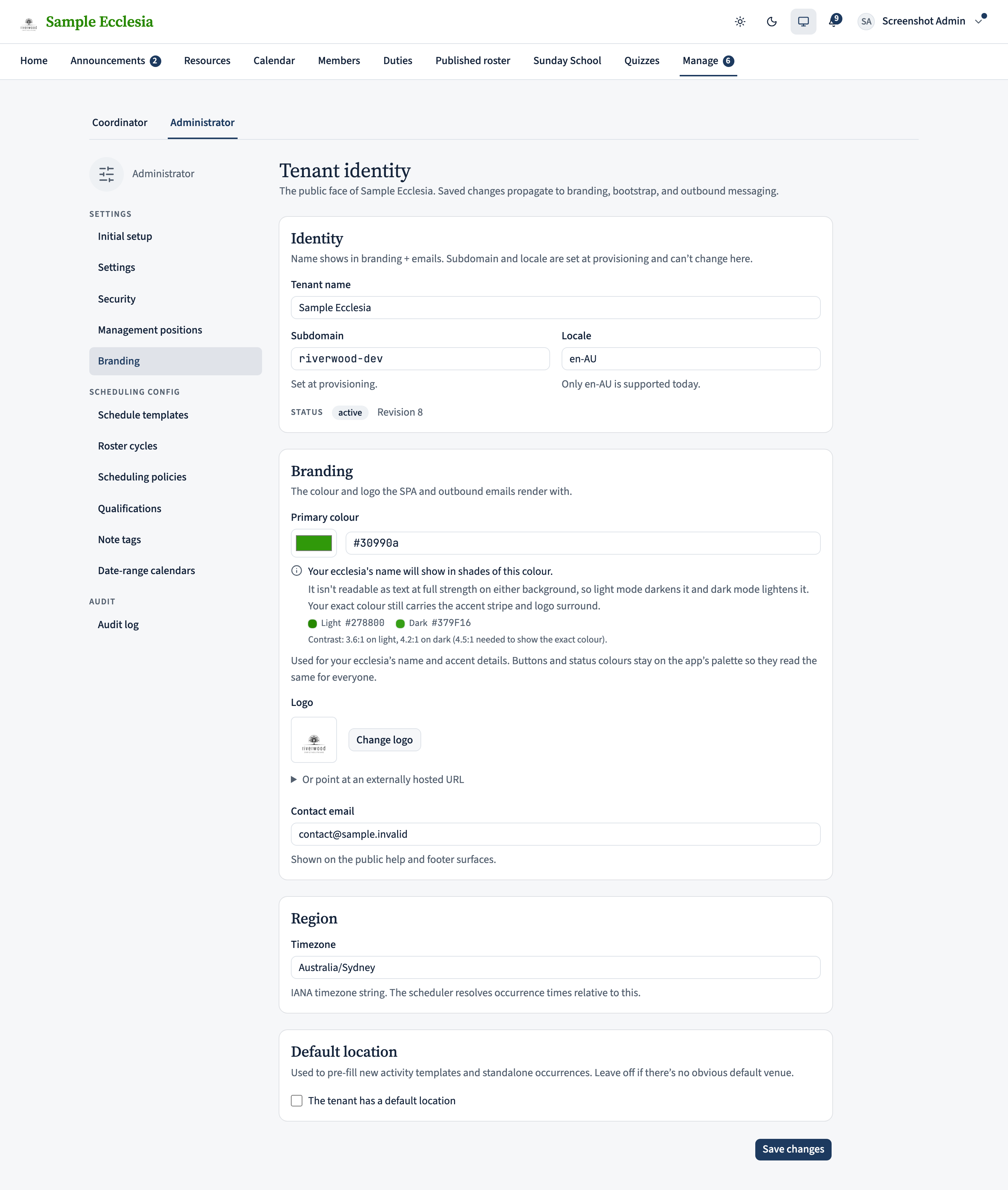
Set the name, colour, and logo
On the web, open Manage → Branding. You set four things:
- Name — how the ecclesia is titled everywhere.
- Primary colour — a hex value with a live contrast readout and a light/dark wordmark preview, so the colour stays legible. CDRoster nudges it to an accessible shade if the one you pick would be hard to read.
- Timezone and a contact email for members who need help.
- A logo — PNG, JPEG, or SVG up to 5 MB; change or remove it any time.
The colour is used for identity moments (the header wordmark, email accents) — not for buttons, links, or status colours, which keep their accessible defaults.
On the iPhone app
Set your identity from the app's admin Manage hub.
Manage → Ecclesia identity has the Name, the Primary colour (hex, with a live contrast readout and a light/dark wordmark preview), Timezone, and Contact email.
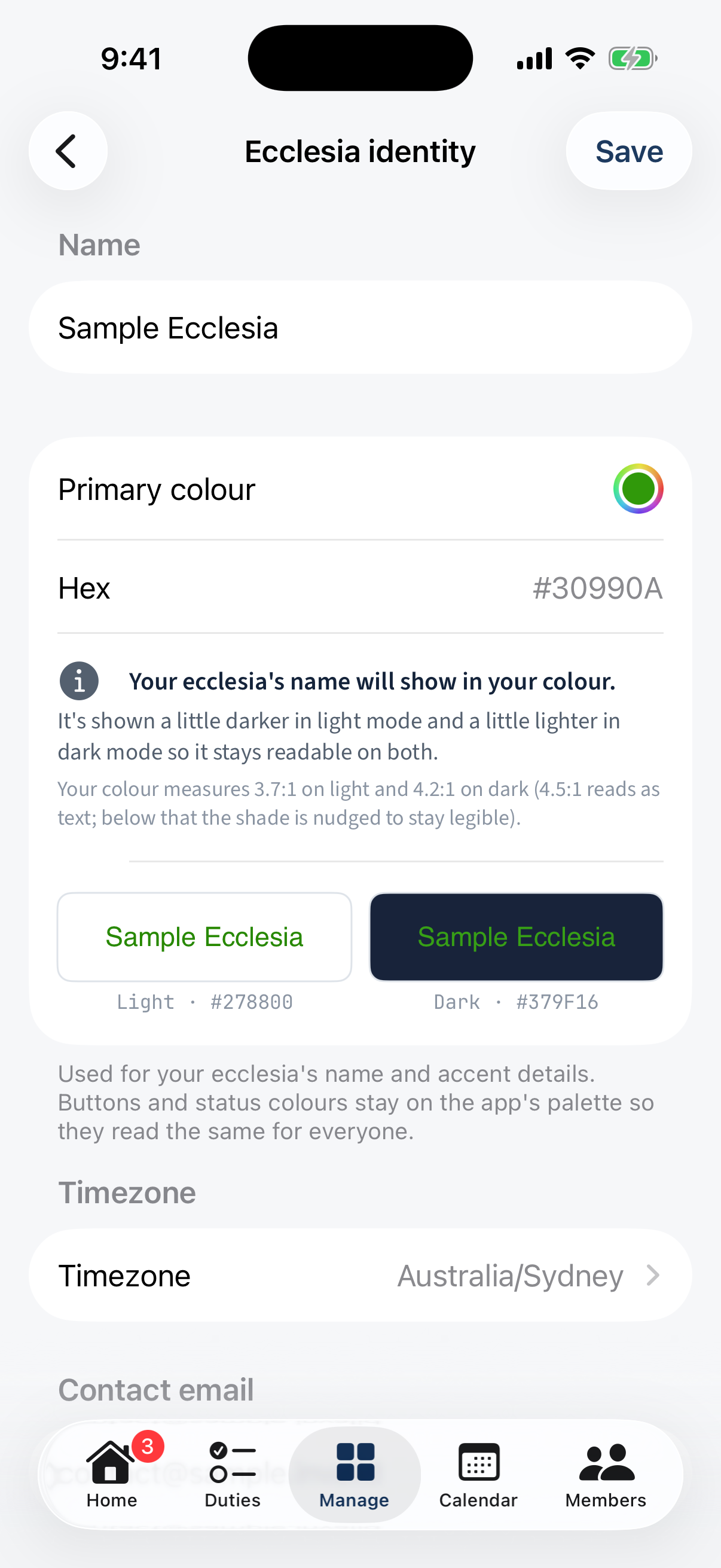
Manage → Ecclesia identity: Name, Primary colour with a contrast readout and light/dark preview, Timezone, Contact email. Scroll to the Logo section to change or remove the logo (PNG, JPEG, or SVG up to 5 MB).
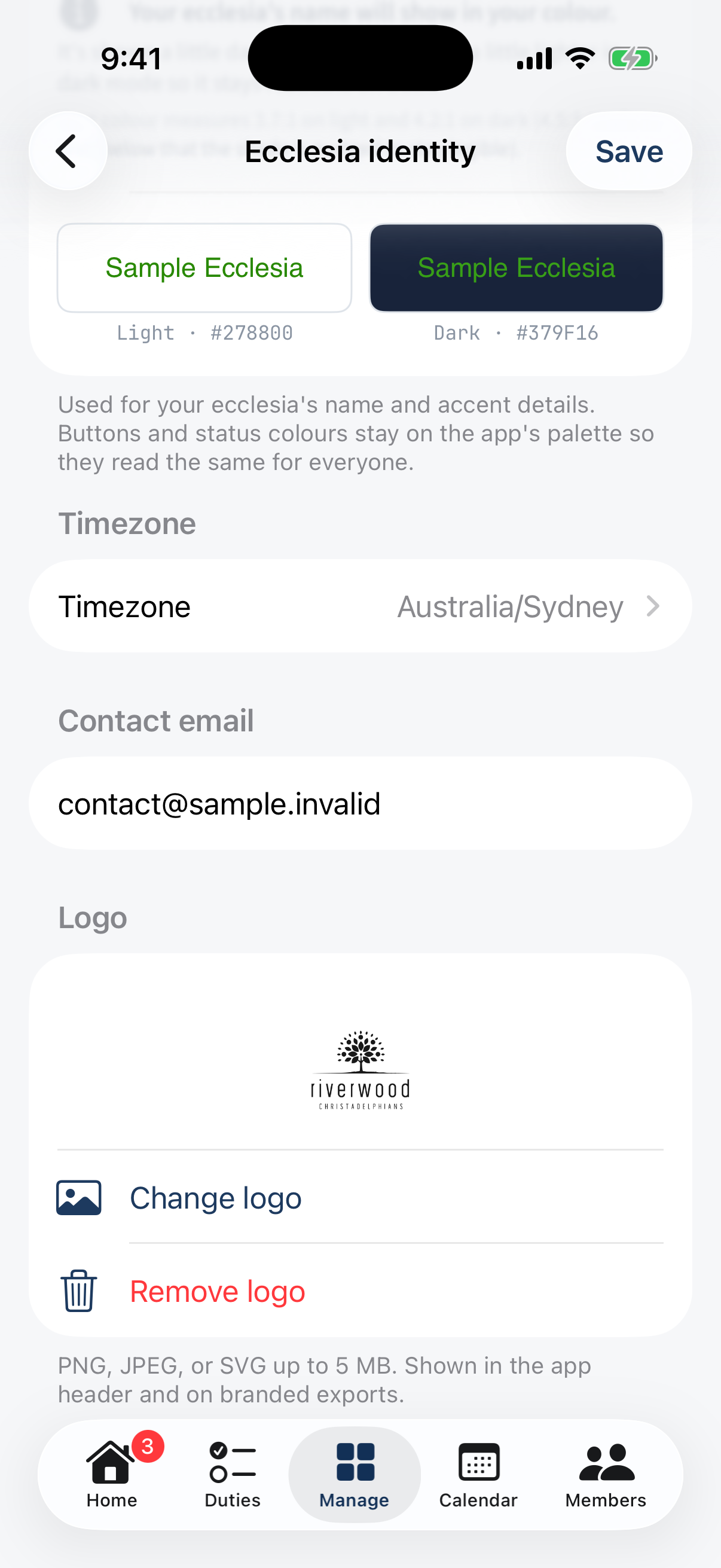
The Logo section: Change logo / Remove logo, PNG/JPEG/SVG up to 5 MB.